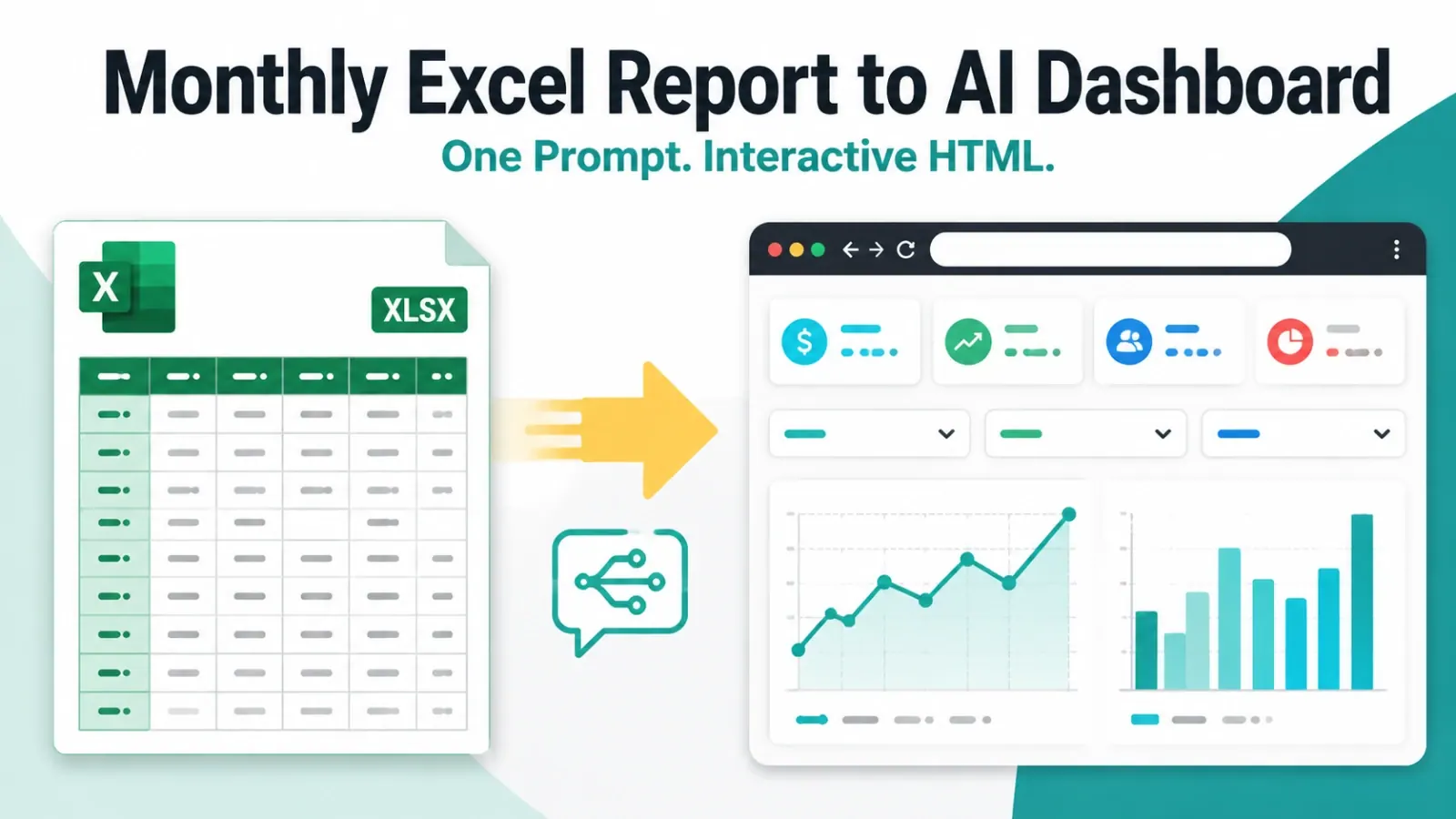
You have a weekly sales export, a finance workbook, or a spreadsheet from an operations system. The file is ready, but the report is not. Someone still has to clean the columns, explain the date range, build the charts, and answer whether the totals can be trusted.
That is a different job from exploring a connected data source in an AI dashboard. A connector-first dashboard can be a good fit when your company already has a warehouse, CRM, or governed data model. A file-first workflow is usually faster when the useful data is still in Excel, CSV, PDF, screenshots, or an export that changes every week.
This Claude Dashboards vs Excel comparison focuses on the decision behind the tool choice: where your data starts, what the report must contain, and how another person will review the result.
Key takeaways:
- Choose a connected dashboard when the source is maintained, shared, permissioned, and refreshed on a schedule.
- Choose a file-first workflow when the source is a local Excel or CSV export and the immediate job is a reviewable report or dashboard.
- Before comparing chart features, define the row grain, date coverage, filters, currency, and KPI formulas.
- An uploaded file can produce a useful snapshot, but it does not become a live connection just because the dashboard is interactive.
- RowSpeak fits the file-first path: upload the business file, request the calculations and checks, then review the output before sharing it.
The real difference is the starting data
People often compare AI dashboards by asking which one has more charts. Start with the source instead. A dashboard cannot fix a source that is unavailable, stale, or unclear about what one row means.
| Question | Connected dashboard workflow | Excel or CSV file workflow |
|---|---|---|
| Where does the data live? | A warehouse, CRM, database, or maintained connector | A local workbook, CSV export, PDF, screenshot, or emailed file |
| Who owns the definitions? | Usually a data or analytics team | The analyst or business owner preparing the file |
| How does new data arrive? | A configured refresh or system update | Upload the next export and check its data-through date |
| What is the first output? | A shared view over a maintained model | A focused report, dashboard, answer, or exception list |
| What must be reviewed? | Model logic, refresh status, permissions, and KPI definitions | Source rows, file period, filters, calculations, and exceptions |
| When does it fit best? | Repeated reporting for many teams with stable definitions | A changing question, a small audience, or a workflow that starts with files |
The two paths can meet later. A file-first dashboard can help a team settle the definitions before investing in a governed model. A connected dashboard can become the long-term delivery layer after the source and ownership are stable.
When a connected dashboard is the better choice
A Claude Dashboards-style connected workflow is worth evaluating when most of these statements are true:
- Your data already lives in a supported warehouse, CRM, or business system.
- More than one team needs the same metrics and filters.
- A scheduled refresh should happen without a person downloading and uploading a file.
- Access rules, a shared metric definition, and an audit history matter as much as the chart.
- An analytics or IT owner can maintain the source, connection, and definitions.
In that situation, a local workbook is often only a temporary extract. Building another file-based report may create two definitions of revenue or two versions of the same customer list.
Check the current product documentation before committing to any connector, plan, file limit, or refresh behavior. AI dashboard features change quickly, and a demonstration page is not proof that your account can use the same source.
When Excel or CSV is the better starting point
A file-first workflow is usually more practical when:
- the latest data is a spreadsheet export from a system you cannot connect directly;
- a client, supplier, or team sends a PDF or screenshot instead of granting system access;
- the question is still changing and you need to test the report shape first;
- one analyst owns the review and the audience is small;
- the team needs a decision for this period rather than a permanent data model.
The goal is not to pretend that a file is a live system. The goal is to turn the file you actually have into a useful, reviewable result while keeping its limits visible.
A practical example: a weekly sales export
Suppose a sales operations manager receives weekly-sales.csv every Monday. Each row is an order line with these fields:
| Field | Meaning | Review question |
|---|---|---|
order_id |
Order identifier | Can several rows belong to one order? |
line_id |
Order-line identifier | Are any line IDs repeated? |
order_date |
Date used for the period | Is the latest week complete? |
region |
Reporting group | Are names mapped consistently? |
net_sales |
Amount after stated adjustments | Is the currency consistent? |
status |
Completed or cancelled | Which statuses count? |
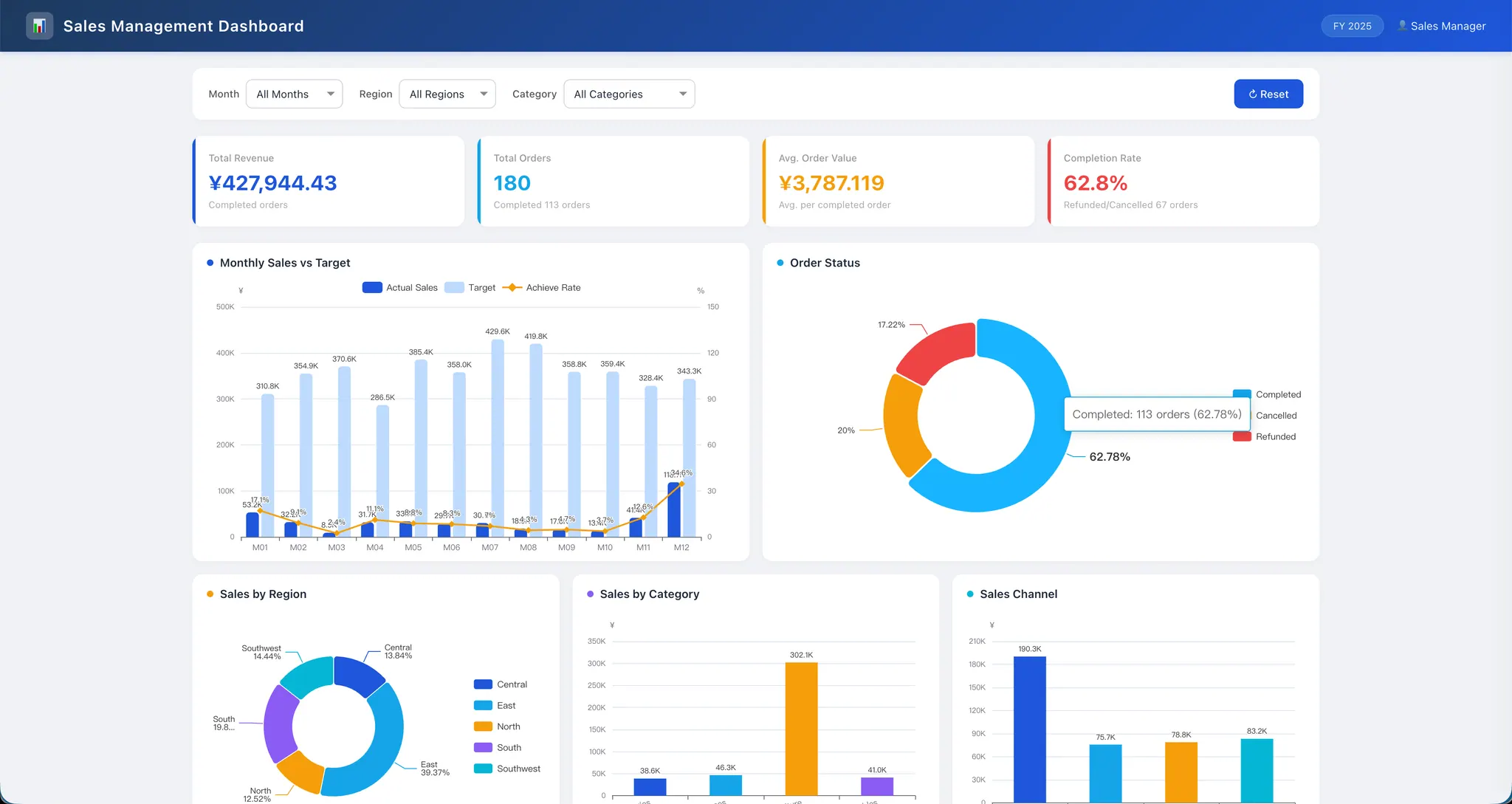
The requested output is a weekly dashboard with net sales, distinct orders, average order value, a region comparison, a detail table, and a short list of changes to investigate.
That request is specific enough to test with a file. It does not require a warehouse on day one, but it does require rules. If you count rows as orders, mix currencies, or compare a partial week with a complete week, a polished dashboard will still answer the wrong question.
Use a review-first prompt for the file workflow
Whether you use Excel formulas, a general AI assistant, or RowSpeak, give the analysis a contract before asking for a design. This prompt is deliberately more detailed than “make a sales dashboard.”
Create a weekly sales dashboard from the uploaded Excel or CSV file.

First report the file name, date coverage, row count, missing required fields,
duplicate line_id values, statuses, and currencies. Each row is an order line.
Exclude status = cancelled. Count distinct order_id values for order count and
sum net_sales only after confirming that all included amounts use the same currency.

Compare the latest complete Monday-to-Sunday week with the previous complete week.
Show net sales, distinct orders, average order value, region comparison, weekly
trend, and an order-line detail table. Display the data-through date, filters,
calculation rules, included row count, and excluded row count.

If a required field is missing, a week is incomplete, or currencies are mixed,
stop and list the issue instead of guessing. Describe only changes supported by
the rows. Do not invent targets, margin, causes, or live system refresh.
The expected output is both the dashboard and the information needed to review it. If the tool cannot show those assumptions, keep a separate review note beside the result.
Five checks before you share the dashboard
Use these checks regardless of which interface created the view:
- Confirm the period. Record the first and last date in the file. Label a partial week as partial rather than calling it a weekly comparison.
- Confirm the grain. If one row is an order line, count unique
order_idvalues for order count. Do not equate line count with order count. - Recalculate one headline number. Filter the source rows using the stated rules, sum the included amount, and compare it with the card.
- Check filter consistency. Selecting a region should update the KPI cards, charts, and detail rows using the same filter.
- Record the boundary. Say whether this is an uploaded snapshot or a live connection, and state how the next period will arrive.
For a reusable test, the sales dashboard from CSV workflow provides a synthetic file, reference totals, and a correction prompt. The AI dashboard review checklist covers duplicate lines, missing IDs, partial periods, and mixed currencies in more detail.
Where RowSpeak fits
RowSpeak is useful when the starting point is the file your team already has: Excel, CSV, PDF, screenshot, or an exported business table. Upload the file, describe the decision, request the checks above, and refine the result when a rule needs correction. The Excel-to-dashboard workflow shows the product path, while the AI reporting feature covers report-oriented outputs.
RowSpeak does not turn an upload into a governed warehouse, guarantee that an unreviewed number is correct, or add new records to an old snapshot. You still need to confirm the source rows, date coverage, definitions, and exceptions before sending the output to a client or manager. If many teams need the same live metrics and permissions, evaluate a BI or connected dashboard path instead.
The short recording below shows the file-to-dashboard step. Treat it as a product workflow example; apply the review checks above to your own file before sharing the result.
Common mistakes in the comparison
- Comparing a demo to a messy export: test both approaches with one real file and one real reporting question.
- Treating a connector as proof of correct metrics: a connected source can still contain duplicate records or an ambiguous definition.
- Treating an interactive file dashboard as live: filters explore the uploaded snapshot; they do not fetch next week's rows.
- Choosing a warehouse before the question is stable: settle the KPI rules and audience first when the report is still changing.
- Choosing a file workflow when governance is the main requirement: use a maintained model when shared definitions, permissions, and scheduled refresh are central.
A simple decision rule
Choose a connected dashboard first when your source, definitions, refresh, and ownership are already stable. Choose a file-first workflow first when the data is in an export and the immediate need is to answer a business question with a result someone can inspect.
Start with one reporting period. Write down the row grain, filters, formulas, and data-through date. Then compare the time spent preparing and reviewing the result with the cost of building a maintained connection. That gives you a decision based on your workflow rather than on a feature list.
Have an Excel or CSV report waiting for review?
Upload the file, state the KPI rules, and ask for the checks before you share the dashboard. RowSpeak helps turn the file you already have into a result your team can question and use.
Try the Excel-to-dashboard workflow