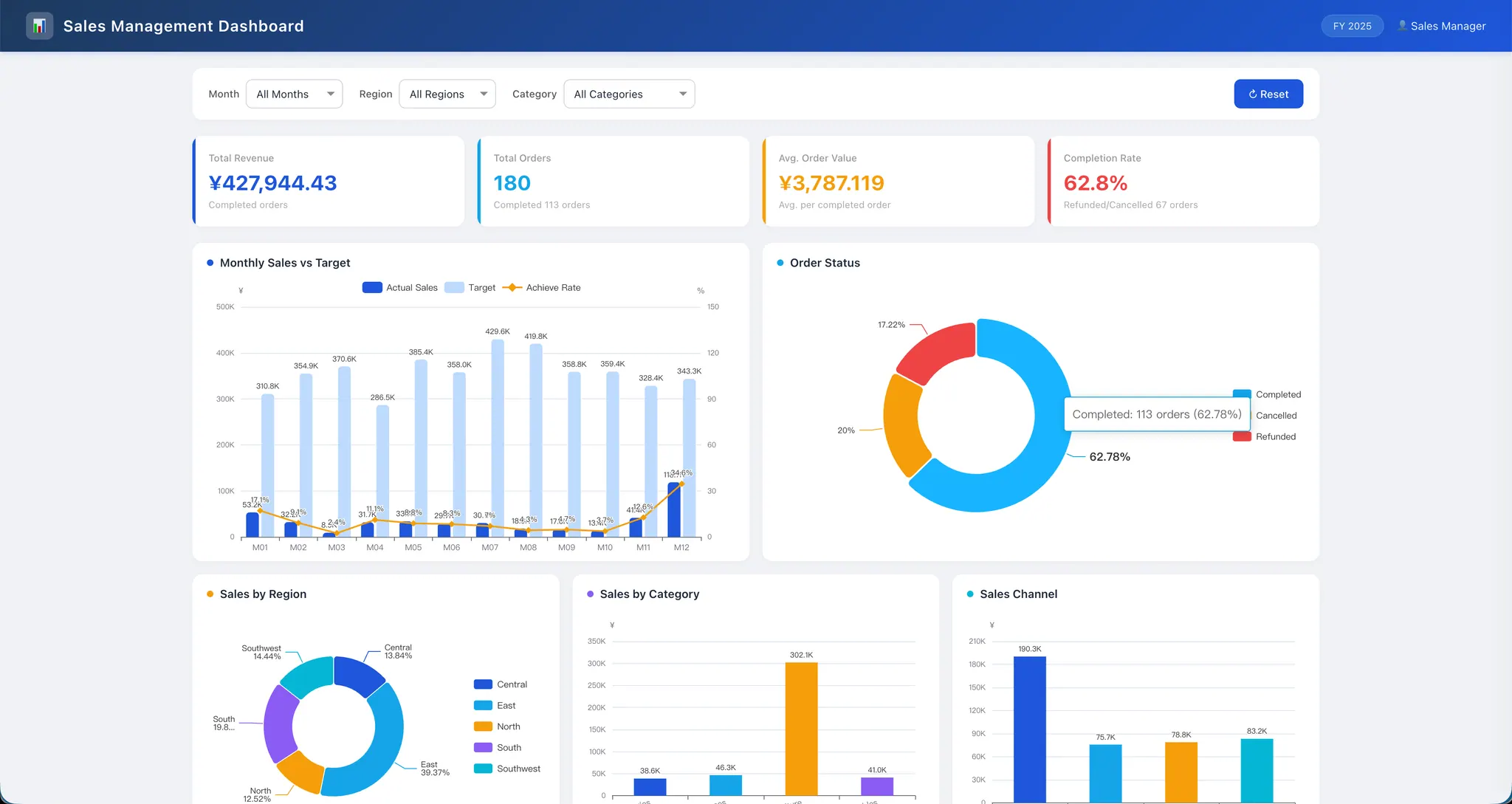
An AI dashboard can have clean colors, useful filters, and a confident summary while one calculation is still wrong. That is the uncomfortable part of turning an Excel or CSV export into a dashboard: the visual result arrives before you have proved what each number means.
This guide gives you a review method for an AI dashboard from Excel. You will define the KPI before generating the view, trace the result back to source rows, test common failure cases, and decide whether a file-based workflow is enough or whether your team needs a governed BI system.
Key takeaways:
- Write a five-part KPI contract: source, row grain, filter, formula, and data-through date.
- Ask for a dashboard that shows its calculation rules and review counts, not only charts.
- Recalculate one headline number and test duplicates, missing fields, partial periods, and filters before sharing.
- Use an uploaded Excel or CSV snapshot for a focused review; choose BI when shared definitions, scheduled refresh, and permissions are the main requirement.
- RowSpeak can turn messy business files into a reviewable dashboard and explanation, but it does not make an uploaded snapshot a live system connection.
Why a polished dashboard can still be wrong
Most dashboard mistakes are not dramatic software failures. They are quiet definition mistakes:
- counting order lines instead of distinct orders;
- adding amounts in two currencies;
- including cancelled rows in revenue;
- comparing a complete week with a partial week;
- applying a filter to a chart but not to the detail table.
These errors survive because the result looks plausible. A reviewable dashboard makes the assumptions visible so another person can reproduce the number without asking the original spreadsheet owner.
Start with a KPI contract, not a chart request
A KPI contract is a short description of how one metric should be calculated. It prevents a vague request such as “show sales performance” from turning into an impressive but ambiguous dashboard.
For every headline metric, record these five fields:
| Field | Question to answer | Sales example |
|---|---|---|
| Source | Which file and columns supply the number? | weekly-sales.csv, net_sales |
| Grain | What does one row represent? | One order line |
| Filter | Which rows count? | status = completed |
| Formula | What calculation is used? | Sum net_sales; count unique order_id |
| Data-through date | How current is the input? | October 4, 2026 |
Keep this contract beside the dashboard or in the report notes. If a stakeholder asks why the order count changed, you can inspect the rule and the rows instead of guessing.
A practical example: review a weekly sales dashboard
Imagine a CSV with order_id, line_id, order_date, region, sales_rep, net_sales, status, and currency. The business question is: what changed this week, and which region needs follow-up?
The expected output is not just a row of KPI cards. Ask for:
- Net sales for two complete Monday-to-Sunday weeks.
- Distinct completed orders and included order lines as separate counts.
- Average order value calculated as net sales divided by distinct orders.
- A region comparison and a detail table that obey the same filters.
- The data-through date, currency, exclusions, and calculation rules shown on the page.
The sales dashboard from CSV workflow includes a synthetic file and reference totals you can use for a repeatable test. It is useful because you can compare the generated result with known values rather than judging the chart by appearance.
Use a review-first prompt
Give the tool a request that describes the review, not only the desired design:
Create a weekly sales dashboard from this Excel or CSV file for a revenue review.
First report the file name, date coverage, currency values, missing fields, and
duplicate line_id values. Each row is an order line. Exclude status = cancelled.
Calculate net sales as the sum of net_sales and order count as unique order_id.
Calculate average order value as net sales divided by distinct order count.
Compare the latest complete Monday-to-Sunday week with the previous complete week.
Show the data-through date, filters, calculation rules, included row count,
and a detail table. If a required field is missing, stop and identify it.
Do not invent targets, margin, win rate, or causes that are not in the file.
The request names the input, the row grain, the exclusions, and the output checks. It also gives the tool permission to stop when the file cannot support a metric. That is safer than filling a blank with a plausible assumption.
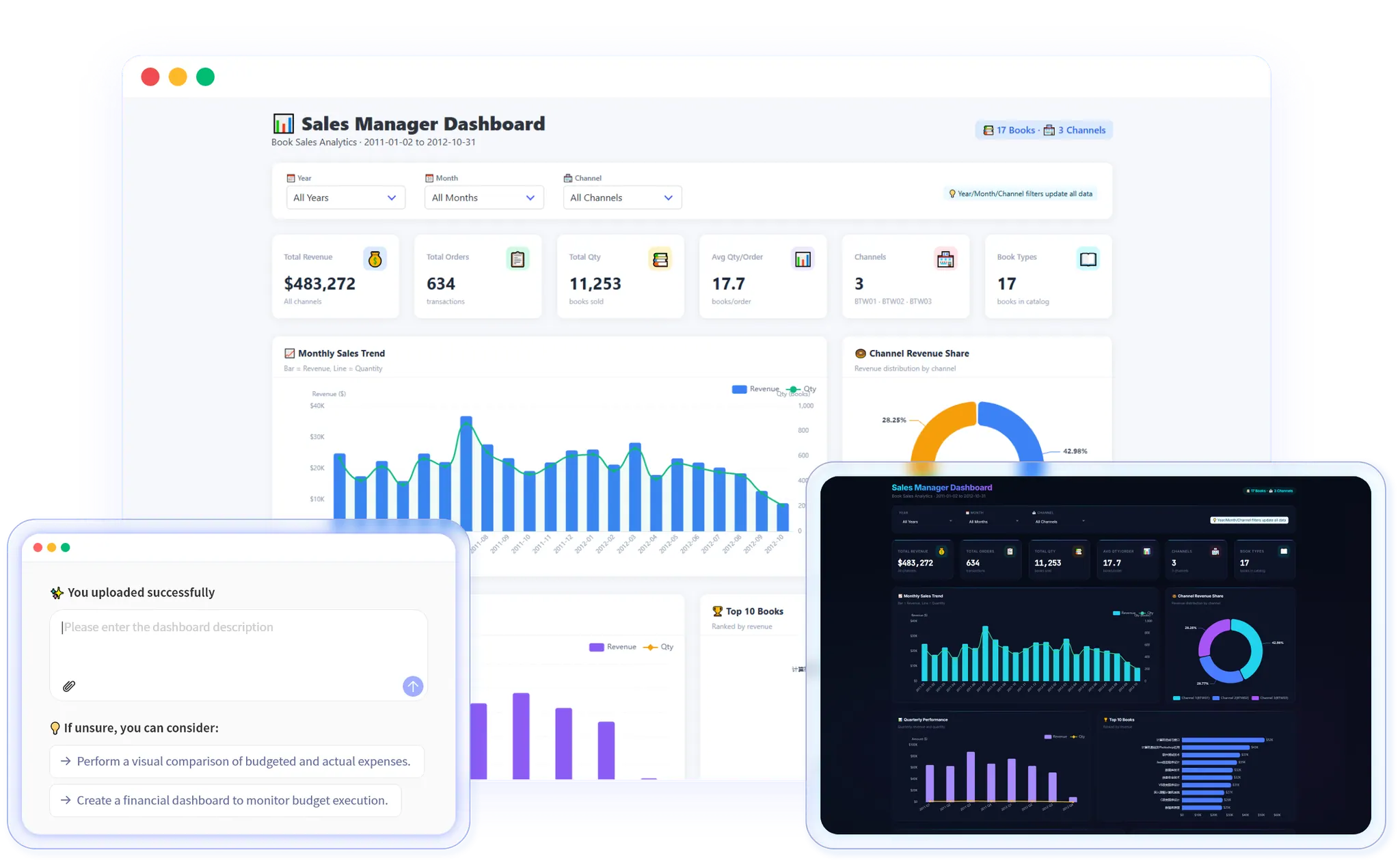
The short product recording below shows the file-to-dashboard step. Treat the generated view as a starting point for the checks in this article, not as evidence that every metric is already correct.
Recalculate one number before sharing
You do not need to recalculate every chart manually. Pick one headline number and verify it from the source rows:
- Filter the source file to the stated date range and status.
- Check that the currency is consistent.
- Sum the included
net_salesvalues. - Count unique
order_idvalues, not rows. - Compare your result with the dashboard card.
Then check that the regional values add to the total and that selecting a region changes the card, chart, and detail table together. A mismatch is a reason to revise the prompt or the input file, not a reason to silently accept the prettier number.
Test the failure cases that change decisions
Run four small tests before the first real meeting:
| Test | What to add or change | Expected behavior |
|---|---|---|
| Duplicate line | Repeat a line_id |
Flag it or explain how it is handled |
| Missing identifier | Blank one order_id |
Exclude or isolate it; never count it as a new order |
| Partial period | Remove the first days of a week | Label the period incomplete |
| Mixed currency | Add a row in another currency | Stop summing until a conversion rule exists |
These tests are small enough to run on a copy of the file. They expose whether the dashboard is following your rules or merely producing a complete-looking answer.
Choose the right delivery model
An uploaded file is a good starting point when the team has a weekly or monthly export, a small audience, changing questions, and someone who can review the result. It is often faster than building a model before the reporting question is stable.
Move toward BI when many teams need the same definitions, a system must refresh on a schedule without a person uploading a file, or permissions and audit history are central requirements. The Power BI comparison explains those tradeoffs.
Do not confuse an interactive dashboard with a live connection. Filters can explore the current upload; they do not add new records. Decide how the next period will arrive before promising “real-time” reporting.
Where RowSpeak fits
RowSpeak is useful when the starting point is a messy Excel, CSV, PDF, screenshot, or exported business table and the next step is a reviewable answer, report, or dashboard. You can upload the file, describe the decision, ask for the KPI contract and checks above, and correct the result with a follow-up request. The Excel-to-dashboard workflow shows the product path.
The boundary matters: RowSpeak does not turn every uploaded file into a governed warehouse or guarantee that an unreviewed number is correct. You still need to confirm the source rows, definitions, date coverage, and exceptions before sharing the output.
Final review checklist
Before sending an AI dashboard from Excel to a manager, answer yes to each question:
- Can another person find the source file and data-through date?
- Does each KPI state its row grain, filter, and formula?
- Did you verify one headline number against source rows?
- Do totals, filters, and detail rows stay consistent?
- Did you test at least one duplicate, missing field, and incomplete period?
- Does the dashboard clearly say whether it is a snapshot or a live connection?
- Does the output support a decision, or is it only a collection of charts?
If any answer is no, keep the dashboard in review. A smaller dashboard with visible rules is more useful than a larger one that nobody can explain.
When you are ready, test the checklist on the sample sales CSV, apply the KPI rules above, and verify one result from the source rows. Then try the same review on your own export with RowSpeak.