You need a PDF table in Excel so you can edit it, filter rows, or add up the numbers. A free converter can save you from copying every cell, but the downloaded workbook may still need tidying. The next conversion may also bring a login prompt or a daily limit.
We compared iLovePDF, Adobe Acrobat Online, PDFtoExcel.com, Smallpdf, and Nitro using the same one-page PDF, then reviewed RowSpeak as the first option in a separate OCR-to-analysis workflow. Below, you can see the actual outputs, compare free-use barriers, and follow four checks before using your spreadsheet.
The main finding from the same-file test: all five traditional converters preserved this sample's data values. RowSpeak adds a different workflow around conversion: OCR for image-based PDFs, an editable workbook, analysis, charts, Excel write-back, and dashboard sharing. The sections label which evidence came from the same-file test and which came from the separate RowSpeak session.
Key takeaways:
- Check whether you can select text in your PDF. A table saved as an image needs text recognition, which may have different free conditions.
- The five same-file converters retained the 36 records in this test. PDFtoExcel.com introduced extra blank columns; the other four still had visible formatting differences.
- Test the download and a second conversion. Free conversion, free download, and continued use without an account are separate questions.
- RowSpeak is the first workflow to consider when conversion is only the starting point: it can continue from OCR and editable Excel to analysis, charts, write-back, and a shareable dashboard.
- Before calculating or reporting, check row counts, numeric cells, headers, and a known total.
PDF to Excel tools: results at a glance
These are observations from the recorded test session, rather than a current pricing or quota guide. The screenshots and workbooks were reviewed for this article; the conversion date was not recorded. Limits can vary by account, plan, and when you use the service.
| Tool | Output from this sample | Colors and logo | Free-use experience in the test |
|---|---|---|---|
| RowSpeak | Separate OCR workflow produced an editable Excel workbook, then a summary sheet | Workbook preview and source styling shown in the RowSpeak session | First 20 pages free, according to the workflow information provided for this article |
| iLovePDF | Data retained; text layout and alignment changed | Blue shading and logo retained | Ads on the page; exact daily quota not established; OCR required payment in the tester's experience |
| Adobe Acrobat Online | Data retained; some neighboring numbers looked crowded | Blue shading and logo retained | Second conversion required sign-in to download; prompt explicitly offered a free download |
| PDFtoExcel.com | Data retained; blank columns, split headers, uneven widths, two extra empty sheets | Blue shading retained; logo absent | One free conversion that day, then a daily-limit prompt offering an upgrade or return tomorrow |
| Smallpdf | Data retained; formatting still differed from the source | Blue shading and logo retained | Multiple conversions worked that day; exact quota not established |
| Nitro | Data retained; text layout and alignment changed | Blue shading and logo retained | Tester reported one daily conversion without sign-in, then login required for more |
Quick choice: start with RowSpeak when you need OCR, an editable workbook, and analysis after conversion. iLovePDF is worth trying for a selectable-text PDF when you want to retain colors and graphics. Smallpdf is a candidate when you need more than one attempt that day. Adobe is a candidate if signing in is acceptable. PDFtoExcel.com needed the most structural cleanup in this sample. None of these findings establishes an accuracy winner for every PDF.
What we tested and checked
The input was a roughly 60 KB, single-page PDF with 36 records and nine fields. It contained selectable text, blue table shading, borders, a two-row grouped header, and a logo graphic. This made it useful for checking both the values and the appearance of a converted table.
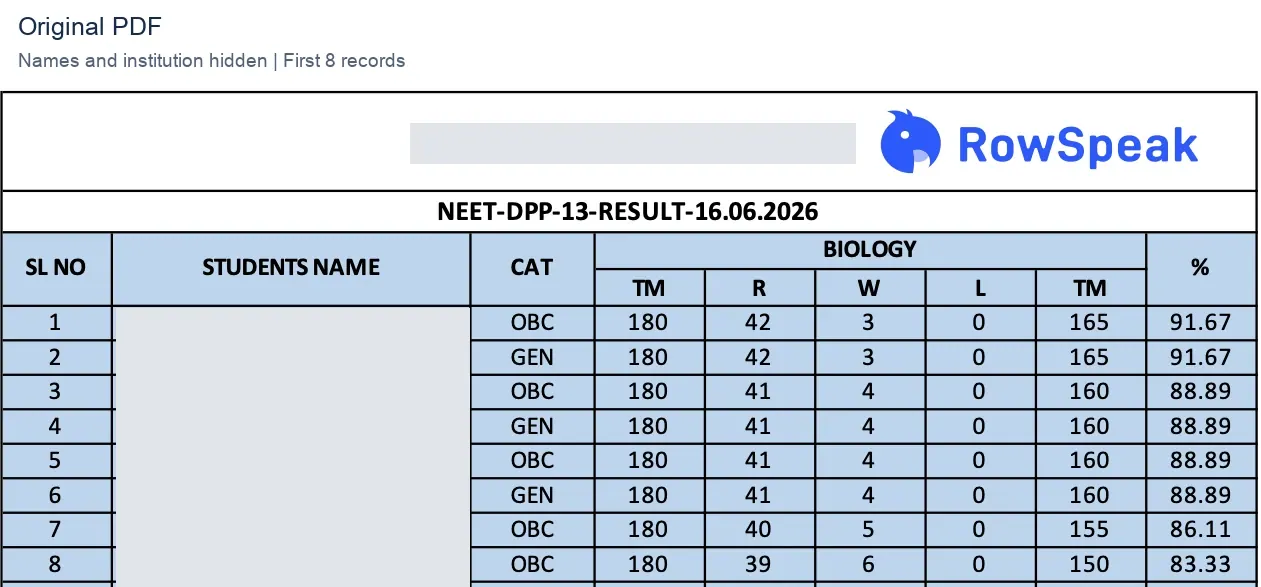
Original PDF, cropped to the header and first eight records. Names and the institution name are hidden consistently in the published table screenshots. Numeric values are unchanged. The RowSpeak logo was already in the input; it is not evidence of a RowSpeak conversion.
We compared the downloaded Excel files from the five same-file converters with the original workbook and checked the source PDF's records. After matching the actual field columns, all 324 record values per converter matched the original: 36 records multiplied by nine fields. The 252 numeric data cells in each result were stored as numbers, so they could be used in calculations. RowSpeak's OCR workflow was reviewed separately for its editable output and follow-on analysis; it was not included in this value-accuracy count.
We reviewed four things:
- Data: were records or values missing or changed?
- Structure: did fields stay in usable columns, with understandable headers?
- Appearance: what happened to colors, graphics, widths, and alignment?
- Access: could the result be downloaded, and what happened on continued use?
This comparison covers the ordinary, selectable-text PDF. It does not establish performance on scans, multi-page tables, Chinese text, handwriting, dates, currencies, or large files. We did not measure conversion speed or cleanup time.
What each PDF to Excel tool was like to use
1. RowSpeak: conversion followed by analysis and sharing
RowSpeak is the first workflow in this comparison because PDF conversion is often only the beginning. It can use OCR for image-based or scanned PDFs, produce an editable Excel workbook, and continue with analysis, charts, Excel write-back, and dashboard sharing. Its PDF-to-Excel workflow offers the first 20 pages free, which is enough to test a representative statement, report, or roster before processing a longer file. The screenshots below come from a separate RowSpeak PDF-to-Excel session, so they are workflow evidence rather than part of the five-converter accuracy test.
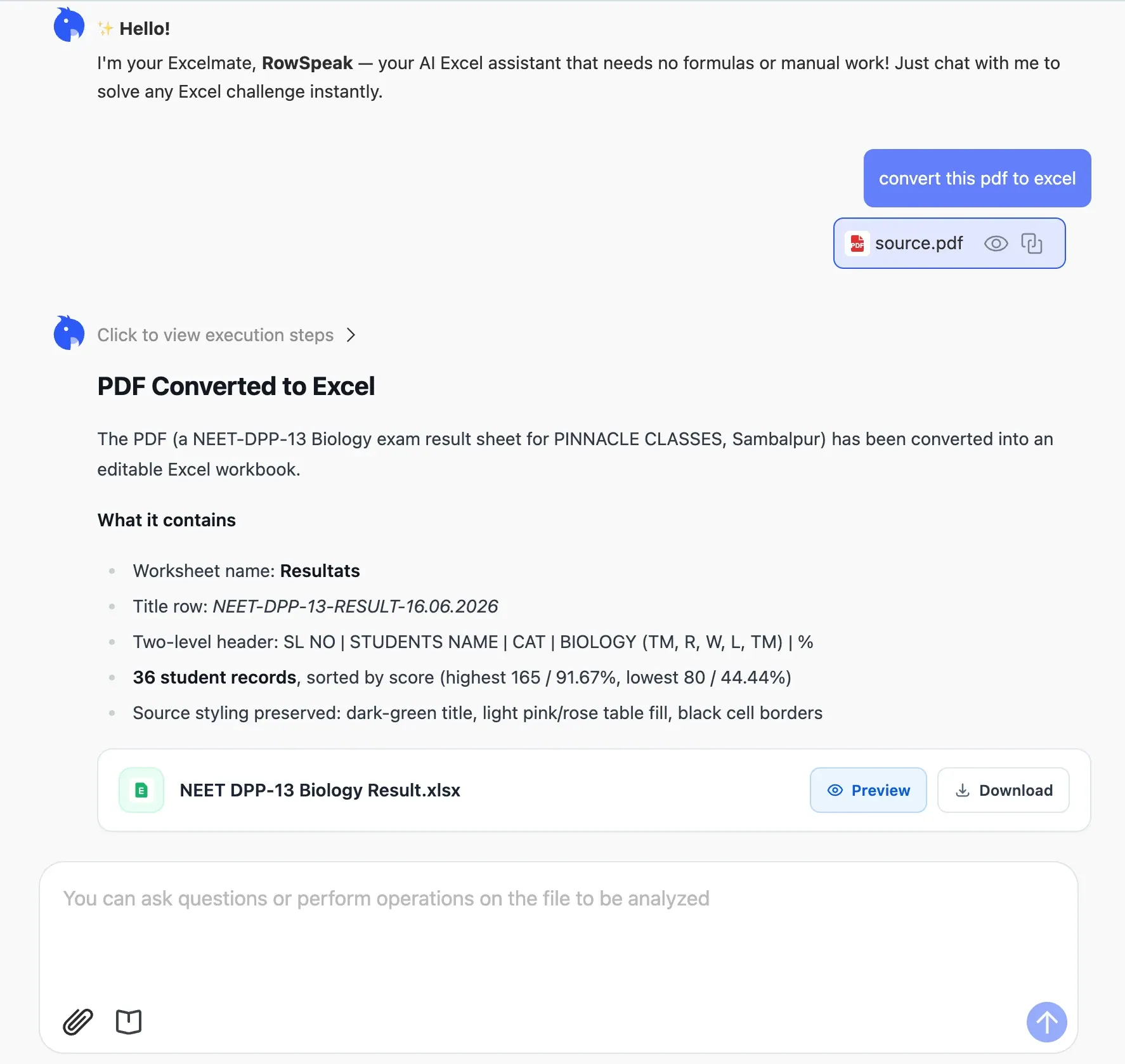
RowSpeak PDF-to-Excel workflow: OCR is used for the PDF, and the result can be downloaded as an editable Excel file. The conversion screen recommends spot-checking names and scores before relying on OCR-sensitive fields.
After conversion, you can continue with a question about the workbook instead of opening a separate analysis tool. In the recorded session, RowSpeak offered actions to add a summary sheet, create charts, filter the data, and write the result back to Excel.
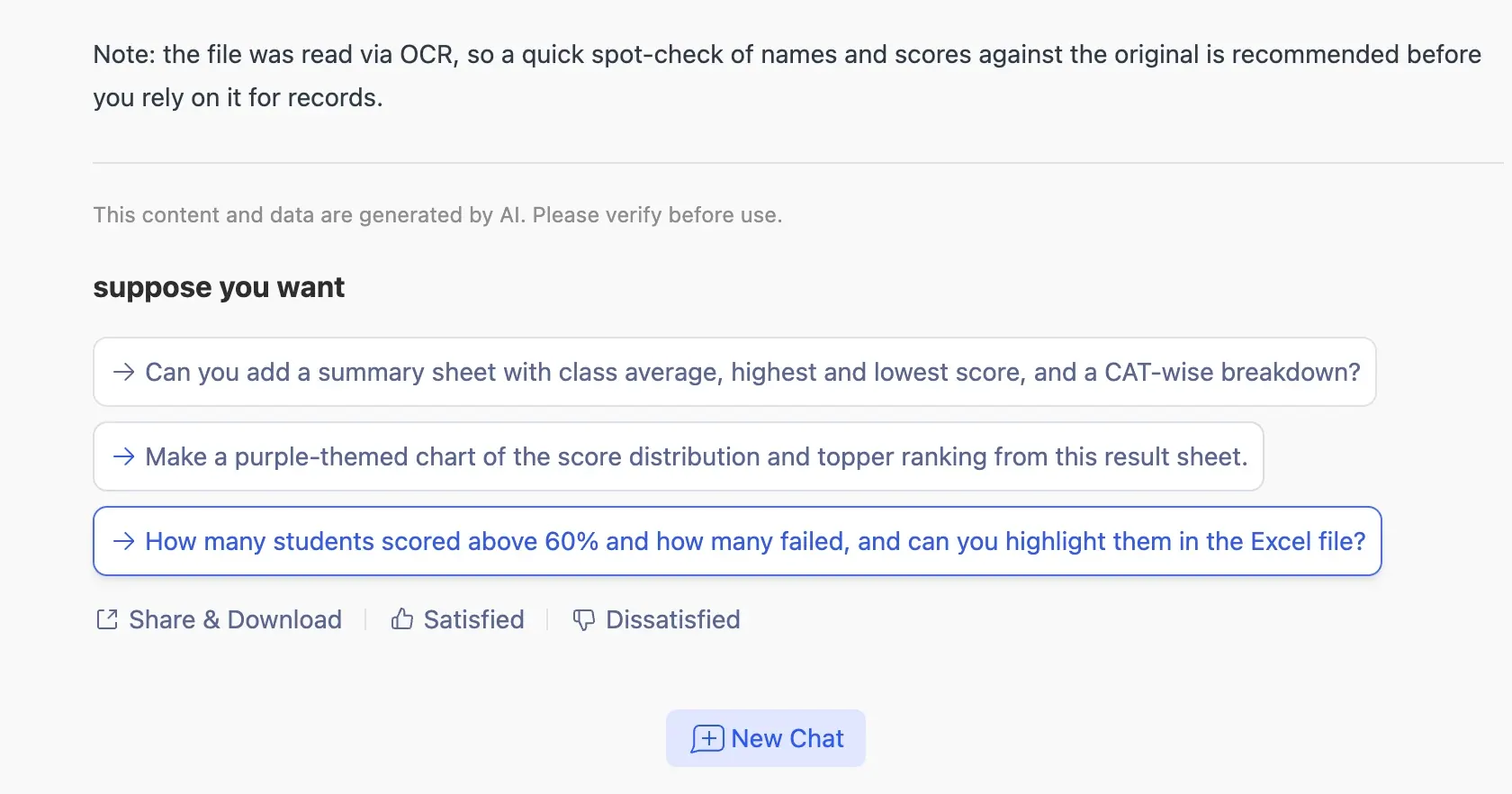
The next-step actions connect conversion with analysis, chart creation, filtering, and Excel output.
For example, you can ask RowSpeak to calculate class averages, find the highest and lowest scores, and break down a category. The result is a summary sheet that stays alongside the converted data rather than living only in a chat response.
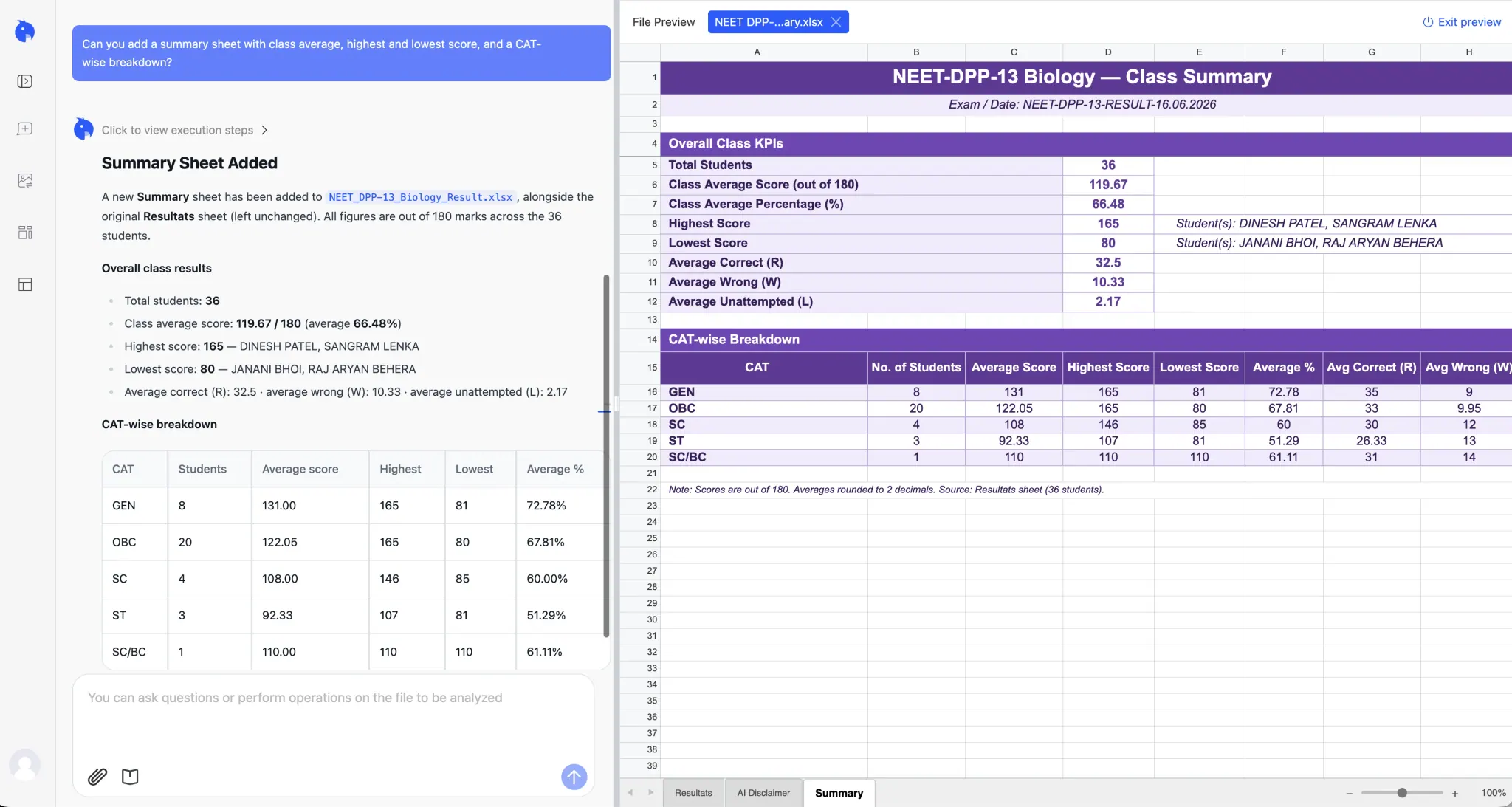
A generated summary sheet can be written back to the workbook so the calculations and source table remain together.
A useful request after uploading the file is:
Review this Excel file converted from a PDF.
Create a Summary sheet with the row count, averages,
highest and lowest values, and a breakdown by category.
Add one chart that helps a manager compare the categories.
Keep the original data unchanged, list any OCR values to verify,
and write the summary and chart back to the Excel file.
Review the returned issues, the proposed summary, and unresolved questions. Check important values against the PDF yourself if the source and workbook cannot be compared together.
When the workbook needs to be used repeatedly, you can continue from the checked summary to an interactive dashboard. RowSpeak can turn table data into dashboard elements such as metrics, charts, and filters, then give you a shareable result for colleagues. This is useful when a manager needs to explore the same PDF-derived data without editing the raw worksheet.
See the RowSpeak PDF-to-Excel workflow, then use Excel to dashboard when the result needs interactive filters and a presentation-ready view. For a written explanation of the numbers, the AI reporting workflow can turn the reviewed workbook into a report that you can edit and share.
2. iLovePDF: colors and graphics stayed, alignment changed
iLovePDF's PDF to Excel tool produced a workbook that kept the blue shading, table borders, and logo. The record values matched the original, and the nine fields remained in columns A through I.
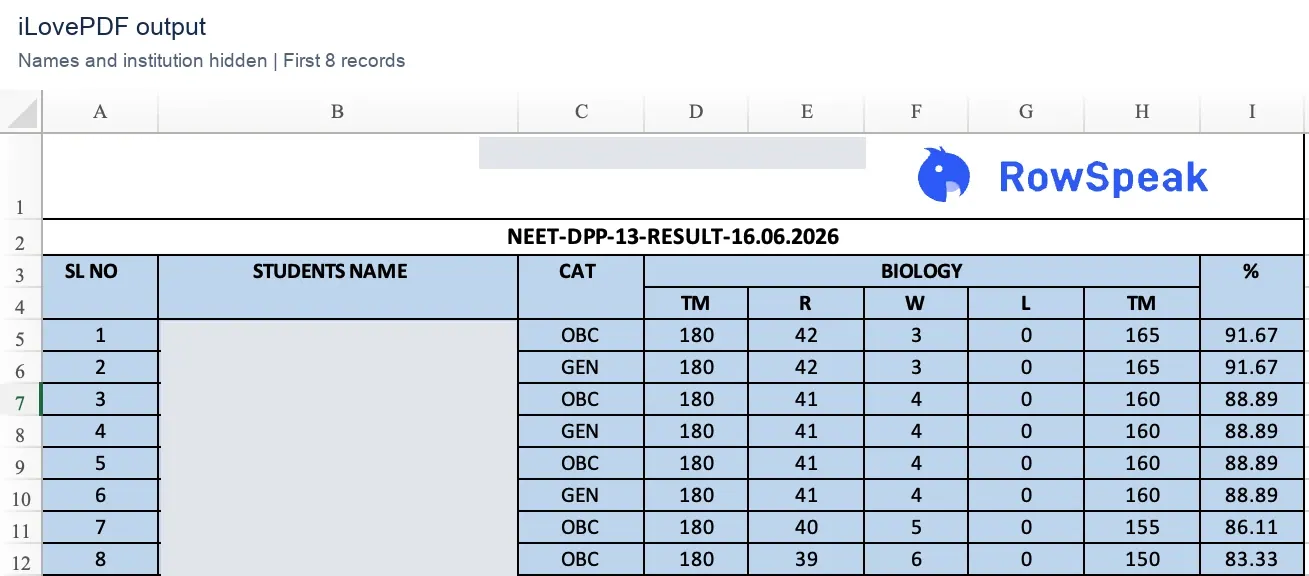
iLovePDF output: the visual styling survived, but text formatting and alignment differed from the PDF.
The file still needed a visual review. The text presentation was not an exact reproduction, so you should check alignment, column widths, and header spacing before sharing the workbook as a formatted document.
The converter page also displayed an advertisement. That did not affect the values in our downloaded file, but it was part of the free experience.
Two regions of the same page; the intervening space is omitted.
Free-use barrier: the tester found that OCR required payment. OCR means recognizing text inside an image; it is a separate requirement from extracting selectable PDF text. We did not establish iLovePDF's exact daily allowance.
When to try it: a normal text-based PDF where retaining table colors and a logo matters. After downloading, inspect the header and alignment rather than assuming the workbook is ready to present.
3. Adobe Acrobat Online: a free result, then a sign-in step
Adobe Acrobat Online retained the sample's data, blue shading, and logo. Its workbook kept the nine fields in A through I, although some neighboring numbers looked crowded in Excel.
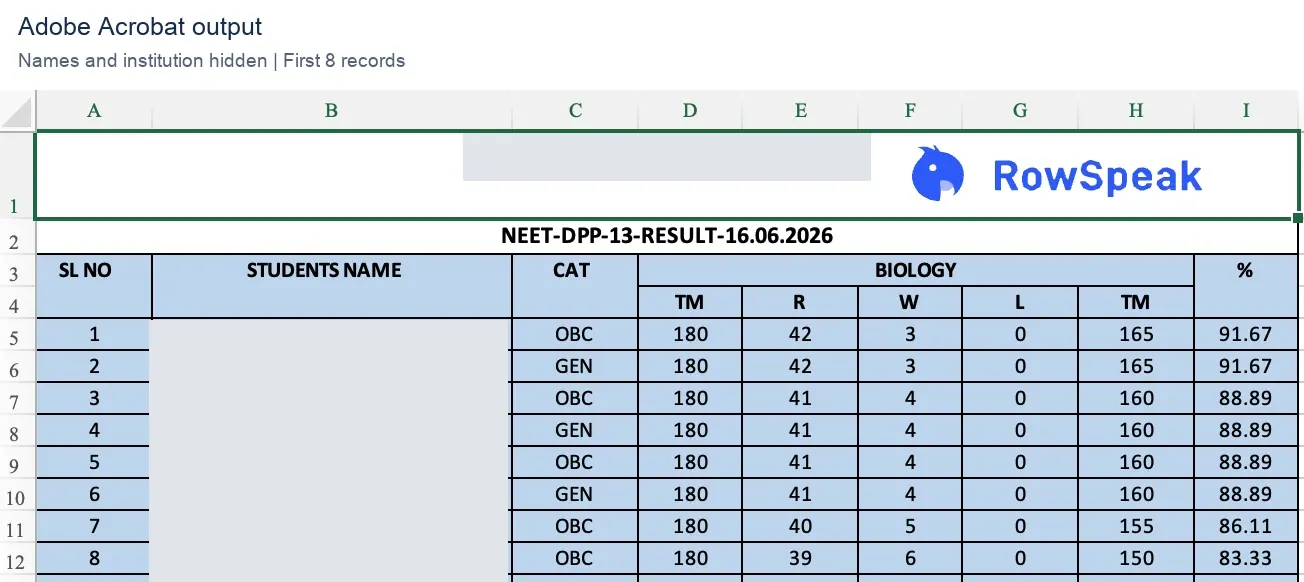
Adobe output: check cell contents as well as the way the numbers appear on screen.
For example, a 0 and a neighboring 165 could look like 0165 in the screenshot. Inspecting the file showed that they were still separate values in G5 and H5. The issue was visual crowding, rather than a combined number.
The second conversion exposed a different limitation: downloading required signing in. The captured screen said, “Sign in to download it for free — no credit card needed.”
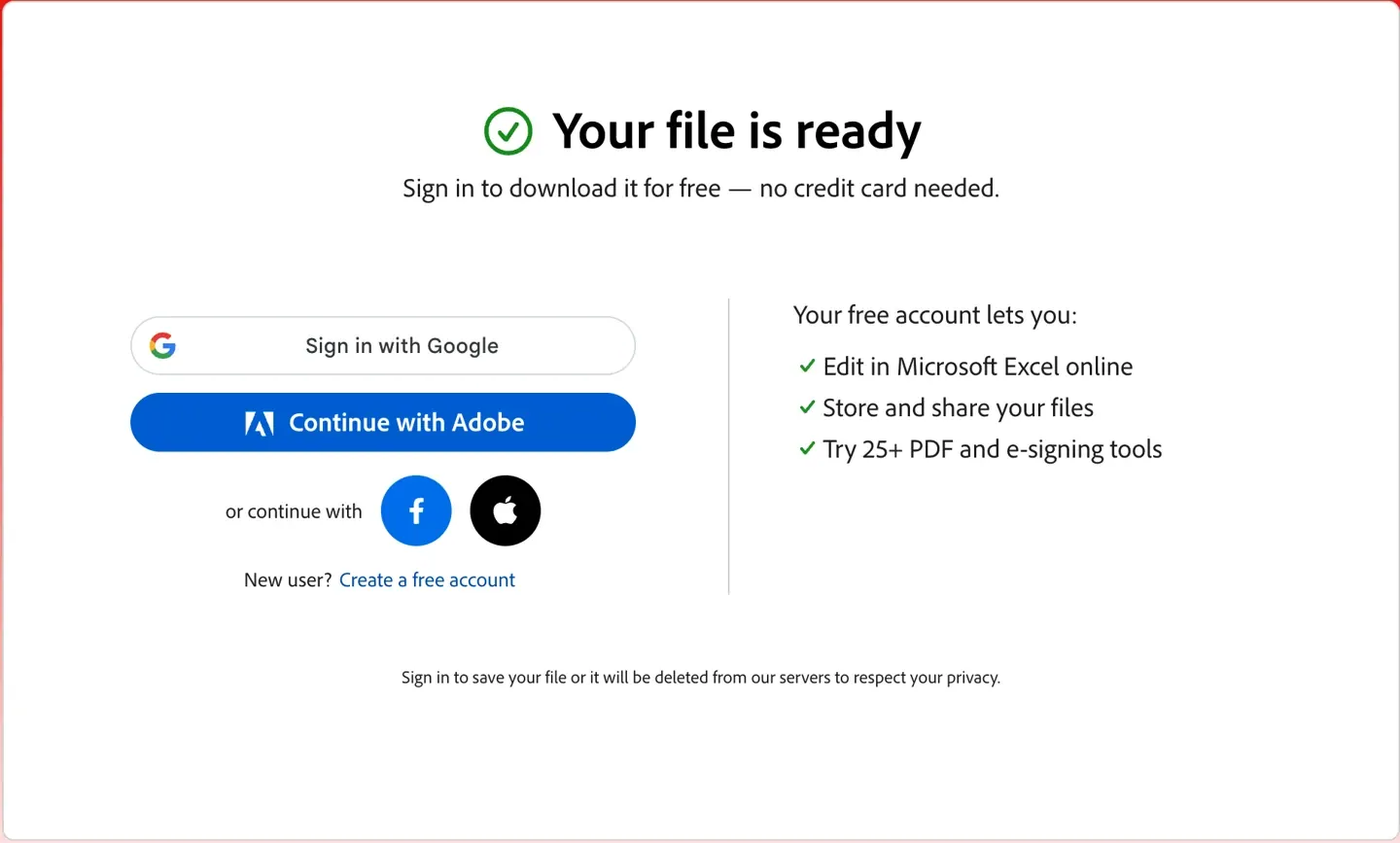
The recorded barrier was an account requirement. This prompt did not require a paid subscription.
Free-use barrier: expect that repeat downloading may involve an account. The tester also reported OCR support, but these files do not establish its free OCR allowance or scan-conversion quality.
When to try it: you are comfortable using an Adobe account. In the workbook, check crowded numeric columns and adjust their presentation only after confirming the values.
4. PDFtoExcel.com: more table cleanup in this sample
PDFtoExcel.com retained all 36 records and their values, but its result differed more substantially from the original structure.
The nine fields spread across twelve columns, with blank columns inserted at B, D, and G. Parts of the grouped header were split apart, widths were uneven, and the logo graphic did not survive. The blue background remained.
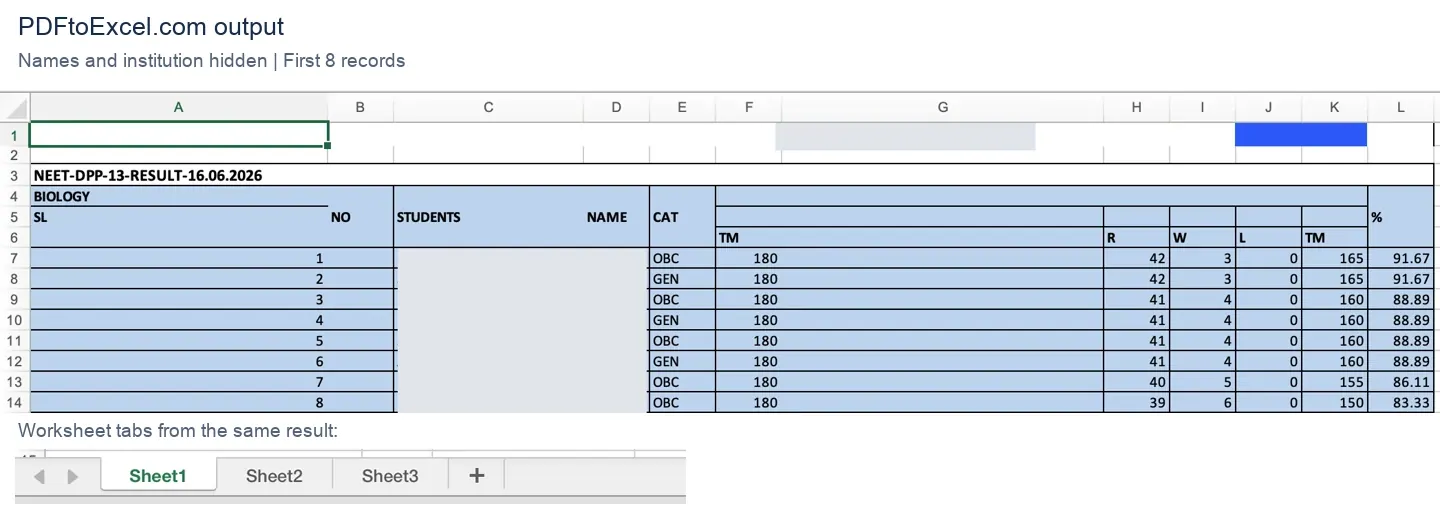
PDFtoExcel.com output: the screenshot retains column letters and a separate crop of the worksheet tabs to show the structural differences.
The actual fields were in A, C, E, F, H, I, J, K, and L, with data in rows 7–42. Two additional worksheets were empty. Before filtering or making a summary, you would need to identify the useful columns and create a clear header row in a working copy.
The missing logo shows a problem with this sample's graphic. It does not prove that the service cannot handle every image or scanned PDF.
Free-use barrier: the tester obtained one free conversion that day. A subsequent screen displayed “Daily Free Limit Reached,” offering a Premium upgrade or another free conversion the next day.
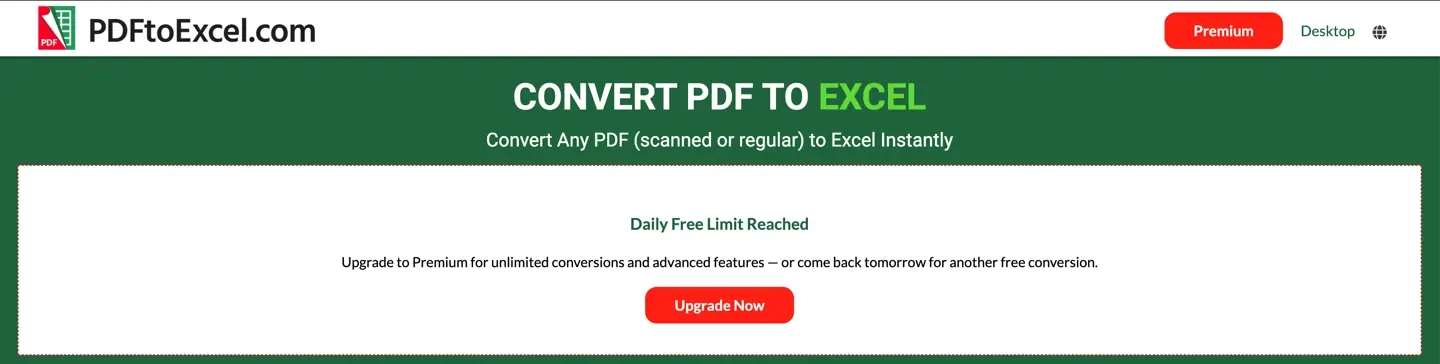
When to try it: when you are willing to inspect and restructure the result. For a file like ours, with grouped headers and a graphic, it would not be our first choice if minimizing cleanup is the priority.
5. Smallpdf: repeat conversions worked in the test session
Smallpdf's PDF to Excel converter kept the 36 records, numeric values, blue shading, and logo. The nine fields remained in A through I.
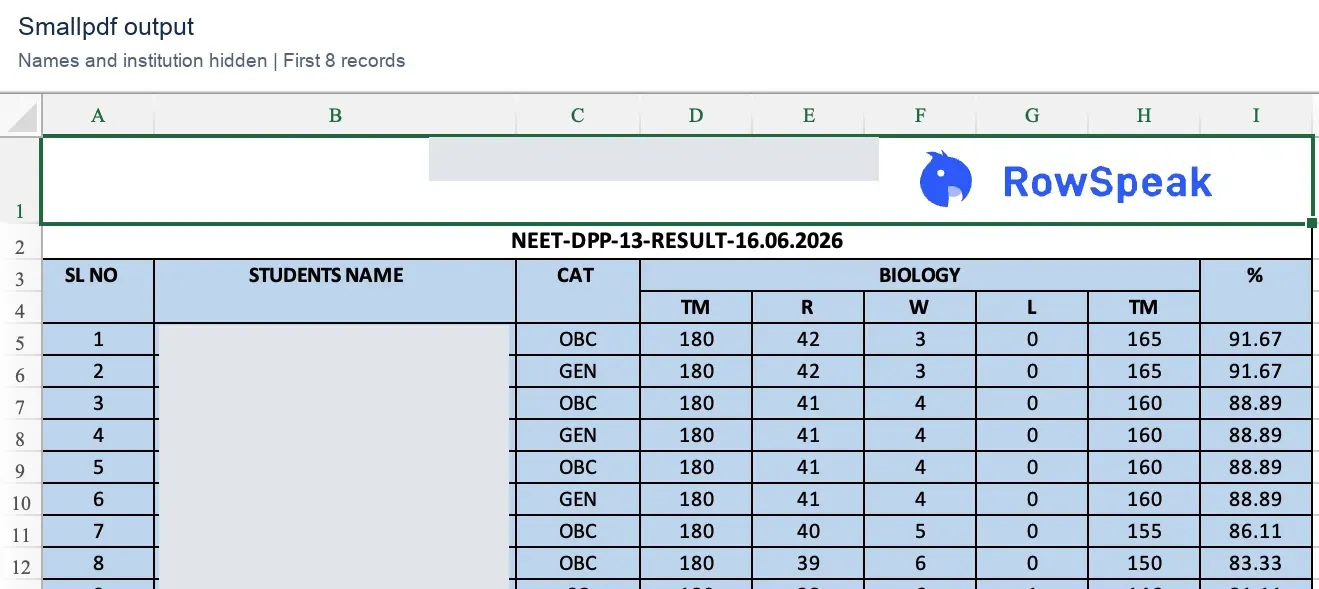
Smallpdf output: recognizable table structure, with formatting differences still worth reviewing.
Text layout and alignment differed from the source, so the output was not an exact visual copy. Check whether header labels sit over the correct fields and whether widths suit your next task. A table used for calculations may need a simpler header than a table intended for printing.
Free-use experience: the tester could convert multiple times on the same day. That makes Smallpdf worth considering when you want to try another file or retry a conversion. The exact allowance was not recorded, so this should not be read as unlimited free use.
The captured interface showed a Basic conversion option. That alone does not establish whether scanned-file OCR was free.
When to try it: you need more than one conversion attempt that day and want to compare the output before committing to a tool. Confirm the current allowance, then review the downloaded file.
6. Nitro: a one-off conversion before a login barrier
Nitro's PDF to Excel page yielded a workbook that retained the sample's values, table shading, and logo. The fields stayed in A through I, with data in rows 5–40.
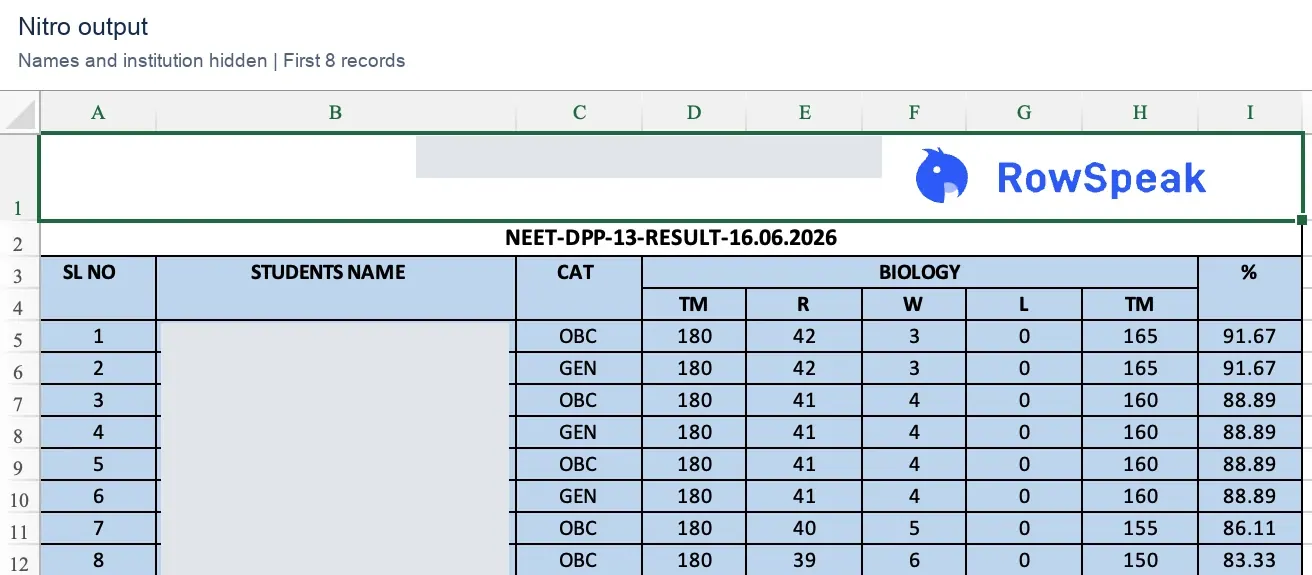
Nitro output: the values survived this conversion, while text placement and formatting differed.
As with the other outputs, review the grouped header and numeric alignment before using the workbook as a finished document. Preserving a colored table does not automatically make its header suitable for sorting or analysis.
Free-use barrier: the tester reported one conversion per day without signing in, with login required to continue. The saved Nitro page screenshot does not show that limit prompt, so this point comes from the tester's experience rather than captured quota wording. We did not establish the allowance after login.
Nitro's broader product page mentions conversion and OCR. That does not establish which OCR features are included in this free online flow.
When to try it: an occasional conversion where a possible account step is acceptable. Check both the first download and the requirements for your next file.
Can you convert a scanned PDF to Excel for free?
Start by trying to select and copy a few words from the table. If the page is just an image and its words cannot be selected, the converter needs optical character recognition (OCR) to read them first. A PDF can also contain a mix of selectable text and scanned pages.
That matters because a free text-based conversion does not tell you what will happen with a scan.
| Tool | What our evidence says about OCR |
|---|---|
| RowSpeak | Separate OCR workflow produced an editable Excel workbook; the session recommended spot-checking names and scores; first 20 pages free in the reviewed workflow |
| iLovePDF | The tester encountered a paid OCR option |
| Adobe | The tester reported OCR support; free allowance and scan quality were not established |
| PDFtoExcel.com | The captured page advertised scanned or regular PDFs; no comparable scan output was available |
| Smallpdf | The screenshot showed Basic conversion; free OCR conditions were not established |
| Nitro | Product-page OCR messaging did not establish free online OCR access |
We had a separate image-only PDF, but no comparable set of outputs clearly identified as conversions of that file. RowSpeak's OCR evidence comes from the separate workflow shown above, not from this same-file accuracy test. This article therefore does not rank free OCR accuracy.
For your scan, test one representative page and confirm that the result can be downloaded free before processing the rest. Review decimal points, similar characters such as 0 and O, and any missing minus signs. Our guide to scanned invoices and image-based tables explains the next checks.
Four checks before using the converted Excel file
Choose the tool that fits your access requirements, then check its output. Keep the original PDF and an untouched copy of the downloaded workbook.
1. Count the data rows
Our sample should contain 36 records, excluding titles and headers. On a longer document, check the first and last record on each page so that repeated headers or page breaks do not hide missing rows.
2. Confirm that numbers can be calculated
Excel's COUNT function counts numeric cells. For the second TM column in the iLovePDF, Adobe, Smallpdf, and Nitro files:
=COUNT(H5:H40)
The expected result is 36. In PDFtoExcel.com's workbook, the corresponding range is K7:K42. Always identify your actual data column before copying a formula. A count can flag a type problem; it cannot prove that every value is correct.
3. Check the field structure
Look for inserted blank columns, split labels, and duplicate headers. This sample has two headers called TM; their meaning should be confirmed before renaming them. Create one clear header row in a working copy if you need to filter or summarize the table.
For PDFtoExcel.com's result, check B, D, and G before removing the blank columns. Inspect the entire column so that you do not delete information outside the visible crop.
4. Compare key values and a known total
Check the first, a middle, and the last record against the PDF. Then compare an independently calculated total. In this sample, the second TM column totals 4308:
=SUM(H5:H40)
For PDFtoExcel.com, use =SUM(K7:K42). Matching totals are useful, but two errors can cancel each other out, so keep the individual checks too.
One common formatting mistake: the sample's percentage column stores values such as 91.67, rather than 0.9167. Applying Excel's percentage format directly would show 9167%. If you need a true percentage value, divide by 100 first and then format it. This was the source convention, not a conversion error.
For a fuller review, use the PDF to Excel accuracy checklist.
Frequently asked questions
Which free PDF to Excel converter was most accurate here?
All five retained the sample's 324 record values. That result gives us no basis to name a value-accuracy winner. PDFtoExcel.com needed more structural cleanup; the other choices depend on formatting preferences and access requirements.
Does Adobe's sign-in prompt mean I have to pay?
The captured second-download prompt explicitly offered downloading for free after sign-in, with no credit card required. Read the prompt carefully: creating an account and purchasing a subscription are different steps.
Why does the layout change even when the values are correct?
A PDF describes where text and graphics sit on a page. A converter must reconstruct spreadsheet rows and columns from those positions. Widths, spacing, and grouped headers can change while the cell values remain intact.
Does a preserved logo prove that OCR works?
No. Retaining a graphic and recognizing words inside a scanned image are different tasks. Test your scanned table separately.
Try RowSpeak for your next PDF
If you only need a one-off table, compare the five same-file converters above and use the four checks before sharing the file. If the PDF is scanned, the workbook needs analysis, or the same report must be explained to colleagues each month, start with the first option in RowSpeak's PDF to Excel tool. You can test OCR and the first 20 pages free, download an editable Excel file, ask for analysis and charts, write the results back to the workbook, and continue to a dashboard or shared report after you review the values.