Claude in Google Sheets changes how teams can ask questions and work inside a shared spreadsheet. That is useful when the final deliverable is still the sheet. Finance teams often need something larger: a budget-versus-actual analysis, the biggest variance drivers, a chart, and a management summary that someone else can review.
This guide compares Claude in Google Sheets, Excel AI, and RowSpeak using the same finance workflow. The goal is practical: help you decide which tool fits the files you have and the output you need.
For the current Claude product scope, see the official Claude announcement for Google Docs, Sheets, and Slides and the Claude app listing in Google Workspace Marketplace. Product capabilities can change, so use those sources for the latest availability details.
Key takeaways:
- Claude in Google Sheets fits cell-level work in a shared Google Sheet.
- Excel AI and Copilot fit teams already working inside structured Microsoft workbooks.
- RowSpeak fits messy Excel, CSV, PDF, screenshot, and export files that need to become variance analysis, charts, summaries, or reports.
- The same budget-vs-actual file is a better comparison than a feature checklist.
What Claude in Google Sheets is good at
Claude in Google Sheets is a natural fit when your data already lives in Google Sheets and the team needs help with the sheet itself. Typical tasks include asking questions about a range, adding or explaining formulas, cleaning labels, and making small changes while people continue collaborating in the same file.
That workflow is different from a reporting workflow. If the next step is a leadership update, you may need grouped variances, exception rules, a chart, an explanation of the drivers, and checks that the totals reconcile to the source file.

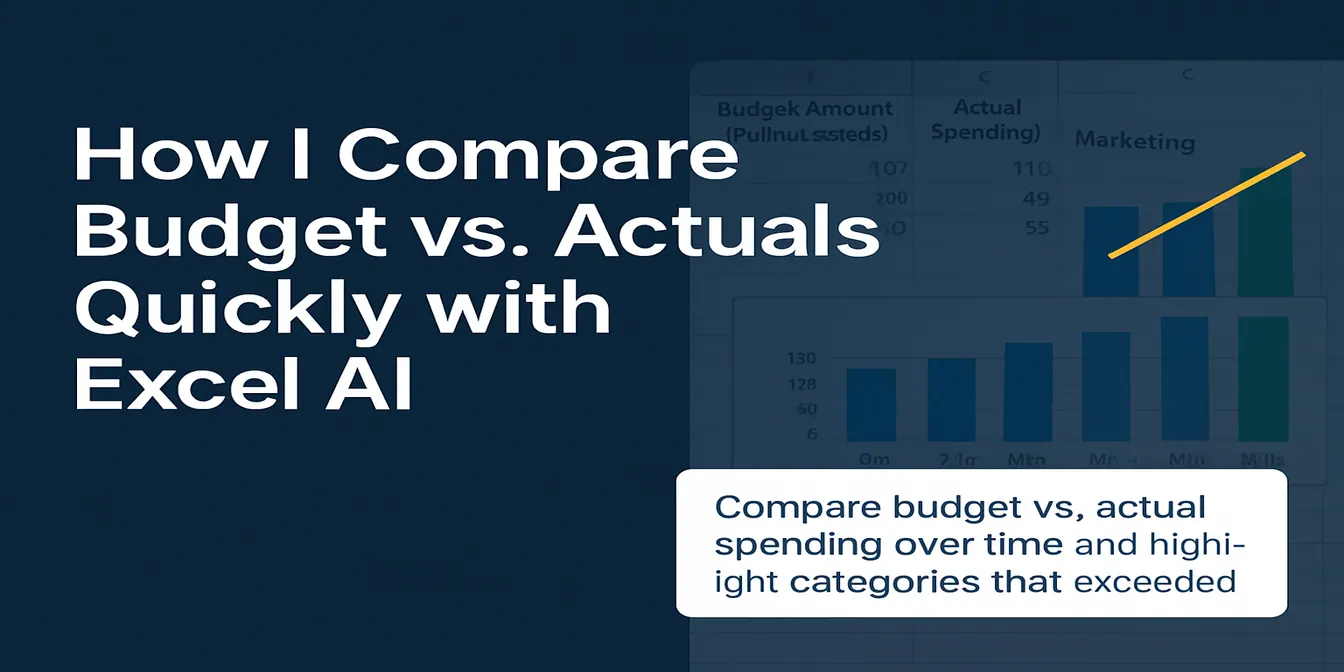
The screenshot above shows the kind of spreadsheet context where in-sheet assistance is useful. When the same data needs to become a management-ready report, the output requirements become broader.
Test the same budget-vs-actual file
Use a small file with these columns:
| Month | Cost Center | Account | Budget | Actual | Notes |
|---|---|---|---|---|---|
| Jan | Marketing | Paid Search | 30000 | 35800 | Campaign expansion |
| Jan | Operations | Software | 12000 | 9100 | Annual renewal moved |
| Feb | Marketing | Paid Search | 32000 | 40100 | New channel test |
Try this prompt in a spreadsheet workspace:
Add columns for absolute variance and variance percentage. Compare Actual against Budget by month and cost center. Highlight rows where the absolute variance exceeds $5,000 or 10%. Create a chart showing the largest unfavorable variances. Keep the original source columns unchanged.
This is a reasonable test for in-sheet assistance. It asks for formulas, formatting, and a chart without changing the source columns.
Now test the broader reporting workflow with RowSpeak:
Analyze this budget-versus-actual file for the finance team. Calculate absolute variance and variance percentage. Group results by month and cost center. Flag unfavorable variances above $5,000 or 10%. Rank the five largest drivers by absolute variance. Explain whether each driver is caused by higher spending, lower revenue, timing, or missing data. Create one variance chart and one management summary. Show assumptions, missing values, duplicate rows, and totals that do not reconcile.
The difference is the requested output. The second prompt asks for analysis, explanation, review checks, and a report structure rather than only cell edits.
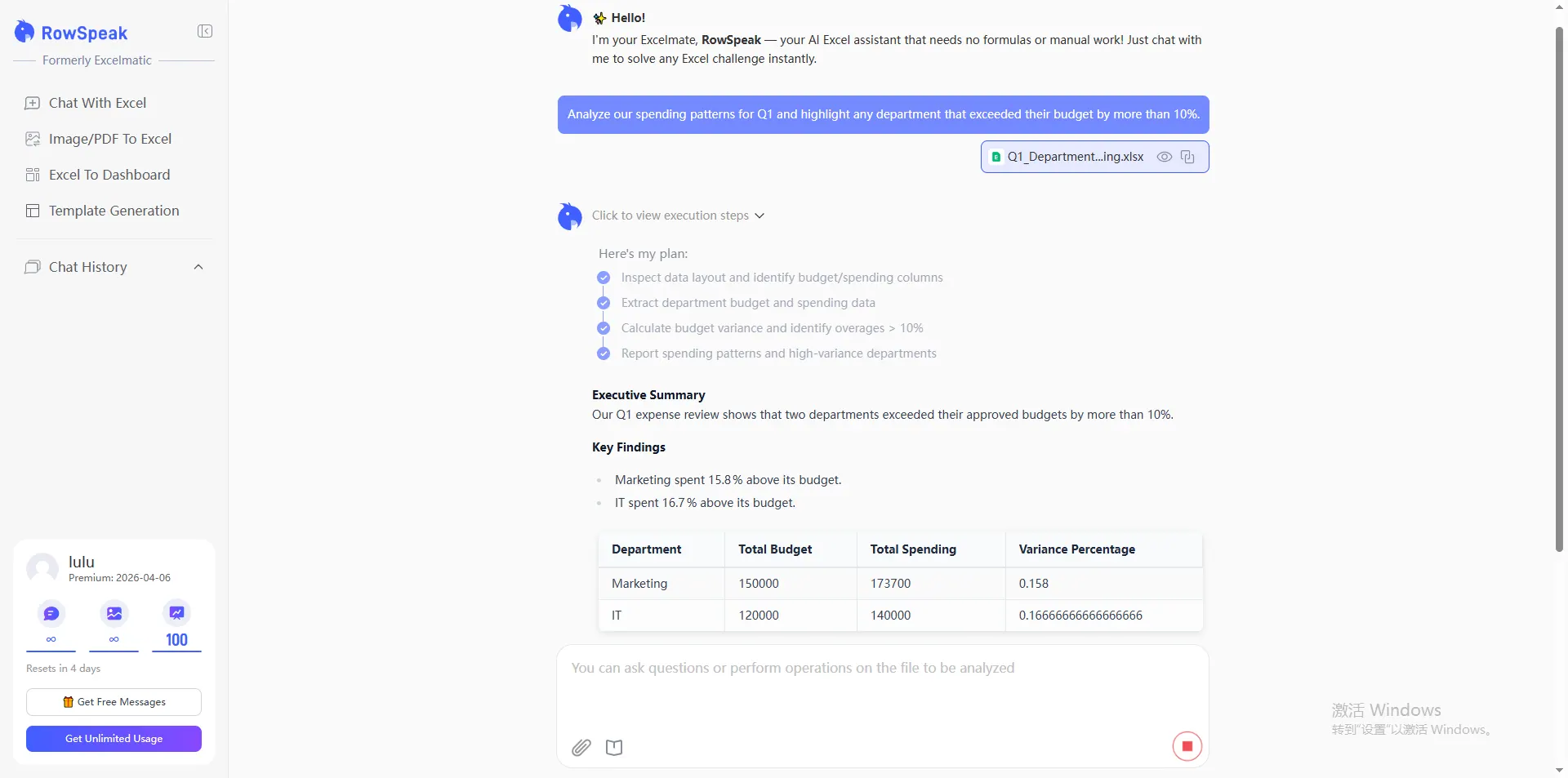
The result is easier to review when the variance table, chart, and explanation are kept together. You can also see the AI reporting feature when the recurring output needs a more formal report workflow.
Claude Google Sheets vs Excel AI vs RowSpeak
| Workflow | Claude in Google Sheets | Excel AI / Copilot | RowSpeak |
|---|---|---|---|
| Best starting point | A shared Google Sheet | A structured Excel workbook | Excel, CSV, PDF, screenshots, and business exports |
| Main job | Ask questions and edit cells | Assist with formulas and workbook analysis | Turn files into analysis and reporting outputs |
| Budget vs actual | Calculate and inspect values in the sheet | Work inside an existing Excel model | Summarize variances, rank drivers, and prepare charts and report text |
| Output | An edited Google Sheet | An edited Excel workbook | Tables, charts, summaries, dashboards, and report-ready analysis |
| Review | Check formulas, cells, and changes | Check workbook logic and results | Request assumptions, exceptions, and reconciliation checks with the analysis |
| Repeatability | Depends on the sheet and prompt | Depends on workbook structure | Better fit for recurring file-based reporting workflows |
If your source is a Google Sheet, export it as CSV before uploading to RowSpeak. Direct Google Sheets syncing is not currently available, so the honest workflow is: export, upload, analyze, and review.
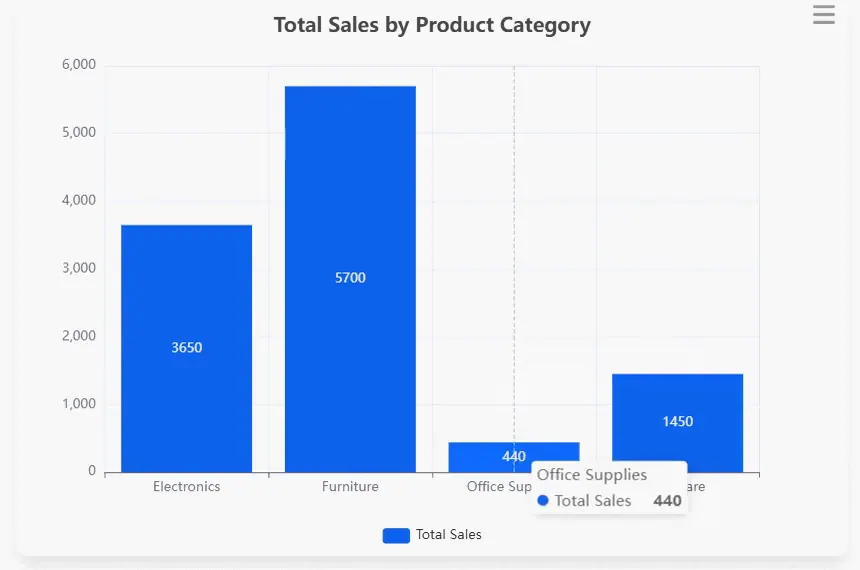
Checks to run before sharing a finance report
Whatever tool you use, review these items before a number reaches leadership:
- Budget and actual use the same period and calendar definition.
- Revenue and expense signs follow the same convention.
- Variance percentage uses the agreed denominator, usually budget.
- Duplicate rows and missing cost centers are visible.
- The grouped totals reconcile to the source file.
- “Favorable” and “unfavorable” are defined for the metric being analyzed.
- Chart labels match the table and the written summary.
For spending, a simple rule is usually clear: actual spending above budget is unfavorable, while actual spending below budget is favorable. Revenue may use the opposite direction. Tell the tool which rule applies instead of leaving the definition implicit.
For more examples of turning source files into visuals, see Excel to dashboard and data analysis with AI.
Which tool should a finance team choose?
Choose Claude in Google Sheets when the work must stay in a shared Google Sheet and the main task is cell-level assistance.
Choose Excel AI or Copilot when your team already works in structured Microsoft workbooks and needs help with formulas, formatting, or workbook-native analysis.
Choose RowSpeak when the work starts with multiple exports or messy files and ends in a variance analysis, chart, dashboard, or management report. RowSpeak works from Excel, CSV, PDF, and image-based tables, so you can keep source systems in place and start with the files your team already exports. See the finance AI workflow and monthly management reporting workflow for related examples.
If you need a full BI model, permissions, and long-term metric governance, evaluate a BI platform such as Power BI alongside these tools.
Try the same file
Export your Google Sheet as CSV, or use the sample budget file you already have. Upload it to RowSpeak and ask for the variance table, largest drivers, chart, management summary, and review checks in one request.
You can also compare the broader Claude Google Sheets alternative and the Copilot in Excel alternative pages before choosing a workflow.
Ready to test your finance workflow?
Export your Google Sheet as CSV and upload it to RowSpeak. Ask for the variance table, largest drivers, chart, management summary, and review checks in one request. You can start with the file your team already uses and review the output before sharing it with leadership.
See the workflow in action
The short video below shows a spreadsheet analysis result being turned into a usable visual. It is the same handoff this article recommends: start with a file, ask a business question, then review the output before sharing it.