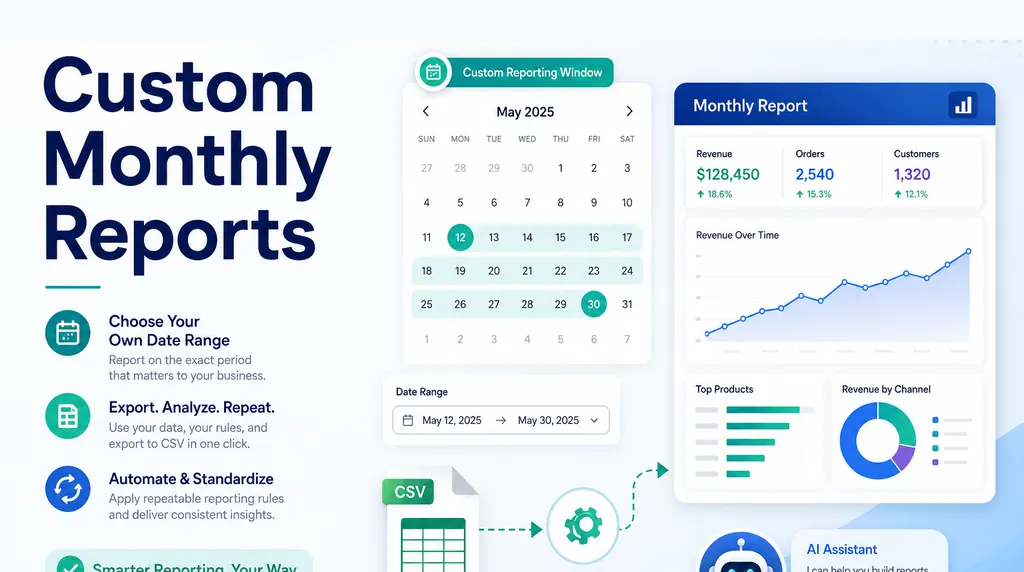
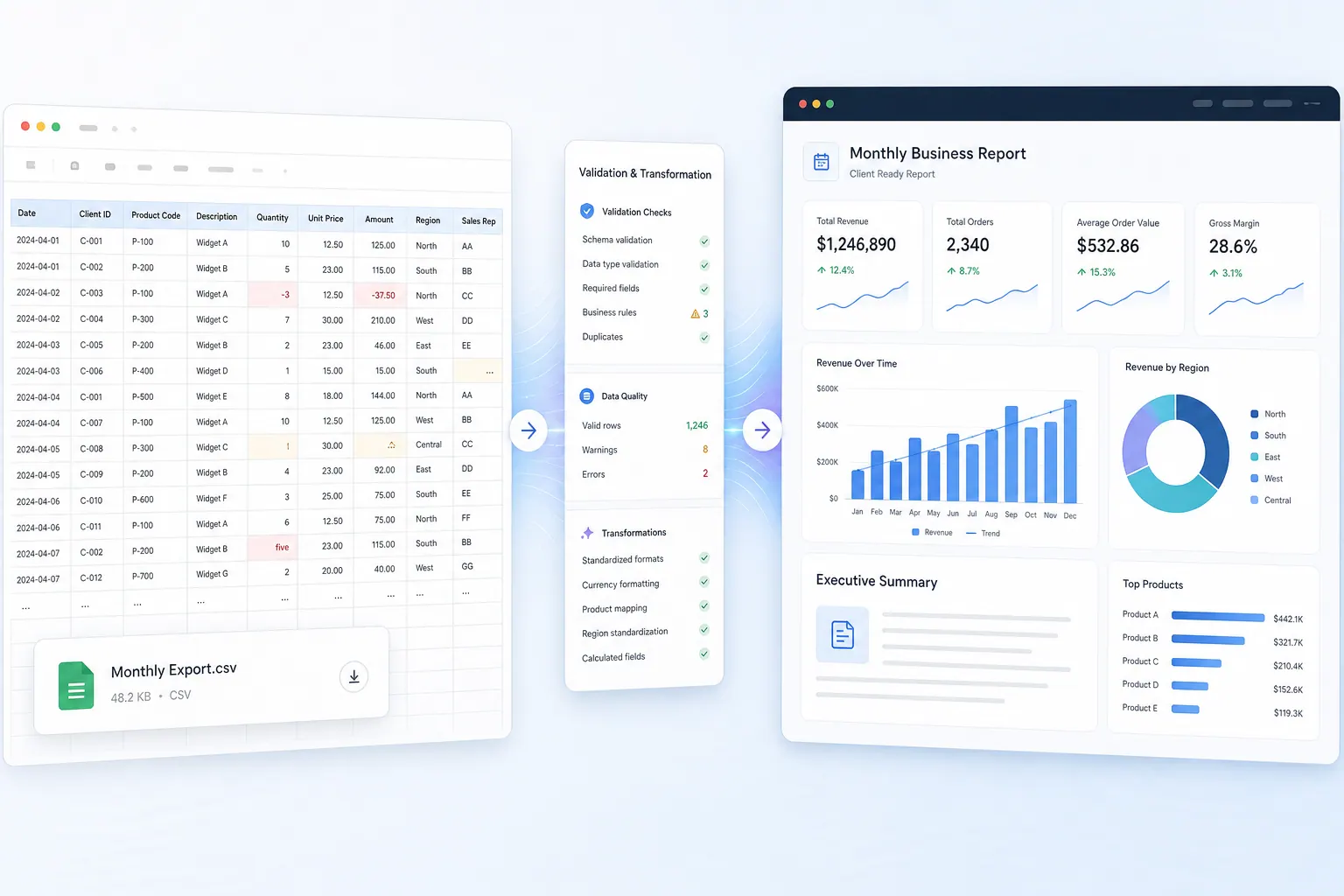
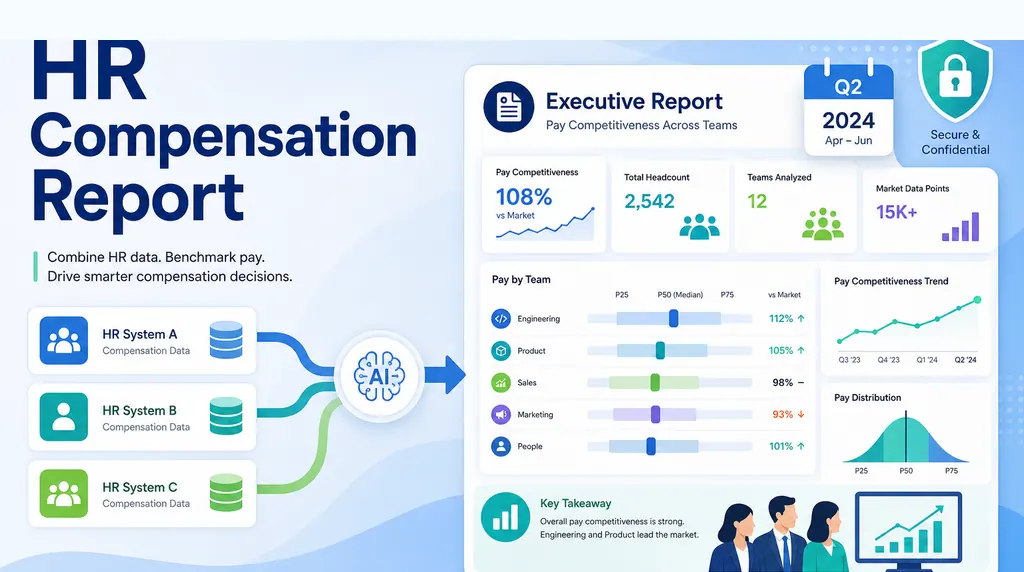
The result to aim for: one checked report with traceable totals, a short exceptions list, and a clear next action for every unresolved invoice.
If you spend every evening copying supplier invoice details into Excel, checking them against orders, and preparing client reports, the main problem is the workflow. More formulas do not fix a process that mixes raw files, corrections, calculations, and presentation in one sheet.
This guide shows a practical way to separate those jobs. You will learn how to turn invoice and order exports into a reviewable report, which checks to run before trusting the totals, and where RowSpeak can help you ask questions of the files without hiding the source data.
Key takeaways:
- Keep invoices, orders, and delivery exports unchanged in a raw input layer.
- Match records with stable IDs before you calculate totals.
- Put missing IDs, duplicate invoices, and amount differences in an exceptions table.
- Build the client summary from checked data instead of editing the summary by hand.
- Use RowSpeak for file-based questions and report drafts, then review the source rows before sharing.
Why the nightly copy-paste process breaks
A small distribution business may receive supplier invoices as PDFs, spreadsheets, or email attachments. Orders and deliveries may come from another system. The client report usually needs a third view: what was purchased, what was delivered, what is still open, and what needs attention.
When all three views are maintained in one workbook, a small change can create a large question. Did the invoice appear twice? Was the order export from the same period? Did someone change a supplier name while cleaning the file? Can the client trace an amount back to a source row?
The answer is not to make the report longer. It is to make the path from input to report visible.
The four-layer invoice reporting workflow
Use four layers, even if they are four tabs in one workbook:
- Raw inputs: Store the original invoice, order, and delivery exports without editing them.
- Standardized data: Map different column names and formats into consistent fields.
- Checks and exceptions: Record duplicate IDs, missing keys, unmatched records, and amount differences.
- Client report: Show the period totals, main movements, open items, and next actions.
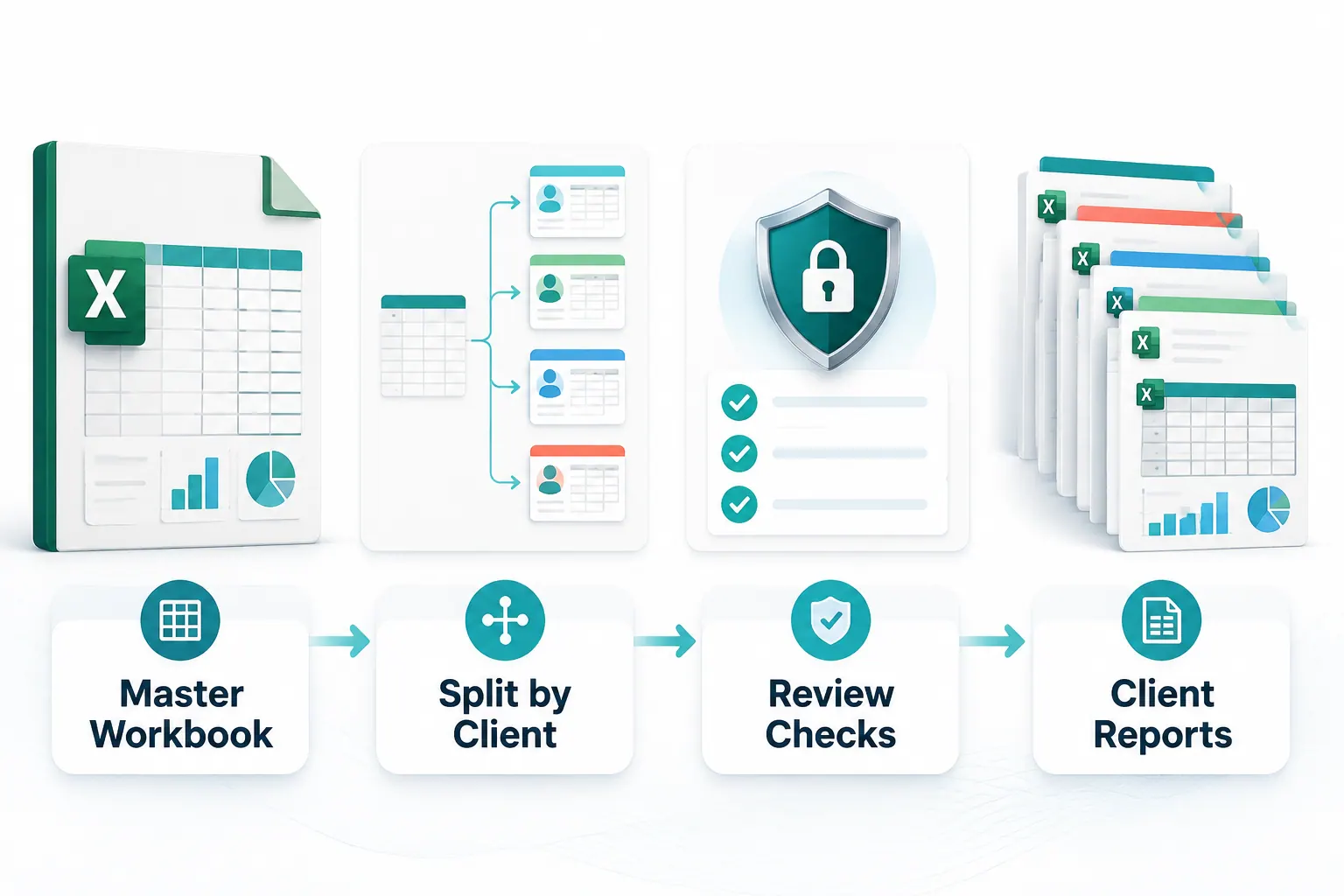
The same pattern works when the inputs arrive as several Excel files. First combine the files into one working table, then apply the date, naming, blank value, and duplicate checks before you calculate a client total.
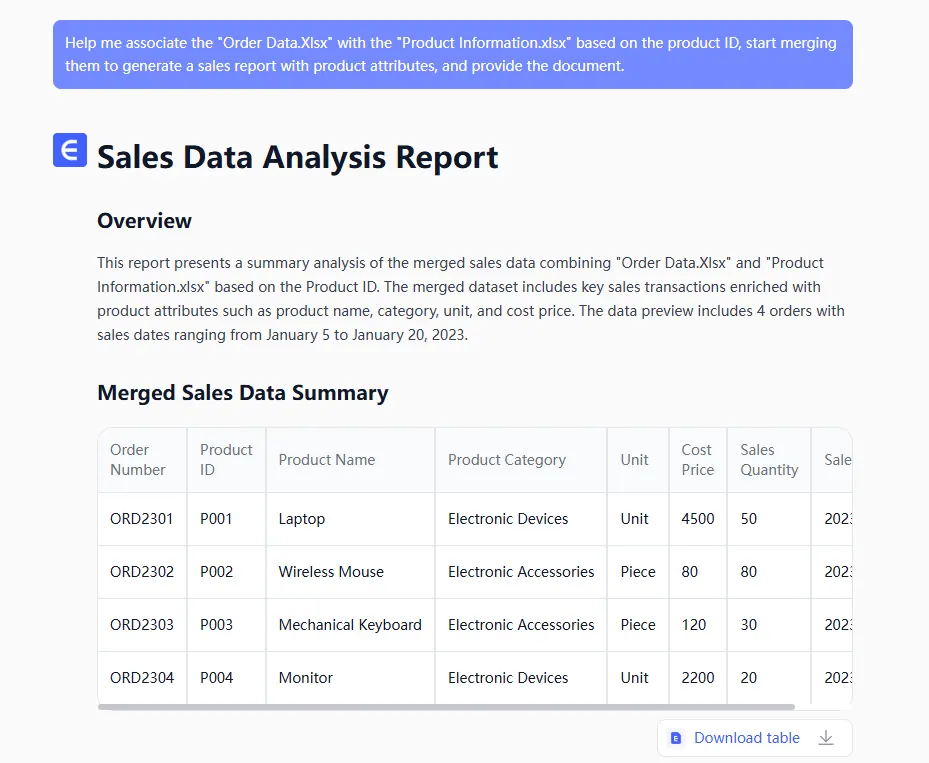
This structure gives you two useful properties. You can explain where a number came from, and you can repeat the process when the next batch of files arrives.
What to keep in the client view
Keep the report compact enough to review in one sitting. Put the detailed raw rows and transformation notes behind the summary, then show these fields first:
| Section | Minimum useful output |
|---|---|
| Period summary | Invoiced, matched, open, disputed, and overdue amounts |
| Movement | Change from the previous period and the largest drivers |
| Exceptions | Invoice ID, reason, amount, owner, and next check |
| Evidence | Source file, export date, and matching rule |
This layout gives a client an answer before asking them to inspect the data. It also creates a natural place to link the report to a broader AI reporting workflow when the same review repeats every month.
Step 1: Define what one row means
Before matching anything, write down the grain of each file: what does one row represent?
| File | One row may represent | Field to confirm |
|---|---|---|
| Supplier invoice export | One invoice or one invoice line | Invoice ID |
| Order export | One order or one order line | Order ID |
| Delivery export | One shipment or delivery event | Delivery ID |
This matters because an invoice with five line items can appear as five rows, while the order file may contain one row per order. Summing both files as if they use the same grain can overstate the total.
Illustrative example: a 50-invoice monthly batch
The following is a fictional example to show the review logic, not a customer case study. Suppose a distributor receives 50 invoice rows for September:
| Review result | Rows | Amount | What happens next |
|---|---|---|---|
| Matched to an order | 44 | $18,420 | Included in the client summary |
| Duplicate invoice ID | 2 | $760 | Hold one row until the source is checked |
| Missing order ID | 3 | $1,140 | Ask the operations owner to confirm the delivery |
| Date outside September | 1 | $310 | Move it to the correct reporting period |
The numbers are deliberately illustrative. The useful part is the output shape: the report separates accepted rows from exceptions, so a client does not see a single total that hides four unresolved decisions.
If you only have PDFs, extract the fields into a working table but keep the original PDF as the source reference. RowSpeak supports business files such as Excel, CSV, PDF, screenshots, and image-based tables, but the extracted values still need review before they become a client number.
Step 2: Create a stable matching key
Use an ID that should remain stable across files. Prefer Invoice ID, Order ID, or a system-generated reference over a supplier name or description.
If the files do not share an ID, define a fallback rule before matching. For example:
Supplier + Invoice date + Invoice amount
Treat that fallback as a review rule, not proof of a match. Two invoices can have the same supplier, date, and amount. Put those records in the exceptions table instead of silently joining them.
If the invoice is a scanned PDF, first confirm that the extracted invoice ID, date, currency, and total are readable. If the file mixes USD and EUR, keep the original currency and add an explicit conversion-rate field; do not combine amounts until the reporting currency and rate date are agreed. If a required field is missing, leave the match unresolved and label the exception instead of guessing a value.
Step 3: Run checks before calculating the report
Use this short check list for every reporting period:
| Check | What to flag | Why it matters |
|---|---|---|
| Invoice ID | Blank or repeated ID | Can double-count a supplier charge |
| Date | Outside the reporting period | Changes the period total |
| Amount | Text, negative, or unexpected currency | Breaks totals and comparisons |
| Match key | Missing or matched more than once | Makes reconciliation ambiguous |
| Supplier name | New spelling or unmapped name | Splits the same supplier into two groups |
| Status | Paid, open, disputed, or unknown | Changes the next action |
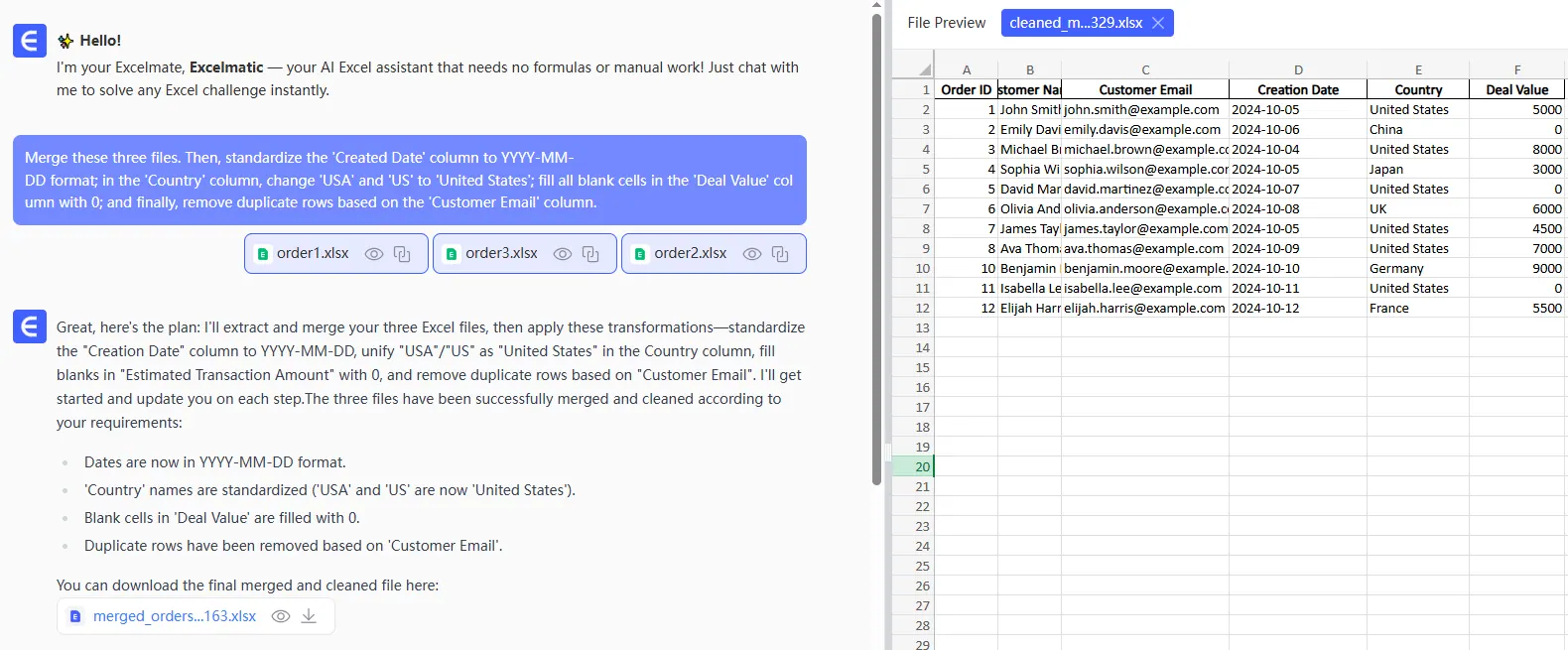
Do not overwrite the original value when you correct a format. Keep a normalized value beside it and record the rule used. That makes a later client question answerable.
The cleanup step should leave evidence. A before-and-after view makes it easier to spot a changed date, normalized supplier name, filled blank, or removed duplicate before the report is shared.
Step 4: Build a report that answers decisions
A client report should make the next decision easier. A useful first version includes:
- total invoiced amount for the period
- amount matched to orders or deliveries
- unmatched and disputed amount
- open invoices by due-date band
- largest suppliers or categories by spend
- an exceptions table with owner and next check
The raw input table can contain every source column. The report should contain the small set of measures and exceptions that a client needs to review.
For a broader recurring CSV process, use the checks in this monthly CSV reporting workflow and connect the result to a monthly management reporting workflow. Those pages cover period comparisons, source freshness, and stakeholder-ready summaries in more detail.
A prompt that produces a reviewable first draft
After you upload the checked files to RowSpeak, ask for a report draft with a request like this:
Create a supplier invoice report for [period] from the invoice, order, and delivery files.

First, describe what one row represents in each file and list the fields used for matching.
Then:
1. Match records by Invoice ID, Order ID, or Delivery ID where available.
2. Flag duplicate IDs, missing IDs, unmatched records, unexpected dates, and amount differences.
3. Summarize invoiced, matched, unmatched, disputed, and overdue amounts.
4. Rank suppliers or categories by amount.
5. Return an exceptions table with source row references and the next review step.
6. State any assumptions or missing fields that could change the totals.
The useful output is not only the summary. It is the combination of the summary, the assumptions, and the rows that need review. That is what makes a file-based answer useful in an operating workflow.
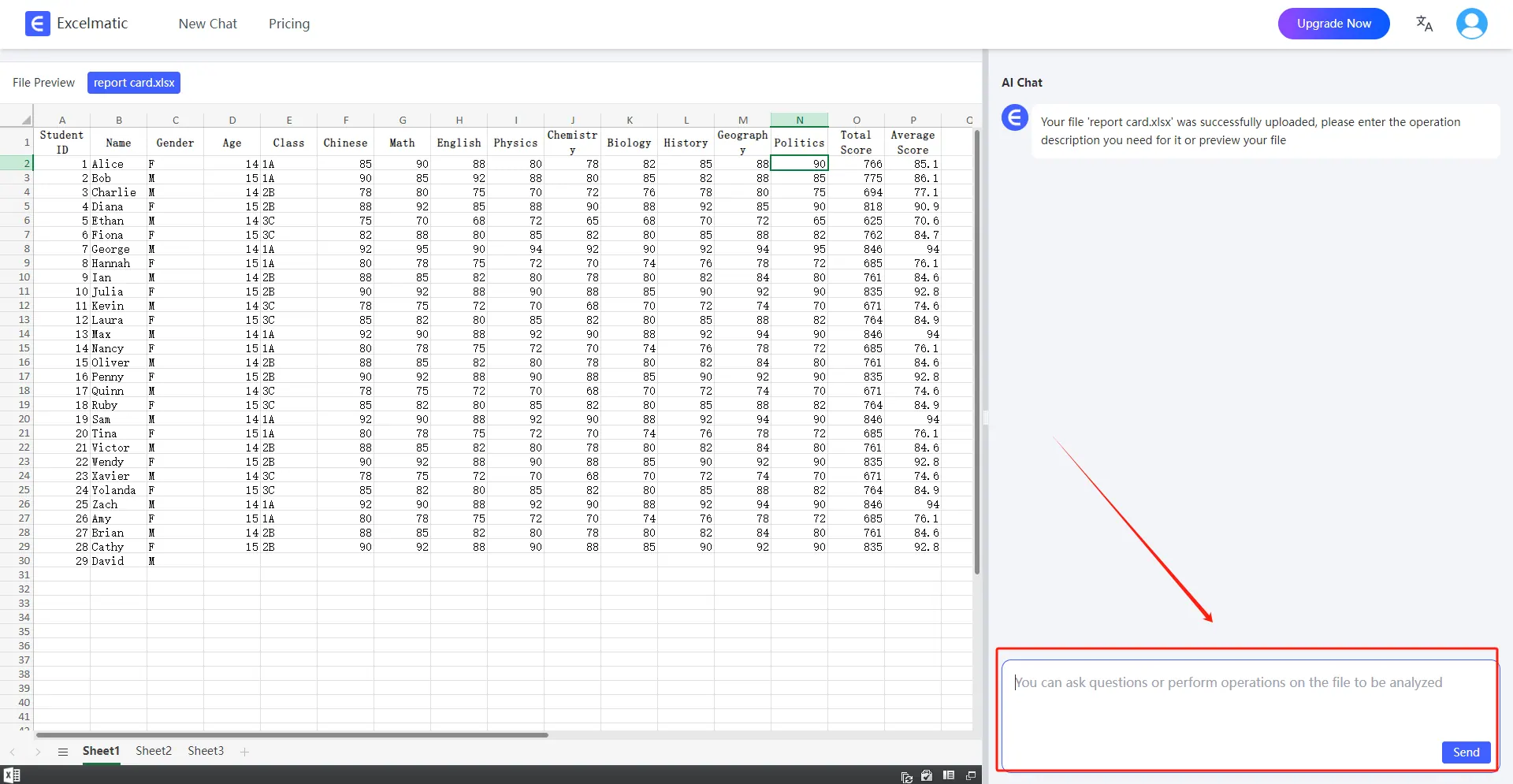
The review can happen as a plain-language question over the uploaded files. In the example below, the spreadsheet stays visible beside the conversation so you can inspect the rows behind the answer.
Where Excel, RowSpeak, and BI each fit
Excel remains a good choice when the source is small, the rules are stable, and one person can maintain the checks. Power Query can help when the same imports need repeatable transformations. A BI platform makes more sense when many teams need governed, live dashboards and a maintained data model.
RowSpeak fits between raw business files and a heavy reporting stack when you need to ask questions, generate a report or dashboard, and inspect the result without building a full BI project first. It does not approve invoices or resolve disputes for you. Keep those decisions with the responsible person.
If your current problem is broader than invoices, see the Excel-to-dashboard workflow or the AI reporting feature for ways to move from exported files to a shareable analysis.
Final review before sharing
Before you send the report, check:
- the source files and reporting period are recorded
- the row grain is understood for every file
- matching keys and fallback rules are documented
- totals reconcile to the expected source values
- exceptions are visible and assigned to an owner
- the summary explains what changed and what needs action
- sensitive source fields are excluded from the client view
That checklist turns a nightly copy-paste task into a process you can repeat, explain, and improve. Start with one reporting period and a small sample of invoices. Once the checks work, replace the raw files for the next cycle instead of rebuilding the report from scratch.
Ready to review your next invoice batch faster?
Upload your invoice, order, or delivery exports to RowSpeak. Ask it to match the files, flag exceptions, and draft a report you can check before sharing.
Try RowSpeak with your files →
Keep the original files and approve the exceptions before a client sees the result.