You already export a sales CSV every week. Before the review meeting, you still have to total revenue, rebuild charts, and explain which regions need attention. This guide uses one sales file to help you build a weekly dashboard, check its numbers, and decide whether a file upload or a connected reporting system fits your team.
Key takeaways:
- Download a synthetic sales CSV and use a copyable request to create your own dashboard.
- Check net sales, distinct orders, average order value, and complete-week comparisons against supplied reference totals.
- Understand when a file-based dashboard is enough and when scheduled refresh, shared metrics, and permissions call for BI.
- Keep the metric rules for next week, then upload the new export and review the updated result.
What should your weekly sales dashboard answer?
Start with three questions: How did sales change? Which region or representative changed most? What should the team investigate before the next review?
For an order export, a useful first view has net sales, order count, average order value, a weekly trend, regional comparisons, and a detail table. A sales dashboard should make the headline number easy to trace back to the orders behind it.
The reference below shows the layout and expected totals for our sample. It is calculated from synthetic data, not an AI-generated product recording. Your generated layout can differ; the same calculation rules should produce the same totals.
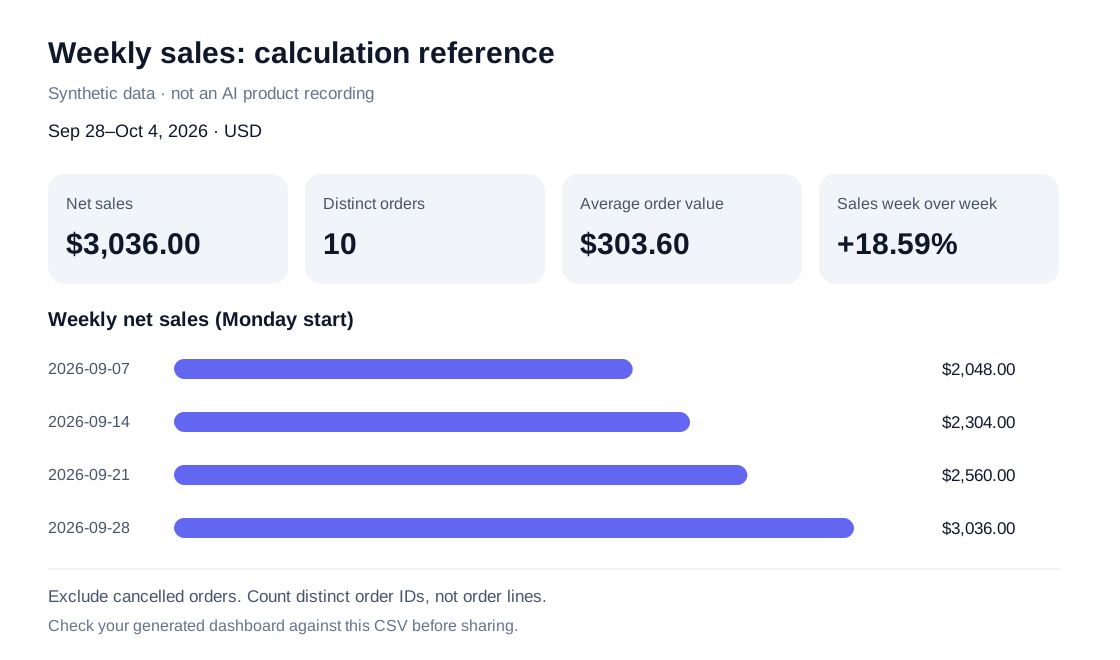
Step 1: Check what your CSV can calculate
Download the sample sales CSV. It contains 64 order lines, 48 unique orders, and four complete weeks from September 7 to October 4, 2026. All amounts are USD. It contains no real customer records.
| Field | Meaning | Check |
|---|---|---|
| order_id | Order identifier | Several lines can belong to one order |
| line_id | Order-line identifier | Check duplicates here before excluding records |
| order_date | Order date | Use the same date field and complete weeks |
| region, sales_rep | Comparison groups | Keep names consistent |
| product_category | Category per order line | One order can span categories |
| net_sales | Net amount per line | Discounts and refunds have already been handled upstream |
| status | completed or cancelled | Exclude cancelled orders in this example |
| currency | USD | Do not sum currencies without a conversion rule |
Count distinct order IDs after applying the date and status rules. If you filter by product category, an order can appear in more than one category; category order counts should not be added together.
This file has no opportunities, targets, or costs. It cannot support win rate, quota attainment, gross margin, or pipeline risk. Add those inputs before requesting the metrics. The KPI dashboard examples explain other fields and rules.
To measure progression from leads through proposals to customers, use the sales funnel analysis example with its separate stage-history CSV.
Do you need a data warehouse first?
A data warehouse stores data from business systems in a maintained place for reporting. It can support shared definitions and repeated refreshes. You do not need to build one just to review an existing CSV.
| Decision | Upload a CSV | Connected warehouse and BI |
|---|---|---|
| Starting point | An export you already have | Connected sources and a maintained model |
| Best fit | Weekly snapshots and changing questions | Stable metrics shared across teams |
| New data | Upload a new export and update dates | Refresh according to configured connections |
| Ownership | A business user can start the first view | Usually an analytics or IT owner |
| Review | File rows and generated calculations | Model, refresh, and access rules |
If your warehouse already exists, using its dashboard may be the shortest path. Building from scratch is a different starting point. This guide does not provide a timing benchmark between those situations.
A polished dashboard still needs a trust check
AI can produce an attractive dashboard before it has proved that the numbers mean what your team thinks they mean. Before a sales review, trace each headline number back to its source field and rule:
| Trust check | What to record | Example for this CSV |
|---|---|---|
| Source | File name and data-through date | weekly-sales-sample.csv, Oct 4, 2026 |
| Grain | What one row represents | One order line |
| Filter | Which rows are included | status = completed |
| Definition | How the KPI is calculated | Unique order_id for order count |
| Scope | Which period and segment are shown | Monday-to-Sunday week, all regions |
If you cannot answer one of these questions, label the card as a draft and fix the request before sharing it. A dashboard made from an uploaded file is a snapshot of that file; it does not become a live system connection just because the page has interactive filters. For a repeatable weekly process, save the rules with the reviewed output, upload the next export, and check the new data-through date.
This short audit also catches the most expensive mistakes: counting order lines as orders, applying a region filter to the chart but not the detail table, or presenting a partial week as a complete comparison. The goal is a dashboard that a manager can question and an analyst can reproduce, not a page that only looks finished.
Step 2: Upload the sample and describe the weekly view
Once the data and rules are clear, open RowSpeak's AI dashboard generator, sign in, and upload the downloaded CSV. The sample and reference are free to inspect. Generation follows your current plan and usage limits.
Paste this request:
Create a weekly sales dashboard from this CSV for a sales review.
First check date coverage, duplicate line_id values, missing fields, and currency.
Each row is an order line. Compare September 28–October 4, 2026 with
September 21–27, 2026, using Monday-to-Sunday weeks.
Exclude cancelled orders. net_sales is already net of discounts and refunds;
do not deduct them again.
Show net sales, distinct order_id count, average order value, and week-over-week change.
Add weekly trends, region and sales rep breakdowns, filters, and an order-line detail table.
Show calculation rules and the data-through date. If the comparison week is zero,
mark percentage change unavailable.
Describe three changes supported by the numbers. Do not invent causes, targets,
win rate, margin, or pipeline risk.
This request names the audience, dates, calculations, exclusions, and supporting detail. It is more specific than “make a beautiful dashboard.” The output is a browser-based dashboard; it does not add a dashboard sheet to your original workbook.
Step 3: Check the first draft
For all regions combined, these are the expected values:
| Metric | Sep 21–27 | Sep 28–Oct 4 | Rule |
|---|---|---|---|
| Net sales | $2,560.00 | $3,036.00 | Sum completed order-line net_sales |
| Distinct orders | 10 | 10 | Count unique completed order IDs |
| Included order lines | 14 | 13 | A review count, not the order KPI |
| Average order value | $256.00 | $303.60 | Net sales / distinct orders |
| Sales week-over-week change | — | +18.59% | (3,036 − 2,560) / 2,560 |
Check the regional breakdown too:
| Region | Sep 21–27 sales | Sep 28–Oct 4 sales | Latest orders |
|---|---|---|---|
| North | $880.00 | $770.00 | 3 |
| South | $860.00 | $1,254.00 | 4 |
| West | $820.00 | $1,012.00 | 3 |
Regional sales should add to $3,036.00. Selecting North should apply to the KPI cards, charts, detail rows, and comparison week.
The file supports the observation that total sales increased while North declined. It does not explain why. “Investigate the North decline” is useful; “North declined because of staff turnover” would invent a cause.
Before sharing, check dates, exclusions, duplicate line IDs, currency, distinct orders, and filter consistency. If an order ID appears twice, inspect its line IDs first: two legitimate lines are not duplicate orders.
Step 4: Correct the result and prepare next week
If the dashboard counts 13 orders in the latest week, use a specific correction:
The latest week has 13 completed order lines but 10 distinct orders.
Recalculate order count using unique order_id values after all filters.
Recalculate average order value using that count and show the rule.
Save the request and corrections with the reviewed output. Next week, export the new period, include its comparison week, upload the new file, and change the dates. Check the data-through date and totals before sharing. The weekly sales reporting workflow covers this recurring task.
Common mistakes
- Rows counted as orders: count unique order IDs when the file contains order lines.
- Partial versus complete weeks: use two complete weeks or label partial periods.
- Refunds deducted twice: establish whether the amount is gross or net first.
- A share link treated as a live connection: a shared result can contain an uploaded snapshot.
- Missing KPIs requested: targets, costs, and opportunities need corresponding inputs.
- Only the first chart timed: a draft needs review. This example makes no two-minute delivery guarantee.
When should this move into BI?
Keep the upload route for weekly snapshots and changing questions. Consider BI when many people depend on stable metrics, source refresh must run on a schedule, and centralized permissions matter. The Power BI comparison explains the tradeoffs.
Interactive filters explore the current file. A live connection brings in new records. Decide how new data will arrive before choosing a reporting tool.
Try the sample sales CSV
Download the free sample, use the request above, and check your result. The calculation notes explain the rules. Start from the sample section on the AI dashboard generator page.