Your report has numbers, but the meeting still starts with questions: Which total is correct? What changed? What should we do next? A useful KPI dashboard puts the important measures first and makes their calculation easy to check.
A key performance indicator, or KPI, is a number you use to judge progress toward a business goal. These five examples help you choose the right measures for your file and avoid requesting metrics the data cannot support.
Key takeaways:
- Choose a dashboard for a decision: a sales review, budget check, campaign comparison, backlog review, or leadership update.
- For each KPI, define its fields, period, calculation, exclusions, and review check before building charts.
- Reproduce the sales example with a downloadable CSV and reference totals.
- Use uploaded snapshots for periodic reporting; scheduled live updates require a separate connection and refresh process.
Choose your example by the next decision
| Example | Question | First measures |
|---|---|---|
| Sales | Which region needs follow-up? | Net sales, distinct orders, average order value |
| Finance | Where did spending exceed the plan? | Actual expense, budget, expense variance |
| Marketing | Which campaign needs review? | Spend, leads, cost per lead |
| Operations | Which work items are overdue? | Open backlog, overdue count, age |
| Leadership | Which change deserves attention? | A small set of reconciled business KPIs |
These are reporting patterns, not five claims that every file can produce every metric. Write down what one row represents before choosing a calculation.
1. Sales KPI dashboard: a weekly order review
Decision: identify regional changes to discuss in the sales meeting.
Inputs: order ID, order-line ID, date, net sales, order status, region, representative, and currency. One row is one order line. Use completed orders and Monday-to-Sunday weeks.
| KPI | Rule | Review check |
|---|---|---|
| Net sales | Sum included net_sales | Reconcile to the source total after exclusions |
| Orders | Count distinct order IDs | Do not count order lines as orders |
| Average order value | Net sales / distinct orders | Use the same filters for numerator and denominator |
| Sales weekly change | (Current − prior) / prior | Compare complete weeks; prior zero means unavailable |
Download the synthetic sample CSV. For September 28–October 4, 2026, the expected totals are $3,036.00 net sales, 10 orders, and $303.60 average order value. Sales increased 18.59% from the previous week. There are 13 included order lines, which explains why simply counting rows gives the wrong order KPI.
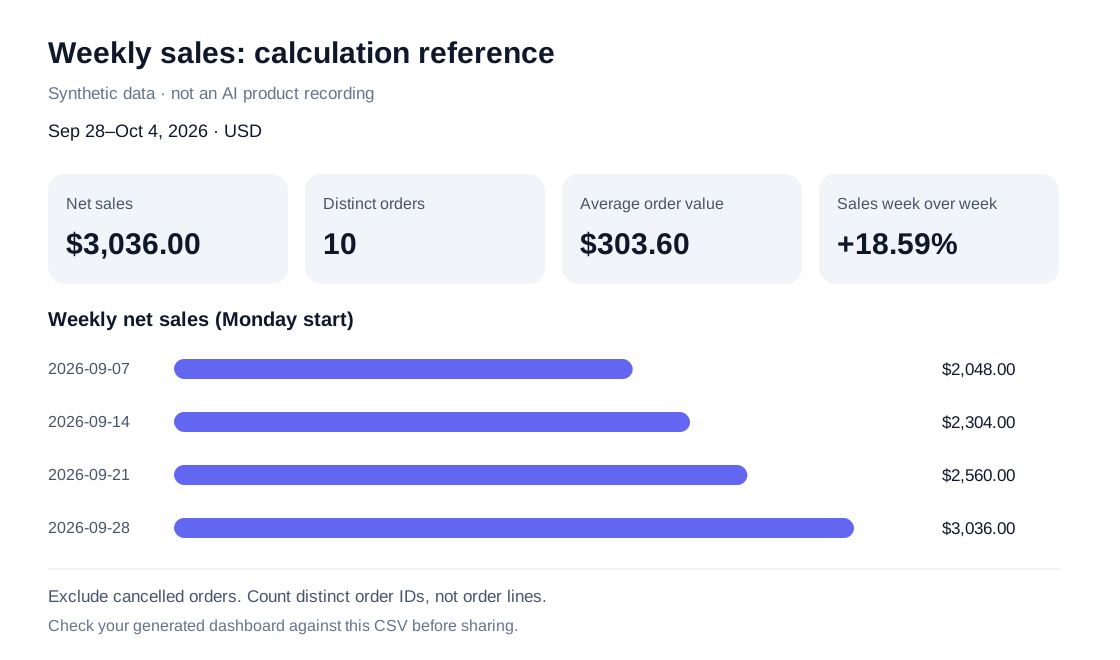
This is a calculated reference, not a recorded AI output. Follow the sales CSV dashboard tutorial for the full prompt, regional totals, and correction example.
Layout: KPI cards first, weekly trend next, region comparison below, and order-line detail last. A regional filter should apply to every chart and calculation, including the prior week.
Create a weekly sales KPI dashboard from this order-line CSV.
Exclude cancelled orders and count distinct order IDs.
Show net sales, orders, average order value, and complete-week sales change.
Add region filters and a detail table. State missing inputs and calculation rules.
Do not add win rate from an order table. It needs won and lost opportunities; quota attainment needs a target file.
2. Finance KPI dashboard: expense versus budget
Decision: find which departments need an explanation for spending above plan.
Inputs: period, department, expense category, actual amount, budget amount, and currency. Transaction-level actuals and monthly budgets may be in separate files. Summarize actuals to the budget's period and category before comparing them.
| KPI | Rule | Review check |
|---|---|---|
| Actual expense | Sum eligible expense transactions | Match the finance control total |
| Budget | Sum each budget allocation once | Do not repeat monthly budget on every transaction |
| Expense variance | Actual − budget | Label positive values as overspend in this view |
| Variance rate | (Actual − budget) / budget | Zero budget means the percentage is unavailable |
Layout: actual/budget cards, department variance bars, expense trend, and the exceptions to review. Gross margin requires revenue and cost inputs; an expense export alone cannot calculate it.
Create a monthly expense-versus-budget dashboard.
Aggregate actuals to the same month, department, and category as the budget.
Count each budget allocation once. Show overspend and the source totals.
Do not infer causes; list the departments that need follow-up.
3. Marketing KPI dashboard: campaign efficiency
Decision: select campaigns for a budget review.
Inputs: date, campaign ID, spend, leads, and a consistent lead definition. If lead records come from another export, reconcile campaign IDs and time periods first.
| KPI | Rule | Review check |
|---|---|---|
| Spend | Sum campaign spend | Check currency and platform scope |
| Leads | Sum lead counts, or count unique lead IDs | Establish whether the file is aggregate or record-level |
| Cost per lead | Total spend / total leads | Recalculate from totals; do not average row-level rates |
Layout: spend and lead cards, campaign comparisons, weekly trend, and an exceptions table. A campaign with no leads has an unavailable cost-per-lead rate, not $0. Return on ad spend needs attributed revenue and a stated attribution window; cost per lead alone does not prove profitability.
Create a campaign comparison dashboard with spend, leads, and cost per lead.
Calculate cost per lead from totals after filters, not an average of rates.
State the lead definition and flag campaigns with no leads.
4. Operations KPI dashboard: backlog and overdue work
Decision: identify work that needs an owner or escalation.
Inputs: item ID, created date, due date, status, owner, and a snapshot date. One row should be one item or have a rule for selecting its latest record.
| KPI | Rule | Review check |
|---|---|---|
| Open backlog | Count distinct open item IDs at the snapshot | Exclude closed items and old versions |
| Overdue items | Open items with due date before the snapshot | Treat missing due dates as missing, not healthy |
| Backlog age | Snapshot date − created date | Confirm date timezone and invalid dates |
Layout: backlog cards, age buckets, owner comparison, and the overdue list. Backlog is a snapshot: adding four weekly backlogs does not give four weeks of work completed.
Create a backlog dashboard as of the snapshot date supplied in this file.
Use one latest record per item. Show open and overdue counts, age, and owners.
Separate missing due dates from items that are not overdue.
The operations dashboard examples provide additional reporting scenarios.
5. Leadership KPI dashboard: a checked weekly overview
Decision: select the few business changes that need management attention.
Inputs: reviewed sales, expense, and operations summaries with compatible periods, currencies, and definitions. Different source refresh dates must remain visible.
Metrics: start with net sales, expense variance, and overdue work if those are the measures relevant to the meeting. Add target attainment only when a matching target exists. Include each measure's own comparison; a weekly sales change and monthly budget variance are different periods.
Layout: a small group of headline KPIs, one trend per business area, three observed changes, and a source/date note. Every conclusion should point to a visible number. Cross-company comparisons require consistent definitions.
Create a leadership dashboard from these reviewed summaries.
Keep each KPI's period, unit, source date, and calculation visible.
Highlight three changes supported by the figures and list follow-up questions.
Do not turn assumptions about causes into confirmed explanations.
Build and review the selected dashboard
Once you have the fields and rules, use RowSpeak's AI dashboard generator to upload the file and request the selected view. Review headline totals, period comparisons, filters, missing inputs, and written observations before sharing.
If the output needs a change, name the rule: “Use distinct order IDs,” “Count the budget once,” or “Recalculate the rate from filtered totals.” A specific correction is easier to verify than “make this more accurate.”
For a recurring review, save the request and corrections. The weekly sales reporting workflow explains how to use the next export with the same rules. A browser dashboard from a file is a snapshot until you supply new data; it does not imply scheduled refresh or workbook chart creation.
Try the sales KPI example
Download the sample CSV, inspect the calculation notes, and generate your own view from the dashboard sample section. Use the reference totals to check the result before adapting the workflow to your own file.