Key takeaways:
- Counting records across many CSV files is not just a counting task; it requires a master list, a clear matching rule, and a way to preserve which CSV each record came from.
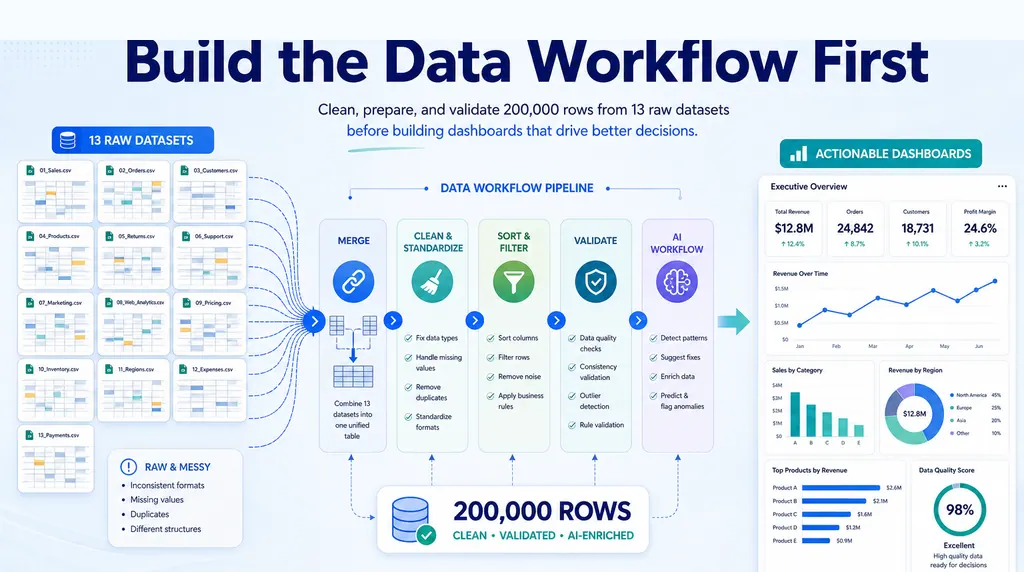
- A reliable workflow combines every export into one traceable table before summarizing, so each count can be traced back to source files and reviewed for duplicates or missing records.
- RowSpeak can process multi-file CSV workflows, including 30+ uploaded files, then merge, count, flag missing records, and generate a summary report from plain-language instructions.
When every system, query, campaign, or reporting period exports as its own CSV, the hard part is not the count.
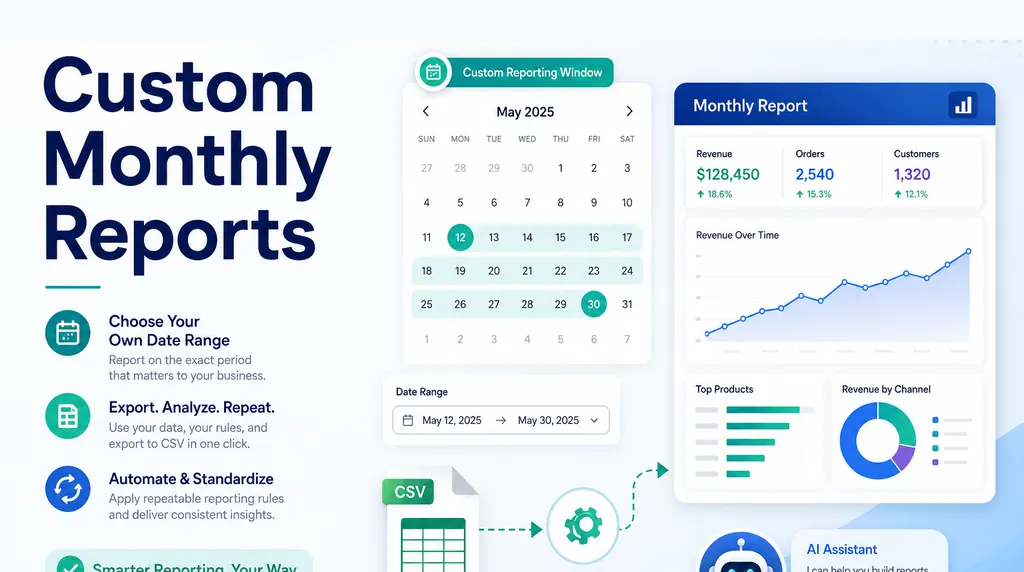
For reports that repeat every week or month, RowSpeak's repeatable CSV reporting keeps file cleanup, metric checks, and summaries reusable.
The hard part is combining the files without losing the meaning of the data.
This article is based on a real Super User question about merging and counting entries across different CSV files. The user had a master CSV with email addresses, plus 50 or more query CSV files. Each query file contained the email addresses that replied to that query. The desired output was a master list where each email address had a count showing how many query files they replied to.
That is a very practical spreadsheet problem. It appears whenever a team exports one CSV per survey, campaign, query, product, vendor, ticket queue, or reporting period.
Some users appear in every export. Some appear in only a few. Some query files may have different headers. Some replies may be duplicated. Some expected users may never appear. The question sounds simple, but the workflow is messy.
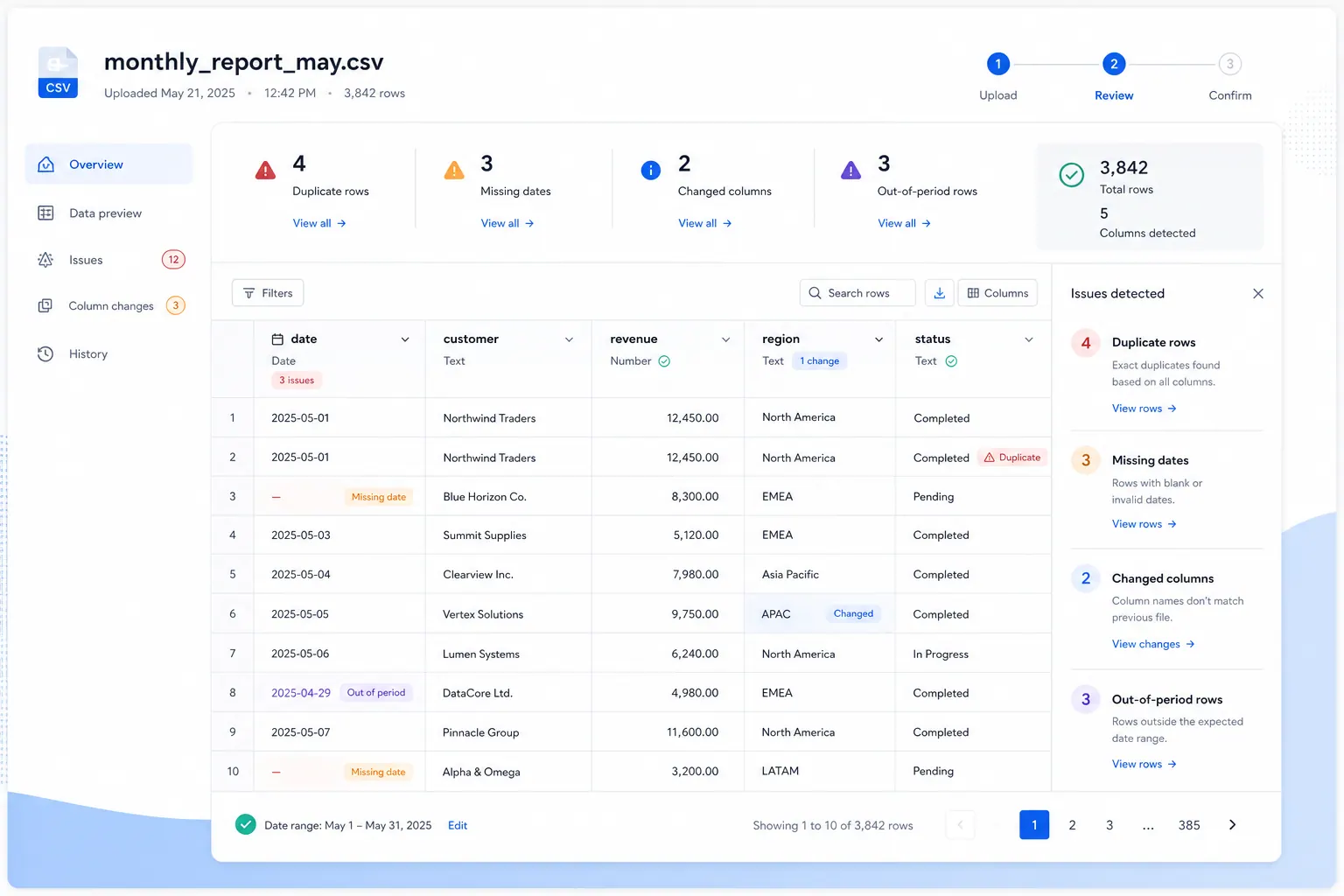
The useful output is not just a number. It is a summary report that shows which records matched, how often they appeared, which files they were missing from, and which rows need review.
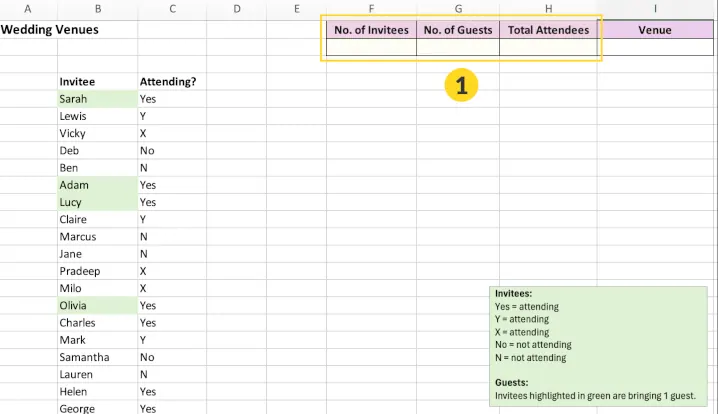
The same problem appears in messy RSVP lists: one file may use Yes, another uses Y, and another uses X. For user-reply reporting, those variations become reply-status rules that must be standardized before the count is trusted.
Start with the exact source structure
For the Super User-style problem, there are two kinds of files:
| file type | example columns | purpose |
|---|---|---|
| master user list | email |
the complete list of users that should appear in the final output |
| query reply files | email, reply |
one file per query, containing users who replied |
The safest output is not only email and reply_count. A better output usually includes:
- number of query files where this email replied
- list of source files where the email appeared
- list of expected query files where the email was missing
- duplicate reply flag
- review note
That structure answers the user's real question while keeping the result auditable.
Define the counting rule before merging
Before merging anything, define what the count means.
Do you want to count:
- total replies per user across all files?
- number of files in which each user appears?
- replies per query group?
- unique users per export?
- replies within a date range?
Those are different reports.
If the counting rule is unclear, you can end up with a table that looks correct but answers the wrong question.
For example, if the same email appears twice in query_07.csv, should that count as one replied query or two reply rows? For the original question, the likely business rule is one count per user per query file. That means duplicates inside one file should be flagged, not blindly counted twice.
Write the rule in plain English before building the workbook.
Inventory the CSV exports first
Treat each file as a source that may not match the others perfectly.
For every CSV, note:
- source or query name
- date range
- row count
- user identifier field
- reply field
- file-specific filters
- missing columns
- duplicate records
- naming inconsistencies
This step often reveals the real problem. Some files may use username while others use user_id. Some may have one row per reply, while others have one row per user with a count field.
If the fields are not aligned, count logic will break.
Normalize user identity before counting
User names are not stable identifiers.
If possible, count by a unique ID rather than display name. If only names are available, create a mapping table that normalizes:
- casing
- spaces
- punctuation
- aliases
- alternate spellings
- missing prefixes or suffixes
This is especially important when a user appears in many CSV files. One inconsistent name can split a single person into two different counts.
If a stable user ID does not exist, note that in the report. The count may still be useful, but it is less certain.
This is a good place for a lightweight AI reporting workflow if the final output needs to be reviewed and shared instead of kept as a raw spreadsheet.
Build a combined table before summarizing
Do not jump straight to totals.
First combine the files into a single working table with columns such as:
- source file
- user ID or normalized user name
- reply count
- reply text or status
- date
- query or group label
- review flag
Once the data is combined, you can calculate:
- total replies per user
- count of files per user
- average replies per file
- missing file participation
- outlier users
- duplicate records
This structure makes the report easier to audit. It also gives you a way to trace every summary row back to a source CSV.
For a reply-count report, a combined working table might look like this:
| source file | raw reply | include in count | review note | |
|---|---|---|---|---|
| query_01.csv | [email protected] | yes | yes | clean match |
| query_12.csv | [email protected] | replied | yes | synonym mapped |
| query_18.csv | [email protected] | blank | no | blank reply |
| query_22.csv | [email protected] | yes | review | duplicate email in same file |
Then the master summary can look like this:
| query files replied | replied file list | missing file count | review note | |
|---|---|---|---|---|
| [email protected] | 18 | query_01, query_03, query_12... | 32 | clean |
| [email protected] | 0 | blank | 50 | no replies found |
| [email protected] | 7 | query_02, query_04, query_22... | 43 | duplicate in query_22 |
Review missing users separately
Missing users should not disappear inside the count.
If a user appears in one file but not another, that may be normal. Or it may mean the export is incomplete.
Create a separate review list for:
- users missing from some files
- files with no records for expected users
- users with inconsistent identifiers
- exports with unusual row counts
- files that failed to load cleanly
This helps the person reviewing the report understand whether a low count is a real signal or just a data issue.
If the workflow repeats every month or week, link it to a broader monthly CSV reporting workflow so the file handling and reporting steps stay consistent.
How to ask RowSpeak to solve this
RowSpeak fits when the CSV files are messy enough that the counting logic keeps changing, or when the team does not want to build Power Query steps by hand.
You can upload the master CSV and the query CSV exports together. RowSpeak supports multi-file workflows, including 30+ files in one chat, so this is a natural fit for query batches, campaign batches, and exported reporting folders.
A strong prompt should describe the files, the counting rule, and the output tabs:
I uploaded one master user file and many query reply CSV files.
The master file contains the complete list of expected users in the email column.
Each query CSV contains users who replied to that query, also identified by email.
Please create a downloadable Excel workbook with these sheets:
1. Master Reply Count: one row per email from the master list, with the number of query files where that email appears.
2. Combined Replies: append all query CSV files into one table and add a Source File column.
3. Missing Users Review: for each email, show which query files had no reply from that email.
4. File QA: show row count, duplicate emails, missing email values, and unusual headers for each source file.
Count each email at most once per query file. If an email appears twice in the same query file, flag it as duplicate instead of counting it twice.
You can also ask for a simpler output:
Create a master table with email and reply_count. Count how many uploaded query CSV files contain each email. Use the master user list as the complete output list, including users with zero replies.
RowSpeak can help:
- identify the right counting field
- normalize names or IDs
- combine the files into one reviewable table
- flag missing users and suspicious gaps
- summarize participation patterns
- generate a report view for review
That is more useful than asking a generic chatbot to “count replies” because the problem is not only arithmetic. It is file structure, identity matching, and explanation.
If the end result needs to be shared with a team, RowSpeak can help turn the combined data into a more readable Excel-to-dashboard workflow instead of leaving the result as a raw aggregate.
A useful RowSpeak prompt should name the reply rules and the review output, not just ask for a total:

The same pattern works beyond user replies
The important pattern is: master list, many exports, merge by key, count appearances, then review missing or duplicate records.
That pattern shows up across business teams.
For finance:
- Count which cost centers submitted monthly budget files.
- Count how many bank statement exports contain a given transaction ID.
- Match vendor invoices across multiple AP exports and flag vendors missing from a payment run.
For ecommerce:
- Count how many marketplace exports include each SKU.
- Identify products missing from one channel but present in another.
- Count returns, reviews, or refund cases across multiple platform CSVs.
For marketing:
- Count how many campaign exports contain each lead email.
- Merge webinar, newsletter, and form-response files into one engagement score.
- Flag leads that appear in paid campaign files but never appear in follow-up response files.
For supply chain:
- Count how many suppliers replied to weekly confirmation requests.
- Match shipment IDs across warehouse, carrier, and vendor exports.
- Flag SKUs that appear in demand files but not in available-inventory files.
The same prompt structure works in each case. Name the master list, name the source files, define what counts as a valid appearance, and ask RowSpeak to keep a source-file trace.
A practical counting workflow
Use this sequence:
Decide the counting rule
Total replies, file participation, or unique user count.Inventory every CSV
Note headers, fields, row counts, and time ranges.Normalize user identity
Prefer IDs. If needed, standardize names.Combine all files into one table
Keep the source file visible.Build the summary table
Count replies, files, or participation as required.Create a missing-user review list
Separate data gaps from true low activity.Add a short explanation
Tell the reader what the count means and what still needs review.
Common mistakes to avoid
Do not count display names without checking for aliases.
Do not assume every CSV uses the same row structure.
Do not collapse missing users into the same table as valid counts.
Do not forget to explain whether the report counts replies, users, files, or unique appearances.
The takeaway
Merging and counting records across many CSV files is really a reporting problem.
The useful output is a combined, reviewable summary that shows who appears where, how often they appear, and which records need attention.
Excel can handle the logic. Power Query can make it repeatable. RowSpeak fits when the team wants to move from many exports to a shareable report without losing track of missing users or messy file structure.
Get Started: Turn CSV Reply Exports into a Reviewable Report
If your replies are scattered across many CSV files, upload the exports to RowSpeak and describe the counting rule in plain English. Ask it to combine the files, normalize user identity, count replies, and list missing or suspicious records separately.
Try RowSpeak today and replace manual CSV counting with a report your team can actually review.