Key takeaways:
- A mixed Excel column can silently break totals, pivot tables, and dashboards because values that look numeric may still be stored as text, notes, blanks, or uncertain entries.
- The safest cleanup workflow preserves the raw value, creates a clean numeric column, and adds a review status so the final total can be audited instead of blindly trusted.
- RowSpeak helps you move from messy spreadsheet values to a reviewable analysis by detecting mixed formats, standardizing safe values, flagging uncertain rows, and summarizing only valid numbers.
A column can look like numbers and still be useless for analysis.
You may see values like $1,200, 1,200 approx, N/A, pending, USD 300, blank cells, notes, negative values in parentheses, and totals typed into the same column. Excel may treat part of the column as text. A SUM formula may ignore values silently. A pivot table may produce totals that look reasonable but are wrong.
That is the danger with mixed data in Excel. The visible spreadsheet looks simple. The underlying column is not clean enough to trust.
Here is the kind of spreadsheet that creates the problem. Dates, phone numbers, amounts, and notes all look readable to a person, but Excel may treat several of them as text or mixed formats before analysis.
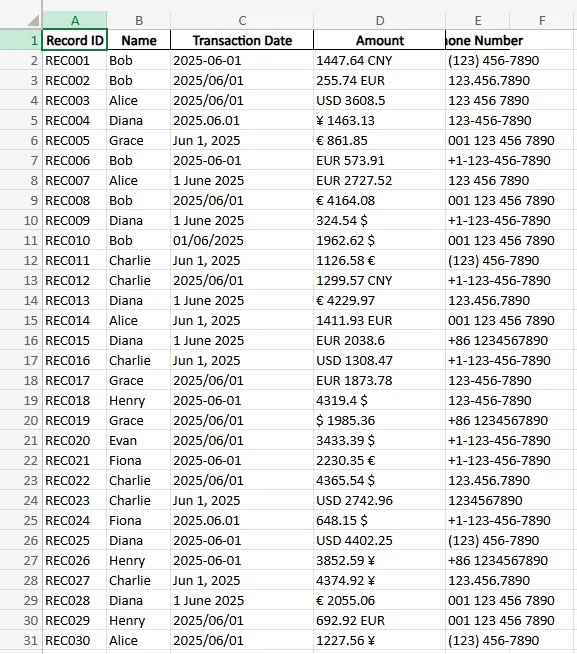
If the total matters for a report, invoice review, budget file, operations summary, or client deliverable, the goal is not only to force the column into numbers. The goal is to clean it in a way another person can review.
First identify what the column is supposed to mean
Before cleaning anything, define the column.
Is it supposed to contain:
- currency amounts?
- quantities?
- percentages?
- counts?
- hours?
- scores?
- invoice totals?
- mixed notes and values?
This matters because the cleanup rule depends on meaning.
For example, $1,200 and USD 1,200 may both mean 1200. But 1,200 estimated may need review. N/A may mean not applicable, not zero. A blank cell may mean missing data, not zero. Parentheses may mean negative numbers in accounting exports.
If you convert everything aggressively, you may create a clean-looking column that loses business meaning.
Separate values from review notes
The safest structure is usually two columns:
- a cleaned numeric value
- a review or status note
The cleaned value is what you sum. The review note explains what happened.
Examples:
$1,200becomes1200, status: cleaned currency symbolUSD 300becomes300, status: cleaned currency prefix1,200 approxbecomes blank or 1200, status: needs reviewN/Astays blank, status: not applicable- empty cell stays blank, status: missing value
(450)becomes-450, status: accounting negative
This approach protects the report. A stakeholder can see which values were converted cleanly and which values still need judgment.
If the file will feed a recurring report, this review layer is more useful than a one-time formula hidden in a helper column.
Do not treat every non-number as zero
One of the most common mistakes is converting all non-numeric values to zero.
That may make the SUM formula work, but it changes the story.
A blank invoice amount, a text note, and a true zero are not the same thing. If you turn all three into zero, the total may be mathematically easy but operationally misleading.
Use categories instead:
- valid number
- valid zero
- missing value
- not applicable
- text mixed with number
- suspicious value
- needs review
This makes the final report more honest. It also helps you explain why the total changed after cleaning.
Build a cleanup workflow, not just a formula
For small files, Excel formulas can work. You can use functions to remove currency symbols, commas, spaces, and text. For larger or recurring files, Power Query may be better because each transformation is visible and repeatable.
The workflow should follow this order:
- preserve the raw column
- create a cleaned numeric column
- create a status or review column
- validate totals before and after cleaning
- review suspicious values
- use the cleaned column in reports
Do not overwrite the original field. If the output is questioned later, the raw value is your evidence.
This is also where a practical Excel AI workflow can help. Instead of manually guessing every pattern, you can ask the system to inspect the column, categorize messy values, propose cleanup rules, and produce a reviewable table.

Validate before summing
After cleaning, run basic checks before trusting the total.
Look at:
- number of raw rows
- number of cleaned numeric values
- number of blanks
- number of values marked for review
- largest and smallest values
- negative values
- values with decimals
- values that changed during cleaning
- total before and after cleanup if Excel recognized any numbers originally
The point is not to make the file perfect. The point is to know whether the total is ready to use.
If the final output becomes a chart or summary, connect the cleaned value to an AI reporting workflow so the report can include data-quality notes instead of hiding them.
Where RowSpeak fits
RowSpeak is useful when the mixed column is part of a larger business file.
You can upload the spreadsheet and ask RowSpeak to:
- identify columns that appear numeric but contain text
- classify messy values by pattern
- suggest safe cleanup rules
- separate clean numbers from review items
- summarize totals using only valid numeric values
- create a report that explains excluded or uncertain rows
That is different from asking for a single Excel formula. The formula may convert values. RowSpeak helps turn the file into an answer that can be reviewed and shared.
For example, you might ask:
Clean the Amount column for reporting. Keep the original values, create a numeric amount column, flag values that need review, and summarize the total using only valid amounts.
That prompt gives the workflow, not just the desired total.
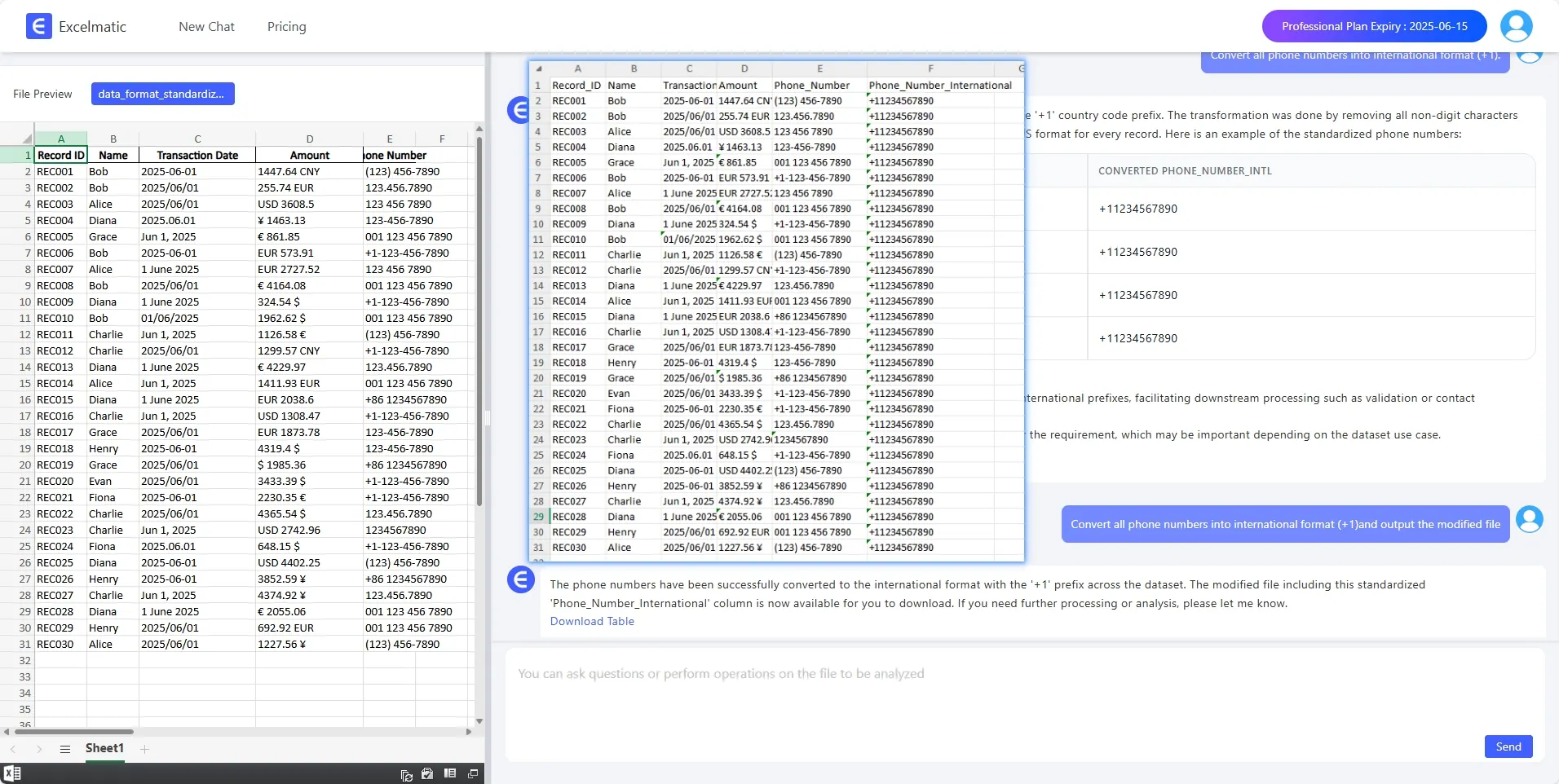
A good result should not only return a number. It should make the cleaned structure visible: original value, standardized value, and the rows that still need a human decision.
When a chart should wait
It is tempting to build a chart as soon as the cleaned column has numbers.
Wait until the review status is understood.
If 3% of rows are uncertain, the chart may still be useful. If 35% of the rows were converted from mixed text or marked for review, the chart may give false confidence.
Once the cleaned field is reliable, visual summaries can help. If the next step is a dashboard, an Excel-to-dashboard workflow can turn the cleaned values into charts, ranked lists, and summary views.
A practical checklist
Before summing a mixed Excel column, confirm:
- the column definition is clear
- raw values are preserved
- currency symbols and separators are handled
- accounting negatives are handled
- blanks are not automatically treated as zero
- text notes are separated from numeric values
- suspicious values are flagged
- totals are based on the cleaned column
- the report explains what was excluded
This checklist is especially important when mixed columns come from monthly exports. The same issue can return every period, so the cleanup should fit into a broader monthly CSV reporting workflow rather than being fixed from scratch each time.
Common mistakes to avoid
Do not overwrite the raw column.
Do not assume every blank means zero.
Do not remove text without checking whether it changes the meaning.
Do not ignore values that Excel stores as text.
Do not build charts before reviewing the cleanup status.
The takeaway
Cleaning mixed data in an Excel column is not only a technical cleanup step. It is a trust step.
A useful workflow preserves the original value, creates a clean numeric field, flags uncertain rows, and explains what went into the final total.
Excel can do the conversion. Power Query can make it repeatable. RowSpeak fits when the team wants a faster path from messy spreadsheet column to reviewable analysis and report-ready output.
Let Rows Speak.
Get Started: Clean Your Next Mixed Column with RowSpeak
If you have a column that mixes currency symbols, text notes, blanks, N/A, and numbers, do not start by forcing everything into a SUM formula. Upload the file to RowSpeak and ask for a cleaned numeric column, a review-status column, and a summary that excludes uncertain rows.
Try RowSpeak today and turn your next messy Excel column into a report-ready table with a clear review trail.