Key takeaways:
- Building an employee training gap report is not a simple lookup problem because role, location, requirement label, expiration date, and blank fields can all change the result.
- The useful output is an exception report that shows employee, role, required training or certification, current status, gap type, and next action.
- RowSpeak can compare employee records with role requirements, flag missing or expired training, certification, or license records, highlight exception rows, and export a manager-ready Excel report.
A training and certification gap report sounds simple until the data lands in Excel.
One file lists employees, roles, and the training, licenses, or certificates they already have. Another file lists each role and the requirements that role must satisfy. The question is direct: who is missing what?
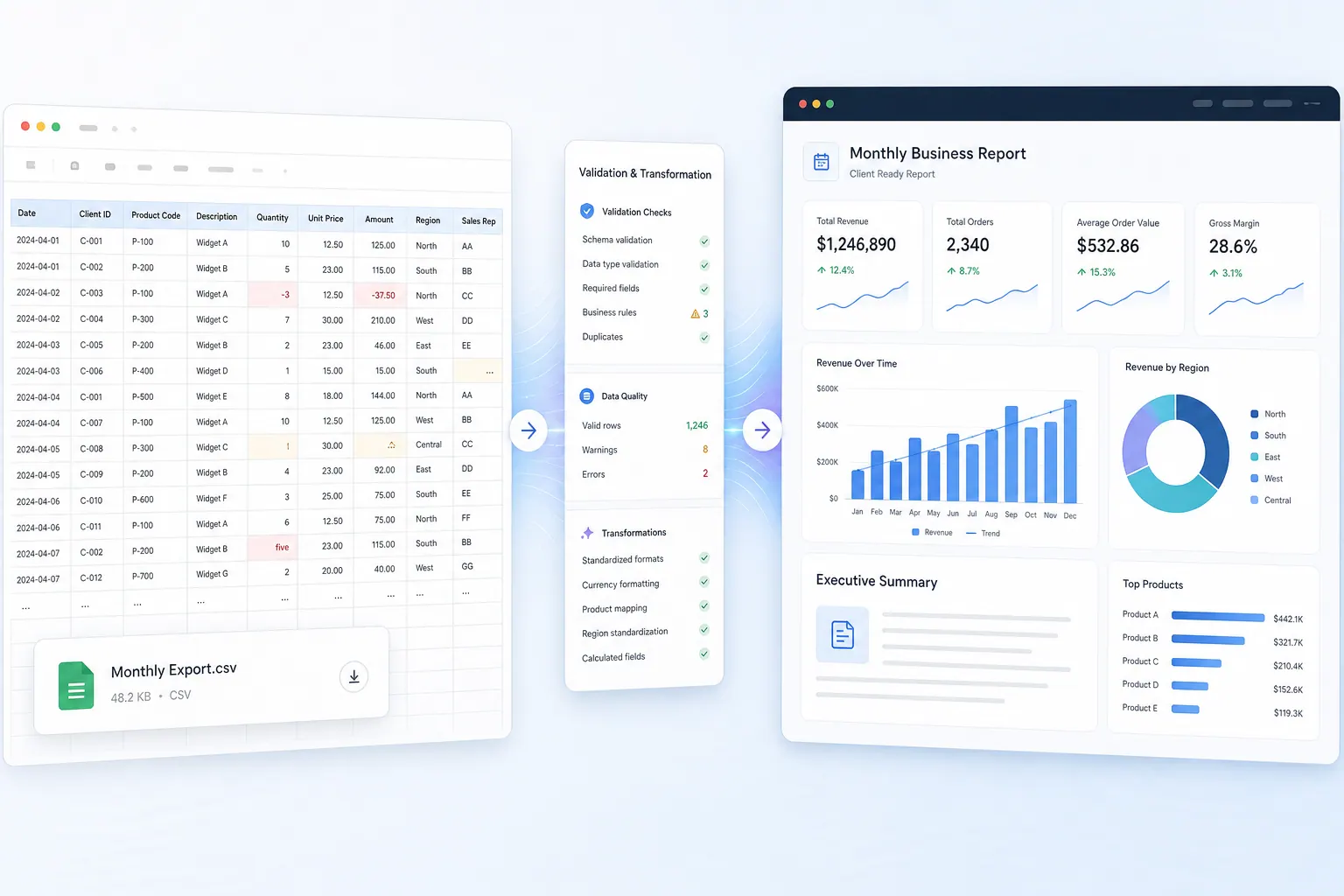
The spreadsheet answer can be a formula, a lookup, a Power Query merge, or a pivot. But the business answer is more demanding. HR, operations, or compliance needs a reviewable exception report that explains the gap by employee, role, requirement, and status. A manager should be able to open the output and understand what needs action without reverse-engineering your formulas.
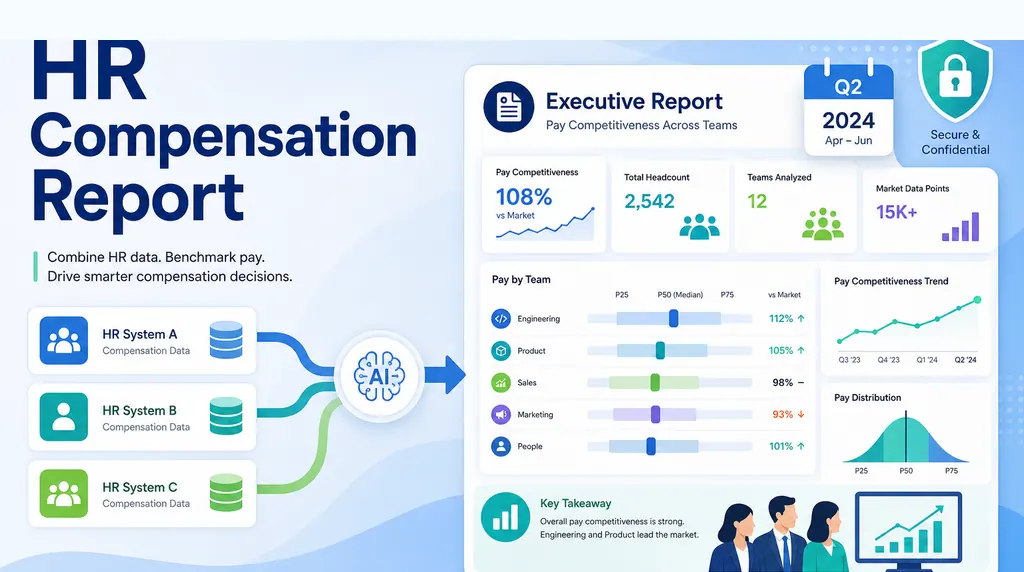
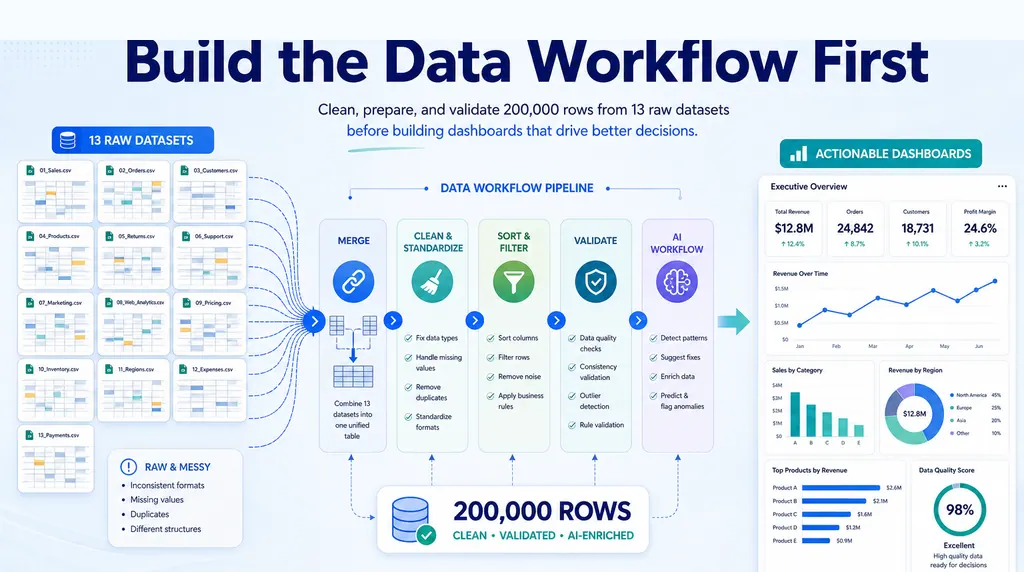
This article is inspired by a Reddit discussion about HR data headaches, where practitioners described the same underlying problem: HR work often depends on scattered exports, inconsistent definitions, and reports that are hard to trust. Certification tracking is one version of that broader HR reporting problem.
The broader lesson is useful for any team that tracks training, licenses, safety credentials, onboarding requirements, or role-based compliance in spreadsheets.
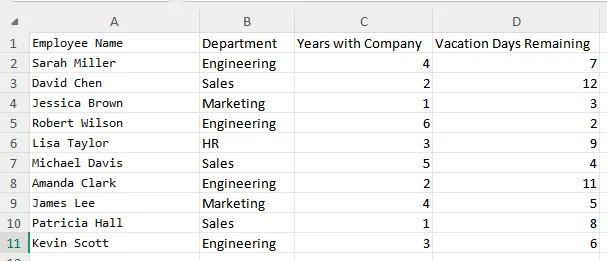
A simple employee table already shows why the work needs structure. The same employee record may include department, role, location, tenure, and current HR attributes; certification status has to be joined to that context before the gap list is useful.
Why this problem is harder than a lookup
A simple lookup can tell you whether one certificate appears in one employee row. It does not automatically solve the reporting problem.
The difficulty comes from the shape of the data.
You may have:
- one row per employee with multiple certificate fields
- one row per employee-certificate pair
- role names that do not match exactly between files
- certificate names with abbreviations or old labels
- employees with multiple roles
- expired certificates mixed with active certificates
- blank cells that mean unknown, not compliant
If you skip those details, the report can look complete while missing the real risk.
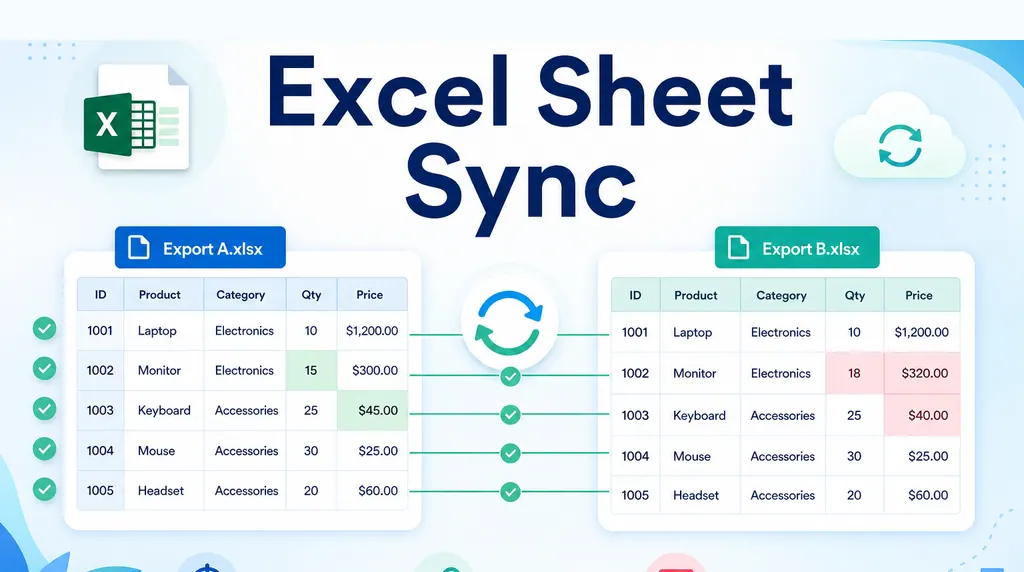
For example, an employee might have Forklift Safety listed as Forklift Cert in another file. A formula may mark it as missing. Or the opposite can happen: a certificate name matches, but the expiration date has passed. That is not a clean pass.
This is why missing certification analysis should be treated as an exception-reporting workflow, not just a spreadsheet trick.
Start with the business question
Before building formulas, define the output the business actually needs.
Usually the useful question is not “which values do not match?” It is:
For each employee, based on their current role and location, which required certifications are missing, expired, expiring soon, or unclear?
That question creates a better output structure.
A useful report should include:
- employee name or ID
- current role
- required certificate
- current certificate status
- expiration date if available
- gap type: missing, expired, expiring soon, mismatched, or needs review
- recommended owner or next action
That output is much easier to review than a highlighted spreadsheet with scattered blanks.
For example:
| employee ID | role | location | required certificate | current status | expiration date | gap type | next action |
|---|---|---|---|---|---|---|---|
| E-1042 | Warehouse Associate | Dallas | Forklift Safety | expired | 2026-03-31 | expired | schedule renewal |
| E-1188 | Shift Lead | Phoenix | First Aid | not found | blank | missing | assign training |
| E-1401 | Driver | Denver | DOT Medical Card | active | 2026-11-15 | present | no action |
| E-1520 | Floor Supervisor | Austin | Food Safety | Food Handler | 2026-09-10 | name mismatch | review mapping |
If the report will be shared with HR, legal, store managers, field supervisors, or training coordinators, make the exception table the main deliverable. Supporting tabs can hold the raw data and matching logic, but the decision-maker needs the gaps first.
Normalize roles and certificate names first
The most common mistake is matching before cleaning.
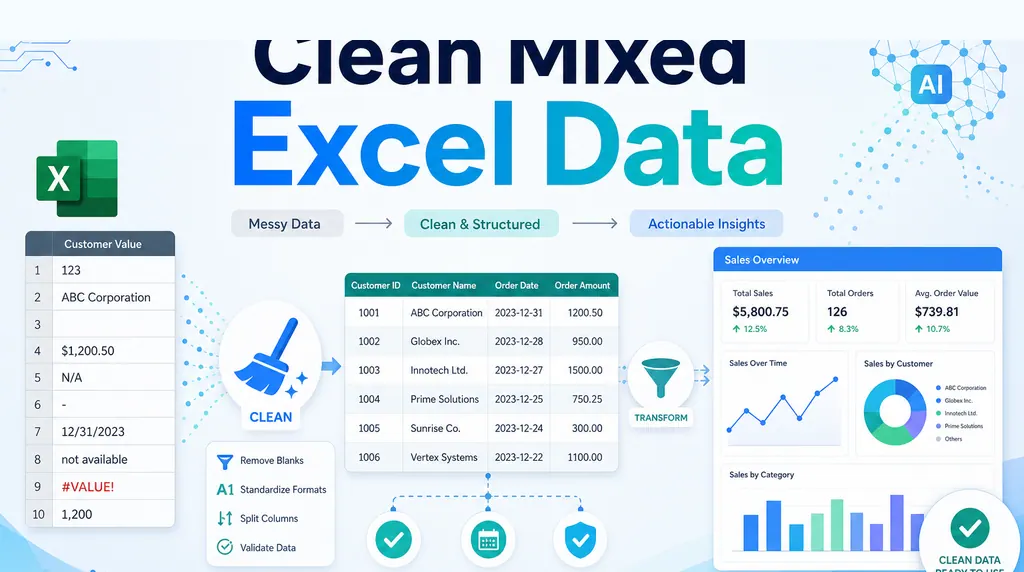
Role and certificate names should be normalized before comparison. That does not mean changing the source files permanently. It means creating clean working columns so the comparison is consistent.
Useful cleanup steps include:
- trim extra spaces
- standardize capitalization
- map abbreviations to official names
- remove retired certificate names
- separate active and expired certificates
- confirm whether contractors, part-time staff, or inactive employees should be included
This step matters because certification reports often become compliance evidence. If someone challenges the output, you need to explain how each match was made.
A lightweight mapping table is usually enough. One column can hold the messy source label. Another column can hold the approved certificate name. The same approach works for job titles and departments.
Build the employee-requirement matrix
Once the names are clean, create the comparison table.
The safest structure is one row per employee per required certificate. If a warehouse associate in Texas requires three certificates, each employee in that role and location should produce three requirement rows. Then each requirement row can be checked against the employee’s current certificate records.
For most teams, role is not enough. Location often changes the rule because state, country, customer-site, or facility requirements can differ. A practical requirement table usually has columns like:
| role | location or region | required certificate | renewal window | requirement status |
|---|---|---|---|---|
| Warehouse Associate | All | Forklift Safety | 60 days | active |
| Driver | US | DOT Medical Card | 90 days | active |
| Food Handler | Texas | Food Safety | 60 days | active |
| Shift Lead | All | First Aid | 30 days | active |
The output can mark each row as:
- Present and active
- Missing
- Expired
- Expiring within 30, 60, or 90 days
- Name mismatch
- Role mismatch
- Needs manual review
This structure is more verbose than a compact dashboard, but it is easier to audit. You can filter to only Missing or Expired when you need the action list.
For a recurring compliance workflow, this also makes month-over-month review easier. You can see which gaps were closed, which new gaps appeared, and which employees changed roles.
Add a review layer before sharing
A missing certification report should not be sent immediately after the first match.
Review a few categories first:
- employees with no role assigned
- roles with no requirements listed
- certificates that appear in employee records but not in the requirement table
- employees with duplicate certificate rows
- certificates expiring within the chosen review window
- records with incomplete dates
These are not minor data quality issues. They can change the action list.
The expiration window should match the operational need. For weekly scheduling, a 30-day window may be enough. For regulated training, union scheduling, field service, or travel-heavy roles, a 60- or 90-day warning is usually more useful because managers need time to schedule renewals before the employee becomes unavailable for work.
This is where an Excel AI workflow can help. Instead of asking for one formula, you can ask the system to inspect both files, explain the matching assumptions, identify exceptions, and produce a reviewable gap report.
Where RowSpeak fits
RowSpeak is useful when the job is not only matching two tables, but turning that match into a report people can trust.
You can upload the employee certificate file and the role requirement file, then ask RowSpeak to:
- identify the key columns in each file
- detect inconsistent role and certificate names
- build a missing-certification exception table
- flag ambiguous matches for review
- highlight exception rows in yellow
- summarize the highest-risk gaps
- create a downloadable Excel report that can be shared with managers
That is different from pasting a table into a generic chatbot and hoping the answer is right. For compliance-style work, the output needs to be reviewable. The assumptions matter as much as the result.
If this kind of report becomes part of a recurring HR or operations process, it may also fit into a broader AI reporting workflow. The value is not only faster analysis. It is a more consistent way to turn messy operational files into a report with evidence.
In RowSpeak, the useful output is closer to an exception report than a raw lookup result: a table of gaps, a summary by role or department, and a separate list of ambiguous matches to review.
Use a prompt like this:
I uploaded three HR files:
1. Employees: employee ID, role, location, department, active status.
2. Current Certifications: employee ID, certificate name, issue date, expiration date, certificate status.
3. Role Requirements: role, location or region, required certificate, renewal warning window.
Create a downloadable Excel workbook with:
- Exception Report: one row per missing, expired, expiring soon, or ambiguous certification.
- Covered Employees: employees whose required certifications are present and active.
- Mapping Review: certificate names or role names that may refer to the same requirement but do not match exactly.
- Summary: gaps by department, role, location, and gap type.
Use employee ID as the key. Apply role + location rules when available, otherwise use the all-location rule.
Treat expired certificates as gaps. Treat certificates expiring within the renewal warning window as "expiring soon".
Highlight exception rows in yellow in the exported workbook.
Keep the raw source rows traceable.
That prompt matters because it tells RowSpeak to create an action report, not just answer whether a lookup matched.
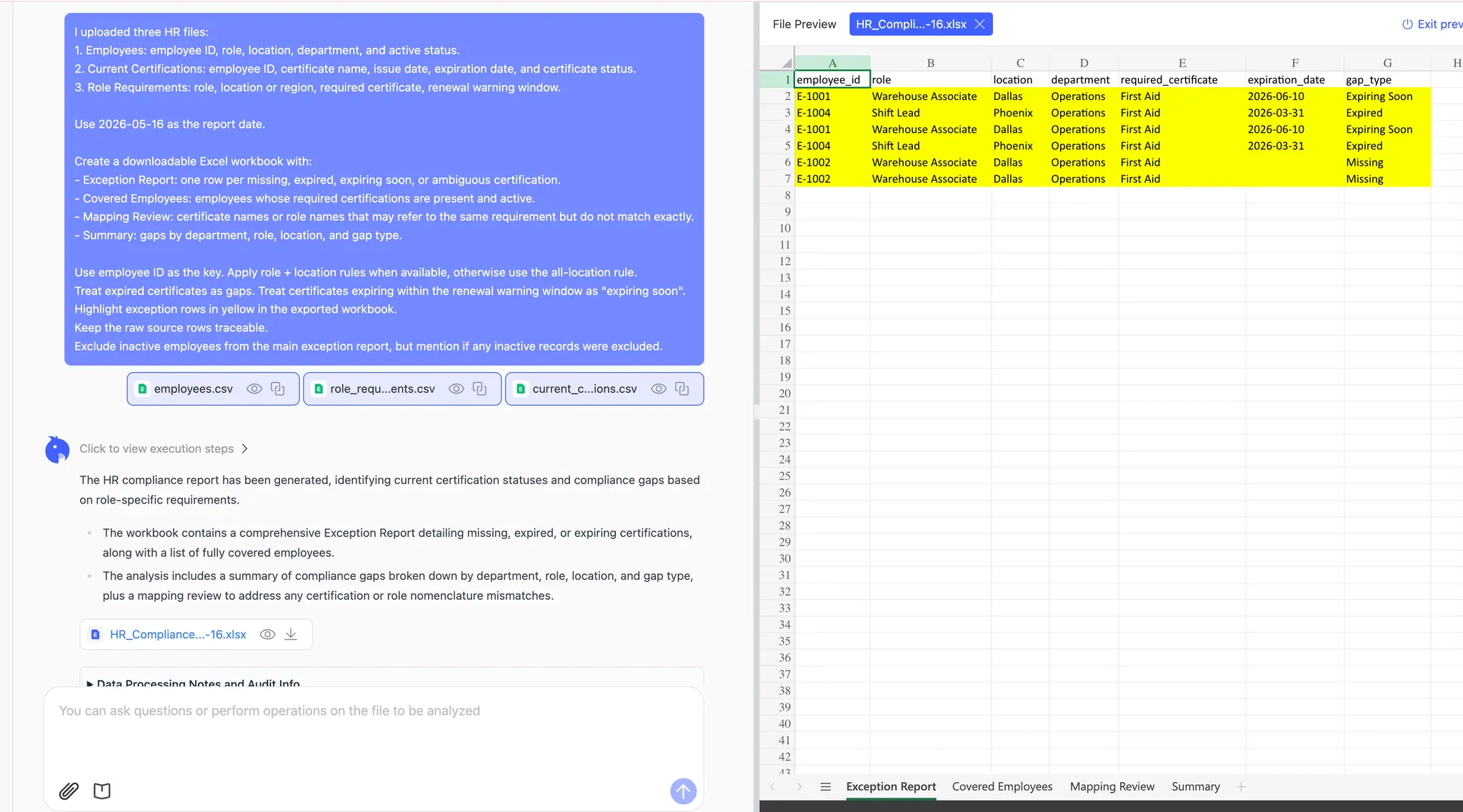
In this test case, RowSpeak receives three anonymous CSV files and a prompt that defines the employee key, role + location rule, expiration logic, and yellow exception highlighting requirement.
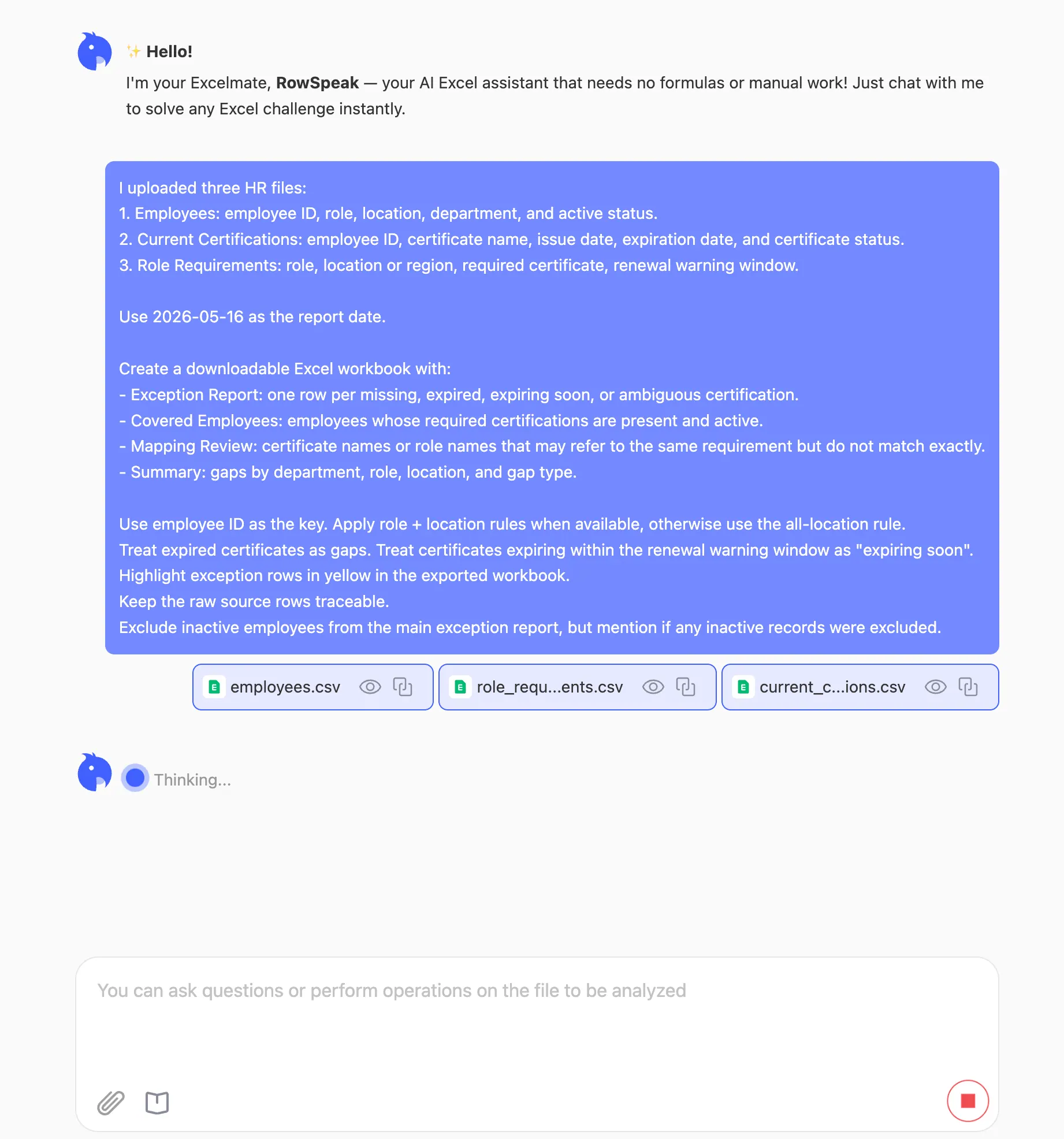
RowSpeak generated a downloadable workbook with an Exception Report, Covered Employees, Mapping Review, and Summary tabs. The exception rows are highlighted in yellow so the action list is easy to review.
A practical workflow to follow
Use this sequence when building the report in Excel, Power Query, or RowSpeak.
Define the reporting scope
Decide which employees, roles, departments, locations, and certificate statuses are in scope.Clean role and certificate names
Create mapping tables for abbreviations, old labels, and inconsistent naming.Expand role requirements
Build one row per employee per required certificate.Match against current records
Check certificate presence, status, and expiration date.Separate true gaps from review items
Do not mix missing certificates with uncertain matches.Create the action report
Show employee, role, requirement, gap type, and recommended next step.Keep the raw data available
Managers may need to trace a gap back to the source record.
This is also a good place to link the work to a repeatable monthly CSV reporting workflow if the certification data comes from exported HR systems.
Common mistakes to avoid
The first mistake is treating blanks as simple failures. A blank may mean the employee is missing a certificate, but it may also mean the export did not include a status field.
The second mistake is ignoring expiration dates. A certificate that exists but expired last year should not pass the check.
The third mistake is hiding the matching logic. If someone asks why an employee was marked missing, the report should show the role requirement and the source record.
The fourth mistake is overbuilding the dashboard too early. A chart of certification completion rates is useful only after the gap table is correct.
The takeaway
Finding missing employee certifications in Excel is not just a lookup problem. It is a workflow problem.
The useful output is a reviewable compliance gap report: one that shows who needs what, why they were flagged, and which records need human review.
Manual Excel can work for small lists. Power Query can help with repeatable merges. RowSpeak fits when the team wants to move from messy HR exports to answers, summaries, and shareable reports without treating the spreadsheet as the final deliverable.
Let Rows Speak.
Get Started: Create a Certification Gap Report with RowSpeak
If your certification data lives in separate employee and requirement files, upload both to RowSpeak and ask for a missing-certification exception report. Include the role rule, certificate names, expiration logic, and the review list you want managers to act on.
Try RowSpeak today and turn HR compliance spreadsheets into a clear action report.