Key takeaways:
- While ChatGPT can generate formulas or code, it can't directly edit your Excel files. This creates a clunky, multi-step process of copying and pasting that often leads to errors.
- RowSpeak is a purpose-built AI tool where you upload your spreadsheet, give plain English commands, and download the finished file. It’s designed specifically for business data tasks.
- By using a specialized tool like RowSpeak, teams can get analysis and reports done in minutes, not hours, empowering everyone to work with data without being an Excel expert.
Let's be honest. You’ve probably tried it. You have a clunky spreadsheet and a deadline, and you think, "Maybe ChatGPT can just… do this for me?" The promise of AI is intoxicating. You ask it to create a summary table from your sales data, and it spits back a block of code or a perfectly formatted text-based table.
And then comes the frustrating part.
You realize ChatGPT can't actually touch your file. You're left trying to copy-paste VBA code you don't understand, which ultimately undermines your productivity gains, or wrangling a text table that loses all its formatting the second it hits a cell. Suddenly, your "shortcut" has become a whole new technical project. So, can ChatGPT create Excel tables? Yes, but it's probably not the solution you're hoping for.
The Promise and the Pain of Using ChatGPT for Excel
ChatGPT is a marvel of language and logic. It's fantastic for brainstorming, writing an email, or even explaining a complex Excel formula. You can ask it, "How do I write a VLOOKUP to connect two sheets?" and it will give you a beautiful, clear explanation with an example.
But it’s a conversational AI, not a data execution engine. When you ask it to perform a task on your data, it can only give you the instructions—the recipe, not the finished meal. This workflow usually looks something like this:
- You describe your data and your goal to ChatGPT.
- It generates a formula, a Python script, or VBA code.
- You copy this code.
- You switch back to Excel, open the right developer tool or formula bar, and paste it in.
- You cross your fingers and hope it works. If it doesn't, you're stuck debugging code you didn't write.
It’s an indirect and often inefficient process that requires a surprising amount of technical know-how. For busy business teams, it’s a frustrating detour, not a shortcut.
RowSpeak: The Professional's Choice for Business Data
After wrestling with this exact problem, I started looking for a better way. It turns out, a new wave of AI tools is emerging that are built specifically for spreadsheet tasks. They skip the middleman of code generation and let you work directly with your files.
I recently started using a tool called RowSpeak, and the difference was night and day. It’s a web-based tool that understands its one job is to get your spreadsheet work done.
Instead of a clunky, multi-step translation process, the workflow is beautifully simple and focused on efficient data analysis:
Upload your Excel or CSV file.
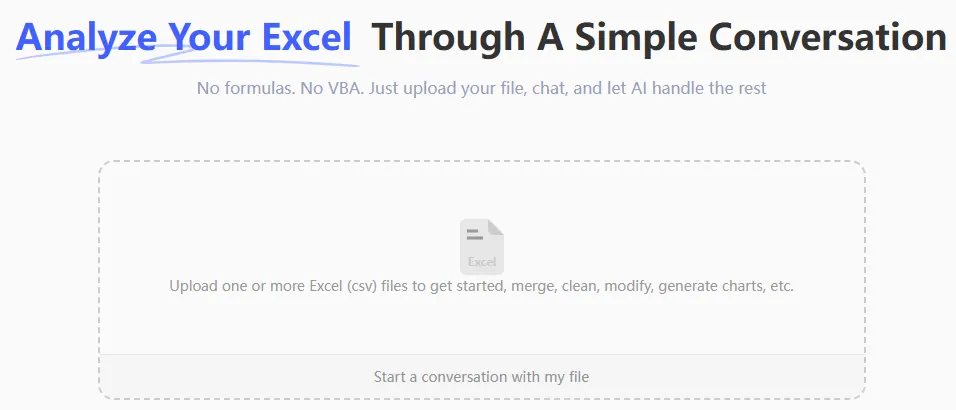
Command what you want in plain English, for instance:
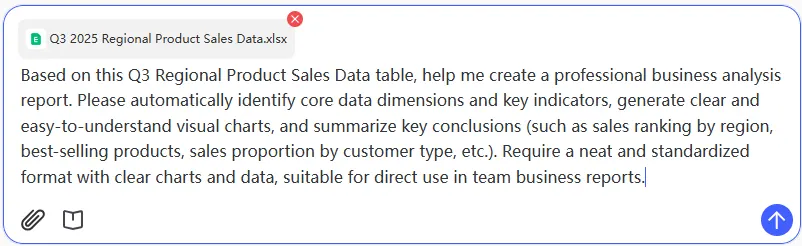
Obtain a professional report.
That's it. The AI does the work inside the spreadsheet environment and gives you back a finished product. No code, no copy-pasting, no technical headaches.
The Right Tool for the Job: RowSpeak vs. ChatGPT
This isn't about one tool being "better" than the other; it's about using the right tool for the right job.
Choose ChatGPT when your goal is to learn or brainstorm. It's an excellent tutor for understanding how formulas work or for getting ideas on how you might approach a data analysis problem. It’s a knowledge assistant.
Choose RowSpeak when your goal is to execute. If you have raw business data and need a clean, professional report—fast—it's the far more direct route. It's an action assistant. For most business teams, where the deliverable is the priority, this is a game-changer.
Why Business Teams Are Making the Switch
After using both, it becomes clear. RowSpeak is designed to give you back your time. As one manager told me, "Tasks that used to take my team half a day are now done in ten minutes. We spend our time discussing what the data means, not fighting with formulas."
The core advantage is empowerment. Team members who were once intimidated by complex functions can now run their own analysis. The fear of "breaking the spreadsheet" disappears. Collaboration becomes simpler because anyone can pick up a file and instantly understand the next step, making data visualization and reporting accessible to all.
If your primary role is analyzing business data, not developing software, then a specialized tool will almost always serve you better. RowSpeak is built for the rhythm of business, not the syntax of code.
Start Your Smarter Spreadsheet Journey Today
If your work involves business data analysis rather than technical development, RowSpeak offers the more intelligent path forward.
Try RowSpeak for Free — Experience intelligent spreadsheet analysis designed for business users and create your first professional report in under 3 minutes.