Excel Analysis for Attendance: Solve HR Check-in Data with Just 3 Smart Questions

Tracking employee attendance is one of the most detail-heavy and error-prone responsibilities in HR. Whether it’s calculating attendance rates, spotting latecomers, or summarizing data by department, Excel-based methods often require complex formulas and repetitive manual work.

In this post, we’ll explore three common attendance analysis problems HR teams face—and show you how to solve them effortlessly with RowSpeak, a tool that turns natural-language questions into clean, automated Excel analysis.


The Problem with Traditional Excel-Based Attendance Tracking

Imagine you have a typical attendance log like this:
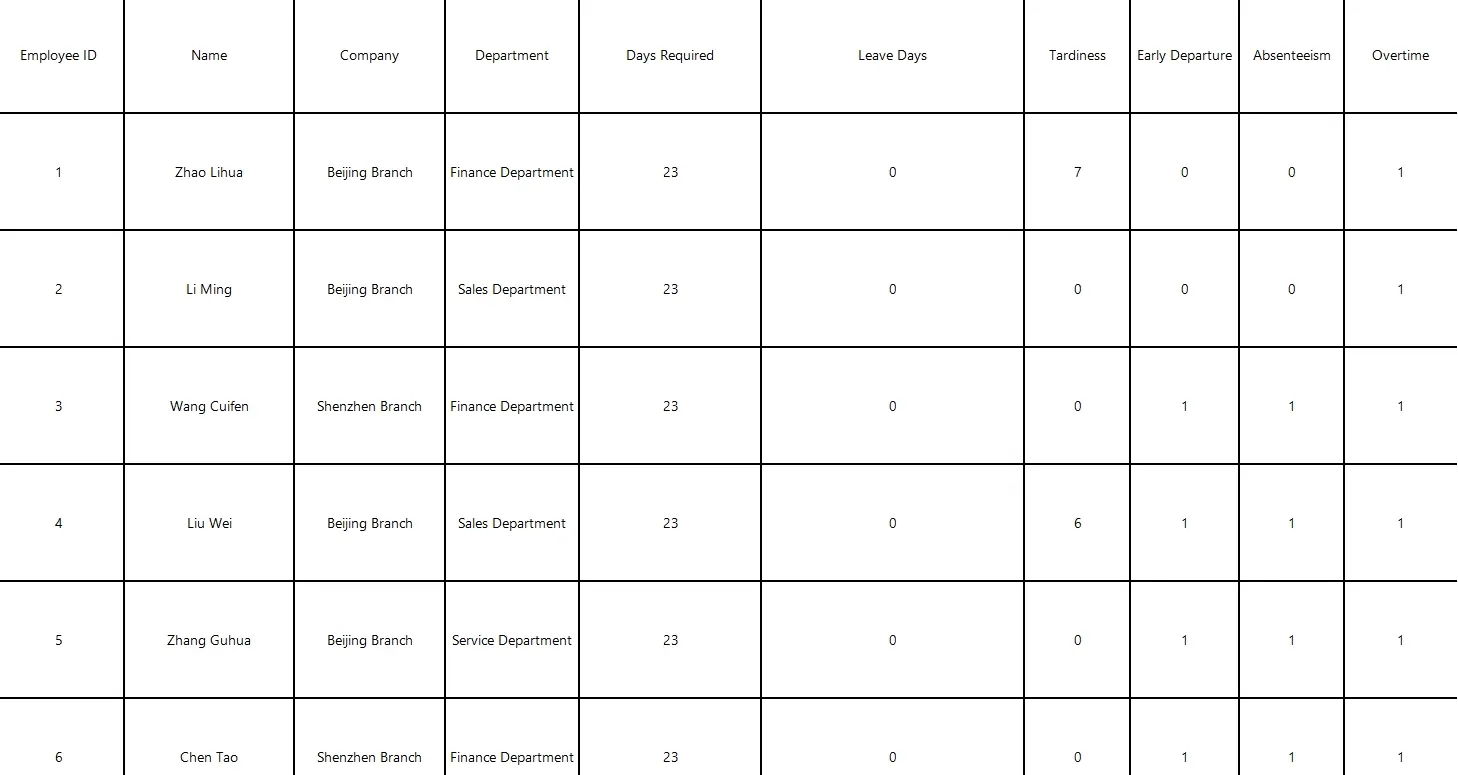
depart

Now imagine needing to:

  • Calculate attendance rate for each employee
  • Identify who’s late most often
  • Summarize overall department-level performance

Doing this manually means:

  • Writing multiple COUNTIF or IF formulas
  • Building and maintaining pivot tables
  • Filtering across months and columns repeatedly

It’s time-consuming and error-prone—even for Excel-savvy HR professionals.


RowSpeak to the Rescue: 3 Smart Questions = Instant Results

With RowSpeak, you can upload your attendance file and ask direct, human-style questions. No formulas. No pivot tables. Just clean answers.

Let’s walk through each problem and how to solve it:


Problem 1: How to calculate attendance rate for each employee?

RowSpeak Question: Please calculate each employee’s attendance days in April, and determine attendance rate (attendance days / working days). Late or absent counts as non-full attendance.

Result: RowSpeak automatically:

  • Computes attendance rate as a percentage
  • Returns a table sorted by employee, with clear rates

Problem 2: Who has the most frequent lateness or early leaves?

RowSpeak Question: Please summarize late and early leave counts per employee, and list the top 10 offenders.

Result: RowSpeak:

  • Tallies Late = Yes and Early Leave = Yes rows
  • Ranks employees by total count
  • Produces a top-10 list for internal reference or alerts

No need to use filters or build a leaderboard manually.


Problem 3: How is each department performing overall?

RowSpeak Question: Please group by ‘Department’, calculate average attendance rate and total absence days, and generate a Bar Chart.

Result:

  • Groups data by Department
  • Computes average attendance rates and sums total absences
  • Generates a clean Bar Chart for quick reporting

This saves hours compared to traditional summary tables + chart building.


Conclusion: Attendance Analysis Without the Excel Stress

Managing attendance shouldn’t mean managing formulas. With RowSpeak’s Excel analysis capabilities, HR teams can go from raw check-in data to strategic insights in minutes. No formulas, no errors—just clean results driven by smart questions.

Ready to experience it yourself? Click here to see the full prompt flow and try the tool >>
Ditch Complex Formulas – Get Insights Instantly

No VBA or function memorization needed. Tell RowSpeak what you need in plain English, and let AI handle data processing, analysis, and chart creation

Try RowSpeak Free Now

Recommended Posts

RowSpeak vs ChatGPT: Which AI Assistant Works Better for Excel Analysis?
Excel Tips

RowSpeak vs ChatGPT: Which AI Assistant Works Better for Excel Analysis?

Inject super efficiency into Excel with AI: automate repetitive tasks, perform advanced analysis, and easily gain insights through natural language.

Sally
Excel Grade Analysis Made Simple: Visualize Student Performance with Excel AI
Excel Tips

Excel Grade Analysis Made Simple: Visualize Student Performance with Excel AI

RowSpeak turns clunky grade spreadsheets into smart visual dashboards—no formulas, just plain English.

Sally
Yield Analysis: Uncover product defects with one smart question!
Excel Tips

Yield Analysis: Uncover product defects with one smart question!

Yield insights don’t have to be hidden. With RowSpeak, they surface in seconds.

Sally
Track Sales KPIs Smarter: How Excel AI Tools Simplify Performance Analysis
Excel Tips

Track Sales KPIs Smarter: How Excel AI Tools Simplify Performance Analysis

Still tracking KPIs with manual formulas and pivot tables? Learn how RowSpeak makes sales performance analysis faster, simpler, and more accurate—no coding required.

Sally
9 Effortless Ways to Add Bullet Points in Excel for Clearer Lists
Excel Tips

9 Effortless Ways to Add Bullet Points in Excel for Clearer Lists

Struggling to organize text in Excel? This guide shows you 8 manual methods to create bullet points, from simple shortcuts to custom formatting. Plus, discover how an AI tool can do it all for you in seconds with a single command.

Ruby
Monthly Order Analysis Made Easy: RowSpeak AI Report Generator
Excel Tips

Monthly Order Analysis Made Easy: RowSpeak AI Report Generator

Automate your monthly Excel order analysis with AI. RowSpeak lets you generate clean reports, visual charts, and summaries using just one sentence—no Excel skills required.

Sally
RowSpeak: The Best AI Grading Assistant for Teachers
Excel Tips

RowSpeak: The Best AI Grading Assistant for Teachers

With RowSpeak, teachers can analyze student grades, rank performance, and compare classes—all without formulas. Save hours and simplify reporting using natural language prompts.

Sally
Budget Execution Made Simple: RowSpeak Transforms Departmental Analysis
Excel Tips

Budget Execution Made Simple: RowSpeak Transforms Departmental Analysis

RowSpeak makes budget execution easy—skip the formulas and pivots, just ask your questions in plain English and get analysis-ready insights.

Sally