How to Analyze Survey Data in Excel Without Writing a Single Formula

If you’ve ever run a survey—whether it’s for employee feedback, customer satisfaction, or service reviews—you know the hardest part isn’t collecting the data. It’s making sense of it.

Who’s satisfied? Where’s performance lagging? What are people really saying?

In this tutorial, I’ll walk you through how to use RowSpeak to analyze survey results with just three plain-English prompts—no AVERAGEIFS, no pivot tables, no formula pain.


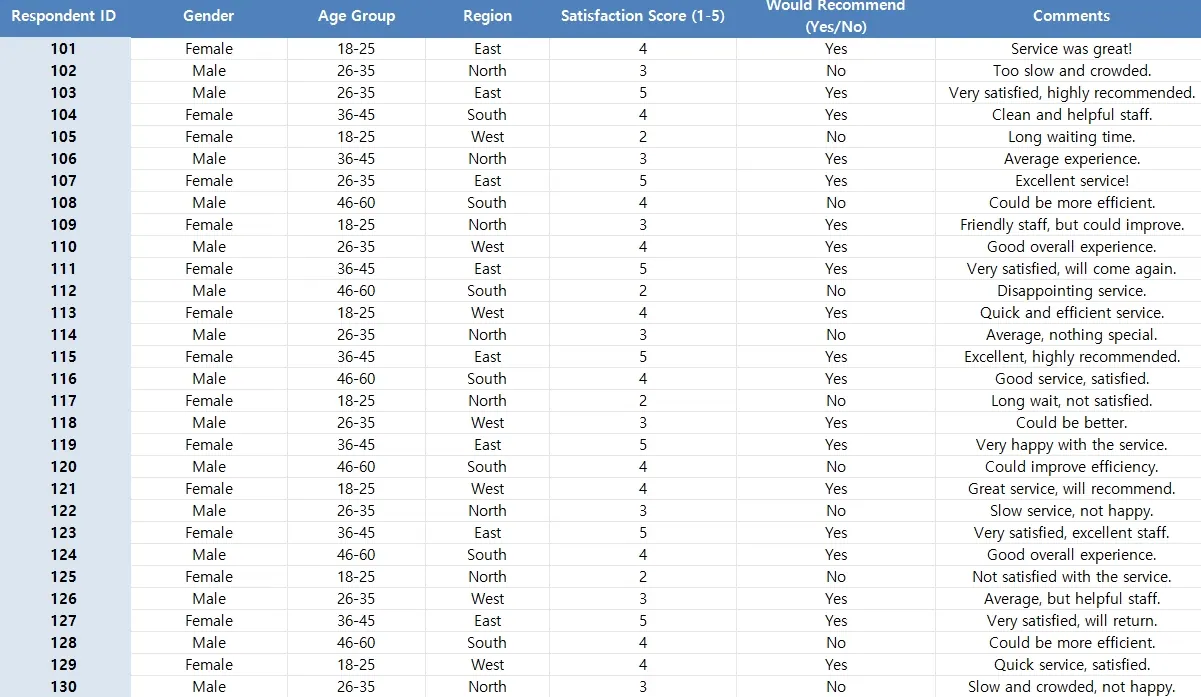
The Dataset: Survey Results Table

Suppose you have the following survey data sheet
depart


What I Asked RowSpeak (and What I Got)


1️⃣ Visualize Satisfaction by Region

Prompt: Please create a Bar Chart showing average satisfaction score per region.

Result: RowSpeak generated a clean Bar Chart comparing average satisfaction scores across East, North, South, and West.

Great for identifying regional gaps in satisfaction.


2️⃣ Extract Key Comments

Prompt: Please extract feedback comments that mention ‘slow’, ‘great’, or ‘efficient’.

Result: RowSpeak returned a filtered table like this:

You instantly know which comments highlight service quality or bottlenecks—without reading every line.


3️⃣ Identify Critical Responses

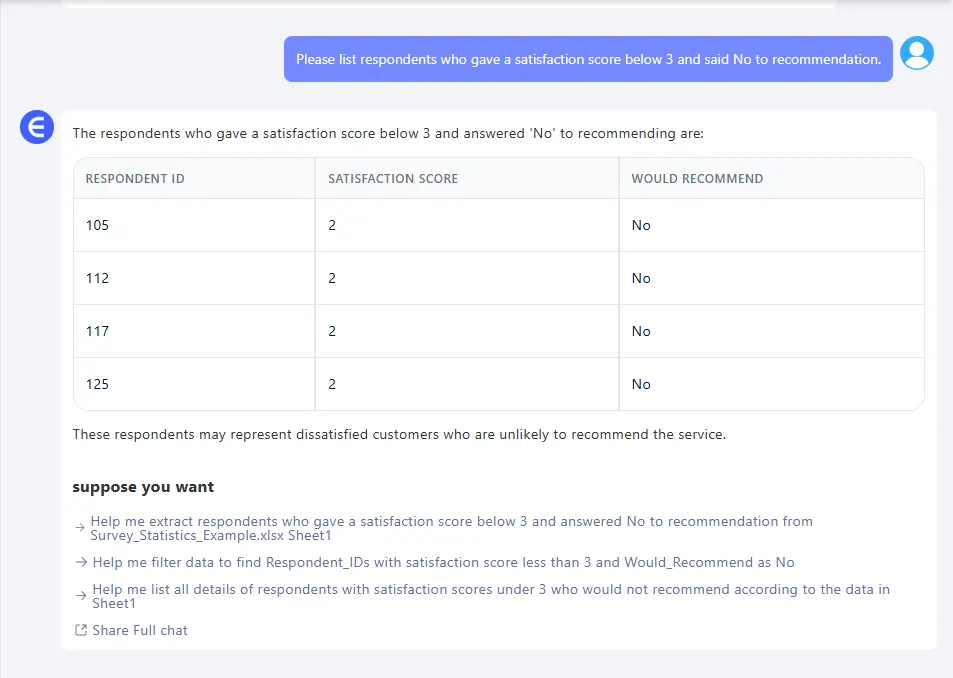
Prompt: Please list respondents who gave a satisfaction score below 3 and said No to recommendation.

Result:
depart

These are the voices you need to hear—and address fast.


What You Can Do With This

  • Create a dashboard for stakeholder reports
  • Compare performance across regions or age groups
  • Identify common issues with service or experience
  • Filter key complaints for follow-up
  • Save hours digging through raw Excel rows

Final Thoughts

Analyzing survey data shouldn’t feel like a spreadsheet nightmare. With RowSpeak, I skipped all the formulas and still got:

Whether you’re an HR manager, customer service lead, or project owner—this is how you get from data to action. Fast.

Klicken Sie hier, um den vollständigen Promptflow zu sehen und das Tool auszuprobieren >>

Möchten Sie es mit Ihrer eigenen Umfragedatei ausprobieren? Testen Sie RowSpeak jetzt >>
Ditch Complex Formulas – Get Insights Instantly

No VBA or function memorization needed. Tell RowSpeak what you need in plain English, and let AI handle data processing, analysis, and chart creation

Try RowSpeak Free Now

Recommended Posts

Excel Grade Analysis Made Simple: Visualize Student Performance with Excel AI
Excel Tips

Excel Grade Analysis Made Simple: Visualize Student Performance with Excel AI

RowSpeak turns clunky grade spreadsheets into smart visual dashboards—no formulas, just plain English.

Sally
Excel AI Tool: data analysis in 1 second with natural language!
Excel Tips

Excel AI Tool: data analysis in 1 second with natural language!

Excel AI tool: data analysis in 1 second with natural language!

Sally
Master Cost Structure Analysis in Excel – No Formulas Needed
Excel Tips

Master Cost Structure Analysis in Excel – No Formulas Needed

Still building pivots and charts to analyze your cost categories? Learn how RowSpeak uses AI to break down cost structures instantly and deliver insights you can act on.

Sally
Category Comparison Charts Made Simple: Excel AI Magic with RowSpeak
Excel Tips

Category Comparison Charts Made Simple: Excel AI Magic with RowSpeak

Turn spreadsheet categories into clear comparisons with RowSpeak and save hours of manual work.

Sally
4 Effortless Ways to Create a Histogram in Excel (2025 Guide)
Excel Tips

4 Effortless Ways to Create a Histogram in Excel (2025 Guide)

Struggling to visualize data distribution? This guide breaks down four powerful methods for creating histograms in Excel. We cover everything from the simple built-in chart to advanced formulas, and even introduce an AI-powered approach for instant results. Master histograms today!

Ruby
From Data to Chart in 10 Seconds: Using RowSpeak to Create Charts with AI
Excel Tips

From Data to Chart in 10 Seconds: Using RowSpeak to Create Charts with AI

Manually creating charts in Excel is overrated. See how RowSpeak turns your spreadsheet into polished charts in just one prompt.

Sally
ChatGPT + Excel AI = A Productivity Powerhouse? Here’s What You Need to Know
Excel Tips

ChatGPT + Excel AI = A Productivity Powerhouse? Here’s What You Need to Know

Structure data with ChatGPT, visualize it instantly with RowSpeak. This AI combo can seriously boost your Excel productivity.

Sally
6 Essential Charts You Can Build Instantly with RowSpeak
Excel Tips

6 Essential Charts You Can Build Instantly with RowSpeak

Learn how I use RowSpeak to instantly create 6 powerful chart types from Excel tables — no formatting, no formulas, no stress.

Sally