Key takeaways:
- Weekly reports lose comments when notes are attached to row positions instead of stable business keys.
- Keep raw exports, team-owned comments, and the final report view in separate layers before automating refresh.
- RowSpeak can help compare weekly files, surface new/removed/changed items, and turn the refreshed spreadsheet into a reviewable update.
A weekly Excel report is rarely just a table of rows.
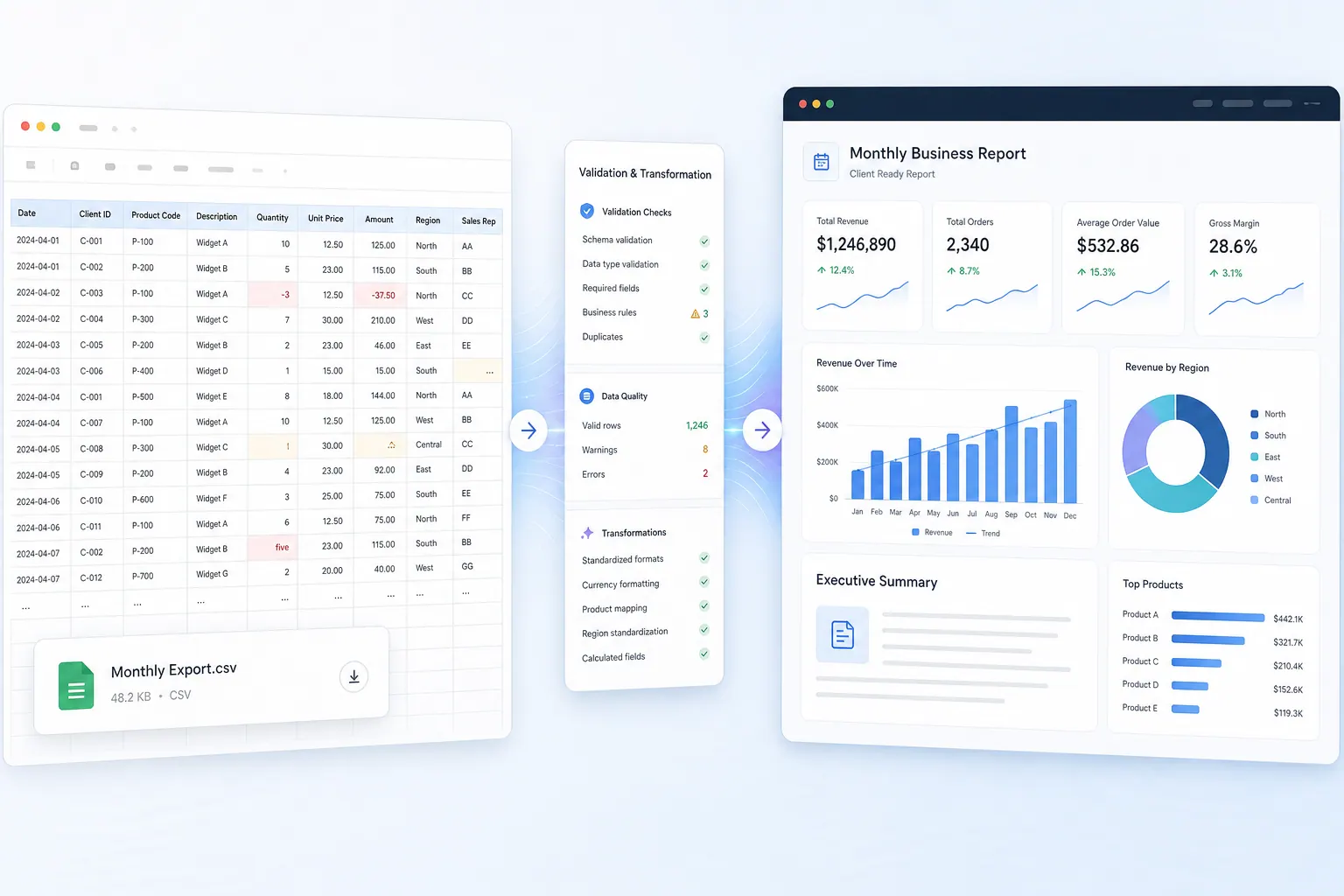
For reports that repeat every week or month, RowSpeak's monthly reporting workflow keeps file cleanup, metric checks, and summaries reusable.
By the second or third cycle, it usually becomes a working document. Someone adds comments. Someone else updates a status. A manager asks for a note beside a customer, issue, order, employee, ticket, invoice, or project. The export is still the source of the data, but the human comments become the source of the decision.
That is where many reporting workflows break.
A real user in r/excel described the pattern clearly. Their team downloads a weekly report from an internal company website. The report exports to Excel, gets divided by user group, and employees add comments in a column beside the most recent data. The goal sounds simple: refresh the report, keep comments for existing line items, add new lines, and remove lines that no longer exist. The user was considering Power Query or VBA, but was unsure which approach would be safe and maintainable for a less technical team.
The example comes from a Reddit discussion about automating a weekly Excel report while preserving comments.
That question is worth taking seriously because it is not just an Excel question. It is a business process question. The risk is not only that a formula breaks. The risk is that the report refresh loses the context people need to act.
Why weekly report refreshes lose comments
Most weekly export problems start with a hidden assumption: row 47 this week is the same business item as row 47 last week.
That assumption fails quickly.
New items appear. Closed items disappear. Names get corrected. Categories change. A source system inserts rows in a different order. Someone sorts a tab before saving it. A refreshed query rebuilds the table from scratch. The comments that looked attached to the data were really attached to a row position.
This is why a manual comment column beside a refreshed table is fragile. The workflow feels natural because people can see the row and write beside it. But the workbook has no reliable way to know that a note belongs to a specific line item unless the process gives it a stable key.
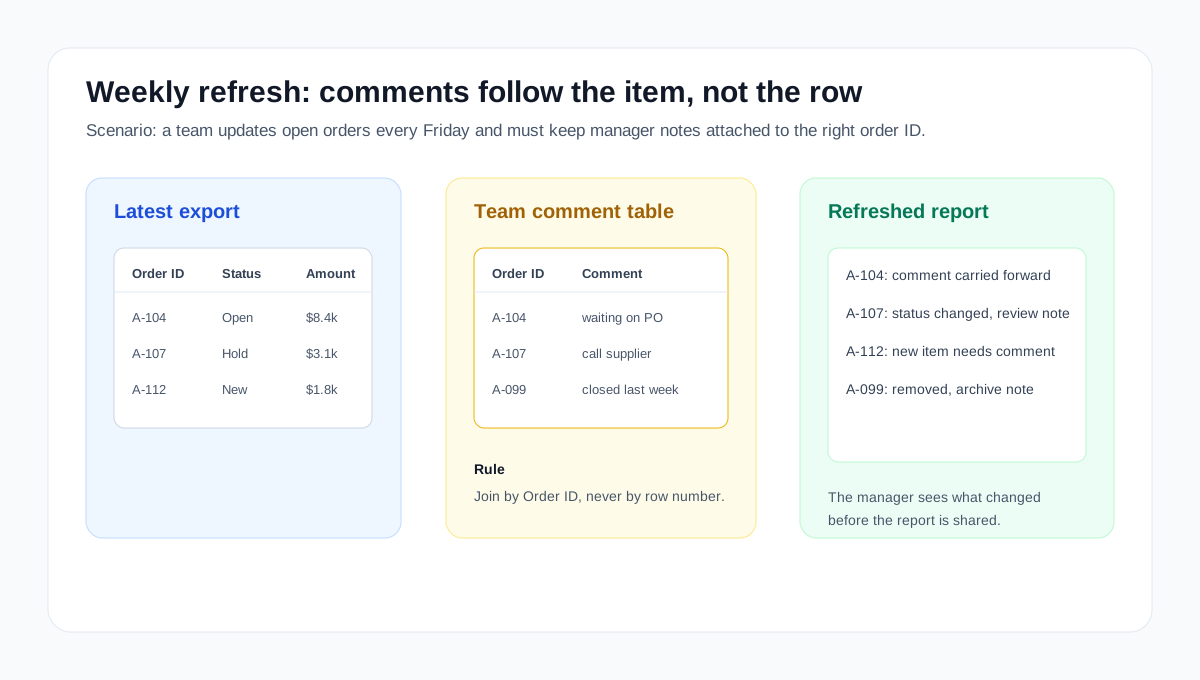
A stable key might be an order ID, customer ID, invoice number, ticket ID, employee ID, equipment number, project code, or a combination of fields. The exact key depends on the report. What matters is that the comment follows the business item, not the row number.
This is also why a pure automation answer can be dangerous. A macro can move comments. Power Query can merge tables. Power Automate can copy files. But if the line-item identity is not defined, automation only moves the fragility faster.
The safer structure: separate data from comments
A weekly report with comments should usually have at least three layers.
The first layer is the raw export. This is the latest file from the source system. It should be treated as input, not as the place where people type comments.
The second layer is the comment table. This table stores the stable key, the comment, the commenter, the date, and any status fields the team owns. It should not be destroyed when the export refreshes.
The third layer is the report view. This is where the latest export joins to the comment table. Existing line items bring their comments with them. New line items appear with blank comments. Removed line items can be shown in a separate exception view instead of silently disappearing.
That structure changes the job from "keep comments beside the same row" to "match comments to the same business item." That is the shift that makes the workflow maintainable.
It also gives the team a better review process. Each week, the owner can ask three questions before sharing the report.
Which line items are new and need comments? Which line items were removed and may need closure notes? Which existing line items changed enough that the old comment may no longer apply?
Those questions are far more useful than asking whether the workbook refreshed successfully.
A concrete weekly scenario
Imagine an operations team that reviews open orders every Friday. The export has order ID, customer, owner, status, amount, and expected ship date. Managers add notes such as "waiting on PO," "supplier called," or "do not escalate yet." Next Friday, the source system exports the rows in a different order, two orders disappear, and three new orders arrive.
Do not paste the new export over last week's commented table. Handle it like this:
- Keep the new export as a raw input tab.
- Keep manager notes in a separate comment table with
order_id,comment,owner,status_note, andlast_reviewed. - Join the latest export to the comment table by
order_id. - Create a "new items" view where no comment exists yet.
- Create a "removed items" view where comments exist but the order no longer appears in the export.
- Flag stale comments when amount, owner, priority, or status changed since the last review.
That structure gives the team a weekly action list instead of a fragile workbook that only looks refreshed.
Where Power Query helps, and where it does not
Power Query is often a good fit for this kind of report. It can import the latest export, clean columns, standardize field names, filter irrelevant rows, and merge the export with a separate comment table.
But Power Query should not be asked to protect comments that are typed directly into a refreshed output table. If the query rebuilds that table, manual edits can be overwritten or pushed out of alignment.
A better pattern is to let Power Query handle repeatable data preparation while the team keeps comments in a controlled table. The report view can then be regenerated from the latest source data and the preserved comment table.
VBA can help in some cases, especially when files need to be copied, tabs split by group, or a workbook packaged for distribution. Power Automate can help when the export arrives through email, SharePoint, or a scheduled folder. But the same rule applies: the automation should respect the separation between source data, team-owned comments, and final report output.
If those layers are mixed together, the tool choice will not save the process.
A practical weekly workflow
Start by identifying the row grain of the export. Decide what one row represents. It might be one customer issue, one open order, one employee assignment, one invoice line, or one project task. Then identify the key that should remain stable from week to week.
Next, create a comment table that uses that key. Keep the team-owned fields there. At minimum, that table might include key, comment, owner, status, last reviewed date, and unresolved question.
When the new export arrives, load it as a fresh input. Do not paste it over the prior report view. Standardize the fields that matter, then match it to the comment table by key.
The final report should make exceptions visible. New items should be easy to find. Removed items should be reviewed before they disappear from the working process. Changed items should be highlighted when a material field has moved since the last refresh.
This is where a weekly spreadsheet becomes a real reporting workflow. The output is not only a refreshed workbook. It is a short explanation of what changed and what still needs human review.
How AI fits without becoming a black box
AI is useful here when it acts as a review layer, not when it pretends the messy workflow does not exist.
For example, after the latest export is matched to the comment table, an AI spreadsheet workflow can help answer practical questions:
Compare this week's export with last week's commented report.
List new line items, removed line items, and items whose status or amount changed.
Preserve existing comments where the line-item ID matches.
Flag comments that may be stale because the underlying item changed.
Write a short weekly summary for the manager.
That is different from asking AI to "automate the report" in one vague step. The better prompt names the inputs, the matching rule, the review checks, and the desired output.
A tool like RowSpeak can support this kind of workflow because the user can upload a spreadsheet, ask natural-language questions about the data, and turn the analysis into a report-style explanation. The important point is still reviewability. The user should see which rows changed, which assumptions were used, and which items need follow-up.

The product value is not just speed. It is preserving business context while making the weekly report easier to review.
What the final report should include
A refreshed weekly report should not force every reader to inspect every row.
It should open with the reporting period and the main change from last week. It should call out new items, removed items, overdue items, and important changes to status, amount, owner, or priority. It should also show where comments were carried forward and where comments are missing or possibly stale.
That summary can sit above the detailed table. It can also be sent as a management note, a client update, or a team handoff. The spreadsheet remains the evidence, but the report tells people what to review.
For recurring exports, this is the same principle behind a broader monthly CSV reporting workflow. The file is only the starting point. The real job is to convert changing rows into a clear, reviewable business update.
If the team is considering a heavier BI setup, it is also worth separating the jobs. BI can be excellent for governed dashboards. But if the immediate pain is a changing weekly export plus human comments, a spreadsheet-to-report workflow may solve the urgent problem first. That is the same fit question behind Power BI being overkill for some Excel reporting workflows.
A checklist before you automate
Before adding macros, Power Query steps, or AI prompts, answer these questions:
- What does one row represent?
- Which field or field combination uniquely identifies a line item?
- Where will team comments live so they are not overwritten by refresh?
- What should happen to comments when a line item disappears?
- Which changes should make an old comment stale?
- Who reviews new, removed, and changed items before the report is shared?
- What short summary should the final report produce each week?
If those answers are clear, the automation path becomes much easier. Power Query can prepare the data. VBA or Power Automate can handle packaging. RowSpeak can help analyze the refreshed workbook, explain changes, and turn the result into a readable report.
The safest goal is not a workbook that refreshes invisibly. The safest goal is a report that updates the data, preserves the context, and shows the team exactly what needs review.
Try the workflow with your next weekly spreadsheet export in RowSpeak: review a refreshed spreadsheet