If you work in Excel regularly, you’ve probably faced these:
- Messy data with weird columns and formats
- Formulas that don’t work or are impossible to remember
- Reports that need visuals and summaries — fast
Luckily, you don’t need Copilot or fancy tools to make your life easier. These free AI tools help with everything from formulas to data visualization.
I’ve used all 8 of these. Here’s what each one is good for, and when to use them.
1. RowSpeak — Generate Charts and Reports from Your Excel File
Best for:
- Uploading Excel or CSV files and instantly asking questions
- Generating bar, pie, line charts + a written summary
Example dataset:
| Date | Product | Revenue | Cost | Region |
|---|---|---|---|---|
| 2024-01-01 | A | 12000 | 7500 | North |
| 2024-01-01 | B | 9500 | 6000 | South |
| 2024-02-01 | A | 14000 | 8000 | North |
| 2024-02-01 | B | 10000 | 6500 | South |
| 2024-03-01 | A | 16000 | 8500 | North |
| 2024-03-01 | B | 11000 | 7000 | South |
Prompt example:
“Show revenue trends by product per month and give a summary.”
Pros:
- Clean, export-ready visuals
- Generates smart summaries you can copy into reports
- Free tier is generous enough for weekly workflows
Cons:
- Works best with semi-clean data (use ChatGPT to prep if needed)
2. ChatGPT — Formula Help, Data Logic, and Cleanup Assistant

Best for:
- Writing or debugging Excel formulas
- Explaining logic or simplifying complex calculations
- Cleaning up rows, reformatting dates, text extraction
Pros:
- Reliable explanation engine
- Works well with messy logic and vague requests
- Free with ChatGPT 3.5
Cons:
- Doesn’t connect directly to Excel
- No chart or report generation
✅ Works great with RowSpeak: one cleans, the other visualizes
3. Excelly AI — Chat with Your Spreadsheet (Google Sheets Only)
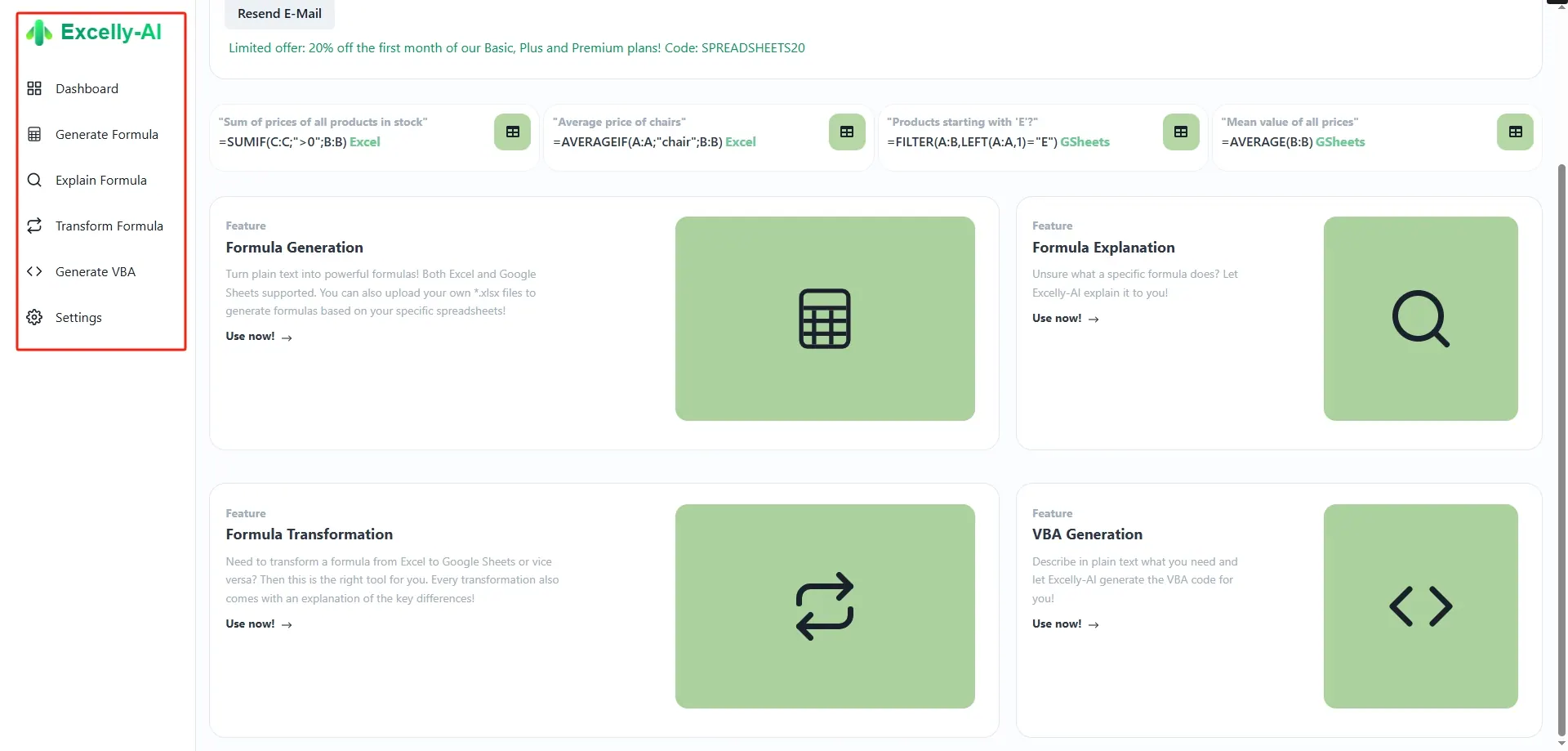
Best for:
- Highlight all rows over budget
- What’s the average spend per category?
Pros:
- Natural question-answer interface
- Works directly in Google Sheets
Cons:
- Free tier is limited
- Not available in Excel desktop version
✅ Handy lightweight helper inside Sheets
4. Rows AI — Spreadsheets with =AI() in Every Cell
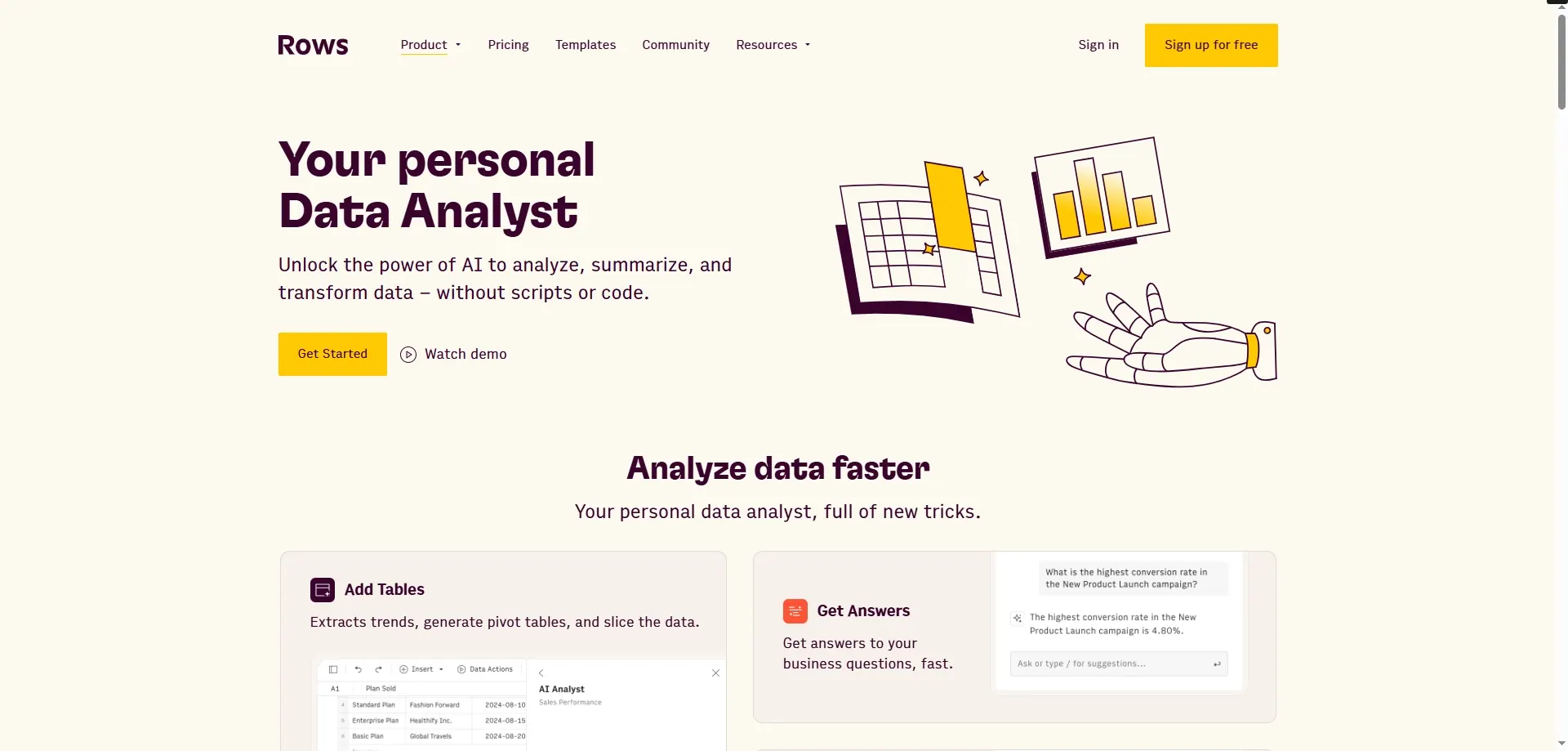
Best for:
- Generating summaries, notes, insights inside spreadsheet cells
Pros:
- Modern interface and easy to use
- Built-in AI functions, very responsive
Cons:
- It’s its own spreadsheet platform, not Excel
- Some templates or features need a signup
✅ Best for power users and small teams wanting built-in AI
5. ExcelChat (Got It AI) — Ask a Human or AI to Fix Excel Issues
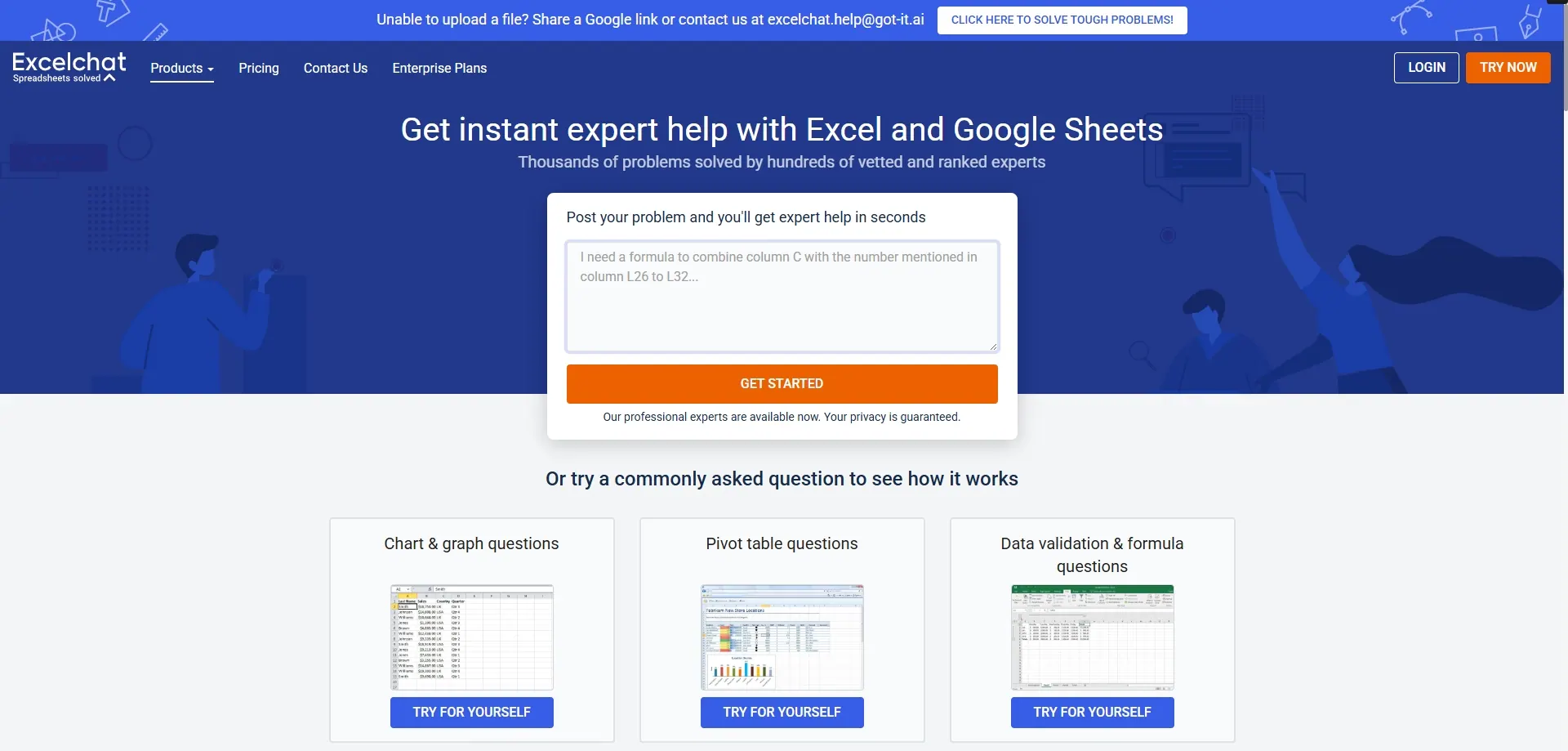
Best for:
- Asking for help with weird formulas or layout issues
- Uploading a file and getting an explanation or fix
Pros:
- Helpful if you’re stuck and can’t figure it out
- Mix of AI + human support
Cons:
- Free use is limited
- More reactive, not proactive
✅ Think of it as your “SOS button” when Excel gets frustrating
6. Notion AI — Convert Data into Written Summaries
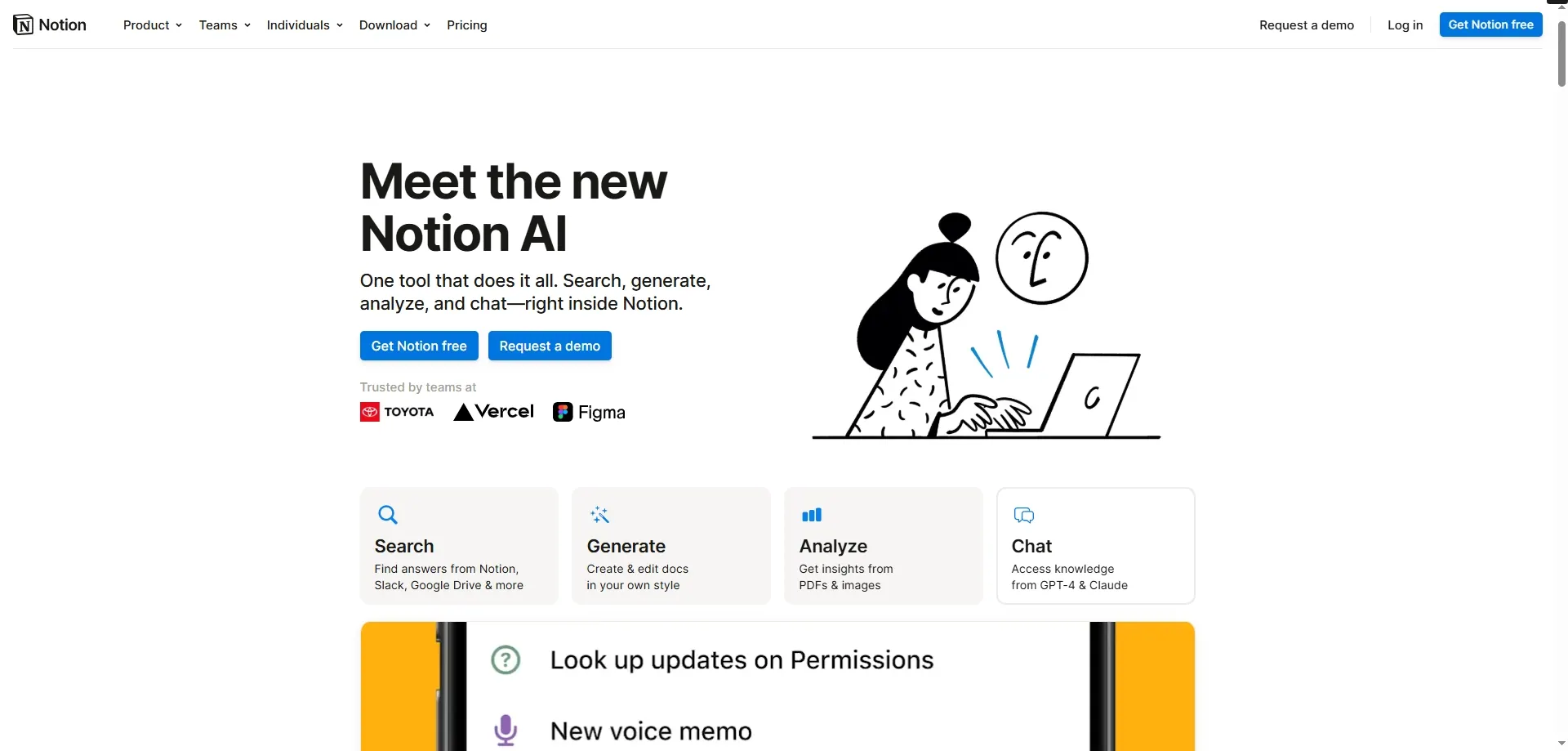
Best for:
- Turning tables into bullet points, task lists, or summaries
- Writing status updates, reports, and action items from structured data
Pros:
- Reads your table and generates structured notes
- Outputs clean and well-phrased summaries
Cons:
- Doesn’t connect directly to Excel
- Works better in English than other languages
✅ Great for PMs and team leads writing updates from data
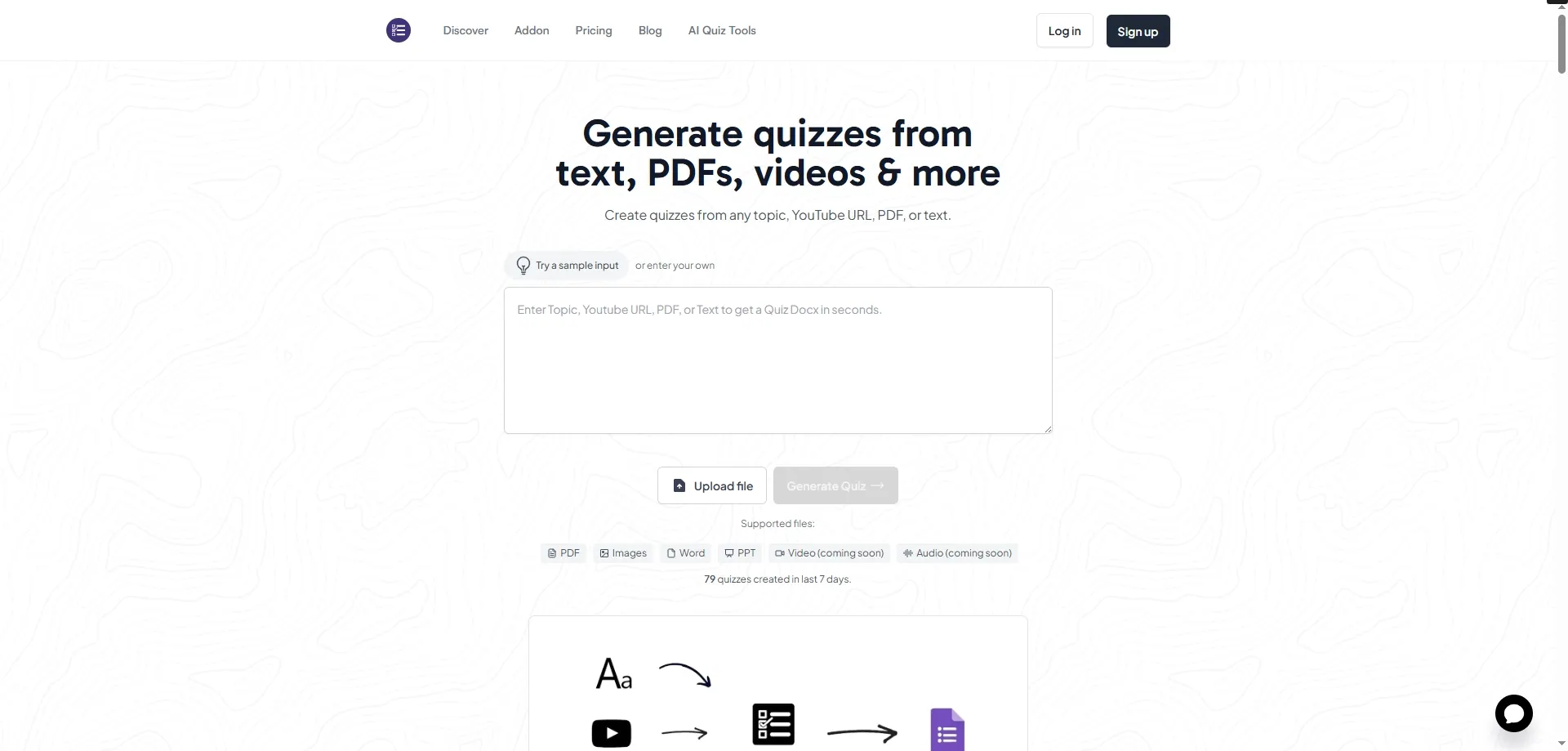
7. MagicForm — Turn Excel Sheets into Online Forms
Best for:
- Converting table fields into registration, feedback, or intake forms
Pros:
- Fast and intuitive field detection
- Nice UI and supports logic branching
Cons:
- Not a data analyzer — it’s for collecting new data
- Interface is English-only for now
✅ Perfect for HR, marketers, or operations teams who need to collect data
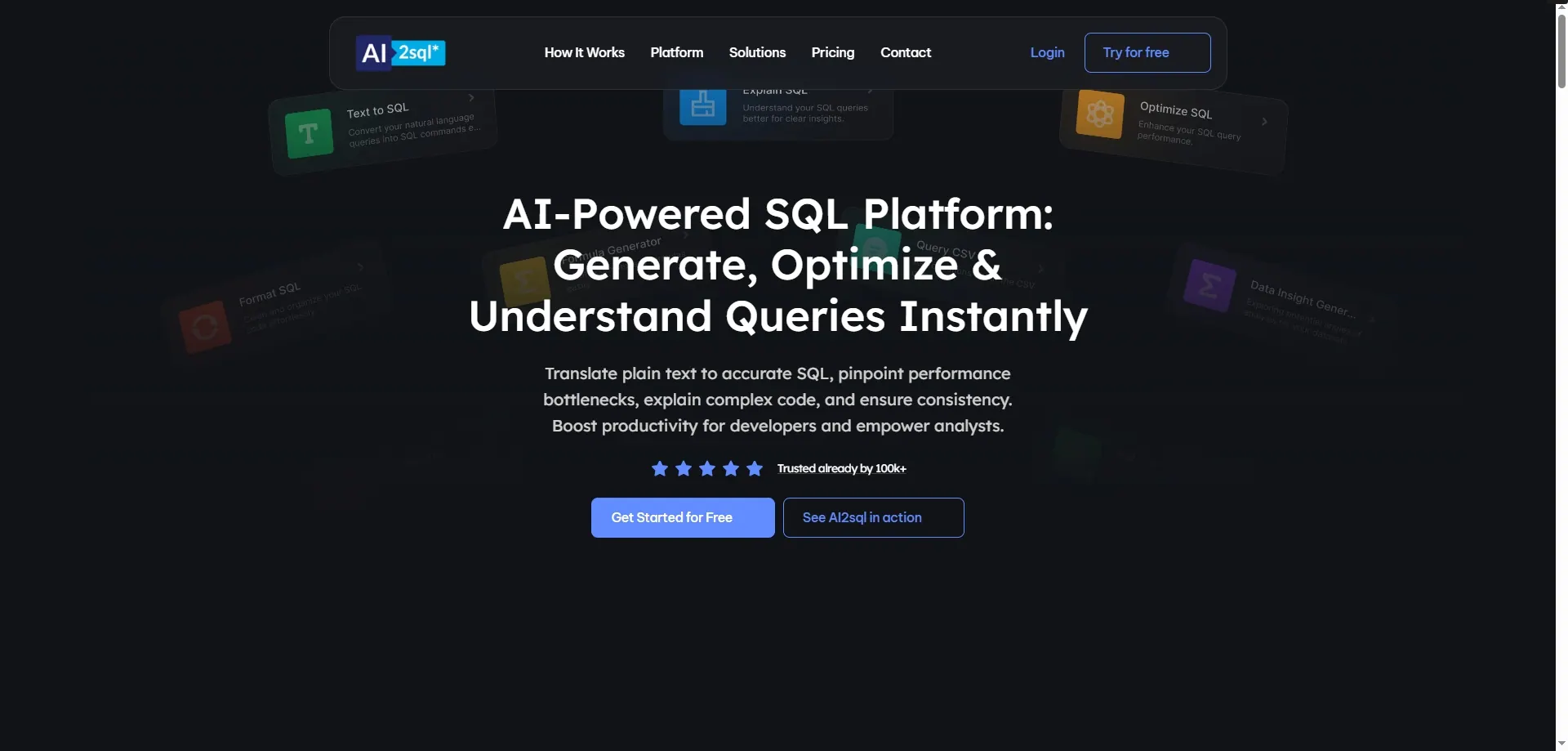
8. AI2sql — Natural Language to SQL Generator (Works with Excel Exports)
Best for:
- Converting simple prompts into SQL queries
- “List top 5 customers by order amount in the last 30 days”
Pros:
- Very fast SQL generation
- Can import Excel-based table structure
Cons:
- Requires some SQL knowledge to tweak
- Full access needs an account
✅ Ideal for analysts juggling Excel and databases
✅ Final Thoughts
AI tools won’t replace Excel — but they absolutely make working with it easier.
- For charting and summaries: RowSpeak
- For formula writing and fixes: ChatGPT
- For question-style interactions: Excelly AI
- For embedded smart spreadsheets: Rows AI
- For stuck situations: ExcelChat
- For writing up reports: Notion AI
- For fast form creation: MagicForm
- For querying your data backend: AI2sql
👉 Pick two that match your workflow and try them out this week — they’re all free to start.
Start with RowSpeak!