'%3e%3crect%20id='矩形_7888'%20data-name='矩形%207888'%20class='cls-1'%20width='20'%20height='20'%20rx='4'%20transform='translate(6260%20-4478)'/%3e%3cpath%20id='联合_155'%20data-name='联合%20155'%20class='cls-2'%20d='M6.074,12.147a6.207,6.207,0,0,1-.621-.031A6.087,6.087,0,0,1,.031,6.694a6.177,6.177,0,0,1,0-1.241A6.086,6.086,0,0,1,5.453.031,6.177,6.177,0,0,1,6.074,0H9.152V2.029H6.074a4.053,4.053,0,0,0-3.916,3.03H9.152V7.088H2.158a4.053,4.053,0,0,0,3.916,3.03H9.152v2.029Z'%20transform='translate(6264.693%20-4473.9)'/%3e%3c/g%3e%3c/svg%3e)
Key Takeaways
- The Access Barrier: Protected sheets and forgotten passwords create significant bottlenecks, preventing teams from editing or analyzing critical business information.
- Beyond Decryption: Unprotecting a sheet is only the first step; the real challenge lies in cleaning the unstructured or "messy" data that often sits behind the lock.
- Intelligent Automation: Modern AI tools can bypass the tedious manual cleaning process, identifying patterns and fixing formatting errors across thousands of rows instantly.
- Data Integrity: Ensuring that data remains accurate and uncorrupted during the unprotection and cleaning phase is vital for reliable data analysis.
The Locked Sheet Dilemma
We have all encountered the frustration: an essential workbook arrives in your inbox, but it is "Read-Only" or protected by a password that has long been forgotten. This barrier does more than just block edits; it halts your entire workflow. Whether you need to unprotect an Excel sheet to update financial figures or simply to fix a minor typo, being locked out is a major drain on productivity.
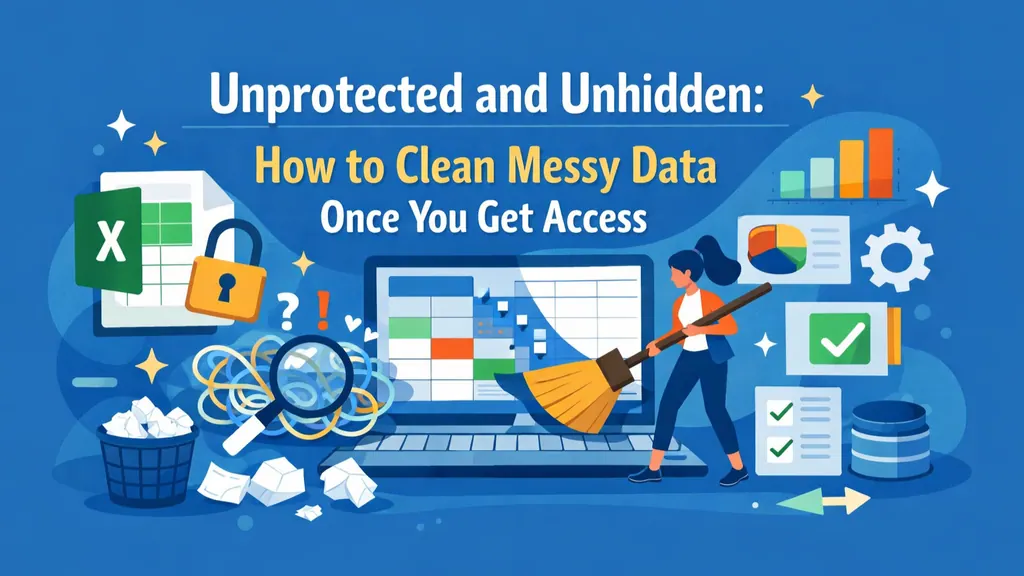
However, the "lock" is often just the beginning of the trouble. Once you finally gain access, you are frequently met with "messy data"—unstructured rows, inconsistent date formats, or numbers that refuse to calculate because they are stored as text.
Why Data Cleaning is the Real Challenge
Access is useless without clarity. Manual data cleaning is notoriously time-consuming and error-prone. You might find yourself manually trying to add a letter in front of a number to standardize product IDs, or struggling to fix a #SPILL! error caused by overlapping ranges.
In a professional environment, you cannot afford "dirty data." Inconsistent records lead to inaccurate reporting and flawed boardroom decisions. The goal isn't just to unlock the file; it's to transform that raw information into a structured, reliable asset.
Transforming Messy Data into Strategic Insight
The traditional approach to cleaning data involves a gauntlet of complex formulas like TRIM, CLEAN, and PROPER. But for modern teams, this manual heavy lifting is a relic of the past.
By utilizing an AI-powered agent like RowSpeak, you move from "fixing" to "directing." Instead of spending hours reformatting columns or trying to add a calendar to a cell for better date entry, you simply describe the desired outcome. The AI understands the intent, identifies the errors, and executes the cleanup across multiple sheets simultaneously.
How to Unprotect and Clean Data in Seconds (The RowSpeak Way)
RowSpeak simplifies the journey from a locked, messy file to a board-ready report through an intuitive, four-step process:
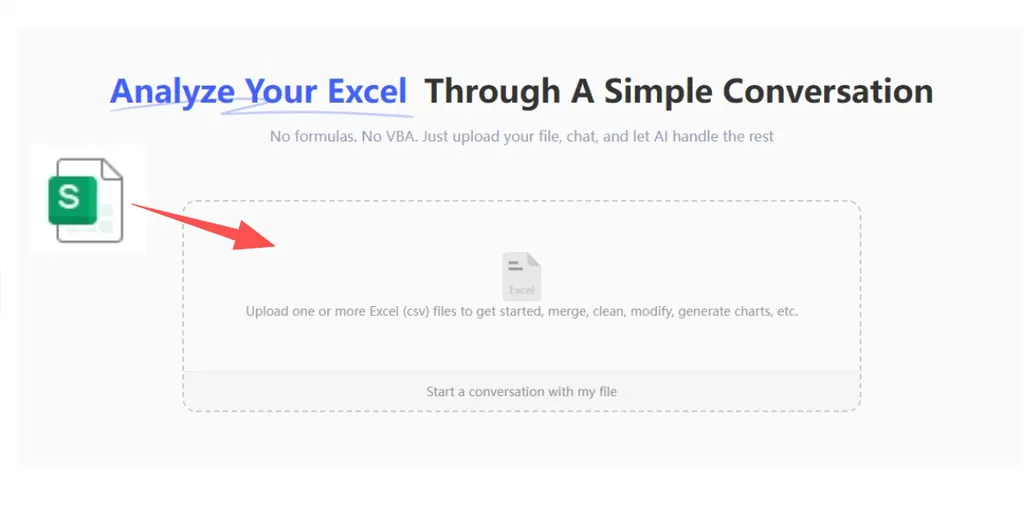
Step 1: Upload Your Protected Files
Drag and drop your workbooks directly into the RowSpeak interface. The AI is designed to handle various states of data, including those requiring structural reconciliation across different formats.
Step 2: Describe the Cleanup Requirement
Forget memorizing complex syntax. Use natural language to tell the AI exactly what needs fixing:
Unify the formatting in the 'Sales' tab, remove all duplicate entries, and ensure all currency columns are standardized to USD.

Step 3: Preview the Intelligent Refinement
The AI scans your data, identifying hidden spaces, inconsistent casing, and formatting glitches. It generates a real-time preview of the cleaned data, allowing you to see the transformation before it's finalized.
Step 4: Export and Analyze
Once the data is pristine, export and download your optimized workbook. Your data is now unlocked, cleaned, and ready for high-level analysis or presentation.
The Future: From Data Janitor to Strategy Architect
The era of spending 80% of your time cleaning data and only 20% analyzing it is over. By automating the unprotection and refinement process, you achieve:
- Speed: Go from a locked, unusable file to a clean dataset in under 60 seconds.
- Accuracy: Eliminate the "human error" factor that occurs during repetitive manual cleaning tasks.
- Confidence: Present reports to leadership knowing that every row has been verified and standardized by intelligent logic.
Whether you are managing complex corporate budgets or a personal budget tracker, AI-driven automation ensures that your data is always an asset, never a roadblock.
🚀 Don't Let Locked Data Slow You Down
Unlock, clean, and analyze your spreadsheets with the power of AI.
Clean My Excel Data Free