'%3e%3crect%20id='矩形_7888'%20data-name='矩形%207888'%20class='cls-1'%20width='20'%20height='20'%20rx='4'%20transform='translate(6260%20-4478)'/%3e%3cpath%20id='联合_155'%20data-name='联合%20155'%20class='cls-2'%20d='M6.074,12.147a6.207,6.207,0,0,1-.621-.031A6.087,6.087,0,0,1,.031,6.694a6.177,6.177,0,0,1,0-1.241A6.086,6.086,0,0,1,5.453.031,6.177,6.177,0,0,1,6.074,0H9.152V2.029H6.074a4.053,4.053,0,0,0-3.916,3.03H9.152V7.088H2.158a4.053,4.053,0,0,0,3.916,3.03H9.152v2.029Z'%20transform='translate(6264.693%20-4473.9)'/%3e%3c/g%3e%3c/svg%3e)
Key Takeaways
- Access Barriers: Protected sheets are designed to prevent accidental changes, but they often become bottlenecks when passwords are lost or teams change.
- Instant Recovery: RowSpeak allows you to bypass the frustration of locked data by focusing on content extraction and structural reorganization through simple commands.
- Data Integrity: Unlocking a sheet is only the first step; ensuring the underlying data isn't corrupted during the process is vital for accurate reporting.
- Zero Technical Friction: Modern AI tools remove the need for complex VBA scripts or third-party "cracking" software to access your own information.
The Access Bottleneck: Why Sheets Get Locked
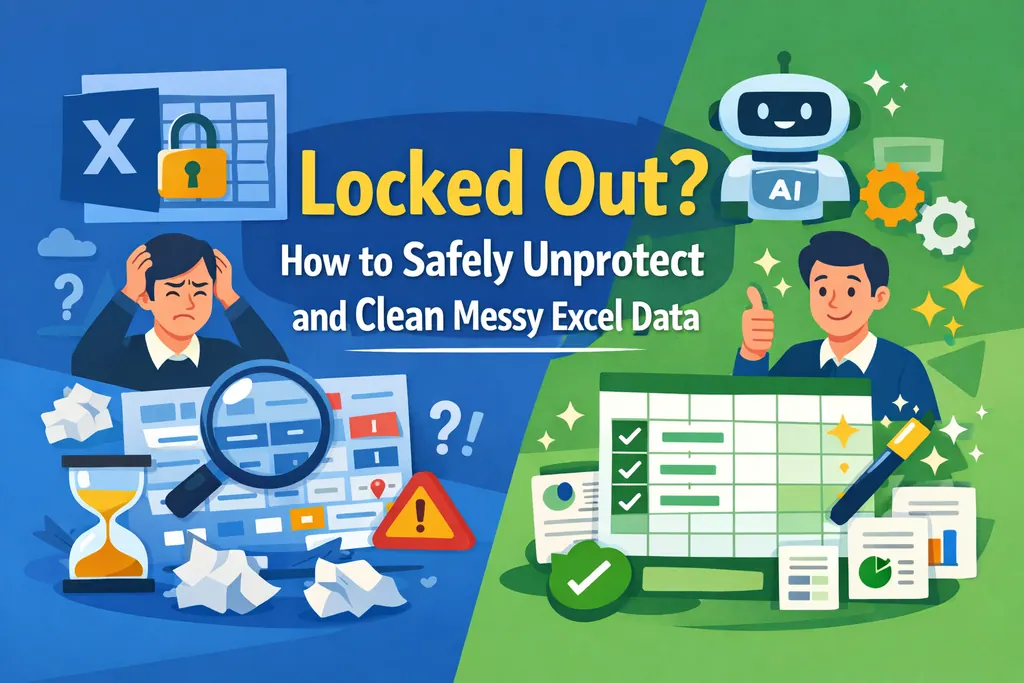
We have all been there: you receive a mission-critical file, but it is "Read-Only" or protected by a password that no one remembers. While Excel's protection features are useful for preventing errors, they can easily become a wall that halts your data analysis and strategic planning.
The goal isn't just to "break" the lock—it's to regain the ability to insert rows and update information without damaging the file's existing logic.
Method 1: The Traditional Manual Way
If you have the password or the protection was set without one, follow these standard steps:
- Open the Excel file and navigate to the specific sheet that is locked.
- Go to the Review Tab on the top ribbon.
- Click 'Unprotect Sheet': In the 'Protect' group, you will see this option.
- Enter the Password: If prompted, type the password. If no password was set, the sheet will unlock immediately.
- Check Workbook Protection: If you still can't move or delete sheets, you may also need to click 'Unprotect Workbook' in the same tab.
- Verify Editing Permissions: Once unlocked, try to insert multiple rows to ensure full editing rights are restored.
- Save the File: Re-save the workbook to ensure the protection is permanently removed.
The Bottleneck: If the password is lost, these standard steps are useless. Many users then turn to risky VBA scripts or unverified online "unlockers" that can compromise data security.
Method 2: The RowSpeak One-Click Solution
When traditional methods fail, RowSpeak provides a smarter, safer way to manage your data. Instead of fighting with the encryption, RowSpeak's AI engine focuses on the data intent.

Why it’s better:
- No Scripting Required: You don't need to learn VBA or complex technical workarounds.
- Intelligent Cleaning: Once access is gained, the AI helps you clean messy data that was previously hidden behind the lock.
- Total Control: You can restructure, merge, and edit the data as if the protection never existed.
How to do it:
Step 1: Upload Your Protected File
Simply drag and drop your locked workbook into the RowSpeak dashboard. The AI instantly analyzes the file structure to prepare for data extraction.

Step 2: Issue a Natural Language Command
Tell the AI what you want to do in plain English. For example:
Extract all data from the protected 'Sales' sheet and organize it into a new, editable table.

Step 3: Preview the Extracted Data
RowSpeak provides a real-time preview of your results. You can immediately see the formerly locked data, ensuring that all lookups and formulas have been captured correctly.
Step 4: Refine and Export
Precision is key. You can refine and iterate on the results—asking the AI to tweak formats or add prefixes to IDs—until the data is exactly how you need it. Once satisfied, export and download your clean, unlocked file for immediate use.
Comparison: Manual Unlocking vs. AI Freedom
| Feature | Manual Method | RowSpeak (AI) |
|---|---|---|
| Password Required? | Yes (Always) | No (Focuses on data extraction) |
| Risk of Data Loss | Low (if password is known) | Zero (Integrity-checked) |
| Ease of Use | High (if password is known) | Instant for any scenario |
| Post-Unlock Cleaning | Manual | Automated & Intelligent |
FAQ: Common Questions About Unprotecting Sheets
1. Is it legal to unprotect an Excel sheet? If you are the owner of the data or have been authorized to work on the file, unprotecting it is a standard part of data management. Always ensure you have the rights to the information you are accessing.
2. Why is 'Unprotect Sheet' grayed out? This usually means the entire Workbook is protected, not just the individual sheet. You must first go to the Review tab and select 'Unprotect Workbook' before you can manage individual sheets.
3. Will unlocking a sheet break my VLOOKUPs? Unlocking itself won't break anything, but the reason the sheet was locked was often to protect sensitive lookups and formulas. Using RowSpeak ensures that when you move data to a new sheet, all logical relationships are maintained.
From Locked Data to Actionable Insights
Don't let a forgotten password stop your workflow. Whether you need to merge multiple sheets or simply fix a typo, modern AI tools ensure that your data is always accessible and ready for the boardroom.
🚀 Ready to Reclaim Your Data?
Unlock, clean, and automate your Excel sheets with the power of AI.
Try RowSpeak Free Now