From Paper to Pixels: How to Extract Clean Tables from Messy Invoices Instantly

Key Takeaways

  • The Manual Entry Tax: Manually typing data from scanned documents leads to a 4% error rate on average. RowSpeak cuts this to near zero.
  • Structural OCR: RowSpeak’s AI understands table borders and cell relationships, not just text.
  • High-Volume Efficiency: Perfect for processing batches of expense reports on Windows desktops.

The Friday Afternoon Nightmare: Scanned Documents

We’ve all been there. It’s Friday afternoon, and you have a stack of crumpled travel receipts or skewed vendor invoices that need to be logged into Excel. In the past, this meant hours of "stare and type."

Don't let the scene on the left become your Friday reality. RowSpeak AI is your bridge to the clean, digital world on the right, where static invoices are instantly transformed into interactive Excel tables.

compare

How RowSpeak AI Bridges the Gap Between Paper and Pixels

Most standard OCR tools provide a "wall of text." RowSpeak’s Image to Table engine is specifically architected to recognize the logic of a spreadsheet.

Why Professionals Choose RowSpeak:

  1. Table Intelligence: The AI identifies headers and nested rows automatically.
  2. Handle Messy Scans: Our engine compensates for shadows and rotations that break traditional converters.
  3. Analyze Immediately: Click "Chat with Excel" to ask questions about your extracted data.

Step-by-Step: Converting Your First Image to Excel

  1. Upload: Drag your JPG/PNG into the Conversion Module.
  2. AI Architecting: Watch the AI map the table structure in real-time.
  3. Advanced Formatting: Use our Expense Reimbursement Template to finalize your report.
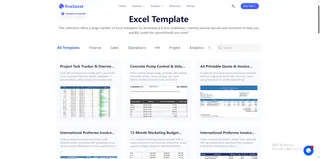
templates

Frequently Asked Questions (FAQ)

1. Beyond conversion, what can RowSpeak do with my extracted data?

That is the RowSpeak advantage. Once your PDF/Image is converted, you can immediately jump into Excel Data Analysis or use Data Visualization to turn numbers into insights.

2. Can the AI handle multi-page or skewed documents?

Yes. RowSpeak processes multi-page documents and uses structural AI to correct tilted scans, making it perfect for cleaning data from real-world paper documents.

🚀 Stop Typing. Start Analyzing.

Convert your first invoice for free and see the AI in action.

Convert My Image Now
Ditch Complex Formulas – Get Insights Instantly

No VBA or function memorization needed. Tell RowSpeak what you need in plain English, and let AI handle data processing, analysis, and chart creation

Try RowSpeak Free Now

Recommended Posts

The Ultimate Guide: How to Convert PDF to Excel and Analyze Data with AI Chat
Excel Automation

The Ultimate Guide: How to Convert PDF to Excel and Analyze Data with AI Chat

Stop wasting hours on manual data entry. Our two-step AI guide shows you how to convert any PDF to Excel and use natural language to analyze the results.

Ruby
PDF to Excel: How to Convert & Extract Data (5 Methods Compared)
PDF to Excel

PDF to Excel: How to Convert & Extract Data (5 Methods Compared)

This guide compares five methods to convert PDF to Excel, from basic copy and paste to advanced AI tools. Learn the pros and cons of each approach to extract clean, formatted data efficiently for analysis and reporting.

Gogo
Your PDF Data is Trapped. How to Convert PDF Tables to Excel Files Accurately Using AI Tools
PDF to Excel

Your PDF Data is Trapped. How to Convert PDF Tables to Excel Files Accurately Using AI Tools

This article explores the frustrations of converting PDF tables to Excel and reveals the limitations of traditional converters. It introduces an AI-powered solution that not only extracts data accurately but also enables dynamic formatting and analysis through simple English commands, revolutionizing the PDF-to-Excel workflow.

Gogo
Stop Wasting Hours: How to Consolidate Data from Multiple Excel Files the Smart Way
Excel Automation

Stop Wasting Hours: How to Consolidate Data from Multiple Excel Files the Smart Way

Tired of manually copying and pasting data from multiple Excel files every month? This guide shows you how to automate the consolidation process. We'll cover the powerful but complex Power Query method and introduce a faster, simpler alternative with the Excel AI tool, RowSpeak.

Ruby
Forget Drag-and-Drop: How to Create Excel Pivot Tables by Just Asking
Excel Automation

Forget Drag-and-Drop: How to Create Excel Pivot Tables by Just Asking

Stop wrestling with complex Pivot Table fields and wasting hours dragging and dropping data. Discover how an Excel AI agent like RowSpeak can build your sales reports from a simple sentence, giving you instant insights without the manual hassle.

Ruby
Stop Hunting for Buttons: How Excel AI Replaces the Cluttered Ribbon
Excel Automation

Stop Hunting for Buttons: How Excel AI Replaces the Cluttered Ribbon

Feeling lost in the maze of tabs and buttons that is the Excel Ribbon? You're not alone. This guide shows you how to ditch the endless clicking and use Excel AI to get your data analysis, charts, and reports done just by describing what you want.

Ruby
Stop Creating Excel Tables Manually: Let AI Do the Work for You
Excel Automation

Stop Creating Excel Tables Manually: Let AI Do the Work for You

Stop wasting time with Ctrl+T and endless menu clicks. Discover how to move beyond traditional Excel tables and use AI to instantly format, filter, and analyze your data just by describing what you need. This guide shows you the future of data management.

Ruby
Forget Manual Clicks: How to Automate Your Entire Excel Data Analysis Workflow with AI
Excel Automation

Forget Manual Clicks: How to Automate Your Entire Excel Data Analysis Workflow with AI

Stop wrestling with complex formulas and endless clicks for your data analysis. Discover how RowSpeak, an AI-powered tool, lets you chat with your data to generate reports, pivot tables, and charts in seconds, turning tedious tasks into a simple conversation.

Ruby