Let’s be real—spreadsheets can get messy fast. Those tiny cells start blending together, and suddenly, your carefully curated data looks like alphabet soup. That’s where horizontal lines come in. They’re like visual speed bumps that help separate sections, highlight key metrics, and make your sheets actually readable.
But here’s the kicker: manually drawing lines is so 2010. Why waste time formatting when AI can do it for you? Tools like RowSpeak use smart automation to analyze your data and insert perfectly placed horizontal lines—no guesswork required.
Why Bother with Horizontal Lines?
Before we dive into the how, let’s talk why:
- Clarity: Separate totals from raw data or group related rows.
- Professional polish: Clean sheets = instant credibility.
- Focus: Guide viewers’ eyes to what matters (like that killer Q3 revenue bump).
Step 1: Prep Your Data for AI
AI works best with tidy data. Think of it like teaching a robot to fold laundry—if you toss in a pile of mismatched socks, don’t expect perfect creases.
Pro Tips:
✔ Label everything: Use clear headers (e.g., "Q1 Sales" not "Column A").
✔ Nix the chaos: Remove blank rows and merge cells (they confuse AI).
✔ Consistency is key: Stick to one date format, number style, etc.
Fun fact: RowSpeak’s AI scans your sheet for inconsistencies and suggests fixes before adding lines—like a spellcheck for data hygiene.
Step 2: Choose Your AI Wingman
Not all tools are created equal. For seamless Google Sheets magic, here’s the leaderboard:
RowSpeak
- Why it wins: Drag-and-drop automation. Upload your sheet, highlight a section, and say, “Add lines between categories.” Boom—done.
- Bonus: Suggests line placements based on data patterns (e.g., lines after every subtotal).
Google’s Built-in Explore
- Decent for basic splits but limited customization.
Third-party plugins (e.g., SheetAI)
- More manual setup but handy for niche needs.
Step 3: Let AI Work Its Magic

With RowSpeak:
- Import your Google Sheet (or sync live via API).
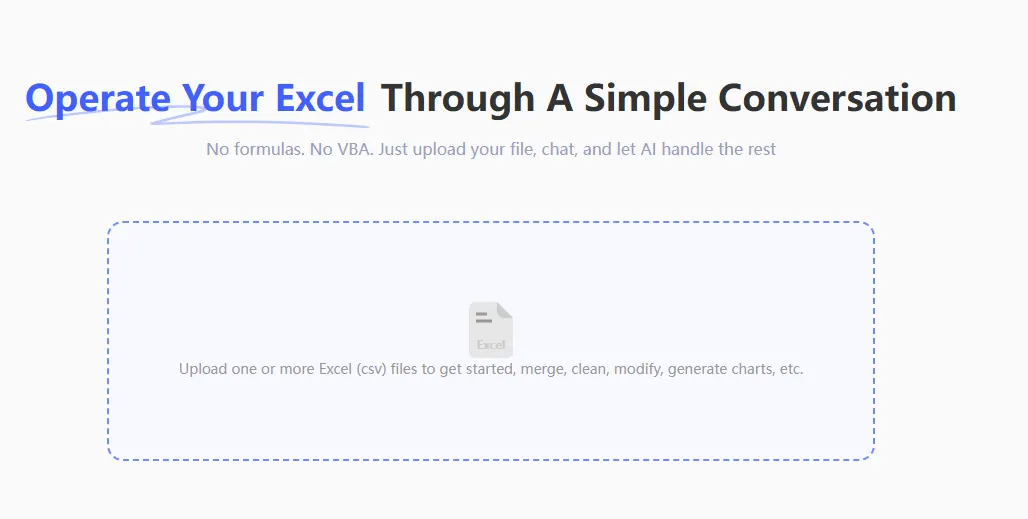
Ask AI: Type “Add horizontal lines between monthly data” or highlight rows and click Auto-Format.
Customize: Adjust line colors/thickness in one click (protip: use your brand colors).
No coding. No formulas. Just clean lines where you need them.
Advanced Hacks
Want to level up?
- Dynamic lines: Set rules like “Auto-add lines if values exceed $10K” (RowSpeak’s Smart Rules handle this).
- Dotted vs. solid: Use dashed lines for projections, solid for actuals.
- Keyboard shortcuts: Press
Alt+L+Hin RowSpeak to toggle lines on/off.
Why AI Beats Manual Formatting
- Speed: Add 50 lines faster than you can say “format painter.”
- Adaptability: AI adjusts when your data changes (unlike static lines).
- Discovery: RowSpeak might spot patterns you missed (e.g., suggesting lines at outlier values).
Try It Yourself
Ready to transform chaotic sheets into boardroom-ready reports? Try RowSpeak free—your future self (and teammates) will thank you.
TL;DR: Stop wrestling with borders. Use AI like RowSpeak to auto-format horizontal lines in Google Sheets, saving hours and sanity. Data has never looked this good. 🚀