'%3e%3crect%20id='矩形_7888'%20data-name='矩形%207888'%20class='cls-1'%20width='20'%20height='20'%20rx='4'%20transform='translate(6260%20-4478)'/%3e%3cpath%20id='联合_155'%20data-name='联合%20155'%20class='cls-2'%20d='M6.074,12.147a6.207,6.207,0,0,1-.621-.031A6.087,6.087,0,0,1,.031,6.694a6.177,6.177,0,0,1,0-1.241A6.086,6.086,0,0,1,5.453.031,6.177,6.177,0,0,1,6.074,0H9.152V2.029H6.074a4.053,4.053,0,0,0-3.916,3.03H9.152V7.088H2.158a4.053,4.053,0,0,0,3.916,3.03H9.152v2.029Z'%20transform='translate(6264.693%20-4473.9)'/%3e%3c/g%3e%3c/svg%3e)
Key Takeaways
- The Structural Risk: Manually inserting rows often causes range-based formulas to become misaligned or fail to include the new data.
- Efficiency at Scale: RowSpeak automates batch insertions, allowing you to add hundreds of rows with a single natural language command.
- Data Integrity: Intelligent automation ensures that new cells inherit the correct formatting and formula logic from adjacent rows.
- Workflow Acceleration: Moving beyond manual clicking transforms a repetitive task into a high-speed, error-free operation.
The "Insert" Dilemma
In standard Excel management, adding space for new data is one of the most frequent tasks. However, it is also a common source of spreadsheet corruption. Whether you are adding a row or inserting complex cell blocks, the manual approach often leads to broken references and inconsistent formatting.
The goal isn't just to make room; it's to ensure that your spreadsheet's logic—from VLOOKUPs to summary totals—remains intact. When you manually "push" data down, you run the risk of leaving important rows outside of your existing formula ranges.
The Traditional Workflow: Manual Insertion Steps
To insert multiple rows or columns using standard Excel methods, follow these steps to minimize errors:
- Highlight the number of rows or columns you wish to add (e.g., if you need 5 new rows, select 5 existing rows).
- Right-click on the selection and choose "Insert" from the context menu.
- Check for broken references in your summary formulas to ensure the new range is included.
- Manually copy and paste formatting from the rows above to ensure the new cells match.
- Audit your data validation rules, such as interactive calendars, to verify they are active in the new cells.
- Update any unique IDs, perhaps by adding a specific letter to the new entries to maintain your sorting logic.
- Finalize the layout by adjusting column widths or colors to maintain a professional report appearance.
While this works for small adjustments, it becomes a major bottleneck when dealing with large datasets or complex reporting structures.
The AI Advantage: Strategic Batching
Using an AI agent like RowSpeak changes the nature of data entry. Instead of performing mechanical steps, you provide a strategic instruction. The AI doesn't just "insert" cells; it understands the structure of your table and ensures all formulas scale automatically.
This prevents the common "formula gap" where new rows are ignored by your calculations, leading to inaccurate boardroom reports.
How to Batch Insert Rows (The RowSpeak Way)
RowSpeak handles structural changes through simple, conversational commands:
Step 1: Upload Your Workbook
Simply drag and drop your file. The AI scans your data to identify active ranges and formula dependencies.

Step 2: Issue a Natural Language Command
Instead of manual highlighting, tell the AI exactly what you need:
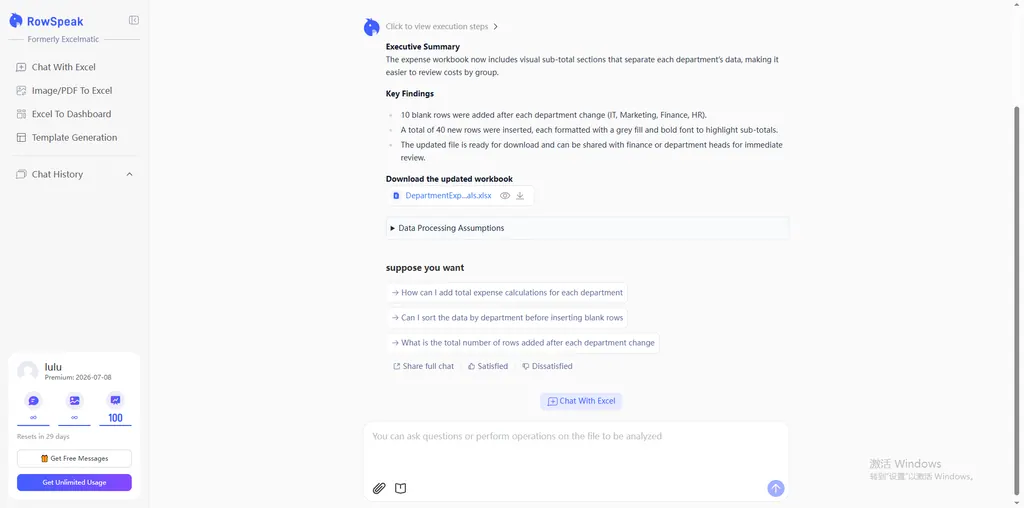
Insert 10 blank rows after every 'Department' change and format them as sub-total rows.

Step 3: Review the Preview
RowSpeak generates a real-time preview. It intelligently ensures that any formatting rules or date pickers are applied to the new cells automatically.
Step 4: Refine and Export
You can refine and iterate on the results until the layout is perfect. Once satisfied, export and download your updated file, ready for immediate analysis.
FAQ: Common Questions About Inserting Data
1. Why do my formulas return #REF! after I insert rows? This usually happens if you delete rows that a formula was specifically pointing to, or if you move data in a way that breaks the coordinate link. Automated tools avoid this by updating references dynamically.
2. Can I insert rows based on specific data criteria? Yes. While Excel requires you to find those spots manually, you can ask an AI to "Insert a row wherever the 'Status' is marked as 'Pending'" to help organize your tasks instantly.
3. Does inserting columns affect my VLOOKUP formulas?
Yes, traditional VLOOKUP relies on fixed column index numbers. If you insert a column in the middle of your range, your lookup will return the wrong data. Moving to an intent-based query system eliminates this risk.
🚀 Ready to Automate Your Excel Layout?
Stop clicking and start commanding. Experience the power of AI-driven batch processing.
Try RowSpeak Free Today