Ever stared at a chaotic Excel sheet—client lists, inventory, or project tasks—and wished it would just organize itself? Alphabetizing is the quickest way to tame the chaos, but here’s the catch: if you don’t sort correctly, your rows get scrambled like a bad game of data Jenga.
Good news: With the right steps (or tools like RowSpeak, which automates this in seconds), you can alphabetize and keep rows perfectly intact. Here’s how.
Why Alphabetizing Matters (Beyond Just Looking Pretty)
- Find anything instantly: No more scrolling forever to locate "Zebra Enterprises" in your client list.
- Spot duplicates/patterns: Sorted data reveals repeats or trends (like which customers buy most).
- Team-friendly: Shared sheets stay clean, so no one accidentally misaligns rows.
Pro Tip: If you’re short on time, RowSpeak’s AI can alphabetize and clean your data automatically—just upload your file and describe what you need.
Step-by-Step: Alphabetize Without Breaking Rows
1. Select All Your Data
- Click the top-left corner (between "A" and "1") to highlight everything, or drag to select specific columns.
- Why this matters: Selecting partial data = rows splitting apart.
2. Open the Sort Tool
- Go to Data > Sort in Excel’s ribbon.
3. Choose Your Sort Column
- Pick the column you want to alphabetize (e.g., "Client Name").
- Select A to Z (or Z to A for reverse order).
4. Confirm Headers Aren’t Sorted
- Check "My data has headers" so Excel ignores your title row.
Done! Your data is now sorted, with each row’s details staying together.
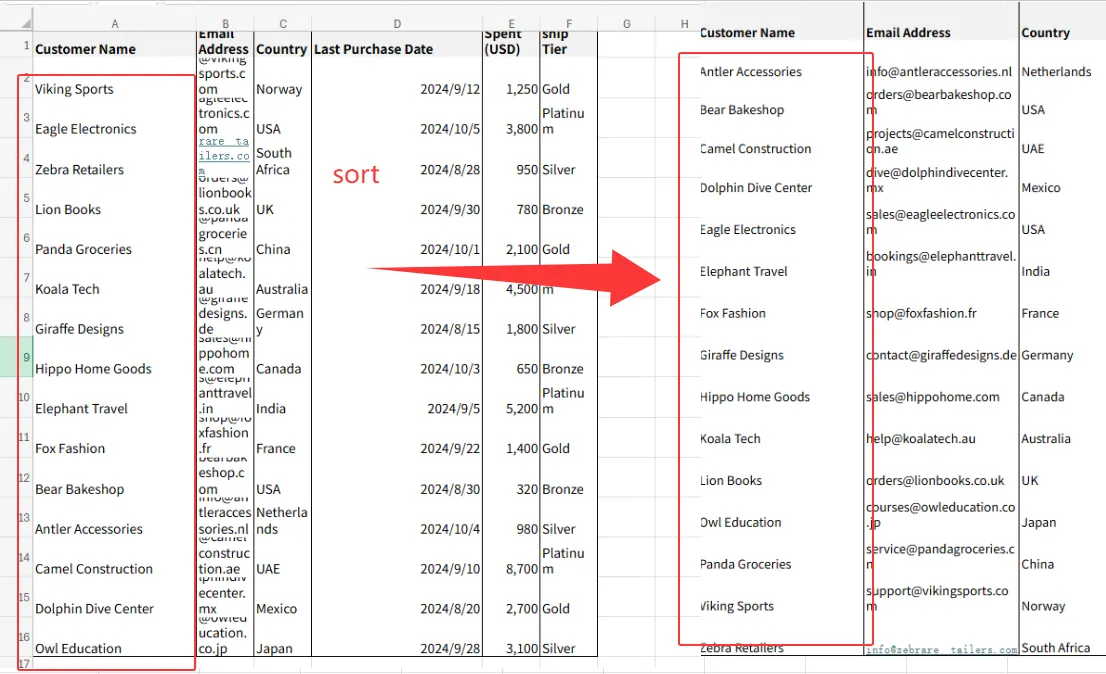
Advanced Tricks
- Multi-level sorting: Need to sort by "Last Name" then "Order Value"? Click Add Level in the Sort dialog.
- Filter-based sorting: Use the dropdown arrows in headers (Data > Filter) for temporary sorting without altering the original order.
When Sorting Goes Wrong (And How to Fix It)
- Problem: Rows are misaligned after sorting.
- Fix: Undo (Ctrl + Z), reselect all columns, and try again.
- Problem: Headers got sorted into the data.
- Fix: Check the "My data has headers" box next time.
Skip the Manual Work: Let AI Do It
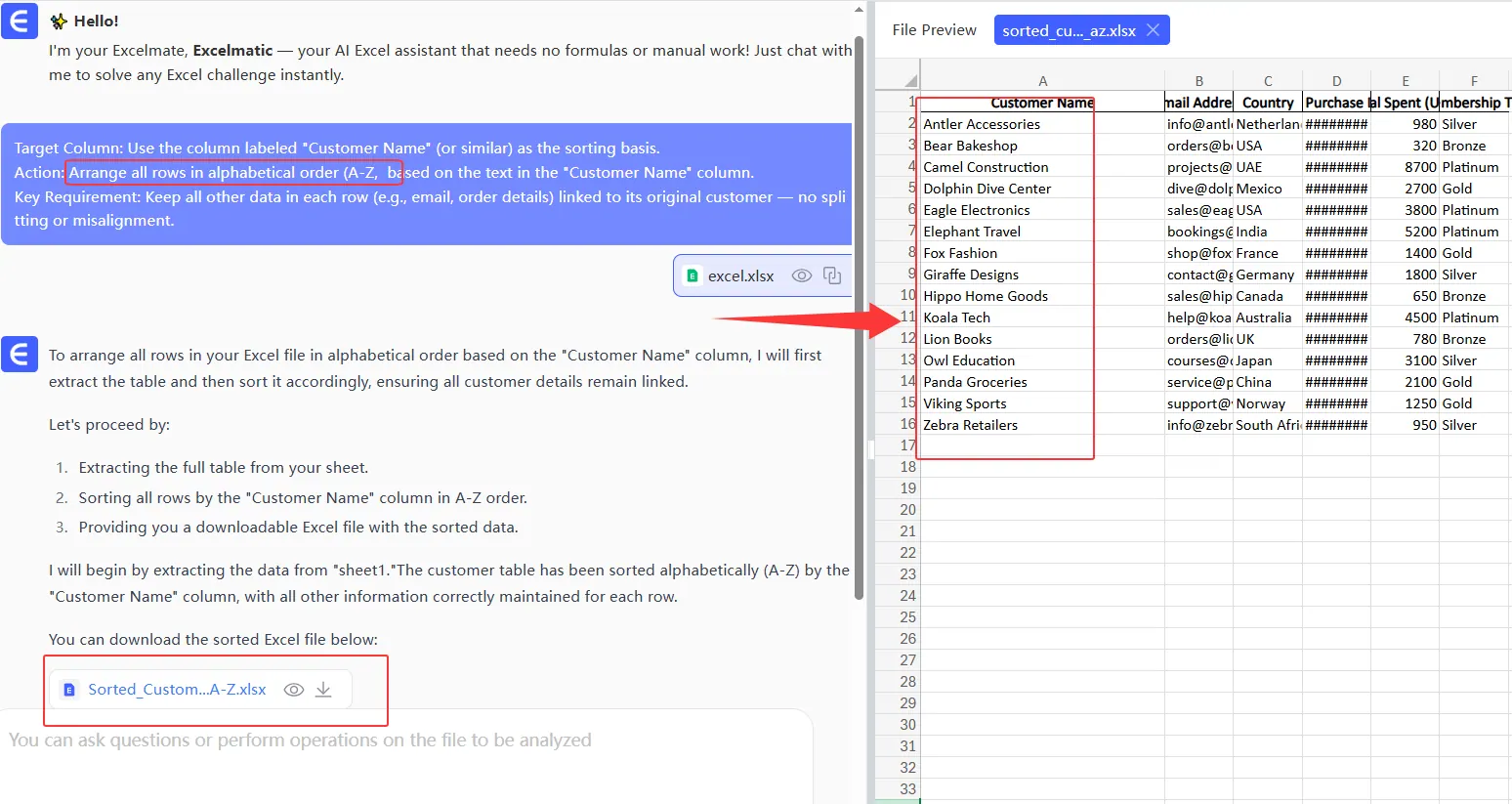
If you’re sorting data daily (or managing huge datasets), manual sorting eats time. Tools like RowSpeak use AI to:
- Auto-detect columns to alphabetize.
- Preserve row relationships flawlessly.
- Update dynamically when new data is added.
Example: Upload a sales report, type "Send your requirements," and RowSpeak organizes it instantly—no formulas or clicks needed.
Real-World Use Cases
- HR teams: Alphabetize employee directories by last name + keep contact details intact.
- E-commerce: Sort products by category and price without breaking inventory counts.
Final Tip: Save Time with AI
Alphabetizing in Excel is simple once you know the steps—but if you’re ready to work smarter, RowSpeak turns hours of sorting into seconds. Try it free and see how much time you’ll save.
About the Author: As a growth lead at RowSpeak, I help teams ditch spreadsheet busywork. Our AI tools handle sorting, analysis, and reporting so you can focus on decisions—not data entry.