Let's be real - sorting names in Excel shouldn't feel like solving a Rubik's cube blindfolded. Yet when that "Sort A-Z" button mangles your carefully curated contact list, you realize there's got to be a better way. That's where AI comes in.
At RowSpeak, we've helped thousands of users ditch the manual sorting struggle. Here's how to alphabetize by last name - the smart way.
Why Last-Name Sorting Is Such a Pain
We've all been there:
- Names crammed into single cells like sardines
- Inconsistent formats ("Doe, John" vs "John Doe")
- Middle names throwing wrenches in the works
Traditional Excel sorting treats these like a toddler with scissors - unpredictable and messy. But with AI-powered tools, what used to take 15 steps now takes seconds.
The Game-Changer: AI-Powered Sorting
RowSpeak leads the pack with its intelligent name recognition. Here's why it's different:
- Automatic Name Parsing: Recognizes first/last names regardless of format
- Smart Formatting: Handles middle names, titles, and suffixes with ease
- One-Click Sorting: Transforms your jumbled list into perfect order instantly
Try RowSpeak Free - no more wrestling with formulas or macros
Traditional Methods (And Why They Frustrate)
The Text-to-Columns Tango
- Select your name column
- Data → Text to Columns → Delimited → Space
- Cross your fingers and pray it works
This 90s-era method fails spectacularly with:
- Names containing "Jr." or "III"
- Last-name-first formats
- Any slight variation from the "perfect" name structure
Formula Follies
Extracting last names with =RIGHT(A1,LEN(A1)-FIND(" ",A1)) works... until it doesn't. One misplaced comma or extra space, and your sorted list looks like alphabet soup.
The RowSpeak Advantage
Here's how our AI transforms the process:
- Upload your spreadsheet
- Select the name column
- Click "Sort by Last Name"
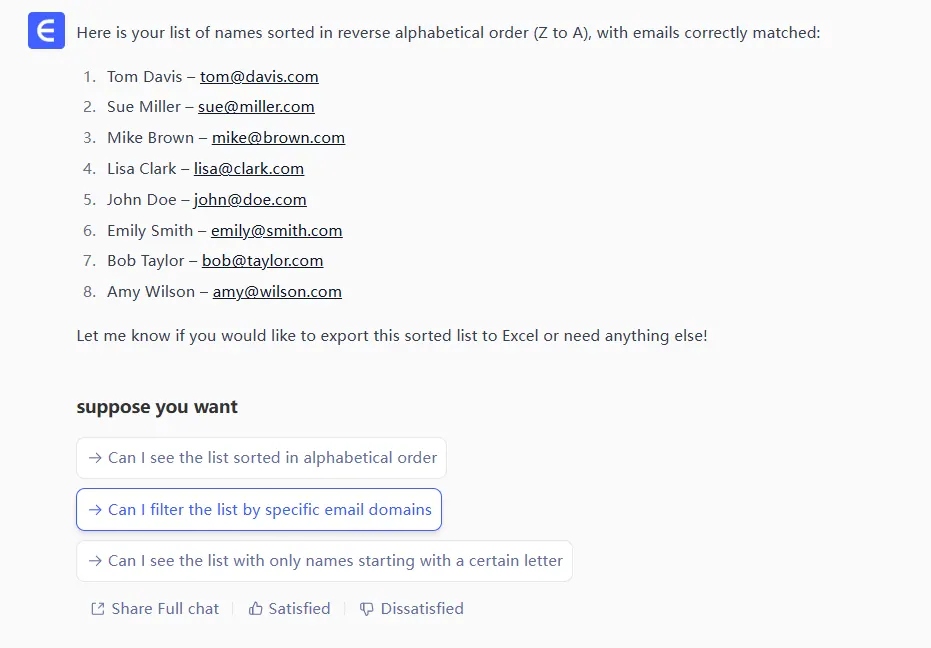
That's it. No formulas. No manual cleanup. Just perfect sorting every time.
Pro Tips for Flawless Sorting
Even with AI magic, these practices help:
- Standardize formats where possible (but don't stress - RowSpeak handles variety)
- Use TRIM() to clean extra spaces before sorting
- Create templates for recurring lists
When to Use AI vs Traditional Methods
| Scenario | Best Approach |
|---|---|
| One-time list | RowSpeak (fastest solution) |
| Recurring reports | RowSpeak + saved templates |
| Learning Excel basics | Manual methods (for educational purposes only) |
The Future of Data Organization
Remember when we manually summed columns? AI has made that obsolete too. Just like RowSpeak automates sorting, it's transforming:
- Data cleaning
- Report generation
- Dashboard creation
The question isn't "Can I sort this?" but "What else can I automate?"
Ready to Ditch the Sorting Struggle?
RowSpeak users save an average of 3 hours weekly on data organization tasks. Why waste time on manual sorting when AI can do it better, faster, and error-free?
Get Started Free - Your future self will thank you when sorting becomes a one-click affair.