Dates in Excel can be frustrating. You're managing project deadlines, subscription renewals, or payroll cycles, and suddenly you need to calculate dates months in advance. Doing this manually? That's so 2010.
Here's the good news: Excel has built-in superpowers for date calculations. Even better? Tools like RowSpeak can automate this entire process with AI. But first, let's master the fundamentals.
Why Excel Dates Work Like Serial Numbers
Fun fact: Excel secretly converts dates into numbers. January 1, 1900 is "1", January 2 is "2", and so on. This quirky system actually makes date math possible.
When you see "11/15/2023", Excel sees "44934". This hidden number lets you:
- Add/subtract days
- Calculate time between dates
- Adjust months (which we'll focus on)
Pro tip: Always format cells as Date (Right-click > Format Cells > Date) to avoid confusing Excel.
The EDATE Function: Your New Best Friend
Meet EDATE - the simplest way to add months in Excel. Here's the magic formula:
=EDATE(start_date, months)
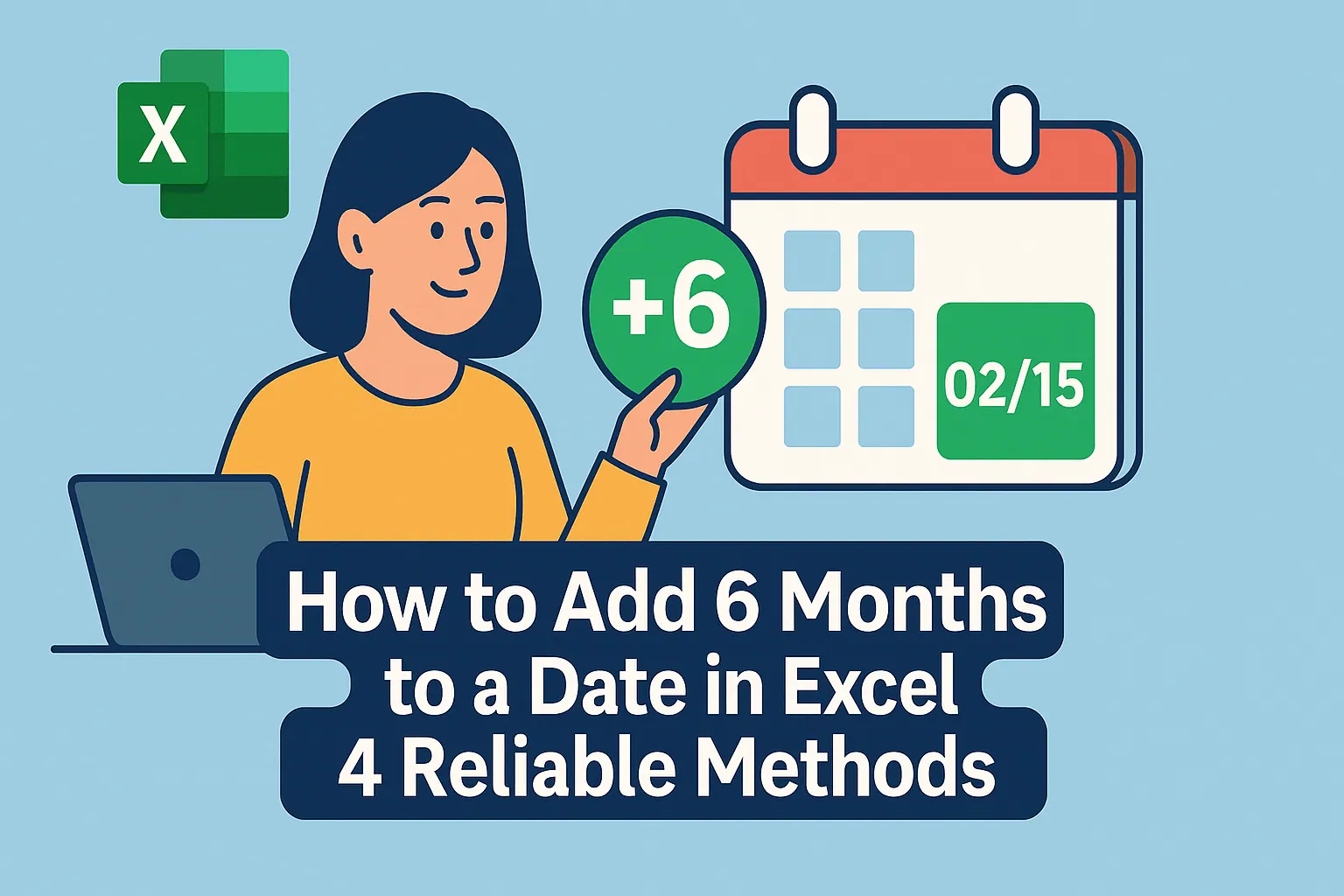
Real-world example: Your project starts March 15, 2023. Need the 6-month milestone?
=EDATE("3/15/2024", 6)
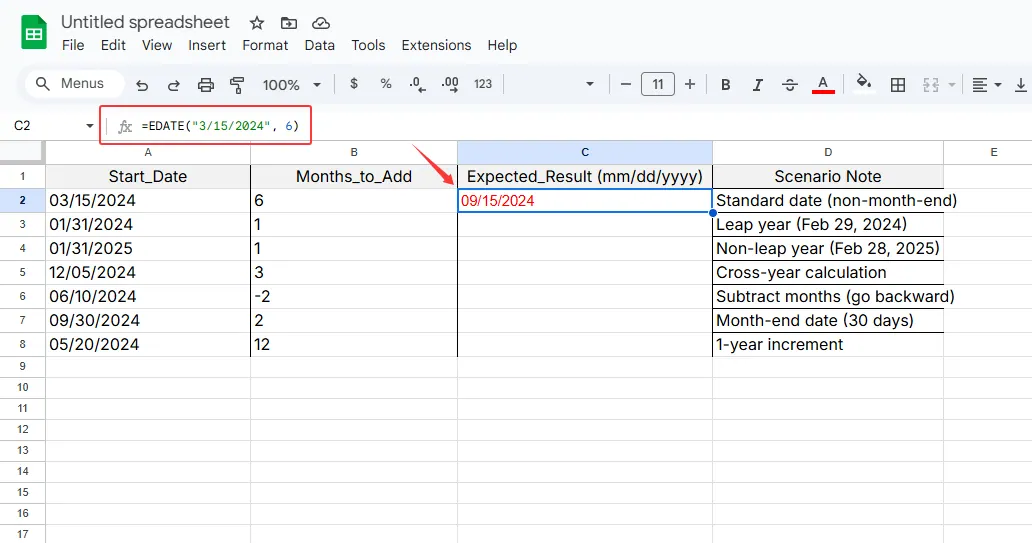
Boom - September 15, 2023 appears. Even handles leap years automatically!
EDATE Pro Tips:
🔹 Use cell references (=EDATE(A2,3)) instead of hardcoding dates
🔹 Subtract months with negative numbers (=EDATE(A2,-2))
🔹 Perfect for subscription renewals and contract expirations
When EDATE Isn't Enough: Advanced Tactics
Sometimes you need more control. That's when you combine DATE with MONTH/YEAR/DAY:
=DATE(YEAR(A2), MONTH(A2)+3, DAY(A2))
This shines when:
- You need to adjust specific date components
- Handling month-end dates gets tricky (more on this next)
The Month-End Date Hack
Financial teams, this one's for you. Adding months to Jan 31? EDATE gives Feb 28 (or 29 in leap years). But what if you need consistent month-ends?
=EDATE(EOMONTH(start_date, 0), months)
This formula:
- Finds the current month's end (EOMONTH)
- Adds your months
- Always returns month-end dates
Perfect for:
✅ Billing cycles
✅ Financial reporting
✅ Quarterly planning
Level Up: Conditional Date Adjustments
Make your dates smart with IF statements:
=IF(B2="Premium", EDATE(A2,12), EDATE(A2,1))
Translation:
- If subscription is "Premium", add 12 months
- Else, add 1 month
Use cases:
⚡ Dynamic project timelines
⚡ Tiered subscription renewals
⚡ Priority-based deadlines
Why Stop at Formulas? Enter RowSpeak
While these Excel tricks work, they still require manual setup. That's where RowSpeak changes the game:
✨ AI automatically handles date calculations
✨ No memorizing formulas - just describe what you need
✨ Creates dynamic timelines that update automatically
Imagine pasting your project dates and having RowSpeak:
- Calculate all milestones
- Highlight overdue tasks
- Adjust schedules when priorities change
All without writing a single formula.
Common Date Mistakes (And How to Fix Them)
Even pros hit snags:
🛑 Dates showing as numbers? Check cell formatting
🛑 #VALUE! error? Verify your date inputs
🛑 Wrong calculations? Audit your formula logic
RowSpeak's AI actually prevents these issues by:
- Detecting date format problems
- Suggesting corrections
- Explaining calculations in plain English
From Spreadsheet Warrior to Date Calculation Ninja
You're now equipped to:
- Use EDATE for simple month additions
- Combine DATE functions for precision
- Handle month-end scenarios
- Create conditional date logic
But if you'd rather focus on analysis than formula wrestling, RowSpeak offers:
- One-click date calculations
- Natural language date adjustments ("Add 3 months to all dates")
- Visual timeline generators
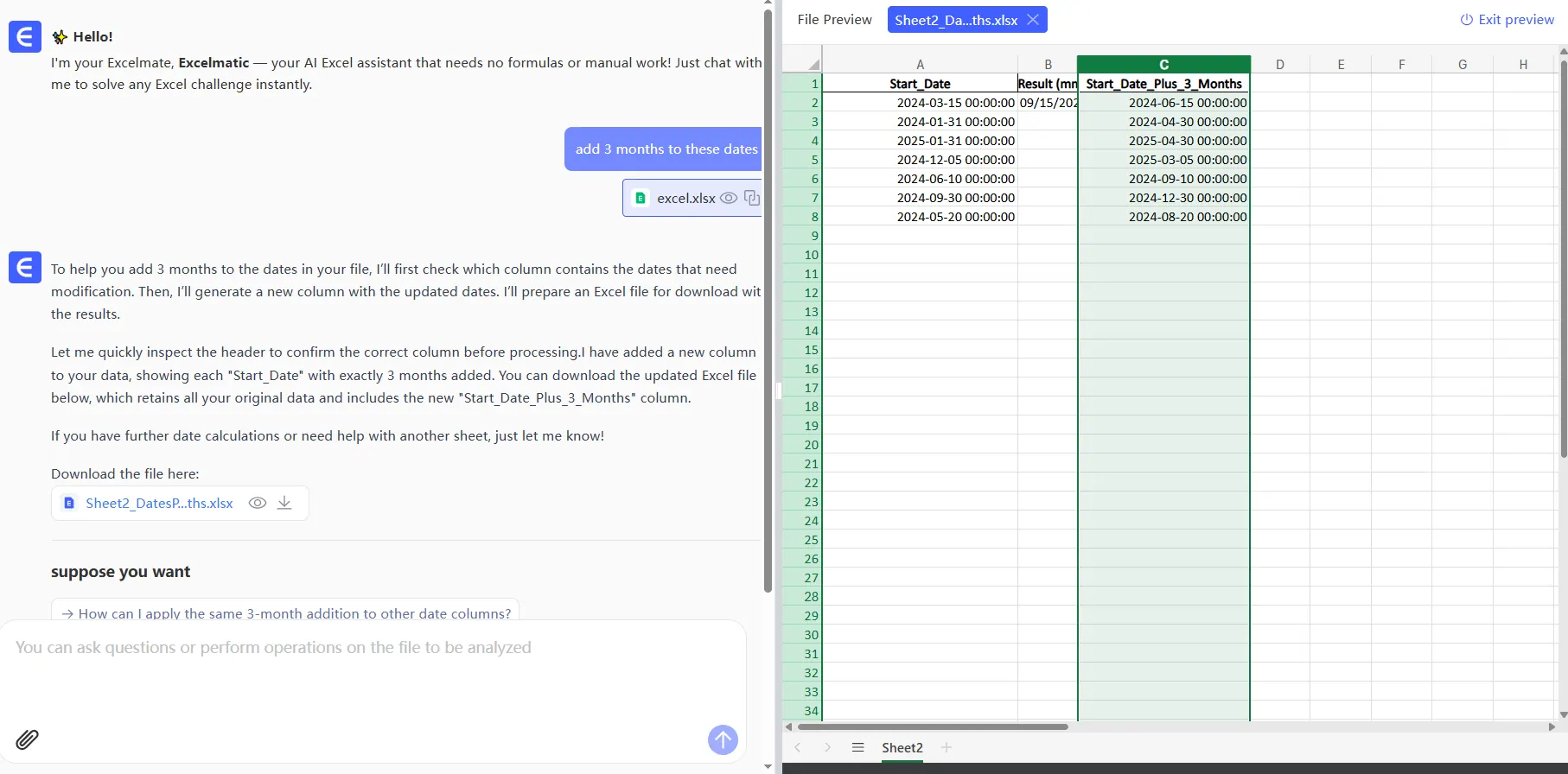
Why manually calculate what AI can handle perfectly?
Ready to work smarter? Try RowSpeak's AI date tools today - your future self will thank you when quarterly reports take minutes instead of hours.
P.S. For those who love deep dives: RowSpeak's blog has advanced guides on handling fiscal years, business-day calculations, and timezone conversions - all automated with AI.