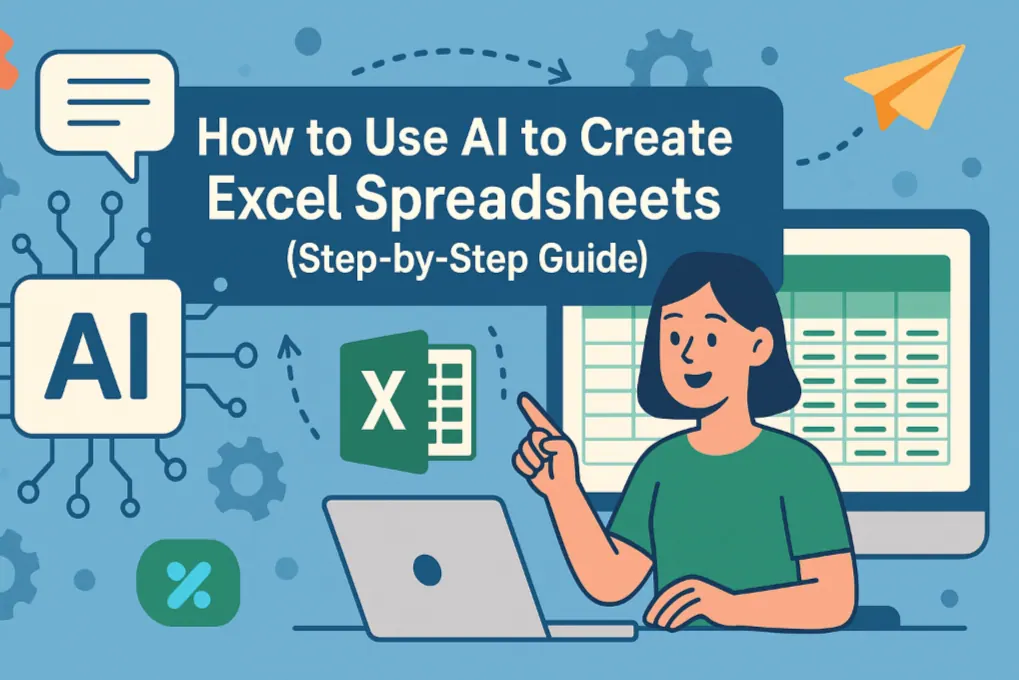
Let's be real - nobody enjoys manually building Excel spreadsheets from scratch. The endless formulas, tricky formatting, and inevitable errors make it a chore. But what if I told you AI can now handle 80% of this grunt work for you?
At RowSpeak, we've seen how AI transforms spreadsheet creation from a tedious task into a quick, painless process. Here's your complete guide to working smarter, not harder.
Why AI is Revolutionizing Excel
Traditional spreadsheet creation has three major pain points:
- It's time-consuming (who hasn't lost an afternoon to formatting?)
- Prone to human error (one wrong formula ruins everything)
- Requires advanced Excel knowledge
AI solves all three. Our users at RowSpeak typically save 4-7 hours per week by automating spreadsheet creation. The best part? You don't need to be an Excel wizard anymore.
How AI Spreadsheet Generation Actually Works
When you use a tool like RowSpeak, here's what happens behind the scenes:
- You explain what you need in plain English ("Create a sales dashboard showing monthly revenue by product")
- AI analyzes your request using natural language processing
- The system builds the framework - columns, formulas, pivot tables
- Smart formatting is applied for readability
- You get a polished spreadsheet ready for your data
This entire process takes about 30 seconds compared to hours of manual work.
Top AI Tools for Excel Automation
While several options exist, here's our curated list of the most effective solutions:
1. RowSpeak (Our Top Pick)
RowSpeak leads the pack with:
- One-click spreadsheet generation
- Smart formula suggestions
- Automatic error checking
- Real-time collaboration features
- Seamless Excel integration
Pro tip: Try our free plan to see how quickly you can generate expense trackers, sales reports, and more.
2. ChatGPT for Excel Help
Great for:
- Formula explanations
- VBA code snippets
- Basic spreadsheet templates
Limitation: Requires manual implementation in Excel
3. Microsoft's Built-in AI Features
Handy for:
- Quick analysis suggestions
- Basic chart recommendations
- Data cleaning
Your Step-by-Step Guide to AI Spreadsheet Creation
Here's how to get started with RowSpeak (works similarly for other tools):
- Describe your needs clearly
- Bad: "Make a budget"
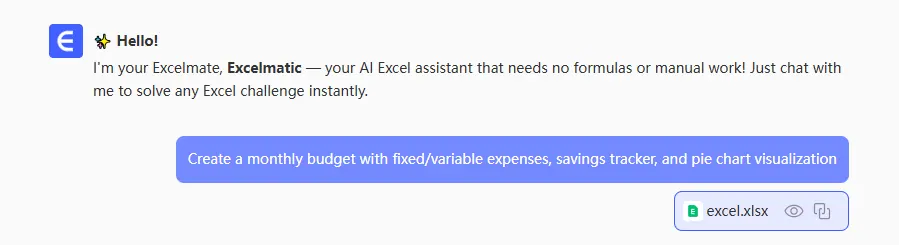
- Good: "Create a monthly budget with fixed/variable expenses, savings tracker, and pie chart visualization"
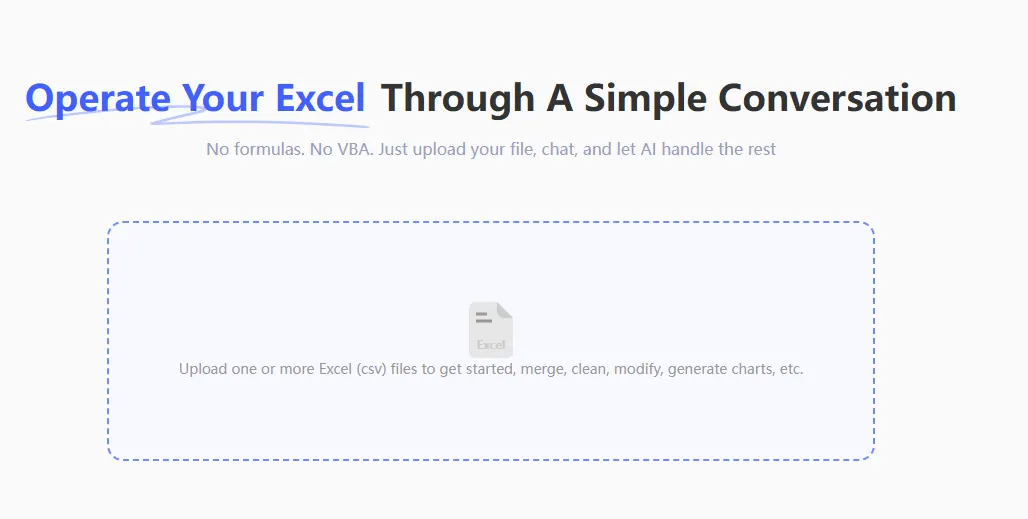
- Upload any existing data (CSV, Excel files)
- Let the AI work its magic (seriously, just wait 30 seconds)
- Review and tweak
- Check formulas
- Adjust formatting
- Add final touches
- Export to Excel or use directly in RowSpeak
Advanced Pro Tips
Once you're comfortable, try these power moves:
- Connect live data sources so your sheets auto-update
- Build dynamic dashboards that refresh with new data
- Create predictive models using AI-generated formulas
- Set up automated reports that email themselves
The Future is Automated
AI spreadsheet tools are evolving rapidly. We're already seeing:
- Voice-controlled spreadsheet creation
- Automatic error detection
- Smart data visualization suggestions
At RowSpeak, we're constantly adding new features to make data work effortless. The question isn't whether you should use AI for spreadsheets - it's which tool will save you the most time today.
Ready to stop wrestling with Excel? Try RowSpeak free and see how much time you can save. Your future self will thank you when you're leaving work on time instead of fixing broken formulas.