How to Add a New Line in an Excel Cell

Ever tried squeezing an address, product description, or meeting notes into a single Excel cell? We've all been there. That cramped text looks messy and makes data hard to read.

Good news: Adding clean line breaks in Excel is easier than you think. As someone who lives in spreadsheets daily (hello, user growth metrics!), I'll share the tricks that save me hours every week.

Method 1: The Lightning-Fast Keyboard Shortcut

For Windows warriors:

  1. Double-click your target cell
  2. Hit Alt + Enter where you want the break
  3. Keep typing

Mac masters use Control + Option + Return instead.

Pro tip: In RowSpeak (our AI-powered spreadsheet tool), these shortcuts work seamlessly while our smart formatting keeps everything readable automatically.

Method 2: Wrap Text for Automatic Line Breaks

Ever added line breaks only to see them disappear? Enable text wrapping:

  1. Select your cells
  2. Click Home > Wrap Text

Now Excel will:

  • Respect your manual line breaks
  • Auto-adjust row height
  • Prevent text from spilling into neighboring cells

Method 3: Formula Magic for Automated Line Breaks

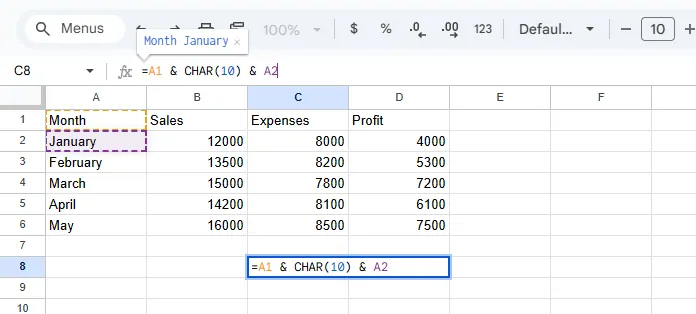
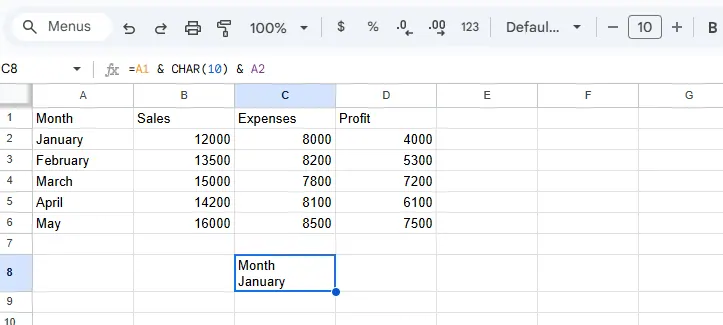
Need to combine data from multiple cells with line breaks? Try this:

=A1 & CHAR(10) & A2
1

Then enable text wrapping. CHAR(10) is Excel's secret code for line breaks.
2

In RowSpeak, our AI suggests these formulas automatically when it detects you're merging text - no memorizing functions required.

Bonus: Handling Line Breaks Like a Pro

  • In charts: Edit axis labels in the formula bar with Alt+Enter breaks
  • For CSV exports: Replace line breaks with pipes (|) before exporting
  • In dropdowns: Create your list items with line breaks first

When to Avoid Line Breaks

They're not ideal for:

  • Data being imported into other systems
  • Shared files where consistency matters most
  • Complex formulas that might break

Level Up Your Spreadsheet Game

While these Excel hacks work, imagine a tool that:

  • Auto-formats line breaks based on content type
  • Suggests optimal text wrapping as you type
  • Maintains formatting during exports

That's RowSpeak in action. Our AI understands your data structure and applies perfect formatting - line breaks included - so you can focus on insights, not cell adjustments.

Ready to work smarter? Try RowSpeak and watch your spreadsheets transform from messy grids to polished reports effortlessly.

What's your biggest Excel formatting headache? Drop us a comment below - we love solving real workflow pains!

Ditch Complex Formulas – Get Insights Instantly

No VBA or function memorization needed. Tell RowSpeak what you need in plain English, and let AI handle data processing, analysis, and chart creation

Try RowSpeak Free Now

Recommended Posts

How to Add Percentages in Excel
Excel Operation

How to Add Percentages in Excel

Tired of manual percentage calculations? Learn the smartest ways to add percentages in Excel, avoid common mistakes, and see how RowSpeak's AI can do the math for you instantly.

Gianna
How to Add 10 Percent to a Number in Excel
Excel Operation

How to Add 10 Percent to a Number in Excel

Whether you're adjusting prices, forecasting growth, or updating budgets, adding 10% in Excel is a fundamental skill. Discover manual methods and how RowSpeak can automate these calculations instantly.

Gianna
How to Add a New Cell in Excel: A Step-by-Step Guide for Smarter Spreadsheets
Excel Operation

How to Add a New Cell in Excel: A Step-by-Step Guide for Smarter Spreadsheets

Adding cells in Excel seems simple, but doing it efficiently saves hours. Here's how to insert single cells, entire rows, and use AI-powered tools like RowSpeak to automate your workflow.

Gianna
How to Add a Line of Best Fit in Excel (The Smart Way with AI)
Excel Operation

How to Add a Line of Best Fit in Excel (The Smart Way with AI)

Struggling to spot trends in your Excel scatter plots? Discover how to add professional trendlines instantly using modern AI tools - no complex formulas needed.

Gianna
How to Add Lists in Excel Faster with AI (No More Manual Typing!)
Excel Operation

How to Add Lists in Excel Faster with AI (No More Manual Typing!)

Tired of typing lists manually in Excel? AI can do it for you. Here's how to leverage AI-powered tools like RowSpeak to create lists instantly.

Gianna
How to Add Leading Zeros in Excel: 4 Simple Methods for Perfect Formatting
Excel Operation

How to Add Leading Zeros in Excel: 4 Simple Methods for Perfect Formatting

Struggling with Excel removing leading zeros from your data? Discover how to preserve zeros in product codes, IDs, and phone numbers with these professional techniques.

Gianna
How to Add a Calendar to Excel Cells: 5 Simple Methods
Excel Operation

How to Add a Calendar to Excel Cells: 5 Simple Methods

Tired of manual date entry errors? Discover how to embed calendars directly in Excel cells using built-in features, VBA, and smart tools like RowSpeak.

Gianna
How to Add a Filter in Google Sheets
Excel Operation

How to Add a Filter in Google Sheets

Filters in Google Sheets are game-changers for data analysis. Whether you're managing budgets, sales pipelines, or project tasks, mastering filters will save you hours. Here's your complete guide - and why RowSpeak's AI-powered features make filtering even smarter.

Gianna