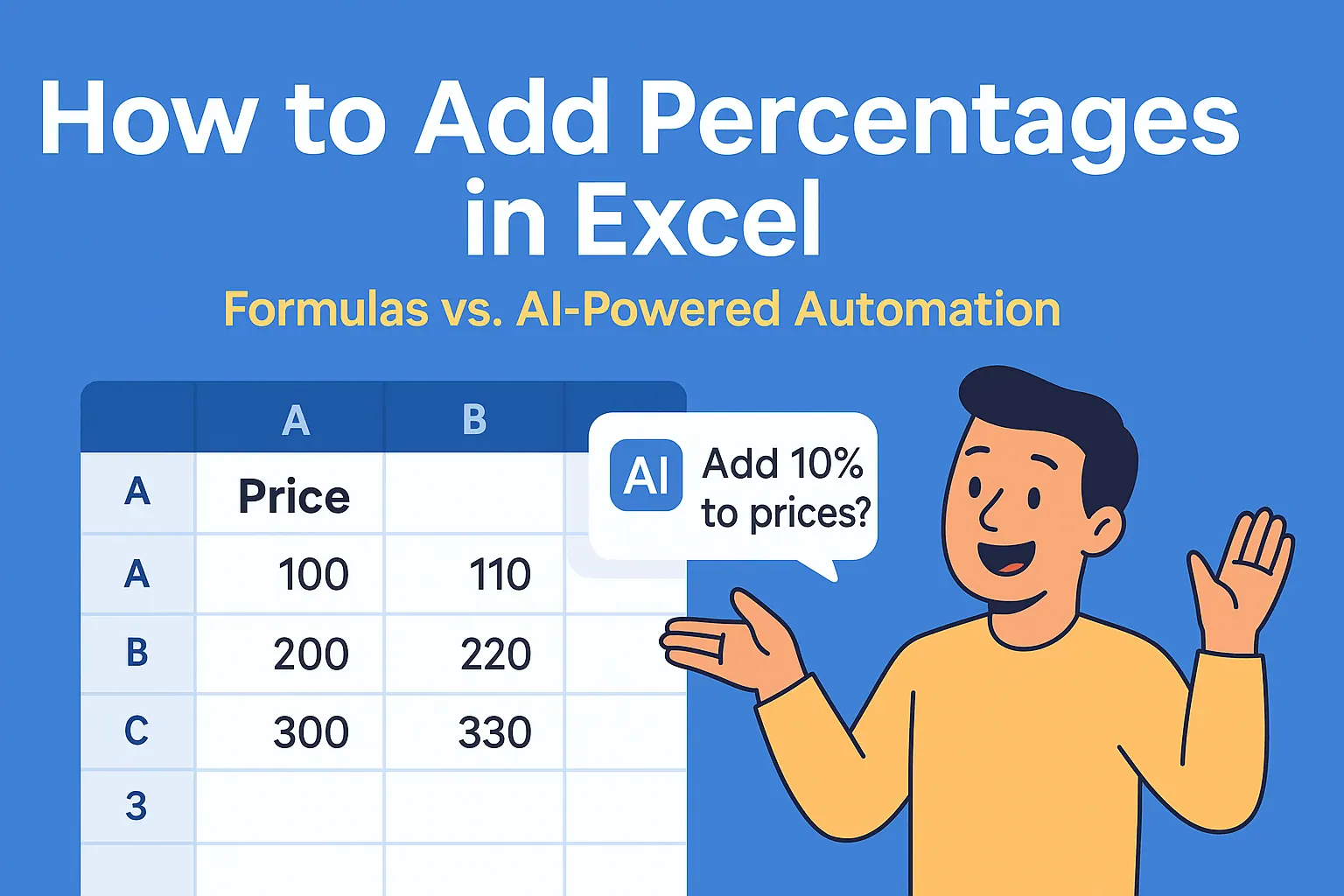
As a growth manager at RowSpeak, I constantly work with spreadsheets to analyze metrics and forecast trends. One of the most frequent calculations I perform is adding percentage increases to numbers - whether it's projecting revenue growth, adjusting marketing budgets, or calculating price increases.

While Excel offers several manual methods to add 10% to values, modern AI tools like RowSpeak can automate these calculations instantly. In this guide, I'll walk you through both traditional Excel approaches and how our AI-powered platform simplifies percentage calculations.
Understanding Percentage Calculations in Excel
Before we dive into formulas, it's crucial to understand how Excel handles percentages. In Excel, percentages are simply decimal numbers - 10% is stored as 0.10, 50% as 0.50, and so on. This conversion happens automatically when you type percentages into cells.
Key Insight: When you add 10% to a number, you're essentially calculating: Original Number + (Original Number × 0.10)
For example, adding 10% to $100 means: $100 + ($100 × 0.10) = $110
Method 1: Basic Percentage Addition Formula
The simplest way to add 10% in Excel:
- Click the cell where you want the result
- Enter:
=A1*1.10(where A1 contains your original number) - Press Enter
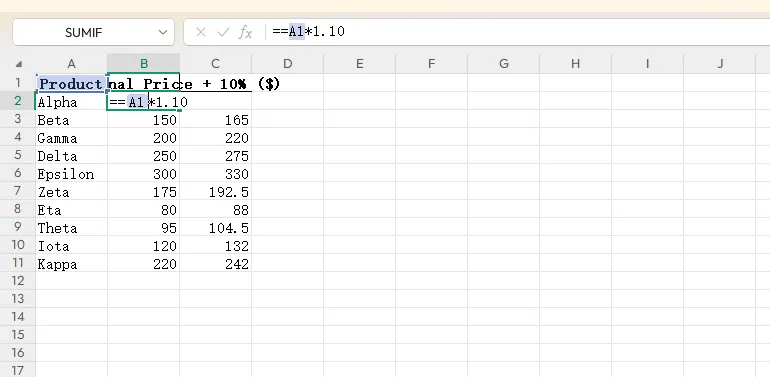
Why 1.10? This represents 100% of the original value plus 10% (totaling 110% or 1.10).
Pro Tip: To apply this to multiple cells, drag the fill handle (small square at cell's bottom-right corner) down your column.
Method 2: Using Absolute References for Flexible Adjustments
When working with dynamic models where the percentage might change:
- Enter your percentage (e.g., 10%) in a dedicated cell (say B1)
- Use formula:
=A1*(1+$B$1) - The dollar signs create an absolute reference that won't change when copied
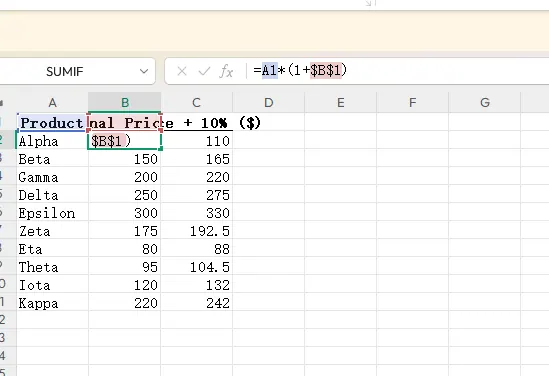
This approach lets you modify the percentage in one place rather than editing multiple formulas.
Method 3: Automate with RowSpeak (The Modern Solution)
While manual methods work, they become time-consuming with large datasets. This is where RowSpeak transforms your workflow:
- Upload your Excel file or connect your data source
- Describe your need: "Add 10% to all values in Column A"
- Get Results instantly with AI-generated formulas or transformed data
RowSpeak not only performs the calculation but can also:
- Apply conditional percentage increases
- Generate visualizations of the adjusted values
- Create dynamic reports that update automatically
Real-world application: When I needed to adjust 5,000 product prices by 10% last quarter, RowSpeak completed the task in seconds versus hours of manual work.
Advanced Applications
Once you've mastered adding 10%, you can expand these techniques to:
- Calculate tiered percentage increases
- Apply different percentages based on conditions
- Create percentage increase dashboards
For teams regularly working with percentage adjustments, RowSpeak's AI assistant can learn your specific business rules and automate these calculations across all your financial models and reports.
Conclusion
Adding 10% in Excel is fundamental for financial analysis, pricing strategies, and growth forecasting. While traditional methods work, modern AI tools like RowSpeak eliminate repetitive manual work, reduce errors, and provide instant insights.
Next Step: Try RowSpeak free to see how AI can transform your percentage calculations and data analysis workflows. Our platform handles not just basic math but complex financial modeling, letting you focus on strategic decisions rather than spreadsheet mechanics.