As a User Growth Manager at RowSpeak, I frequently see professionals spending hours manually formatting spreadsheets. Whether you're preparing data for a database, improving readability, or standardizing values, adding commas to cell endings is a common yet time-consuming task.
The good news? Excel offers multiple efficient solutions - and when combined with AI-powered tools like RowSpeak, you can automate this process entirely. Let me walk you through the three most effective methods.
Method 1: Using CONCAT or CONCATENATE (Best for Formula-Based Approach)
Excel's text combination functions provide the most reliable way to add consistent formatting. While CONCATENATE still works, Microsoft now recommends using CONCAT for better performance.
Step-by-Step Guide:
- Select your target cell (e.g., B1)
- Enter either:
=CONCAT(A1, ",")(modern version)=CONCATENATE(A1, ",")(legacy version)
- Drag the fill handle down to apply to all cells
Pro Tip from RowSpeak: When working with large datasets, combine this with our AI formula generator to automatically apply formatting across multiple columns without manual dragging.
Method 2: The Ampersand Shortcut (Fastest for Simple Tasks)
For those who prefer minimalist solutions, the ampersand operator (&) offers a formula-free alternative:
- Click your destination cell
- Type:
=A1&"," - Press Enter and copy down as needed
While efficient for small tasks, this method becomes cumbersome with complex datasets. This is where RowSpeak's pattern recognition shines - it can identify and replicate such formatting patterns across your entire workbook automatically.
Method 3: Flash Fill (Best for Pattern Recognition)
Excel's built-in Flash Fill works wonders for quick formatting:
- Type the first formatted value manually (e.g., "Data," in B1)
- Start typing the second value
- Press Ctrl+E to activate Flash Fill
Limitation Alert: Flash Fill struggles with inconsistent data patterns. For reliable, large-scale formatting, RowSpeak's AI engine provides smarter pattern detection that adapts to your data structure.
Bonus: The RowSpeak Advantage

While these native Excel methods work, they require manual intervention for each new dataset. RowSpeak revolutionizes this process by:
- Automatically detecting when trailing commas are needed
- Applying consistent formatting across all related cells
- Maintaining the changes even when source data updates
- Offering one-click reversal if needed
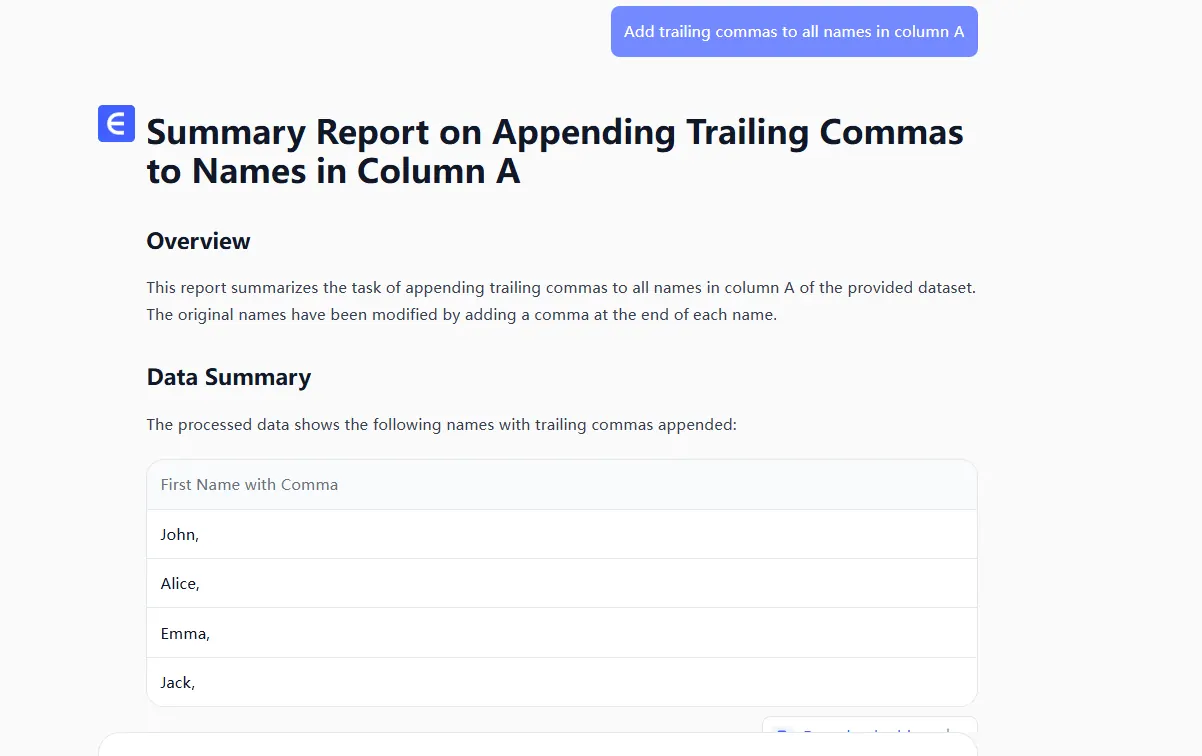
For teams handling regular data formatting, this AI-powered approach saves an average of 2-3 hours per week compared to manual methods.
Choosing Your Approach
For one-time small tasks:
- Use CONCAT or ampersand for quick results
For recurring or large datasets:
- Implement RowSpeak's AI formatting rules
- Set up automated workflows for consistent output
Remember, proper data formatting isn't just about aesthetics - it's about creating analysis-ready datasets. By mastering these techniques (especially when enhanced with RowSpeak's AI capabilities), you'll ensure your spreadsheets remain clean, consistent, and database-friendly.
Ready to automate your Excel formatting? Try RowSpeak free and experience how AI can transform your spreadsheet workflow.