Key Takeaways
- The Formula Logic: The PMT function calculates repayments based on constant payments and a constant interest rate.
- The Conversion Hurdle: Users often fail because they forget to convert annual interest rates into monthly rates within the formula.
- Zero-Formula Finance: RowSpeak allows you to perform complex loan amortizations by simply describing the terms of your loan.
- Instant Schedules: Beyond a single number, AI can generate full repayment schedules (principal vs. interest) in seconds.
The Most Dreaded Financial Formula
The PMT function is the backbone of financial planning in Excel, but it’s notoriously picky. One wrong comma or a forgotten division by 12 can turn a $2,000 mortgage payment into a $24,000 error. Whether you are calculating business ROI or checking your car loan, accuracy is non-negotiable.
Method 1: The Traditional Manual Way (The Syntax Struggle)
To manually calculate a monthly payment, you must strictly follow Excel’s financial syntax. Here is the standard process:
- Select your cell: Where you want the monthly result to appear.
- Input the Rate: Enter the annual rate divided by 12 (e.g.,
5%/12). - Input NPER: Enter the total number of payments (e.g.,
30*12for a 30-year loan). - Input PV: Enter the total loan amount as a positive number.
- Adjust the Sign: Since Excel returns a negative value for payments, many users add a
-sign at the start:=-PMT(...). - Repeat for Schedules: If you need to see how much interest you pay in year 5, you have to start over with
IPMTandPPMTfunctions.
The Bottleneck: It is mentally taxing. Most users don't want to be "formula experts"—they just want to know if they can afford the loan.
Method 2: The RowSpeak Conversational Approach
RowSpeak transforms Excel from a calculator into a financial consultant. Instead of nesting five different arguments, you talk to your data like a human.

Why it’s better:
- Smart Conversions: Tell RowSpeak the "Annual Rate," and it automatically handles the "Monthly" math.
- Full Context: It doesn't just give you one number; it can build an entire table.
- No Sign Confusion: Results are presented in clear, readable terms—no more weird red negative numbers.
How to do it:
- Upload your loan statement or financial draft to the RowSpeak dashboard.

- Type your command:
Based on the loan terms in this file, calculate my monthly PMT and generate a full repayment schedule.
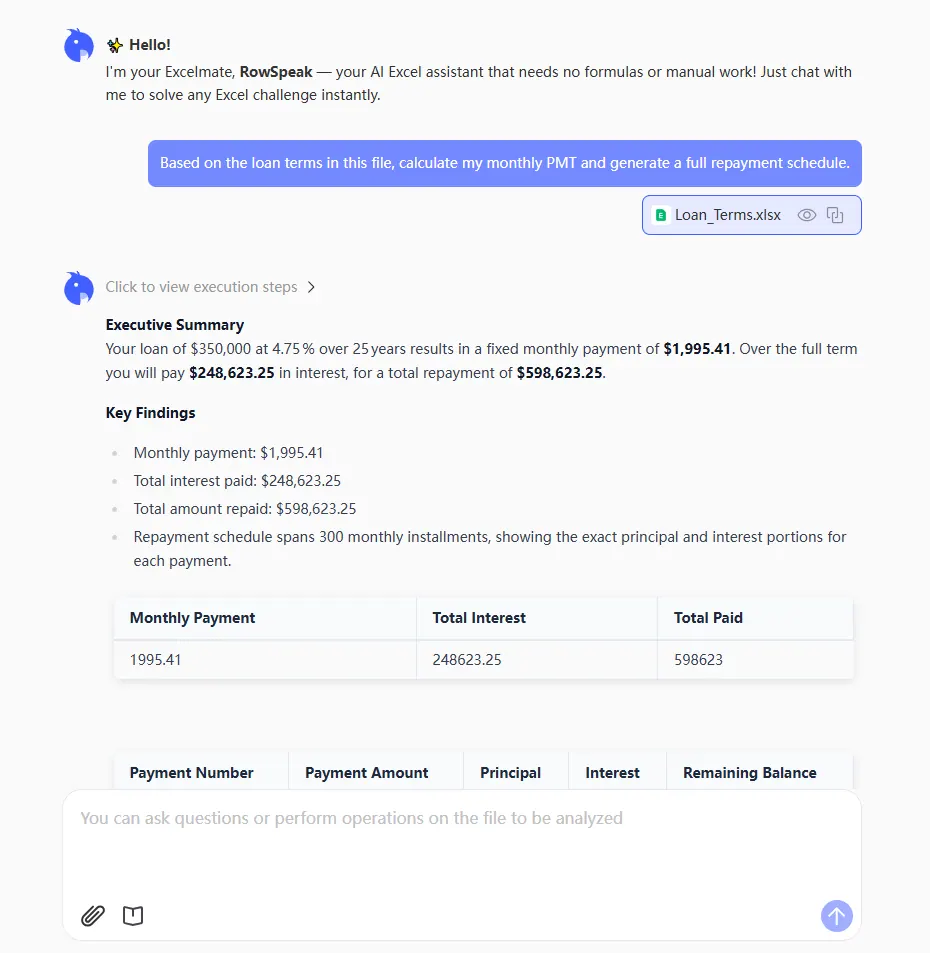
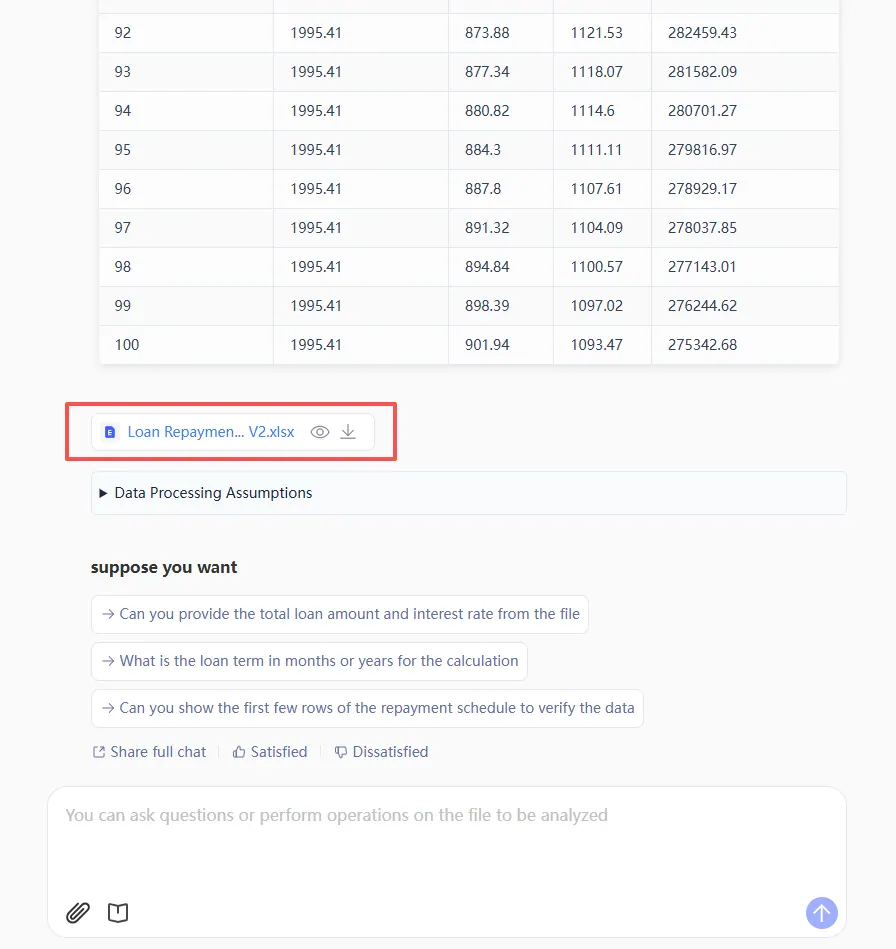
- Instant Result: Preview the calculated payments and download your updated file with the complete amortization table.
Comparison: Manual PMT vs. RowSpeak AI
| Feature | Manual PMT Formula | RowSpeak (AI) |
|---|---|---|
| Complexity | High (5 specific arguments) | Zero (Natural language) |
| Rate Handling | Manual math (/12, *12) |
Automatic conversion |
| Visuals | One cell result | Full payment schedules |
| Flexibility | Static | Dynamic (Ask "What if the rate hits 5%?") |
FAQ: Common Questions About Excel Payments
1. Why is my PMT result negative? Excel treats payments as an "outflow" of cash. RowSpeak understands you just want the absolute value and presents it clearly without the accounting jargon.
2. Can I calculate payments for bi-weekly loans?
Manually, this requires changing your NPER and Rate logic significantly. With RowSpeak, just say "Calculate this as a bi-weekly payment" and the AI re-aligns the math instantly.
3. What if my interest rate changes mid-loan?
This is nearly impossible with a standard PMT function. RowSpeak can handle dynamic data changes to model variable-rate scenarios.
Master Your Money, Not the Manual
Financial freedom comes from understanding your numbers, not from memorizing Excel tabs. Whether you are managing a budget or finalizing a multi-million dollar deal, RowSpeak takes the "math-anxiety" out of the equation.
🚀 Ready to Simplify Your Financial Planning?
Stop fighting with financial syntax. Let RowSpeak calculate your loans in seconds.
Try RowSpeak Free Now