Custom Shift Assignment Planner Template
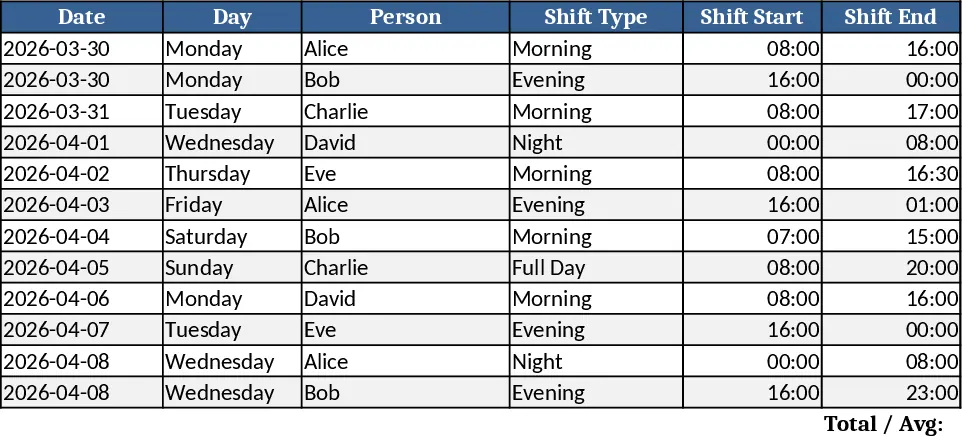
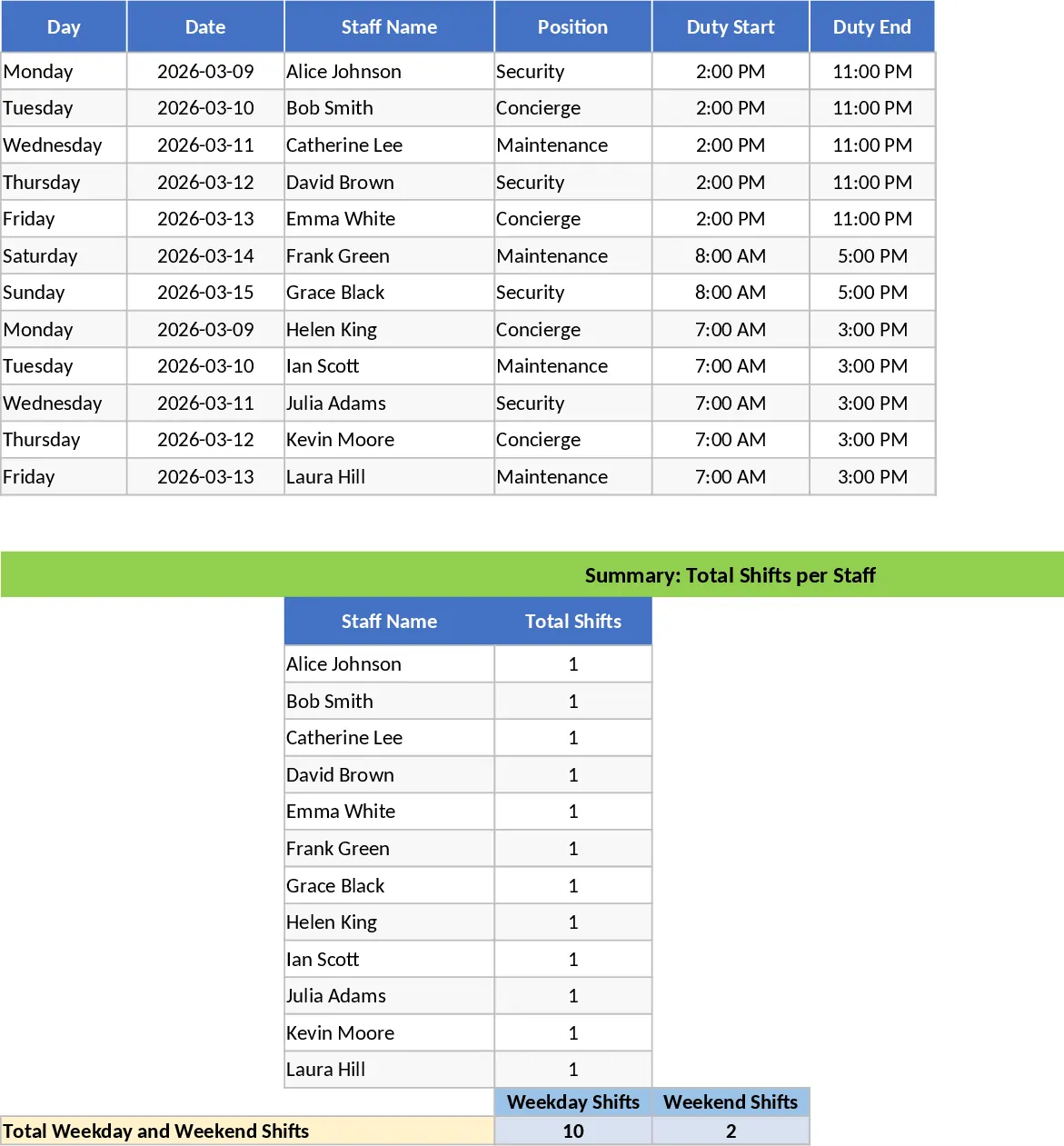
This Excel template is built for managers and HR coordinators who need to create, edit, and monitor shift schedules for a team of any size. The workbook contains three main sheets: Employee List, where you enter each worker’s name, ID and any special notes; Shift Types, where you define shift names, start‑time, end‑time and total duration – you can create as many shift variations as you need; and Schedule Grid, a calendar‑style table that lists dates across the top and employee names down the side. Each cell in the grid features a dropdown that pulls from the Shift Types sheet, letting you quickly assign the appropriate shift to any employee on any day. A fourth sheet, Summary, automatically aggregates the data, showing total hours per employee, daily coverage totals, and any overtime flags.
The template solves the common headache of juggling multiple shift patterns manually. By centralising all shift definitions and assignments in one place, it eliminates duplicate entry errors, ensures consistent shift lengths, and provides an instant visual overview of staffing levels. You can instantly spot gaps in coverage, verify that no employee exceeds their allowed hours, and generate printable schedules for the team. This streamlines daily operations, improves compliance with labor regulations, and frees up time that would otherwise be spent on ad‑hoc spreadsheets or paper rosters.
Ideal for retail stores, manufacturing floors, call centres, hospitals, or any organisation that runs rotating or variable‑length shifts. Whether you’re a store manager planning weekly rotas, an HR specialist handling part‑time contracts, or a project lead coordinating shift‑based resources, this template adapts to your workflow. It helps you keep track of who works when, how long each shift lasts, and the total hours each employee accumulates, making payroll preparation and performance tracking much simpler.
How to use
- Populate the Employee List – Enter each staff member’s details (name, ID, role) in the first sheet. Optional columns let you note availability or preferred shift times.
- Define Shift Types – In the Shift Types sheet, add every shift variant you use (e.g., Morning 8‑12, Evening 14‑22, 6‑hour split). The template calculates the duration automatically.
- Assign Shifts – Go to the Schedule Grid, select a date cell for an employee, and choose the appropriate shift from the dropdown. The grid updates the total hours column in real time.
- Review the Summary – Switch to the Summary sheet to see each employee’s total scheduled hours, daily staffing levels, and any alerts for overtime or understaffing.
Expected benefits: faster schedule creation, fewer manual errors, clearer visibility of workforce allocation, and reduced time spent reconciling shift data for payroll.