As a User Growth Manager at RowSpeak, I've seen firsthand how AI is revolutionizing data workflows. The days of manually updating spreadsheets and switching between multiple tools are fading fast. Today, powerful AI solutions like RowSpeak and ChatGPT allow you to interact with your Google Sheets data conversationally—saving time and reducing errors.
Why Integrate AI with Google Sheets?
Before we dive into the technical steps, let's address the core question: Why use AI with Google Sheets? The benefits are compelling:
- Natural Language Processing: Ask questions about your data in plain English and get instant answers.
- Automated Updates: Modify spreadsheet values without manual entry.
- Advanced Analysis: Generate insights, trends, and visualizations on demand.
- Seamless Integration: Connect your existing spreadsheets to AI tools in minutes.
While ChatGPT offers basic integration capabilities, RowSpeak provides a more robust solution with built-in AI analytics, automated reporting, and one-click dashboard generation—all directly from your Google Sheets data.
Getting Started: Prerequisites
To begin, you'll need:
- A Google account with access to Google Sheets
- An OpenAI API key for ChatGPT (or an RowSpeak account for superior functionality)
- Google Sheets API enabled (for custom integrations)
Step 1: Enable Google Sheets API Access
- Navigate to the Google Cloud Console
- Create a new project
- Search for and enable the "Google Sheets API"
- Configure OAuth credentials if needed
Pro Tip: RowSpeak users can skip this step as our platform handles API connections automatically.
Step 2: Choose Your Integration Method
Option A: Using RowSpeak (Recommended)
- Sign up for RowSpeak
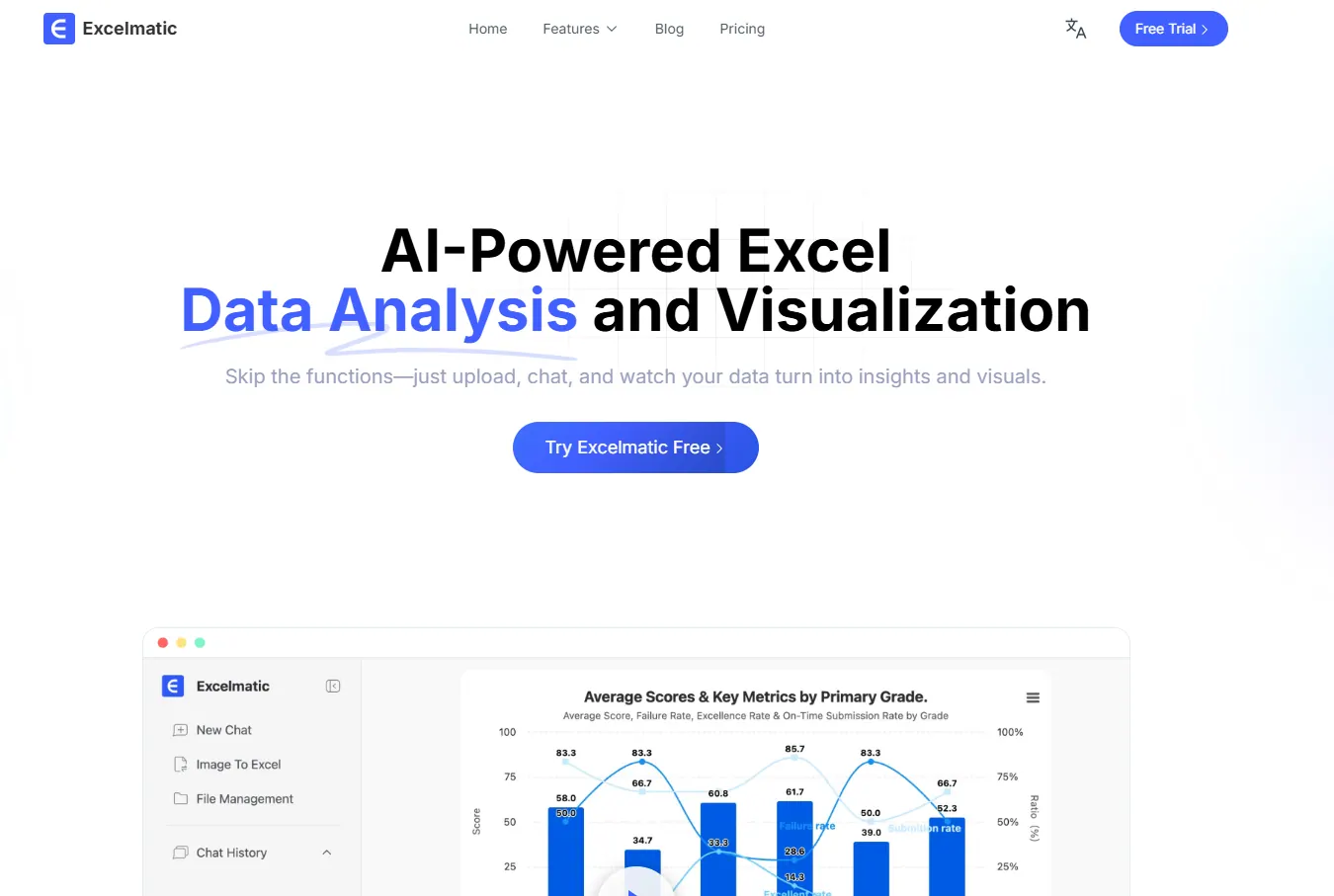
- Connect your Google Sheets account
- Start analyzing data instantly with AI-powered queries
RowSpeak eliminates the need for coding while providing advanced features like:
- Automated dashboard generation
- Predictive analytics
- Natural language query processing
- Team collaboration tools
Option B: Custom ChatGPT Integration
For those preferring a DIY approach:
- Create a Google Apps Script in your Sheet (Extensions > Apps Script)
- Add OpenAI API integration code
- Deploy as a web app
Here's a basic example:
function callChatGPT(prompt) {
const apiKey = 'YOUR_OPENAI_API_KEY';
const response = UrlFetchApp.fetch('https://api.openai.com/v1/completions', {
method: 'post',
headers: {
'Content-Type': 'application/json',
'Authorization': 'Bearer ' + apiKey
},
payload: JSON.stringify({
model: "text-davinci-003",
prompt: prompt,
max_tokens: 150
})
});
return JSON.parse(response.getContentText()).choices[0].text;
}
Note: This requires technical knowledge and lacks the advanced features of dedicated solutions like RowSpeak.
Practical Applications
Once connected, you can perform powerful operations:
- Data Retrieval: "What's the Q3 revenue total?"
- Data Entry: "Add $450 to the marketing budget for June"
- Analysis: "Show me monthly sales trends as a line chart"
- Forecasting: "Predict next quarter's sales based on historical data"
RowSpeak enhances these capabilities with:
- One-click report generation
- Smart data cleaning
- Collaborative dashboards
- Automated data refresh
Best Practices for AI-Powered Spreadsheets
- Structure Your Data Clearly: Use proper headers and consistent formats
- Start Simple: Master basic queries before attempting complex analysis
- Verify Critical Data: Always double-check AI-generated updates
- Use Dedicated Tools: For business-critical tasks, RowSpeak provides more reliability than custom scripts
The Future of Spreadsheet Management
While ChatGPT integration offers a glimpse into AI-powered data handling, RowSpeak represents the next evolution—combining conversational AI with enterprise-grade analytics in a single platform. Our users report saving 10+ hours weekly on data tasks while gaining deeper insights.
Ready to transform your Google Sheets experience? Try RowSpeak free today and experience the power of AI-driven spreadsheet management.