How to Supercharge Your Google Sheets Data Analysis with AI

Let’s be real—spreadsheets can feel like a maze of numbers. But what if your Google Sheets could think for you? With built-in AI features, it sort of can. Here’s how to use them (plus why RowSpeak is the smarter choice for serious analysis).

Google Sheets’ AI Superpowers

1. Explore: Your Instant Data Assistant

The "Explore" button (bottom-right corner) is Google Sheets’ AI brain. It:

  • Answers questions like “Show top-selling products” in plain English.
  • Suggests charts—no more guessing between pie graphs or bar charts.
  • Spots trends automatically, like seasonal sales dips.

Pro Tip: RowSpeak does this and more—like auto-generating full reports with actionable insights, not just basic charts.

2. AI-Powered Charting (Without the Hassle)

Forget manual chart setups. Google Sheets’ AI:

  • Recommends the best chart type for your data.
  • Inserts it with one click.

But… RowSpeak’s AI suggests interactive dashboards with drill-downs, not just static images.

3. Predict the Future (Sort Of)

Use =FORECAST() to estimate future sales, inventory needs, or growth. Just plug in:

=FORECAST(new_x_value, data_y, data_x)  

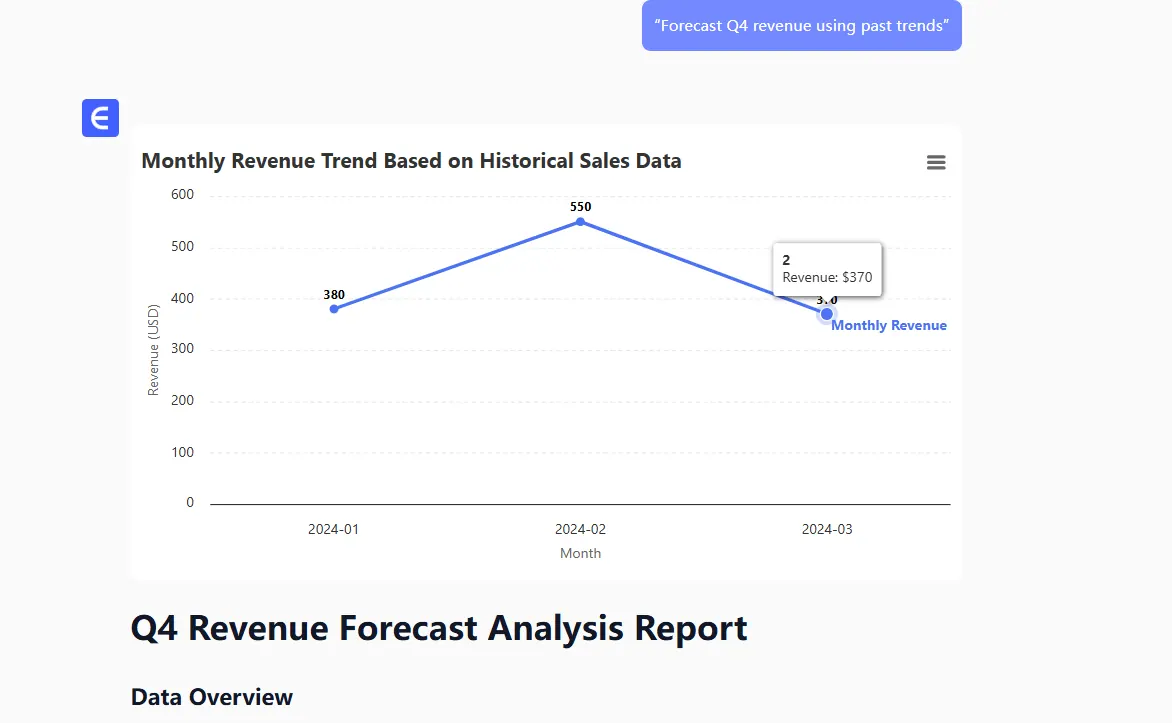
Limitation: Google Sheets’ forecasts are basic. RowSpeak uses machine learning for sharper predictions, like factoring in market trends.
trend

4. Clean Data on Autopilot

AI helps tidy messy spreadsheets by:

  • Removing duplicates (Data > Remove Duplicates).
  • Flagging missing values.

RowSpeak Advantage: It goes further—auto-fixing formatting errors and merging duplicate entries intelligently.

5. Add-Ons for Heavy Lifting

Need more firepower? Try Google Workspace add-ons like:

  • Supermetrics for advanced analytics.
  • AutoML for custom models.

Catch: These require setup. RowSpeak bakes these features in—no extra installs.

When to Upgrade to RowSpeak

Google Sheets’ AI is great for quick tasks, but RowSpeak is built for AI-driven analysis:

Faster Insights
No more typing questions—RowSpeak anticipates what you need (e.g., “You’re analyzing Q2 sales—here’s a churn risk report”).

Smarter Dashboards
Turn raw data into polished, board-ready reports with one click.

True Collaboration
Share live dashboards where teammates can explore data without breaking formulas.

Try This Instead

  1. Upload your Google Sheet to RowSpeak.
  2. Ask a question (“Why did Q3 revenue drop?”).
  3. Get a full analysis—not just a chart, but root causes and action steps.

The Bottom Line

Google Sheets’ AI is handy, but RowSpeak is the upgrade your data deserves. Less manual work, deeper insights, and no more “How do I…?” moments.

Ready to leave spreadsheet stress behind? Try RowSpeak free.

Ditch Complex Formulas – Get Insights Instantly

No VBA or function memorization needed. Tell RowSpeak what you need in plain English, and let AI handle data processing, analysis, and chart creation

Try RowSpeak Free Now

Recommended Posts

How to Supercharge Your Google Sheets Data Analysis with AI (2025 Guide)
Excel Operation

How to Supercharge Your Google Sheets Data Analysis with AI (2025 Guide)

Struggling with spreadsheet data? AI can help! This guide shows you how to leverage AI in Google Sheets to automate analysis, generate insights, and create stunning visualizations - no advanced skills required.

Gianna
How to Add Tables in Google Sheets Faster with AI (RowSpeak Guide)
Excel Operation

How to Add Tables in Google Sheets Faster with AI (RowSpeak Guide)

Tired of manual data entry? Discover how AI-powered tools like RowSpeak can transform your Google Sheets workflow by generating and formatting tables in seconds.

Gianna
How to Access Google Sheets Using AI: A Step-by-Step Guide
Excel Operation

How to Access Google Sheets Using AI: A Step-by-Step Guide

Discover how AI-powered tools like RowSpeak and ChatGPT can transform your Google Sheets workflow, enabling conversational data analysis and automation without manual effort.

Gianna
How to Add a Filter in Google Sheets
Excel Operation

How to Add a Filter in Google Sheets

Filters in Google Sheets are game-changers for data analysis. Whether you're managing budgets, sales pipelines, or project tasks, mastering filters will save you hours. Here's your complete guide - and why RowSpeak's AI-powered features make filtering even smarter.

Gianna
Mastering Text in Google Sheets: Your Ultimate Guide
Excel Operation

Mastering Text in Google Sheets: Your Ultimate Guide

Struggling with text in Google Sheets? From basic typing to advanced formulas, this guide covers everything you need to know - plus how AI tools like RowSpeak can automate your workflow.

Gianna
Streamline Your Spreadsheets: How to Add a Calendar Drop-Down in Google Sheets
Excel Operation

Streamline Your Spreadsheets: How to Add a Calendar Drop-Down in Google Sheets

Manual date entry in spreadsheets is prone to errors. Discover how to add a calendar drop-down in Google Sheets for accurate date selection, then see how RowSpeak's AI capabilities can automate and enhance this process for business users.

Gianna
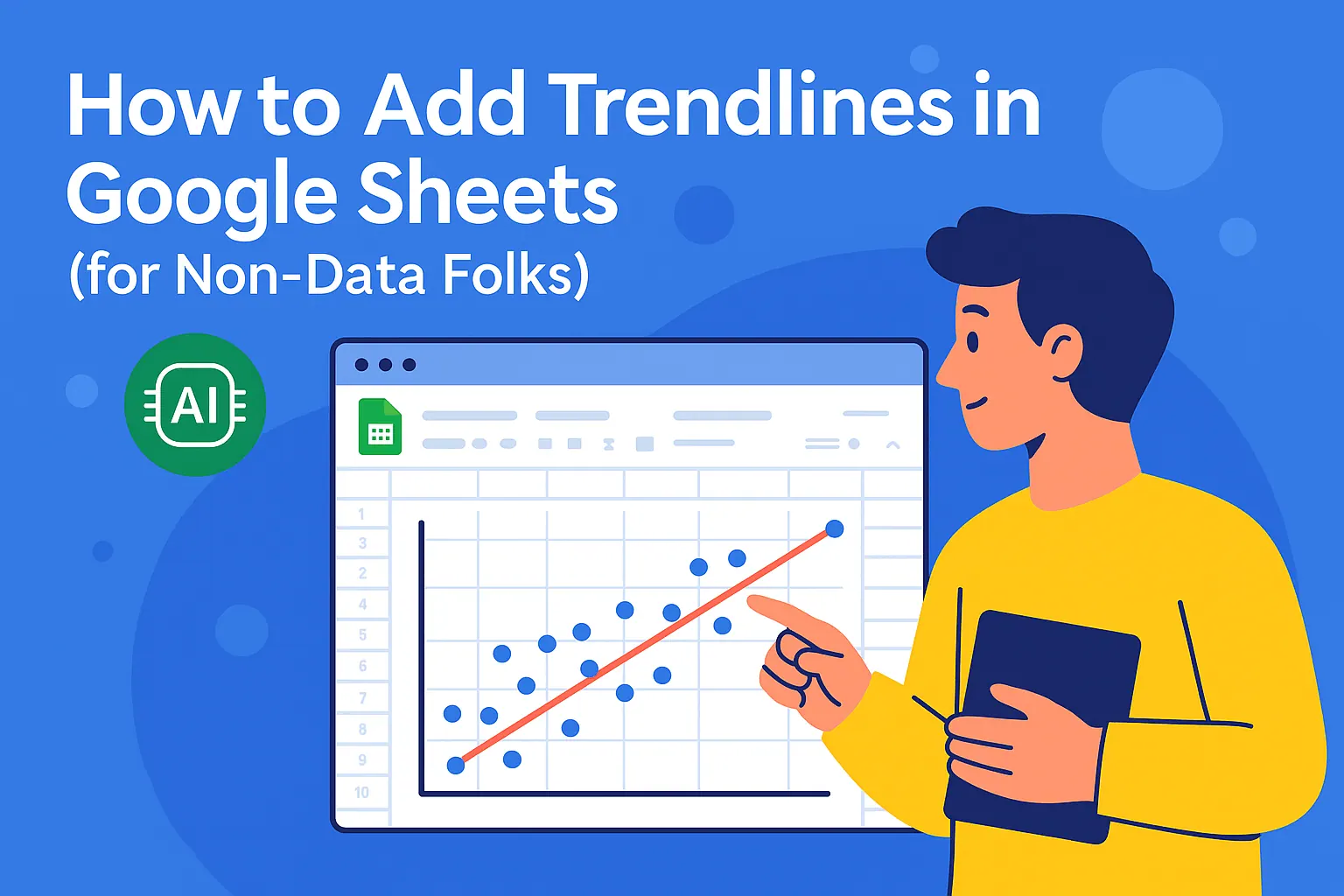
The Smart Way to Add Trendlines in Google Sheets (With AI Superpowers)
Excel Operation

The Smart Way to Add Trendlines in Google Sheets (With AI Superpowers)

Tired of guessing trends in your data? Discover how to add a line of best fit in Google Sheets and let AI do the heavy lifting for accurate predictions.

Gianna
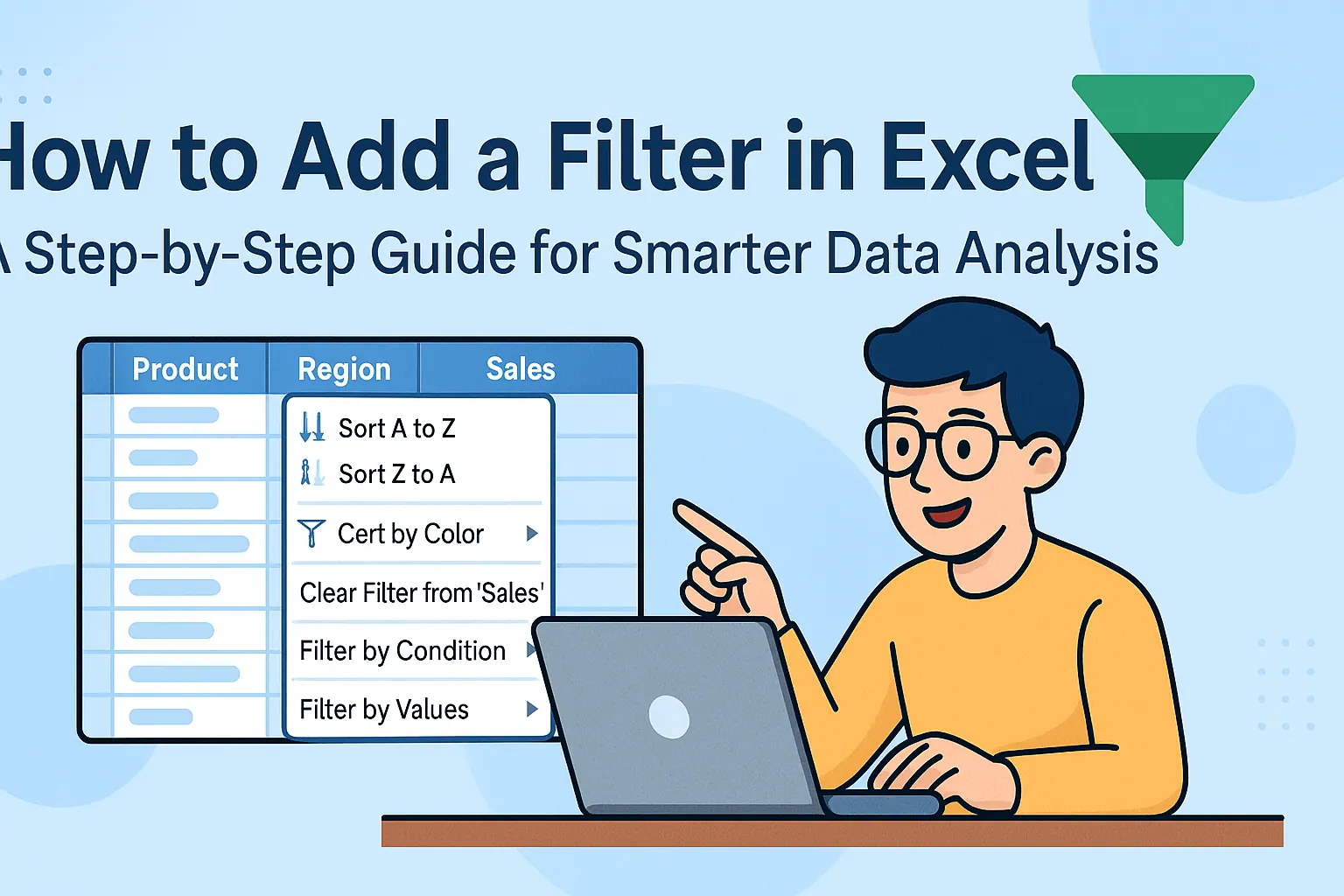
How to Add a Filter in Excel: A Step-by-Step Guide for Smarter Data Analysis
Excel Operation

How to Add a Filter in Excel: A Step-by-Step Guide for Smarter Data Analysis

Struggling to make sense of messy spreadsheets? Excel filters are your secret weapon. This step-by-step guide shows you how to slice and dice your data effortlessly - plus we'll share how RowSpeak can take your analysis to the next level.

Gianna