We've all been there - staring at an empty Google Sheet, unsure how to make our data look clean and professional. Whether you're tracking sales, managing projects, or just organizing personal data, knowing how to work with text effectively can save you hours of frustration.
At RowSpeak, we understand the pain points of spreadsheet management. That's why we're sharing these insider tips to help you work smarter, not harder. Let's dive into the world of text manipulation in Google Sheets!
Getting Started: The Basics of Adding Text
Adding text in Google Sheets is simple, but doing it efficiently takes some know-how. Here's the quick and dirty method:
- Click any cell - it's your blank canvas
- Type your content - watch it appear in both the cell and formula bar
- Hit Enter to move down or Ctrl+Enter to stay put
Pro tip: If you're using RowSpeak, our AI can automatically format and organize your text as you type - no manual adjustments needed!
Making Your Text Look Professional
Plain text is boring. Let's spice it up with some formatting magic:
- Emphasis: Ctrl+B for bold, Ctrl+I for italics, Ctrl+U for underline
- Color coding: Use the toolbar to highlight important info
- Alignment: Left, center, or right - whatever makes your data easiest to read
With RowSpeak, you can set up automatic formatting rules that apply these styles based on your content. Imagine never having to manually bold headers again!

Text Formulas That'll Blow Your Mind
Who says formulas are just for numbers? These text functions will change your spreadsheet game:
- CONCATENATE: Merge text from different cells (=CONCATENATE(A1," ",B1))
- CASE CHANGERS: =UPPER(), =LOWER(), =PROPER() for perfect capitalization
- TEXTJOIN: Combine text with custom separators (=TEXTJOIN(", ",TRUE,A1:A5))
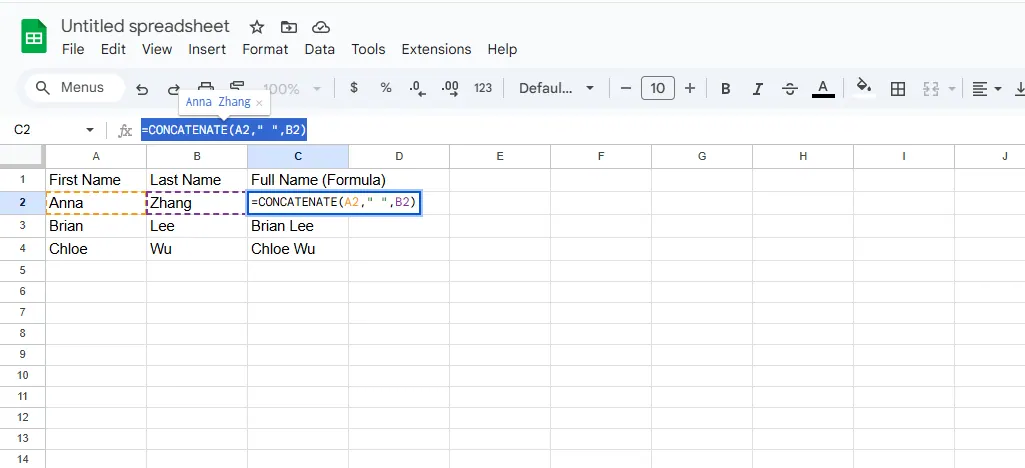
Here's where RowSpeak shines - our AI suggests the perfect formulas based on your data patterns, eliminating the guesswork.
Advanced Text Tricks for Power Users
Hyperlinks That Work Harder
Make your sheets interactive with clickable links:
- Select your target cell
- Ctrl+K or go to Insert > Link
- Paste your URL and customize the display text
Taming Wild Text Overflow
Stop text from spilling into neighboring cells:
- Wrap text (Format > Text wrapping > Wrap)
- Clip text (Format > Text wrapping > Clip)
- Adjust column width manually
Collaboration Made Easy
Google Sheets excels at teamwork:
- Share with colleagues via the Share button
- Use comments (@mention teammates)
- Watch changes happen in real-time
Why Stop at Manual Text Entry?
While Google Sheets offers great text features, tools like RowSpeak take it to the next level with AI-powered automation. Imagine:
- Smart text recognition that formats as you type
- Automatic data categorization
- Instant insights from your text data
Instead of spending hours formatting and organizing, you could be analyzing and acting on your data. That's the power of AI-assisted spreadsheets.
Final Thoughts
Mastering text in Google Sheets is about working smarter. Whether you're using basic formatting or advanced formulas, these techniques will make your spreadsheets more effective and professional-looking.
But if you really want to level up your spreadsheet game, give RowSpeak a try. Our AI handles the tedious text work so you can focus on what matters - making data-driven decisions.
Ready to transform how you work with text in spreadsheets? RowSpeak is just a click away!