In today's data-driven business environment, Excel spreadsheets remain essential for organizing, analyzing, and visualizing information. However, creating complex spreadsheets from scratch can be time-consuming, especially for professionals who need to focus on strategic decision-making rather than manual data entry.
This is where AI-powered tools like RowSpeak are revolutionizing spreadsheet creation. As a user growth manager at RowSpeak, I've seen firsthand how our AI-driven platform simplifies spreadsheet generation while offering advanced capabilities that go beyond basic assistance.
Why Use AI for Excel Spreadsheet Creation?
AI tools like RowSpeak and ChatGPT offer several advantages for spreadsheet creation:
- Time Savings: Automate repetitive tasks and focus on analysis rather than setup
- Accuracy: Reduce human error in formula creation and data organization
- Accessibility: Make advanced Excel features accessible to all skill levels
- Scalability: Quickly adapt spreadsheets to changing business needs
While ChatGPT provides valuable guidance through natural language processing, RowSpeak takes this further by offering direct spreadsheet generation and manipulation - eliminating the need to manually implement AI suggestions.
Key AI Capabilities for Excel Creation
1. Formula and Function Generation
RowSpeak leads the pack in this area, automatically generating complex formulas based on your natural language descriptions. For example, simply describe your calculation needs ("weighted average of Q2 sales by region"), and RowSpeak will implement the correct formula instantly.
2. Spreadsheet Structure Design
Our platform analyzes your requirements and suggests optimal layouts, including:
- Logical column organization
- Multi-sheet structures for complex datasets
- Data validation rules
- Conditional formatting templates
3. Data Analysis Automation
RowSpeak goes beyond basic spreadsheet creation by offering:
- Automatic pivot table generation
- Smart chart recommendations
- Predictive analytics integration
- Real-time data visualization updates
Step-by-Step: Creating a Spreadsheet with AI
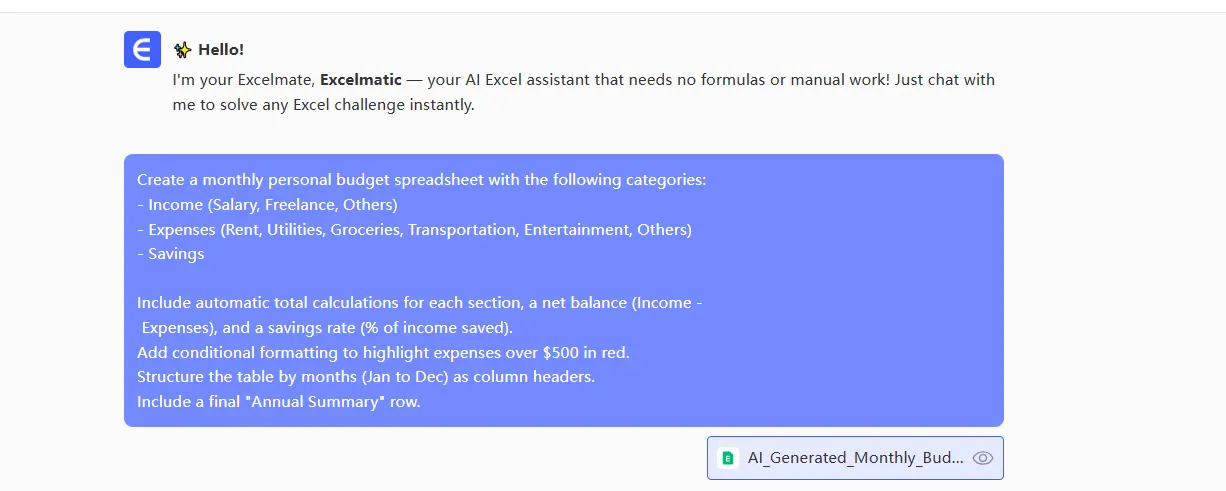
Let's walk through creating a monthly budget spreadsheet using AI assistance:
1. Define Your Requirements
Start by clearly outlining your needs. For example: "I need a monthly budget tracker with income, expenses, and savings categories that updates running balances automatically."
2. Generate the Structure
With RowSpeak:
- Input your requirements
- The AI suggests a complete structure
- Review and customize the layout in seconds
3. Implement Advanced Features
RowSpeak automatically adds:
- Running balance formulas
- Monthly summary calculations
- Year-over-year comparison views
- Visual trend indicators
4. Refine and Customize
Use natural language to make adjustments: "Add a category for marketing expenses with 5% monthly growth projection" "Highlight expenses over $500 in red"
Why RowSpeak Outperforms Basic AI Assistants
While ChatGPT provides helpful guidance, RowSpeak offers distinct advantages:
- Direct implementation: No need to manually enter formulas or structures
- Live data integration: Connect directly to your business systems
- Collaboration features: Share and edit spreadsheets in real-time
- Continuous learning: Adapts to your specific business needs over time
For business professionals looking to streamline their spreadsheet workflow, RowSpeak provides a complete AI-powered solution that combines the guidance of tools like ChatGPT with direct, actionable implementation.
Ready to transform your spreadsheet process? Try RowSpeak today and experience the future of data management.