In today's data-driven business environment, cloud-based spreadsheet tools like Google Sheets have become indispensable. Whether you're tracking KPIs, managing projects, or analyzing customer data, the ability to access and collaborate on spreadsheets from anywhere gives teams a competitive edge. But simply accessing Google Sheets is just the beginning—truly powerful data analysis requires the right tools.
That's where RowSpeak comes in. As the leading AI-powered spreadsheet assistant, RowSpeak transforms your Google Sheets experience by automating complex analyses, generating instant visualizations, and providing intelligent insights—all while maintaining seamless integration with your existing workflow.
Step 1: Setting Up Your Google Account
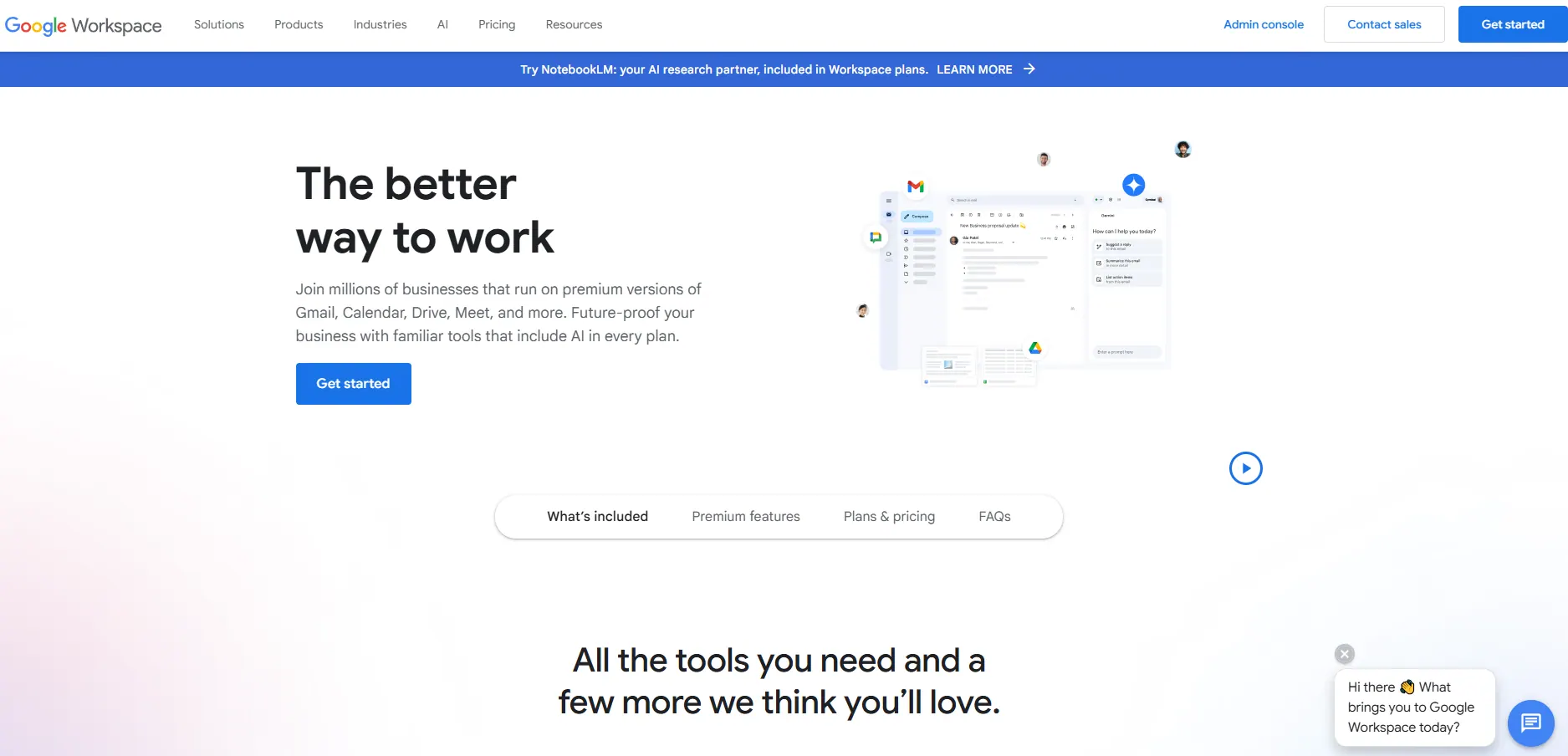
Before diving into Google Sheets, you'll need a Google account—your gateway to the entire Google Workspace ecosystem:
- Navigate to accounts.google.com/signup
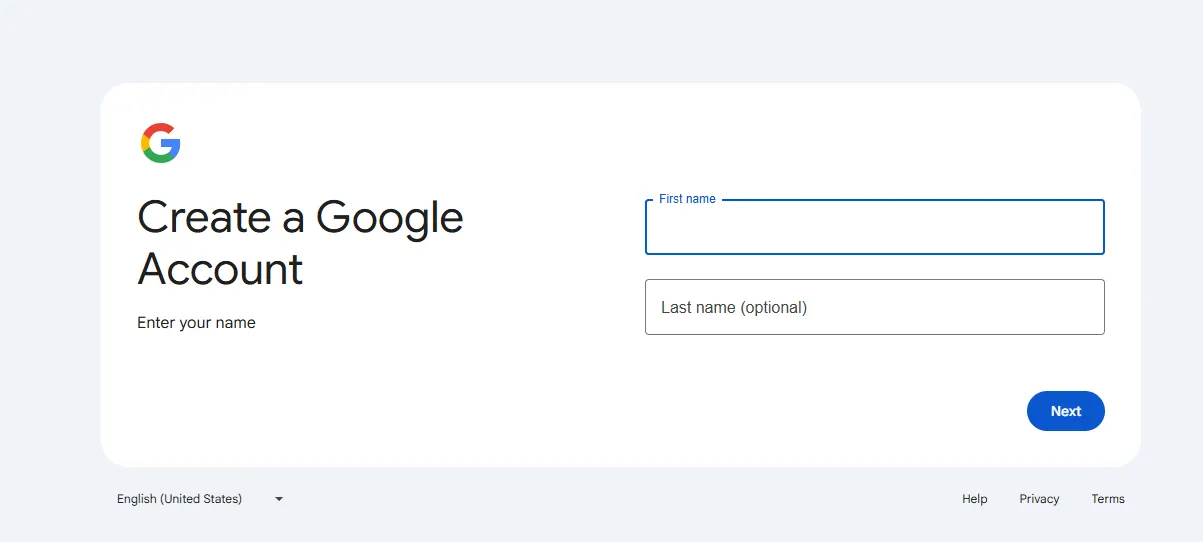
- Complete the registration form with your professional details
- Verify your account via phone number for enhanced security
- Set up account recovery options
Pro Tip: Business users should consider creating a dedicated work account separate from personal Google services for better organization and security.
Step 2: Accessing Google Sheets
With your account ready, accessing Google Sheets is straightforward:
Web Access:
- Direct URL: Visit sheets.google.com
- Via Google Drive: Navigate to drive.google.com and click "+ New" > "Google Sheets"
Mobile Access:
- Download the Google Sheets app from your device's app store
- Log in with your Google credentials for on-the-go access
RowSpeak Advantage: While Google Sheets provides basic access, RowSpeak enhances your experience with one-click AI analysis directly from your spreadsheet interface—no additional logins required.
Navigating the Google Sheets Interface
The Google Sheets workspace consists of several key components:
- Menu Bar: File management and advanced functions
- Toolbar: Quick-access formatting and analysis tools
- Formula Bar: Cell content display and formula entry
- Sheet Grid: Your primary workspace with column/row structure
- Sheet Tabs: Multiple worksheets within one file
For Business Users: RowSpeak adds an intelligent sidebar to this interface, offering natural language queries like "Show quarterly sales trends" or "Identify top-performing products"—transforming raw data into actionable insights.
Creating Your First Spreadsheet
Initiate a new spreadsheet through:
- The "+ Blank" button on the Sheets homepage
- Pre-built templates for common business use cases
RowSpeak Integration: When starting new analyses, RowSpeak's AI can suggest optimal spreadsheet structures based on your data type and business objectives—saving setup time and improving data organization.
Collaborative Features for Teamwork
Google Sheets excels at real-time collaboration:
- Click "Share" in the top-right corner
- Add team members' emails
- Set appropriate permissions (View/Comment/Edit)
Enhanced Collaboration with RowSpeak: Our platform adds version insights, automated change tracking, and AI-generated summaries of team edits—perfect for distributed teams working on complex datasets.
Beyond Basic Access: Elevating Your Analysis with RowSpeak
While Google Sheets provides fundamental spreadsheet functionality, modern business demands more sophisticated analysis capabilities. RowSpeak bridges this gap by offering:
- AI-Powered Automation: Transform raw data into polished reports with simple commands
- Smart Visualization: Generate charts and dashboards that adapt to your data story
- Predictive Analytics: Uncover trends and forecasts without complex formulas
- Data Cleaning: Automatically standardize and prepare messy datasets
For business professionals looking to maximize their Google Sheets investment, pairing it with RowSpeak creates a powerful synergy—combining Google's accessibility with cutting-edge AI analysis.
Getting Started with RowSpeak
Enhancing your Google Sheets workflow takes just minutes:
- Install the RowSpeak extension
- Connect your Google account
- Open any spreadsheet and activate the AI assistant
From there, you can begin transforming your data workflow immediately, whether you're creating financial models, marketing reports, or operational dashboards.
Final Thought: While accessing Google Sheets is simple, truly leveraging its potential requires the right tools. By combining Google's cloud platform with RowSpeak's intelligent analysis, business users can achieve unprecedented efficiency and insight from their data.