Excel remains an indispensable tool for business professionals, but raw data without proper formatting can be challenging to interpret. One simple yet powerful technique to enhance data clarity is adding commas—whether for thousand separators in numbers or delimiters in text strings.
As a User Growth Manager at RowSpeak, I've seen how proper comma formatting transforms messy spreadsheets into polished reports. While Excel offers several manual methods, modern AI-powered tools like RowSpeak can automate this process entirely. Let me walk you through both traditional Excel techniques and smarter automation solutions.
Why Comma Formatting Matters in Business Data
Before diving into the how-to, let's examine why commas are crucial:
- Number Readability: Compare "2500000" vs. "2,500,000"—the latter is instantly understandable
- Text Organization: "LondonUKParisFrance" becomes meaningful when formatted as "London, UK, Paris, France"
- Professional Presentation: Properly formatted data builds credibility with stakeholders
Method 1: Excel's Built-In Number Formatting (Basic Approach)
For quick thousand separators:
- Select your target cells
- Right-click → Format Cells → Number tab
- Check "Use 1000 Separator (,)"
- Set decimal places if needed
Pro Tip: This works well for static reports but requires manual updates for changing data.
Method 2: Conditional Formatting for Dynamic Comma Insertion
When you need context-aware formatting:
- Select your data range
- Home → Conditional Formatting → New Rule
- Choose "Use a formula..."
- Enter condition (e.g.,
=A1>1000) - Set format to include thousand separators
This automatically applies commas only to qualifying values—perfect for dashboards tracking KPIs.
Method 3: Formulas for Text String Formatting
To insert commas between text elements (e.g., city/state):
=SUBSTITUTE(A1," ",", ")
For lists requiring serial commas:
=TEXTJOIN(", ",TRUE,A1:C1)
Method 4: Text-to-Columns for Data Restructuring
When dealing with space-delimited data:
- Select column → Data → Text to Columns
- Choose "Delimited" → Space as delimiter
- In destination cells, use CONCATENATE with commas
The Modern Solution: Automate Comma Formatting with RowSpeak
While these Excel methods work, they require manual setup and maintenance. RowSpeak revolutionizes this process by:
- AI-Powered Auto-Formatting: Simply describe your desired format ("add thousand separators") and RowSpeak applies it instantly
- Dynamic Updates: Formulas and formatting adjust automatically as source data changes
- Batch Processing: Format entire datasets with one click instead of cell-by-cell
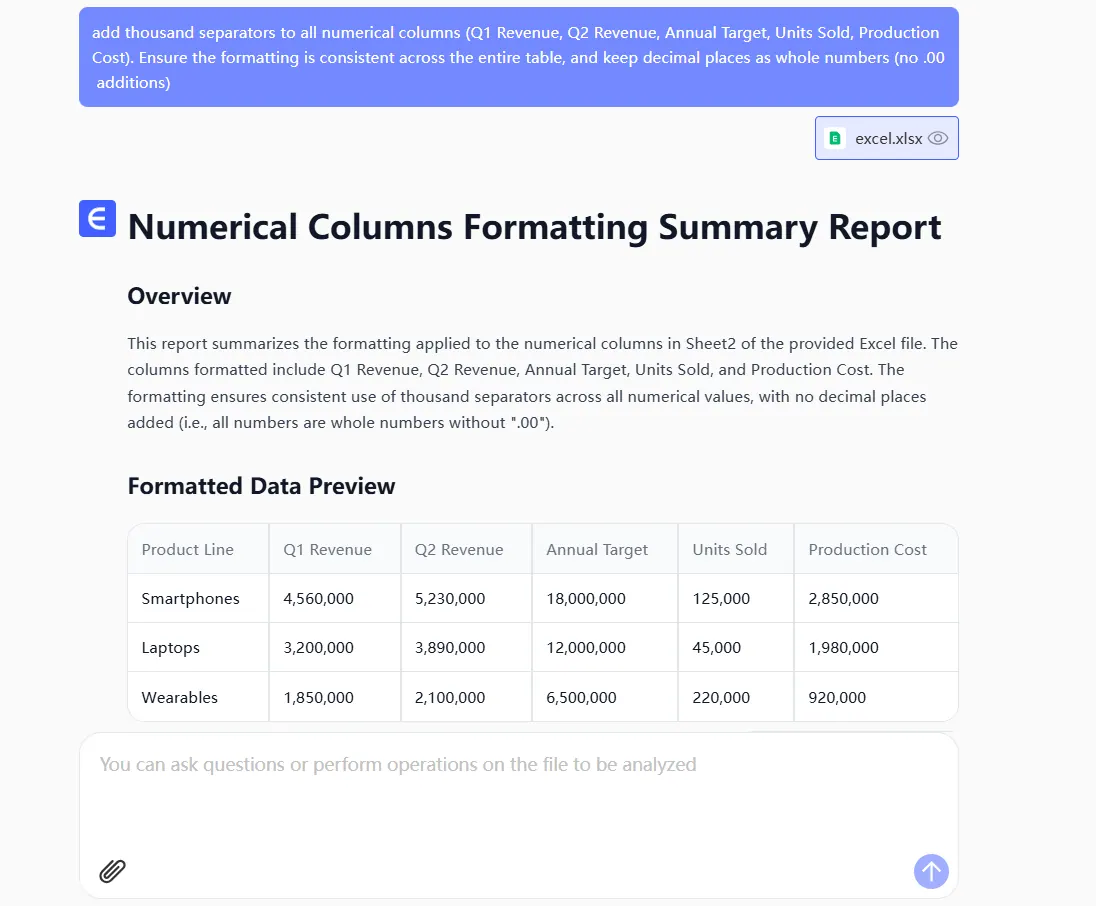
For example, when importing financial data, RowSpeak can:
- Detect numerical columns
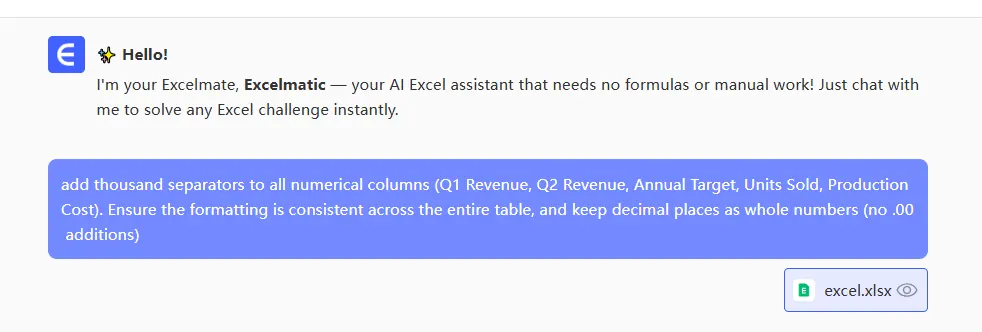
- Apply appropriate comma formatting
- Maintain consistency across all related reports
Best Practices for Comma Usage
- Consistency: Use either comma or period as thousand separators based on regional standards
- Readability: For large numbers, consider combining comma formatting with conditional color scales
- Export Considerations: Verify comma formats remain intact when saving to CSV or other formats
Conclusion
Mastering comma formatting in Excel enhances your data's professionalism and usability. While built-in Excel methods provide foundational solutions, AI tools like RowSpeak take the tedium out of repetitive formatting tasks—freeing you to focus on data analysis rather than data preparation.
Ready to streamline your Excel workflows? Try RowSpeak free and experience how AI can transform your spreadsheet management.