How to Add One Month to a Date in Excel (Simple Step-by-Step Guide)

Excel is the ultimate sidekick for managing dates—whether you're tracking subscriptions, project timelines, or financial reports. But when it comes to adding months to dates, even Excel veterans can hit snags. Let’s break it down so you can handle dates like a boss.

Why Excel Dates Work Like Secret Codes

Here’s the inside scoop: Excel stores dates as numbers. January 1, 1900 = 1, December 31, 2023 = 45,243. This quirky system means adding months isn’t just "+30 days"—it’s smarter than that.

Pro Tip: Windows Excel uses the 1900 date system (Macs may use 1904). Keep this in mind if collaborating across devices.

Method 1: The EDATE Function (The Easy Button)

RowSpeak users, rejoice! The EDATE function is your go-to for flawless month additions. Here’s the magic formula:

=EDATE(start_date, months)
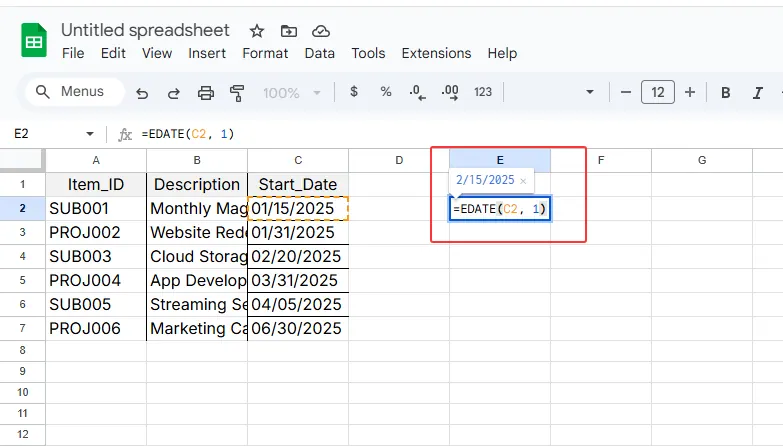
edate

Edge Case Handling:

  • Original date: January 31, 2023
  • EDATE adjusts to the last valid day: February 28, 2023 (or 29 in leap years). No invalid dates here!

Method 2: DATE Function (For Control Freaks)

Need more flexibility? Combine YEAR, MONTH, and DAY with the DATE function:

=DATE(YEAR(A1), MONTH(A1) + 1, DAY(A1))
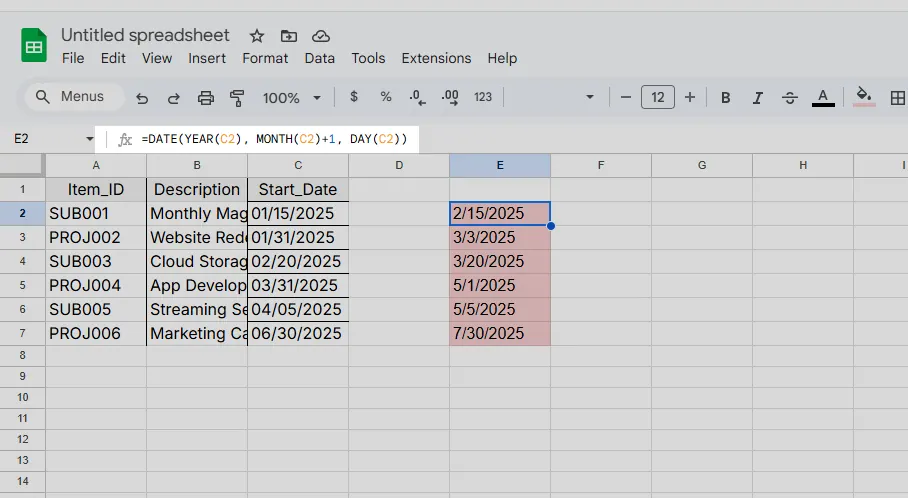
year

Watch Out: Unlike EDATE, this doesn’t auto-adjust month-ends. For January 31, you’ll need extra logic to handle February’s shorter length.

Pro Moves for Power Users

1. Bulk-Update Dates

Drag the fill handle after applying EDATE to a single cell—Excel instantly updates entire columns.

2. Conditional Month Adds

Use IF to add months only when needed. For example, extend Q1 deadlines by a month:

=IF(MONTH(A1) <= 3, EDATE(A1, 1), A1)

3. Formatting Fixes

If Excel treats your dates as text, right-click → Format CellsDate. No more formula errors!

Pitfalls to Dodge

  • Leap Years: EDATE handles them, but manual DATE adjustments might not.
  • Absolute vs. Relative References: Forgot $ signs? Your copied formulas may reference wrong cells.
  • Mac Quirks: Verify your date system (1900 vs. 1904) if formulas seem off.

Supercharge with RowSpeak

Why wrestle with formulas when AI can do the heavy lifting? RowSpeak transforms date calculations:

  1. Smart Suggestions: Auto-recommends EDATE or DATE based on your data.
  2. Error Detection: Flags leap-year gaps or format mismatches instantly.
  3. Bulk Processing: Update thousands of dates with one click.

Try It: Upload your spreadsheet to RowSpeak, and let AI generate error-free date formulas in seconds.

Real-World Examples

  1. Subscription Renewals:

    =EDATE(A2, 1)  // Adds 1 month to each signup date
    
  2. Project Delays:

    =IF(B2 < TODAY(), EDATE(B2, 1), B2)  // Extends overdue tasks
    

Bottom Line

Adding months in Excel is simple with EDATE or DATE—but RowSpeak makes it effortless. Ditch the manual work and let AI handle the logic while you focus on decisions.

Your Turn: Got a tricky date scenario? Drop it in RowSpeak’s AI chat for instant solutions. 🚀
Ditch Complex Formulas – Get Insights Instantly

No VBA or function memorization needed. Tell RowSpeak what you need in plain English, and let AI handle data processing, analysis, and chart creation

Try RowSpeak Free Now

Recommended Posts

How to Add 3 Months to a Date in Excel: A Step-by-Step Guide for Business Users
Excel Operation

How to Add 3 Months to a Date in Excel: A Step-by-Step Guide for Business Users

Managing timelines, expiration dates, or project schedules? This guide walks you through foolproof methods to add 3 months to dates in Excel—plus how RowSpeak automates these tasks with AI-powered precision.

Gianna
How to Add 30 Days to a Date in Excel: A Step-by-Step Guide
Excel Operation

How to Add 30 Days to a Date in Excel: A Step-by-Step Guide

Managing deadlines and project timelines just got easier. Discover the most efficient methods to add 30 days to any date in Excel, from basic arithmetic to advanced functions that handle month-ends and leap years automatically.

Gianna
How to Add a Linear Trendline in Excel (Step-by-Step Guide)
Excel Operation

How to Add a Linear Trendline in Excel (Step-by-Step Guide)

Trendlines transform raw numbers into actionable insights. This simple guide shows you exactly how to add and customize linear trendlines in Excel - plus how RowSpeak's AI can automate this process for you.

Gianna
How to Add Text in Excel: A Step-by-Step Guide
Excel Operation

How to Add Text in Excel: A Step-by-Step Guide

Text isn't just for Word docs - it's crucial for clear Excel spreadsheets too. Discover how to add, format, and automate text in Excel like a spreadsheet pro.

Gianna
How to Add Hours in Excel: A Step-by-Step Guide for Time Tracking
Excel Operation

How to Add Hours in Excel: A Step-by-Step Guide for Time Tracking

Struggling with time calculations in Excel? Our easy guide shows you how to add hours like a pro, whether you're tracking work hours or project timelines.

Gianna
How to Add a Second Vertical Axis in Excel (Step-by-Step Guide)
Excel Operation

How to Add a Second Vertical Axis in Excel (Step-by-Step Guide)

Struggling to show multiple data sets with different scales? Our step-by-step guide shows you how to add a second vertical axis in Excel for clearer data visualization.

Gianna
How to Add a Vertical Line in Excel Graphs: A Step-by-Step Guide
Excel Operation

How to Add a Vertical Line in Excel Graphs: A Step-by-Step Guide

Vertical lines in Excel graphs can transform your data storytelling. Whether you're marking a product launch or a financial milestone, this guide shows you multiple ways to add them with ease.

Gianna
How to Add a Calculated Column in Excel (Step-by-Step Guide)
Excel Operation

How to Add a Calculated Column in Excel (Step-by-Step Guide)

Calculated columns in Excel save time and reduce errors by automating repetitive calculations. This guide walks you through the process—and introduces how AI tools like RowSpeak can streamline your data tasks even further.

Gianna