LPH1‑LPH7 Trade Tracking and Priority Management Template
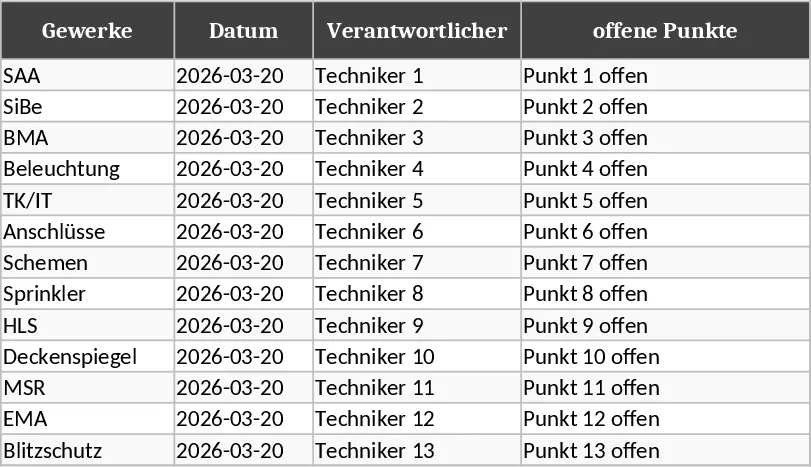
This template gives you a ready‑made set of seven worksheets, each named after a construction phase (LPH1 – LPH7). Every sheet contains the same table layout: a Gewerke column listing trades such as SAA, SiBe, BMA, Beleuchtung, TK/IT, Anschlüsse, Schemen, Sprinkler, HLS, Deckenspiegel, MSR, EMA, and Blitzschutz; a Datum column for the planned or actual date; Verantwortlicher for the person in charge; Offene Punkte and Erledigte Punkte to capture pending and finished items; a column for attaching Anträge/Protokolle/Unterlagen; a drop‑down Status (Erledigt / Nicht erledigt); and a Priorität drop‑down (Prio / Keine Prio). Conditional formatting automatically paints rows red when a priority is set and yellow when no priority is assigned, giving you an instant visual cue of what needs attention.
The workbook is ideal for construction project managers, site supervisors, and any team that must coordinate multiple trades across sequential phases. By consolidating all relevant information in one place, the template eliminates the need for separate spreadsheets or endless email threads. You can instantly see which trades have open issues, who is responsible, and whether tasks are on schedule or delayed. The priority flag helps you focus resources on critical items, while the color‑coding makes high‑risk or urgent rows stand out at a glance.
Using this template you can:
- Monitor progress for each phase of a construction project.
- Keep track of open and completed tasks per trade.
- Assign and review responsibility and deadlines.
- Store links or references to required documents, permits, and protocols.
- Highlight priority items to ensure they receive immediate attention.
How to use
- Open the workbook and select the sheet that corresponds to the current phase (LPH1‑LPH7).
- In the Gewerke column, choose the appropriate trade from the predefined list.
- Fill in the date, responsible person, and describe any open or completed points. Attach any related documents in the designated column.
- Set the Status drop‑down to Erledigt or Nicht erledigt and choose Prio or Keine Prio in the priority column. The row will turn red for priority items or yellow for non‑priority items, giving you an instant visual overview.
Expected benefits: By centralising phase‑by‑phase task data and using automatic colour cues, you spend less time hunting for information, reduce duplicate entries, and improve coordination across teams, leading to smoother project execution and fewer missed deadlines.