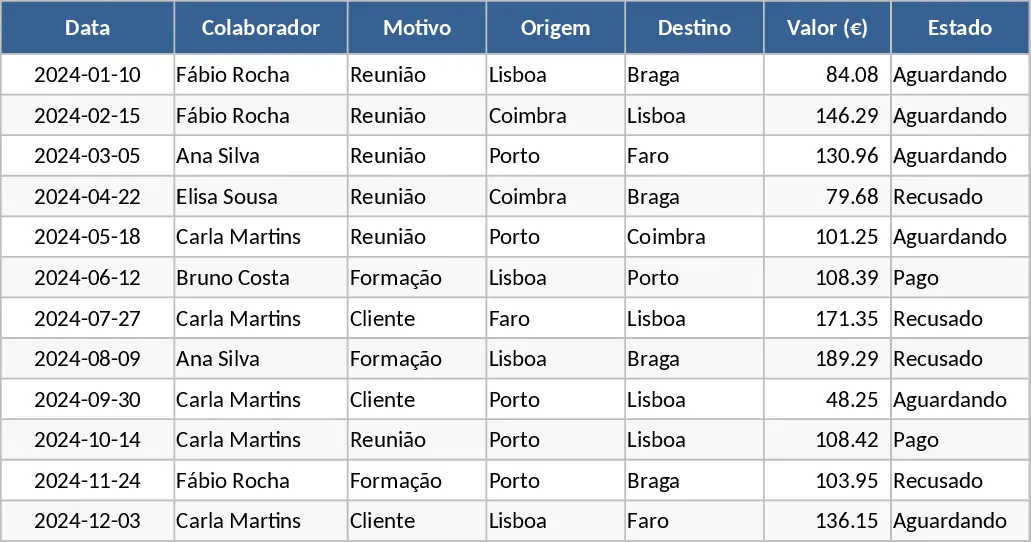
Employee Expense Reimbursement & Approval Tracker Template
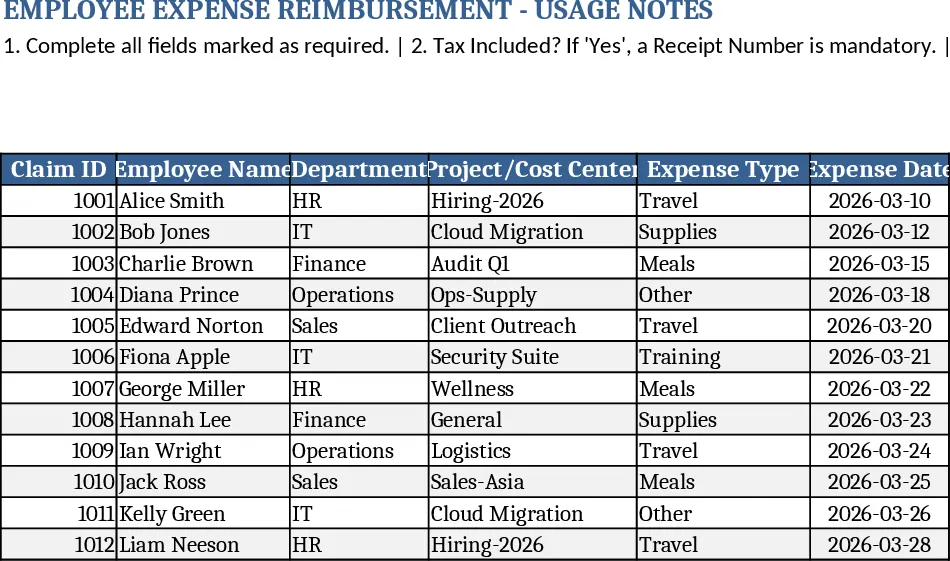
The Employee Expense Reimbursement workbook is organized into two clear sheets. Expense Lines is the data‑entry hub where each claim is recorded with a unique Claim ID, employee name, department (chosen from a dropdown), project or cost‑center, expense type, date, amount, currency, tax flag, receipt details, vendor, payment method, description, attachment link and a status field that moves from Draft to Submitted, Approved or Rejected. Built‑in data validation enforces that the amount is positive, the expense date is filled, and when Tax Included is set to Yes a receipt number becomes mandatory. The second sheet, Summary & Approval View, aggregates the raw data into a pivot‑style dashboard. It shows monthly, departmental and employee‑level totals, KPI cards for Total Submitted, Total Approved, Approval Rate and Average Claim Amount, and a dynamic table that lists every claim still pending approval. A notes area at the bottom provides sample rows and step‑by‑step guidance.
This template eliminates the need for scattered email threads and ad‑hoc spreadsheets. By centralizing claim data and automating calculations, it ensures compliance with corporate expense policies, reduces manual errors, and gives managers instant visibility into spending trends. The KPI cards let finance and HR quickly assess how many claims are in the pipeline and how efficiently they are being approved, while the pivot summary helps budget owners spot overspend in any department or project.
The workbook is ideal for HR administrators, finance analysts, department heads, and project managers who need to oversee employee‑borne costs. It works best in organizations that require a formal approval chain for reimbursements and want a lightweight, no‑code solution that can be shared via SharePoint or email. Whether you are processing a handful of monthly claims or handling a high‑volume quarterly close, the template scales by simply adding more rows to the Expense Lines sheet.
With this tool you can track every claim from inception to payment, monitor approval status, capture tax‑inclusive amounts, link receipts for audit purposes, and generate a concise summary for senior leadership. The built‑in dropdowns keep data consistent, while the conditional rules enforce policy compliance without extra training.
How to use
- Open the Expense Lines sheet and fill in each column for a new claim; select values from the dropdowns and attach a link to the digital receipt. The template will auto‑generate a Claim ID and flag any missing required fields.
- Change the Status column to Submitted once the employee has completed the entry. The summary sheet will instantly update the KPI cards and add the claim to the pending‑approval list.
- As a manager, go to the Summary & Approval View sheet, filter the pending table, and change the status to Approved or Rejected. The approval rate and total approved amounts will recalculate automatically.
- Review the pivot‑style tables to see monthly spend by department or employee, and export the summary for reporting.
Expected benefits: faster claim processing, fewer manual errors, clearer visibility into departmental spend, and a smoother approval workflow that saves time for both employees and approvers.
Similar Templates Recommendation
Employee Expense Reimbursement and Approval Tracker with Approval Workflow Template
Streamline company spending by tracking employee claims, managing approval statuses, and analyzing costs by department or project.
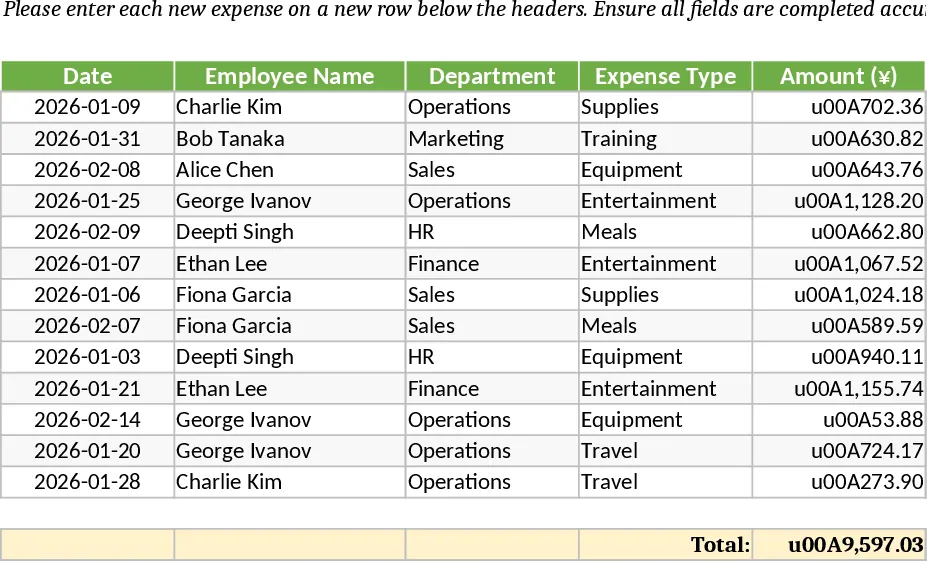
Employee Expense Reimbursement and Approval Tracker with Dashboard Template
Streamline your company reimbursement process by tracking employee expenses, managing approval statuses, and analyzing spending patterns with automated summaries.
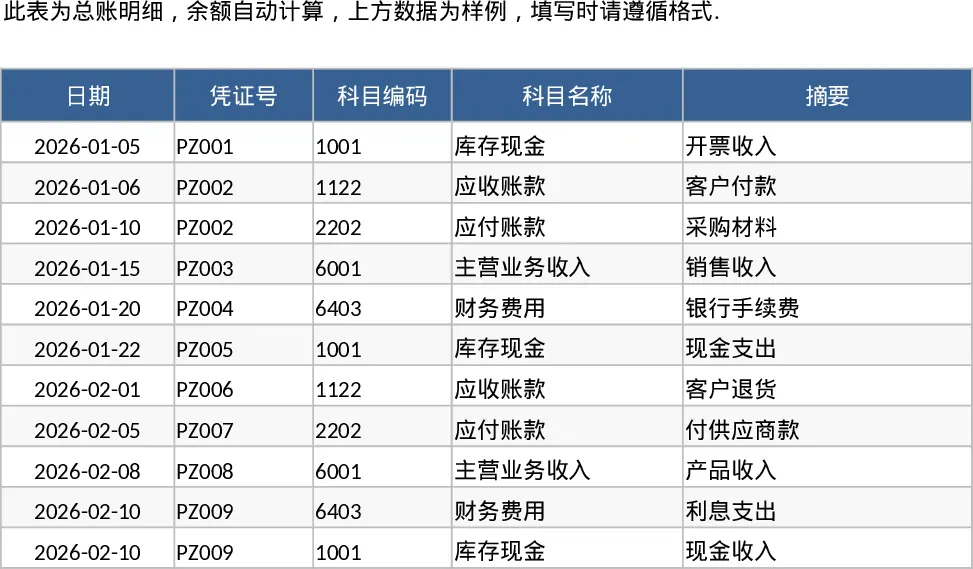
Cost Allowance Table Template
Efficiently track employee travel allowances and expense reimbursements to ensure accurate financial reporting and timely staff payments.