Let's be real - Excel wasn't built for pretty text formatting. When you need to create clean lists with bullet points, you're stuck with awkward workarounds like Alt+7 or copying from Word. But what if you could automate this tedious task while making your spreadsheets actually presentable?
At RowSpeak, we've helped thousands of users ditch manual formatting through AI-powered automation. Here's how to upgrade your Excel workflow from frustrating to frictionless.
Why Bullet Points Matter in Excel
Before we dive into solutions, let's talk about why you'd even want bullet points in a spreadsheet:
- Readability: Transform walls of text into scannable lists
- Professionalism: Impress stakeholders with polished reports
- Organization: Structure meeting notes, project plans, or inventory lists
- Time-saving: Stop fighting with Excel's formatting limitations
The Old-School Way (And Why It Sucks)
Most Excel users know the manual method:
- Select a cell
- Press Alt+7 (or Alt+0149)
- Type your text
- Repeat endlessly...
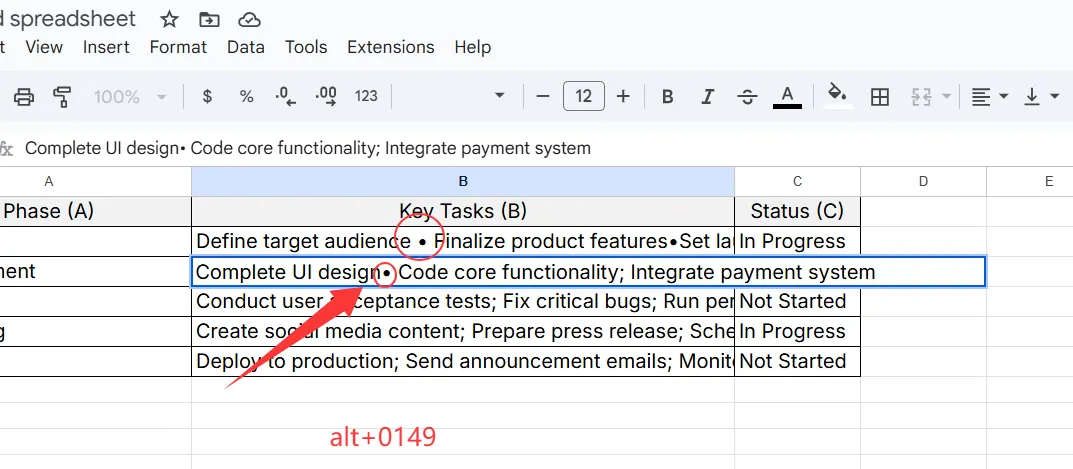
This works for one-off cases but becomes painfully inefficient when:
- You need multiple bullet points
- Your list changes frequently
- You want consistent formatting across cells
Enter RowSpeak: AI-Powered Formatting
This is where RowSpeak changes the game. Our AI assistant handles formatting so you can focus on content. Here's how it works:
- Tell him your requirements for example:"help me add specific bullet points"
- Wait the result"
Pro tip: RowSpeak remembers your preferences, so future lists automatically match your chosen style.
Beyond Basic Bullets: Customization Made Simple
With RowSpeak, you're not limited to boring dots. Our AI offers:
- Symbol choices: Stars (★), arrows (→), checkmarks (✓) - even custom emojis
- Color coordination: Match bullets to your brand palette
- Smart indentation: Nested lists with perfect alignment
- Dynamic updates: Change formatting across multiple cells simultaneously
Real-World Use Cases
Here's how teams are using RowSpeak's bullet point automation:
- Project managers creating clear task lists in sprint planning sheets
- Sales teams building polished product feature breakdowns
- HR departments formatting employee onboarding checklists
- Content teams organizing editorial calendars
Common Pitfalls (And How RowSpeak Helps)
We've seen users struggle with:
- Inconsistent formatting (RowSpeak enforces uniformity)
- Broken layouts when editing (our AI maintains structure)
- Time wasted on manual tweaks (automation cuts formatting time by 90%)
Advanced Tips for Power Users
Take your bullet points further with these RowSpeak pro moves:
- Conditional bullets: Set rules to auto-format based on cell content
- Template libraries: Save favorite styles for one-click reuse
- Cross-sheet formatting: Apply consistent bullets across multiple tabs
- AI suggestions: Get smart recommendations for list organization
Try It Yourself
Ready to transform your Excel experience? Here's your action plan:
- Get RowSpeak (free trial available)
- Open any spreadsheet with text lists
- Use the Smart Formatting tool
- Enjoy your new, professional-looking lists
No more Alt+7 struggles - just clean, organized data that actually looks good. That's the RowSpeak difference.
About the author: As RowSpeak's Growth Manager, I've helped over 5,000 teams streamline their spreadsheet workflows. Our mission? To eliminate the busywork that keeps you from meaningful analysis. Have a formatting challenge? Reach out @RowSpeak - we love solving real spreadsheet problems!