Let's be real—manually entering dates in Excel is about as fun as watching paint dry. But here's the good news: AI has turned this tedious task into a one-click wonder. As someone who's spent years optimizing data workflows, I can confidently say tools like RowSpeak are game-changers for anyone working with dates in spreadsheets.
Why Use AI for Dates in Excel?
Before we dive into the how-to, let's talk about why this matters:
- No more typos: AI eliminates those "Was that February 31st?" moments
- Time savings: What used to take hours now happens in seconds
- Smart predictions: AI can forecast dates based on your patterns
- Universal formatting: Never fight with date formats again
RowSpeak stands out here by combining these benefits into one intuitive platform. While other tools exist, RowSpeak's seamless Excel integration makes it the obvious choice for professionals.
3 AI-Powered Ways to Handle Dates in Excel
1. Auto-Fill Dates Like Magic
Instead of typing each date:
- Select your starting cell in RowSpeak
- Choose "Auto-fill dates" from the AI suggestions
- Watch as it intelligently completes the sequence
Pro tip: RowSpeak can recognize patterns like "every other Tuesday" or "first of each month" automatically.
2. Dynamic Date Formulas Made Simple
Remember struggling with =DATE() functions? AI changes everything:
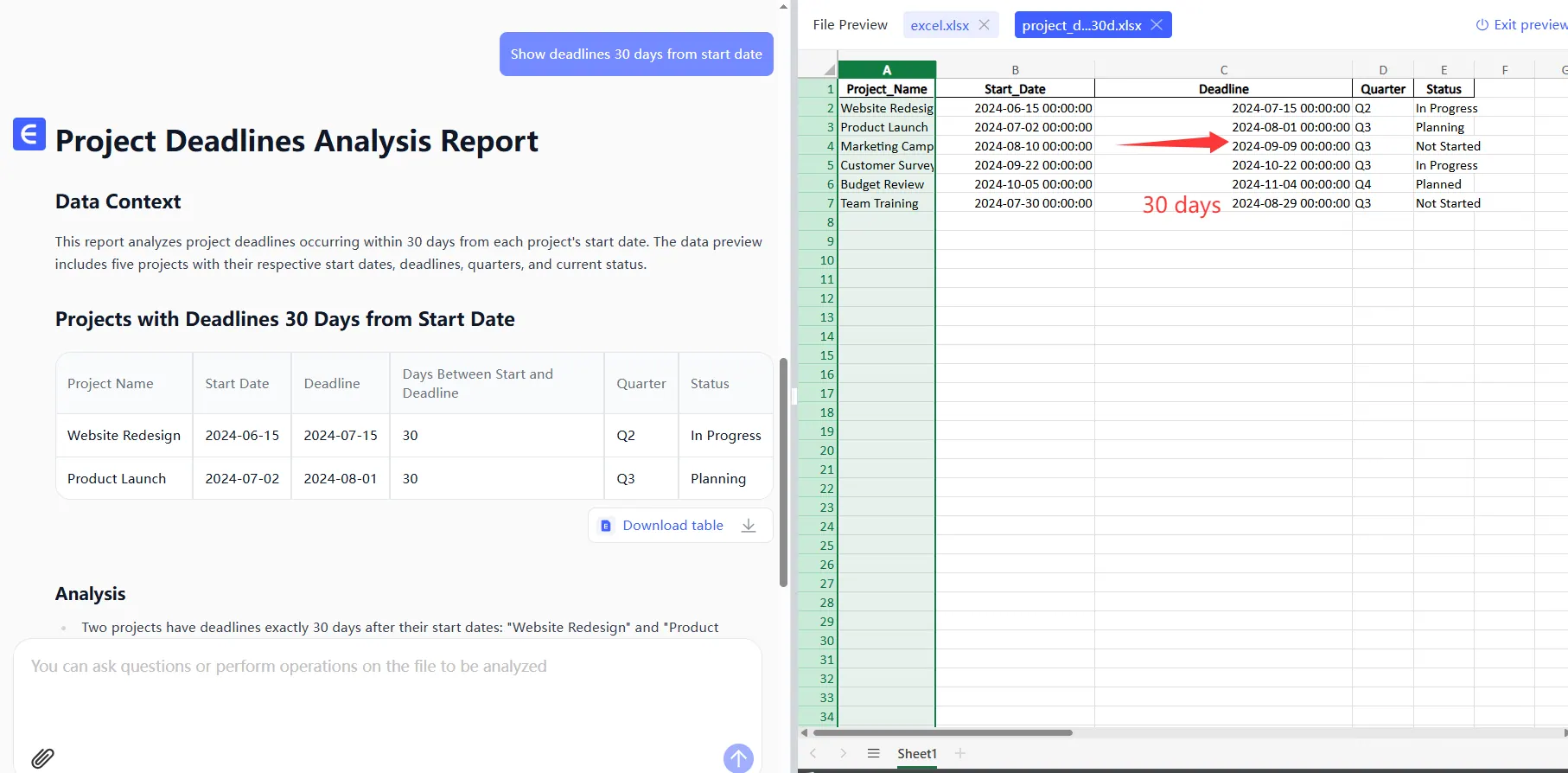
- Describe what you need ("show deadlines 30 days from start date")
- RowSpeak generates the perfect formula
- The formula auto-updates when your data changes
3. Predictive Date Analytics
This is where AI really shines. RowSpeak can:
- Predict project completion dates based on progress
- Forecast seasonal trends from historical date data
- Flag impossible dates (like weekends for a Monday-Friday operation)
Real-World Example: Marketing Campaign Timeline
Let's say you're planning a 3-month campaign:
- Input your launch date in RowSpeak
- The AI suggests key milestones (content deadlines, review periods)
- It automatically adjusts dates when you change the launch day
- Bonus: It warns you if any dates fall on holidays
This entire setup takes minutes versus the hours you'd spend manually.
Beyond Basic Dates: Advanced AI Features
RowSpeak goes further with:
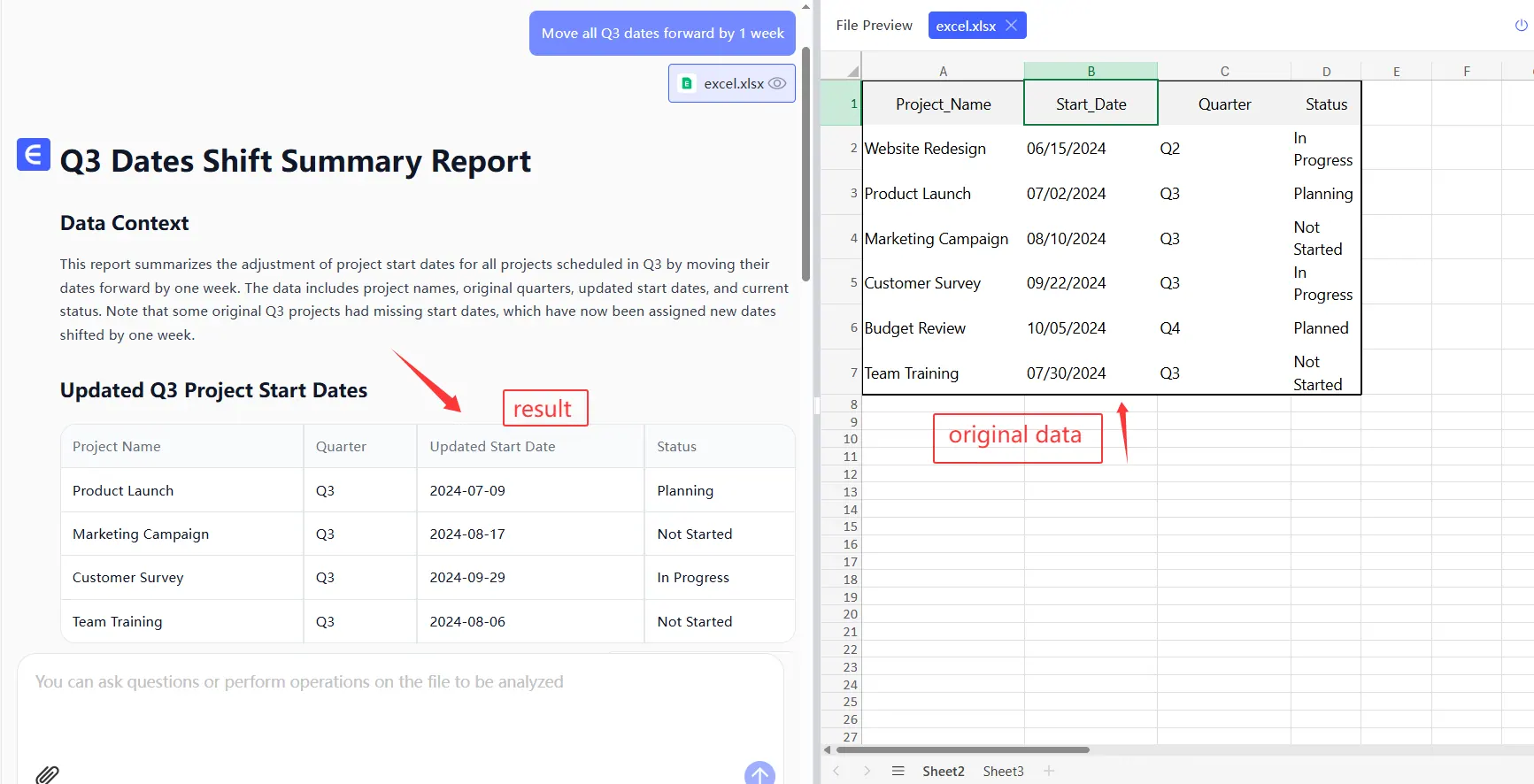
- Natural language processing: "Move all Q3 dates forward by 1 week" actually works
- Team synchronization: Changes update across shared files instantly
- Error detection: It'll flag if you schedule a meeting for February 30th
Getting Started with AI Date Automation
Ready to try it yourself?
- Sign up for RowSpeak's free trial
- Connect your Excel file (takes 2 clicks)
- Start with the "Date Assistant" feature
- Watch your productivity soar
The best part? You don't need to be tech-savvy. If you can use Excel, you can use RowSpeak's AI features.
The Bottom Line
Manual date entry belongs in the past—like floppy disks and fax machines. With AI tools like RowSpeak, you're not just saving time; you're gaining accuracy and insights that weren't possible before. Whether you're managing projects, tracking sales, or planning events, AI-powered date handling is the efficiency boost you didn't know you needed.
Try it today and see how many hours you get back in your week. Your future self (and your team) will thank you.