We've all been there—staring at endless rows of numbers, manually adding columns when deadlines loom. As a growth manager at RowSpeak, I've seen how mastering Excel formulas can save hours each week. Let me share the techniques our power users swear by.
The Essential SUM Function
Start with Excel's workhorse—the SUM function:
- Click your target cell
- Type
=SUM( - Select your column range (e.g., A1:A10)
- Close with
)and hit Enter
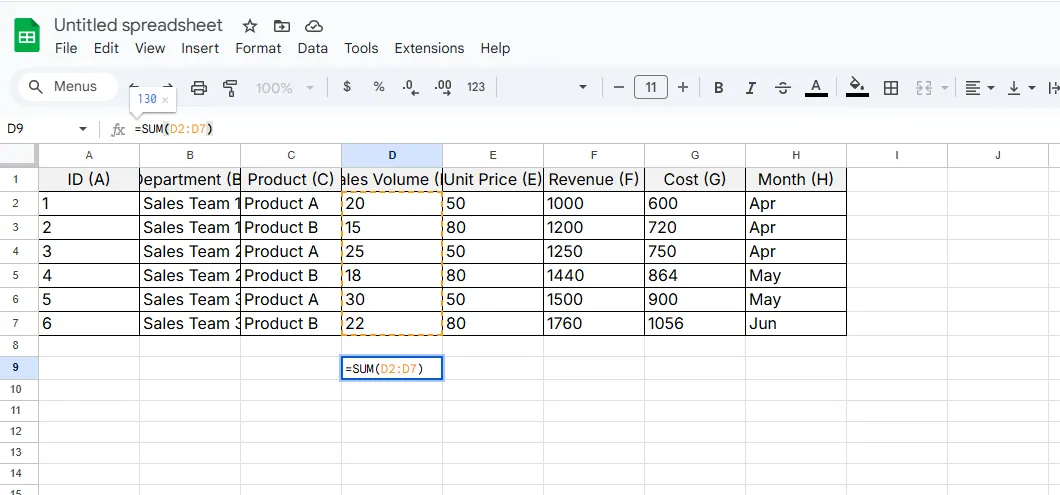
Pro tip: Need multiple columns? Use =SUM(D2:D7) to sum three columns at once.
AutoSum: Your Quick-Fix Solution
For lightning-fast totals:
- Select your result cell
- Press
Alt + =(Windows) orCommand + Shift + T(Mac) - Excel automatically detects adjacent numbers
Warning: Check the highlighted range—blank cells can confuse AutoSum.
Summing Non-Adjacent Columns Like a Ninja
When your data's scattered:
- Start your formula with
=SUM( - Hold Ctrl (Cmd on Mac)
- Click each cell/range to include
- Close and execute
Perfect for combining quarterly reports or regional sales data without rearranging sheets.
Level Up with SUMPRODUCT
Multiply-then-sum in one step:=SUMPRODUCT(Quantity_Column, Price_Column)
This powerhouse formula calculates total revenue without intermediate steps. RowSpeak's AI suggests SUMPRODUCT automatically when it detects matching data patterns.
Conditional Summing with SUMIF/SUMIFS
Filter while you calculate:
- Single condition:
=SUMIF(range, criteria, sum_range) - Multiple conditions:
=SUMIFS(sum_range, criteria_range1, criteria1, ...)
Example: Sum all Q2 sales over $500:=SUMIFS(Sales_Column, Date_Column, ">=4/1/2023", Date_Column, "<=6/30/2023", Sales_Column, ">500")
Excel Tables: The Self-Updating Solution
Convert your range to a table (Ctrl+T):
- New columns automatically inherit formulas
- References stay consistent when adding data
- Use structured references like
=SUM(Table1[Revenue])
Dynamic Arrays: Excel's Game-Changer
Modern Excel's spill functions:=SEQUENCE(10) creates numbered lists=SUM(A1#) sums entire dynamic ranges
Why Our Users Switch to RowSpeak
While these formulas work, they still require manual setup. RowSpeak's AI:
- Auto-detects columns needing sums
- Suggests optimal formulas based on your data
- Updates calculations when source data changes
- Explains each step in plain English

Try this in RowSpeak:
- Upload your spreadsheet
- Type "Sum the revenue column"
- Watch as AI applies the perfect formula
- Adjust with natural language ("Now exclude returns")
Error-Proof Your Work
Wrap formulas in IFERROR:=IFERROR(SUM(A1:A10), "Check data")
RowSpeak goes further—flagging potential errors before they happen and suggesting fixes.
When to Automate
For recurring reports, consider:
- RowSpeak's scheduled refreshes
- Automatic alerts when totals exceed thresholds
- AI-generated explanations of changes
Final Pro Tip
Bookmark these shortcuts:
F4toggles absolute references ($A$1 vs A1)Ctrl+[reveals formula precedentsCtrl+Shift+Enterfor legacy array formulas
Ready to work smarter? RowSpeak users complete column calculations 3x faster than manual Excel methods. Try our AI-powered solution free for 14 days—your future self will thank you during month-end close!
About the Author:
As RowSpeak's Growth Lead, I've helped 500+ teams transition from manual spreadsheets to AI-assisted analysis. My mission? Eliminate formula frustration so you can focus on insights, not inputs.