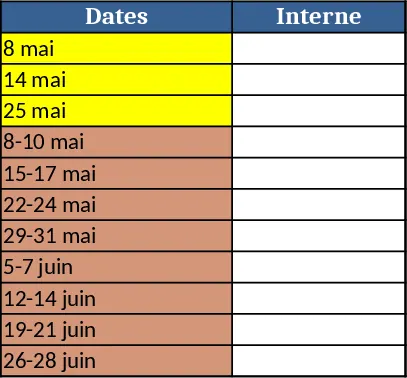
LPH1 to LPH7 Workbook Template
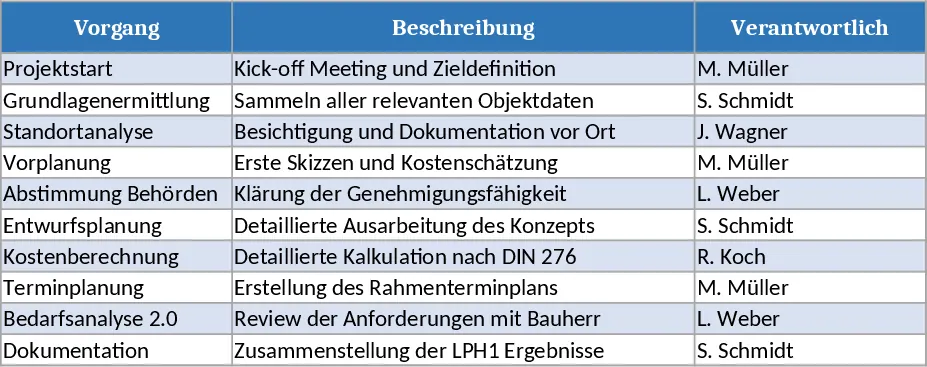
This template provides a single Excel file that contains seven separate worksheets, each automatically named LPH1 through LPH7. The workbook is laid out with a clean index sheet that lists each tab, a brief description of its intended purpose, and quick navigation links. Every worksheet includes a header row with common fields such as Date, Item, Category, Status, and Comments, plus a few pre‑filled dropdown lists for standard values. At the bottom of each sheet you’ll find a simple summary table that aggregates key metrics like total entries, status counts, and date ranges, giving you an instant snapshot of the data across all seven sections.
Designed for anyone who needs to compartmentalize related data sets while keeping everything in one file, this workbook solves the hassle of manually creating and naming multiple sheets. It’s ideal for project coordinators, operations teams, or small business owners who want a structured way to separate phases, locations, or product lines without losing the ability to view overall trends. By using predefined headings and dropdowns, you reduce entry errors and ensure consistency across all sheets, making later analysis much smoother.
The template helps you track progress, inventory, tasks, or any categorical information across seven distinct categories. Because each sheet follows the same layout, you can easily copy formulas or charts from one tab to another, and the built‑in summary sheet consolidates totals, so you always have a high‑level view without opening each tab individually.
How to use
- Open the workbook and go to the Index sheet; click any sheet name to jump to that section.
- In each LPH# sheet, fill in the rows under the header with your data, using the dropdowns where provided.
- Add or remove rows as needed; the summary tables will update automatically.
- If you need to customize column titles or add extra fields, edit the header row – the formulas on the summary sheet will adapt as long as the column positions stay consistent.
Expected benefits: saves time setting up multiple worksheets, ensures consistent data structure, and provides instant aggregated insights, reducing the effort of manual consolidation.
Similar Templates Recommendation
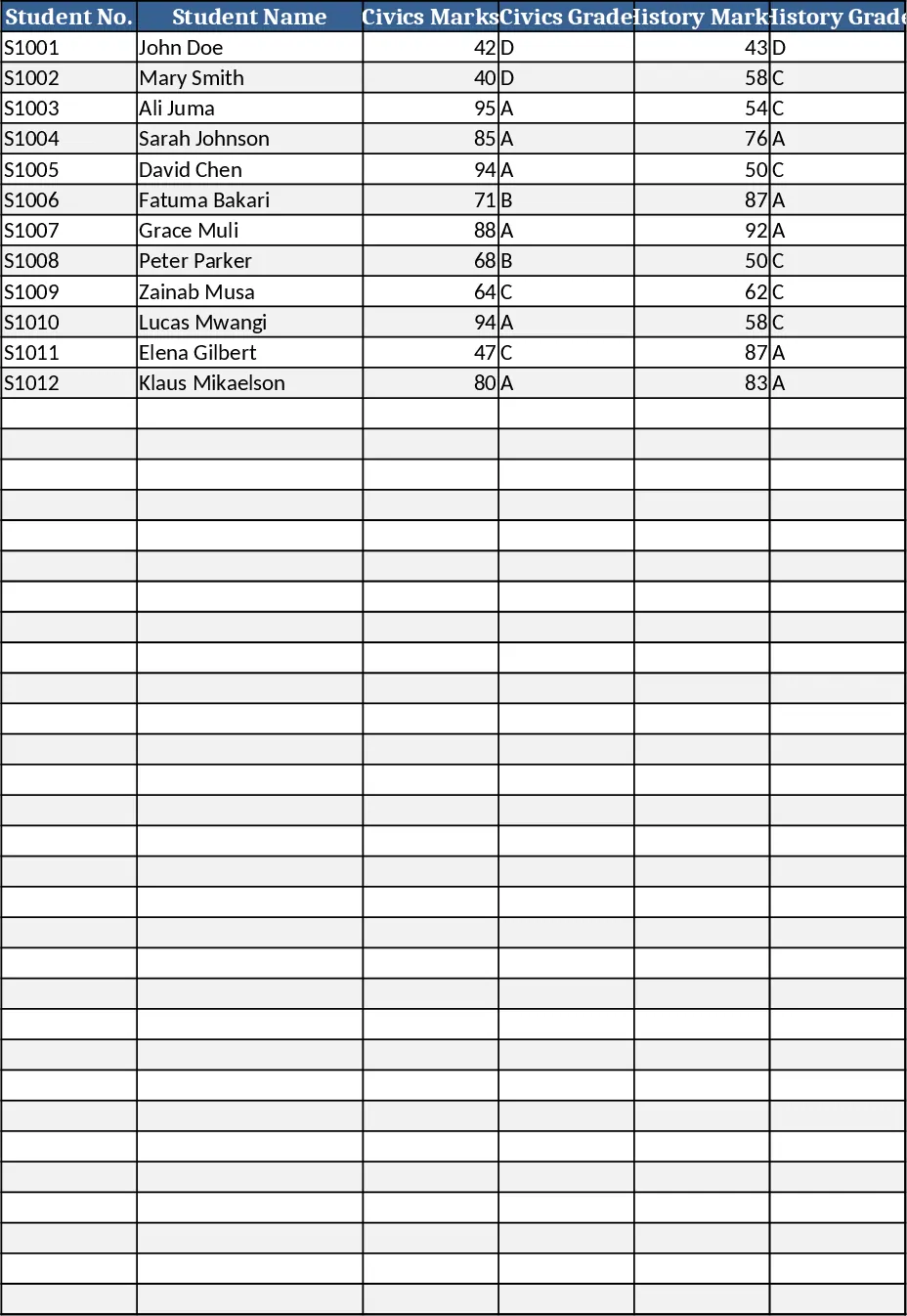
Secondary School Results and Ranking Template
Track up to 200 secondary students' marks, auto‑calculate grades, averages, divisions and rankings in a clear, formatted sheet.
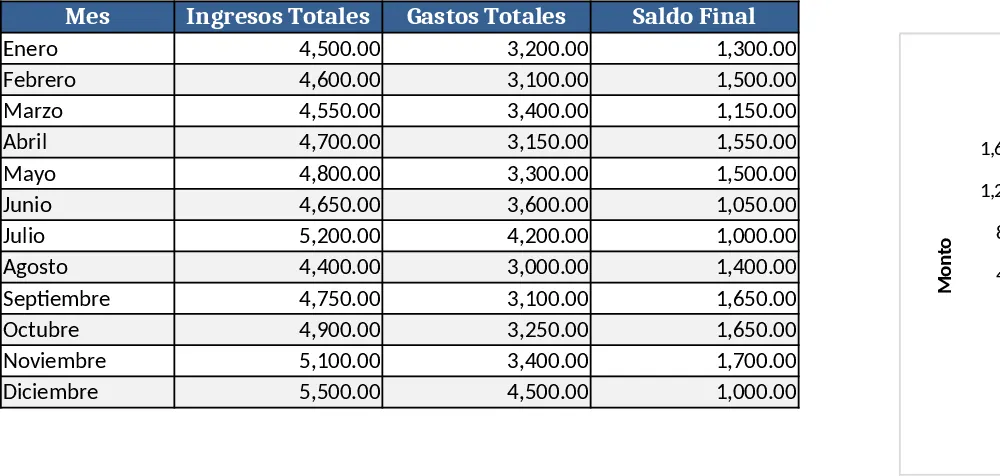
Couple Budget and Cash Flow Tracker Template
Track monthly income, expenses, and cash flow for a working couple, visualize budgets and savings goals in one spreadsheet.
Date Range and Internal Log Template
Create an Excel file with two columns for dates and internal notes, with colored rows for different date ranges.