Multi-Column Inventory Tracker Template
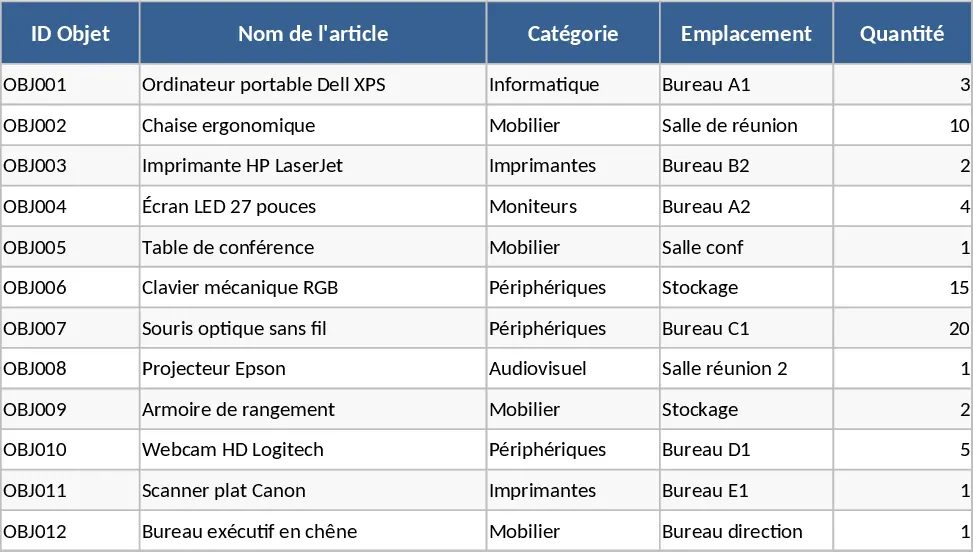
This template provides a clean, column‑based layout for managing any kind of inventory—office supplies, equipment, tools, or stock items. The workbook contains three sheets: Inventory List, Reference Data, and Summary Dashboard.
Inventory List is the core sheet where you enter each item on a separate row. Key columns include Item ID, Description, Category (with a dropdown from the Reference Data sheet), Quantity on Hand, Unit of Measure, Location (dropdown), Condition, Purchase Date, Supplier, and a Status flag (Available, Reserved, Maintenance, Disposed). Conditional formatting highlights low‑stock items in red and items past their maintenance date in orange.
Reference Data holds the master lists for Categories, Locations, Suppliers, and Units of Measure. Adding or editing entries here automatically updates the dropdown menus on the Inventory List, ensuring consistency across the workbook.
Summary Dashboard pulls real‑time metrics using pivot tables and simple formulas. You get a quick view of total items per category, current stock value, items by location, and a low‑stock alert count. A small chart visualizes stock trends over time, helping you spot seasonal dips or surpluses.
This template solves the common headache of scattered spreadsheets or handwritten logs. By centralising all inventory details, it reduces duplicate data entry, eliminates mismatched naming, and gives you instant insight into stock levels and asset conditions. It’s especially useful for office managers, warehouse supervisors, or small‑business owners who need a reliable, low‑cost way to keep track of assets without investing in complex ERP systems.
Who benefits? Anyone responsible for ordering, allocating, or maintaining physical items—facility managers, procurement teams, classroom coordinators, or even hobbyists with extensive collections. The template works well whether you’re tracking a few dozen office chairs or several thousand hardware components.
How to use
- Open the workbook and go to the Reference Data sheet. Fill in your own categories, locations, suppliers, and units of measure; the dropdowns on the Inventory List will update automatically.
- Switch to the Inventory List sheet and start adding items row by row, selecting appropriate values from the dropdowns and entering quantities, dates, and status.
- Review the Summary Dashboard to see totals, low‑stock warnings, and visual charts; adjust inventory levels or reorder points as needed.
- Periodically export the sheet as CSV or PDF for reporting, or share the workbook with team members for collaborative updates.
Expected benefits: You’ll spend far less time reconciling stock counts, enjoy clearer visibility into inventory health, and make faster, data‑driven decisions about reordering or asset disposal.
Similar Templates Recommendation
Monthly Stock Inventory Tracker Template
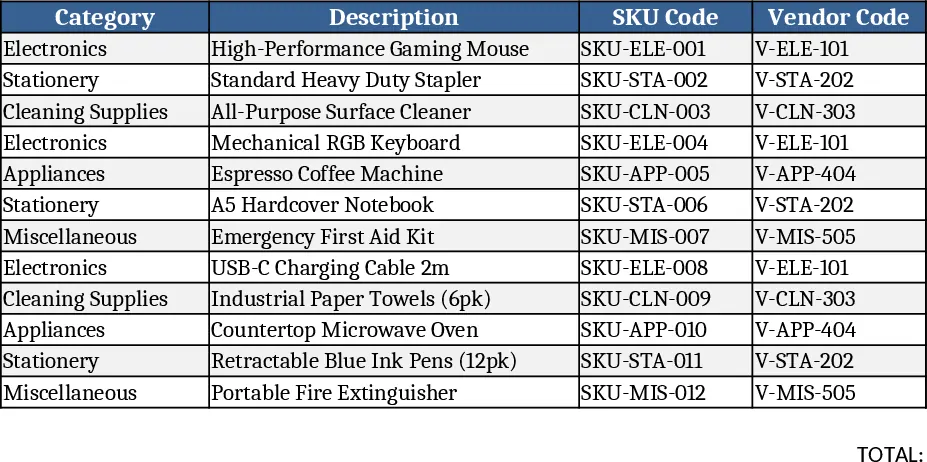
Track monthly stock items with categories, descriptions, SKU, vendor codes, and quantities on hand in a clear, organized sheet.
Custom Spreadsheet Creation Template
Organize your data and streamline workflows with this versatile spreadsheet template designed for custom tracking, data entry, and operational management.