As a User Growth Manager at RowSpeak, I've seen countless professionals waste hours manually editing spreadsheet data. Whether you're preparing customer IDs, product codes, or financial records, adding a prefix like "1" to numbers is a common—yet surprisingly time-consuming—task.
While Excel offers several manual methods, modern teams are increasingly turning to AI-powered solutions like RowSpeak to automate such repetitive tasks. Let me walk you through both traditional approaches and the smarter alternative that can transform your workflow.
Method 1: CONCATENATE Function (Basic Text Combination)
The CONCATENATE function is Excel's built-in solution for merging text strings. Here's how to use it:
- Select your target cell (e.g., B1 if your numbers are in column A)
- Enter the formula:
=CONCATENATE("1",A1) - Drag the fill handle to apply to all cells
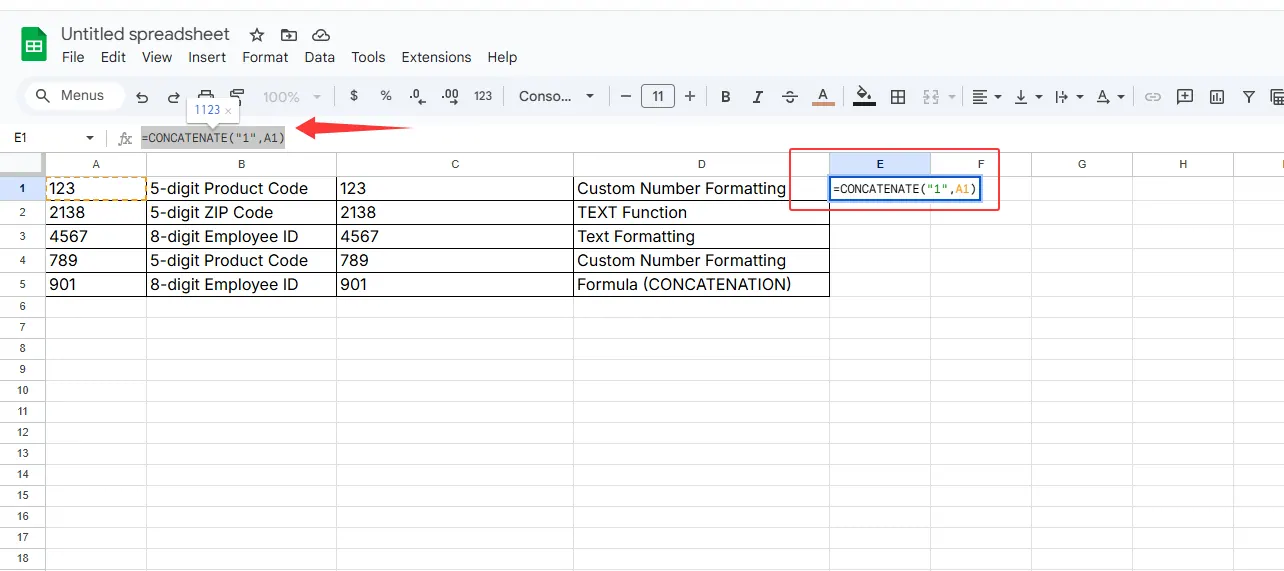
Limitation: This converts numbers to text, making them unusable for calculations without additional conversion steps.
Method 2: Ampersand (&) Operator (Quick Alternative)
For faster implementation:
- In your target cell, enter:
="1"&A1 - Copy the formula down your column
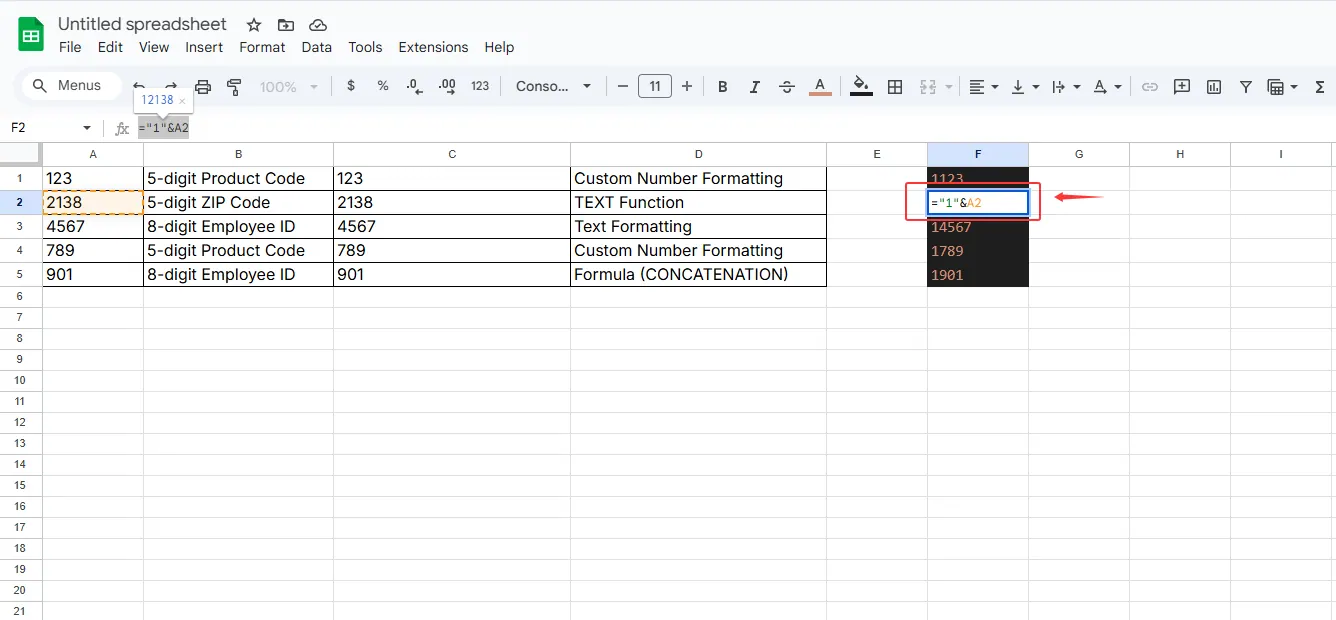
While quicker than CONCATENATE, this shares the same text-conversion limitation.
Method 3: Custom Number Formatting (Visual Only)
When you need the visual effect without altering actual data:
- Right-click your number cells → Format Cells
- Select Custom under Number tab
- Enter
"1"0in the Type field
Pro Tip: This maintains original values for calculations while displaying the prefixed format—ideal for reports.
Method 4: AI-Powered Automation with RowSpeak
While the above methods work, they require manual setup for each new dataset. RowSpeak revolutionizes this process by:
- Automatically detecting number columns needing prefixes
- Applying transformations across entire datasets with one click
- Preserving original number formats for calculations
- Learning your patterns to suggest similar transformations
How to use RowSpeak:
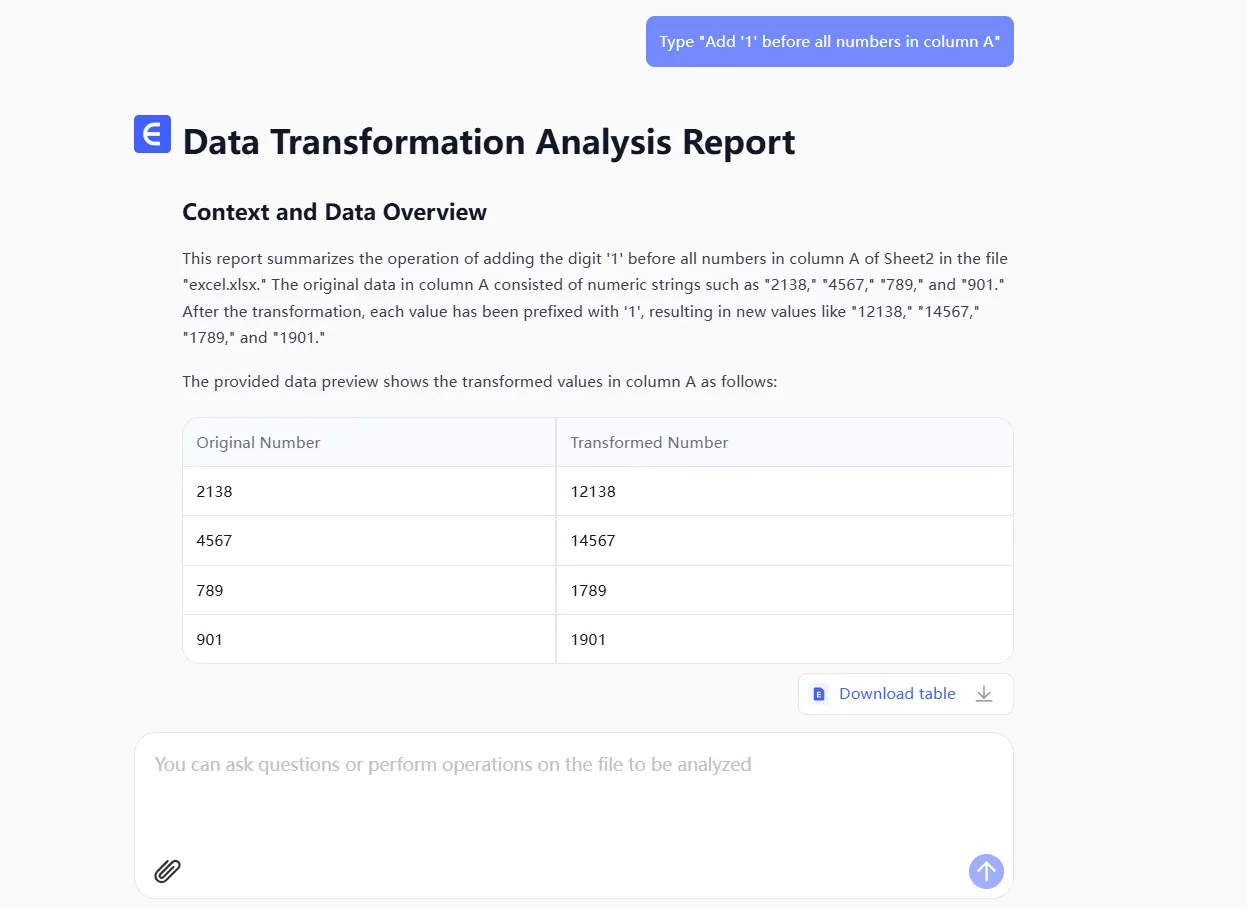
- Upload your Excel file
- Type "Add '1' before all numbers in column A"
- Let the AI generate perfect results instantly
Why Choose AI Over Manual Methods?
Manual Excel techniques work for one-off tasks, but they become inefficient when:
- Dealing with large or frequently updated datasets
- Needing to maintain calculation capabilities
- Working with team members who may not know these formulas
RowSpeak eliminates these pain points by combining Excel's functionality with AI intelligence—saving up to 90% of the time spent on data formatting tasks.
Final Recommendation
For occasional needs, Method 3 (custom formatting) offers the best balance. But for teams regularly handling data transformations, RowSpeak provides:
✅ One-click automation
✅ No formula memorization
✅ Consistent results across teams
Try RowSpeak free today and experience how AI can transform your Excel workflows—starting with simple tasks like this one, and scaling to complex data analysis.
Next Steps: Explore our guide on 5 Advanced Excel Tasks You Can Automate with AI to discover more time-saving techniques.