As a user growth manager at RowSpeak, I've seen countless professionals struggle with what should be simple time calculations in Excel. Whether you're scheduling meetings, tracking project timelines, or analyzing time-based data, knowing how to manipulate time values is essential.
While tools like RowSpeak can automate these calculations with AI-powered precision, understanding the fundamentals will make you more proficient in any spreadsheet environment. Let me walk you through five reliable methods to add 30 minutes to time values in Excel.
Understanding Excel's Time System
Before we dive into the methods, it's crucial to understand how Excel interprets time. Excel stores time as fractional values of a 24-hour day:
- 1.0 = 24 hours (a full day)
- 0.5 = 12 hours (noon)
- 0.25 = 6 hours (6:00 AM)
This means adding 30 minutes (which is 1/48 of a day) is simply a matter of adding 0.020833 to your time value. While you could do this manually, Excel provides several more intuitive approaches.
Method 1: Basic Addition Formula (The Simple Approach)
The most straightforward method uses Excel's TIME function:
- Enter your original time in cell A1
- In another cell, enter:
=A1 + TIME(0,30,0)- 0 = hours to add
- 30 = minutes to add
- 0 = seconds to add
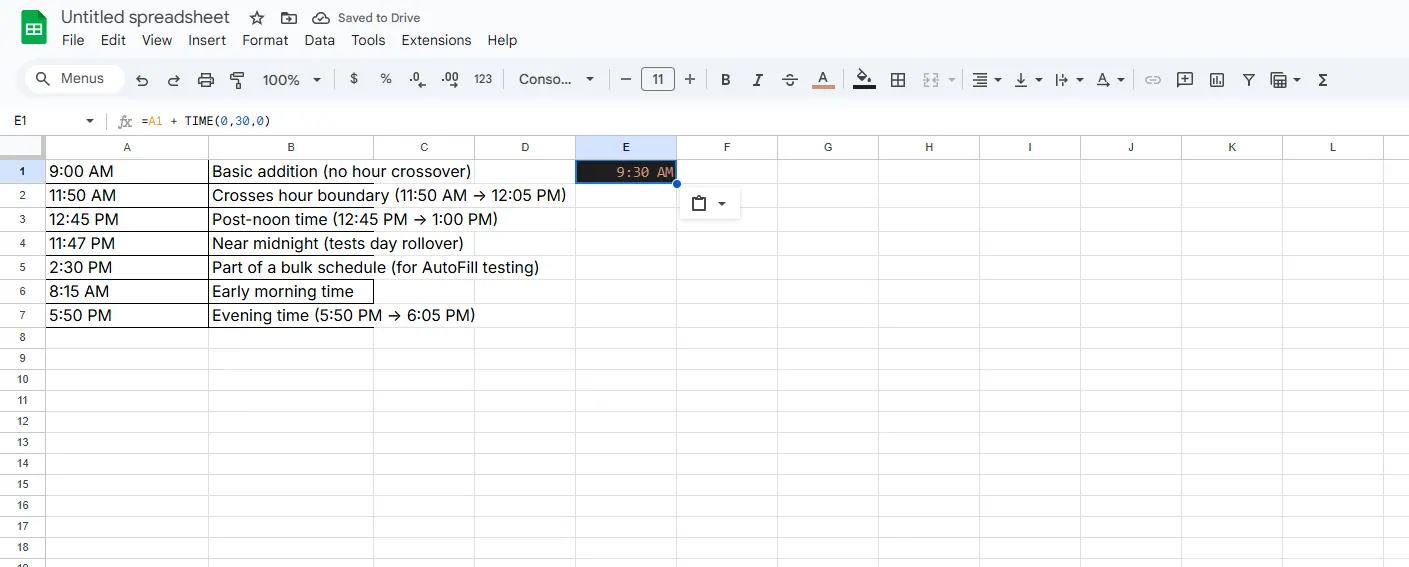
This method is perfect for quick, one-off calculations. For more complex time tracking across multiple projects, consider using RowSpeak's AI-powered time analysis features that can automate these calculations at scale.
Method 2: Custom Formatting for Professional Results
After adding time, you might want to display it in a specific format:
- Right-click your result cell
- Select "Format Cells"
- Choose "Custom" under the Number tab
- Enter your preferred format (e.g., "h:mm AM/PM")
Pro Tip: RowSpeak automatically applies optimal time formatting based on your data context, saving you this manual step.
Method 3: Fill Handle for Bulk Operations
When working with multiple time entries:
- Enter
=A1 + TIME(0,30,0)in cell B1 - Click and drag the fill handle (small square at cell's bottom-right corner) down your column
- Excel will automatically adjust the formula for each row
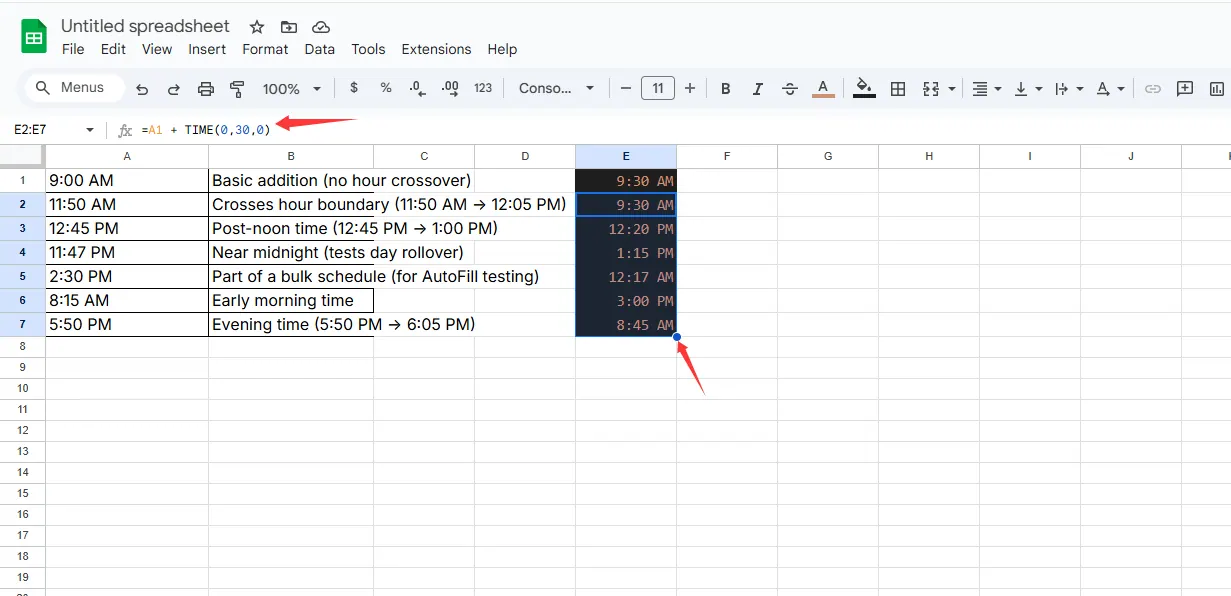
For large datasets, RowSpeak can process thousands of time calculations instantly with its batch processing capabilities.
Method 4: Advanced Function Combinations
Combine functions for more sophisticated time manipulation:
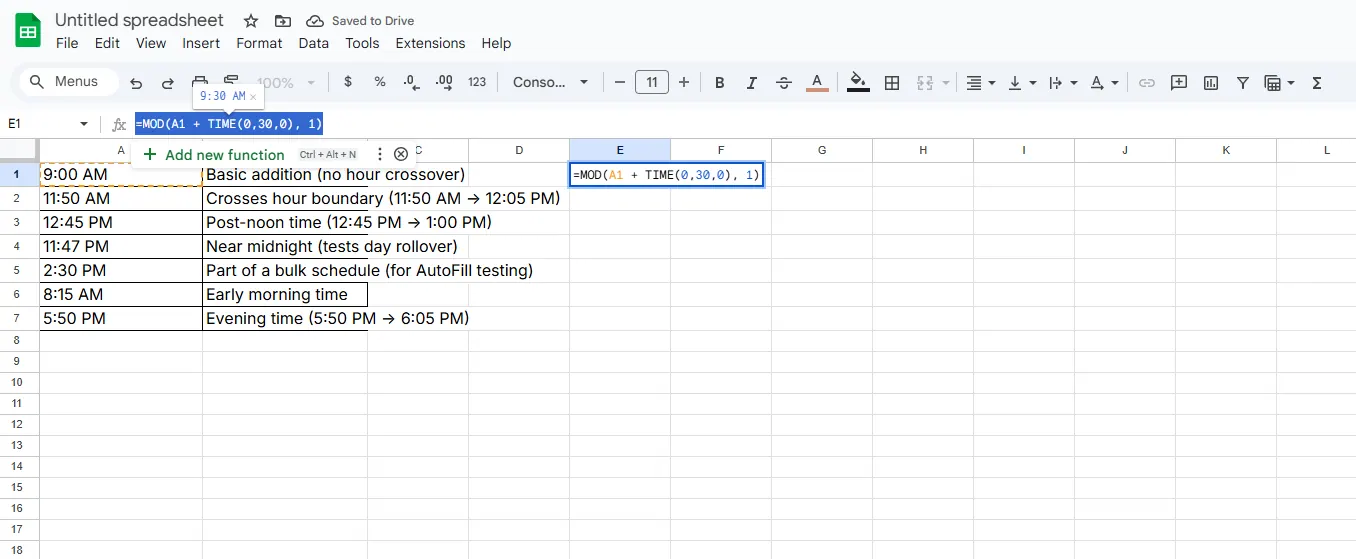
=TEXT(A1 + TIME(0,30,0), "h:mm AM/PM")converts the result to formatted text=MOD(A1 + TIME(0,30,0), 1)handles times crossing midnight (see next method)
Method 5: Handling Times Across Midnight
When adding time pushes your calculation past midnight:
- Use the MOD function:
=MOD(A1 + TIME(0,30,0), 1) - This ensures times "wrap around" correctly (e.g., 11:45 PM + 30 minutes = 12:15 AM)
When to Use RowSpeak Instead
While these manual methods work, they become time-consuming with complex datasets. RowSpeak simplifies time calculations by:
- Automatically detecting time columns
- Applying intelligent time arithmetic
- Generating visual timelines and schedules
- Providing natural language commands (e.g., "Add 30 minutes to all meeting times")
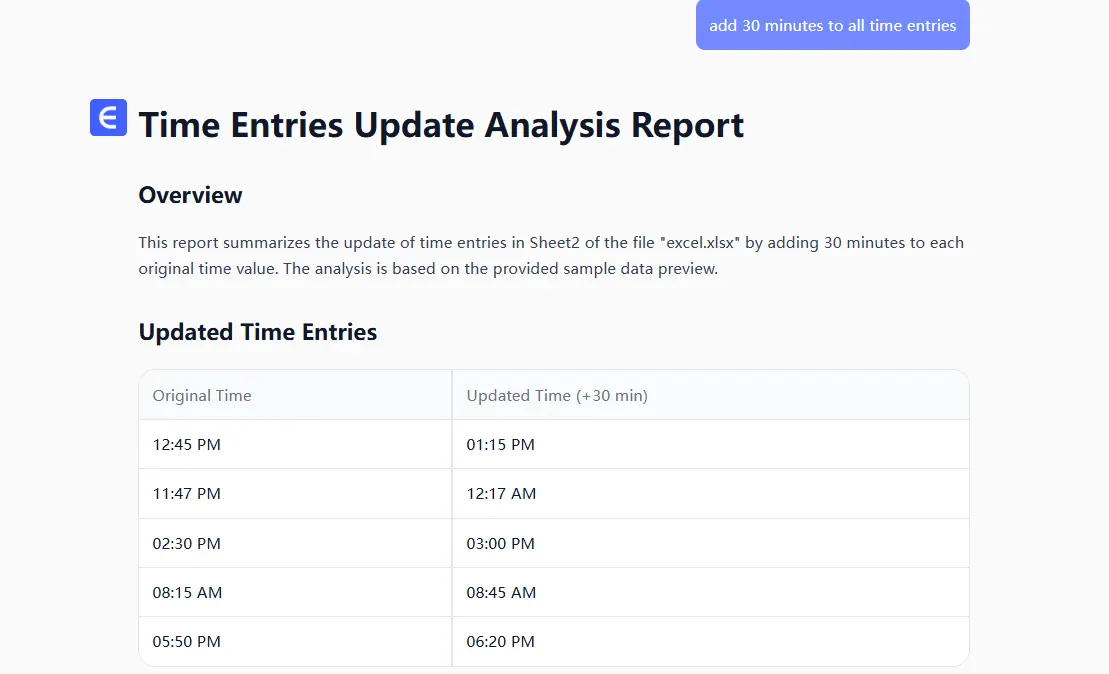
For professionals regularly working with time data, RowSpeak's AI-driven approach can save hours per week while reducing errors.
Final Thoughts
Mastering time calculations in Excel is a fundamental skill for any business professional. Whether you choose manual methods or leverage AI tools like RowSpeak, the ability to accurately manipulate time data will enhance your scheduling, reporting, and analysis capabilities.
Try applying these techniques to your next project, and when you're ready to take your time management to the next level, explore how RowSpeak can automate these processes with intelligent precision.