As a User Growth Manager at RowSpeak, I've seen firsthand how businesses waste countless hours on manual spreadsheet tasks. While Google Sheets remains a powerful tool for data organization, the real efficiency gains come when you pair it with AI capabilities—especially for repetitive tasks like defining data ranges.
The AI Advantage in Spreadsheet Management
Traditional methods of adding data ranges in Google Sheets involve:
- Manually selecting cell ranges
- Navigating through menus to name ranges
- Applying these ranges to formulas
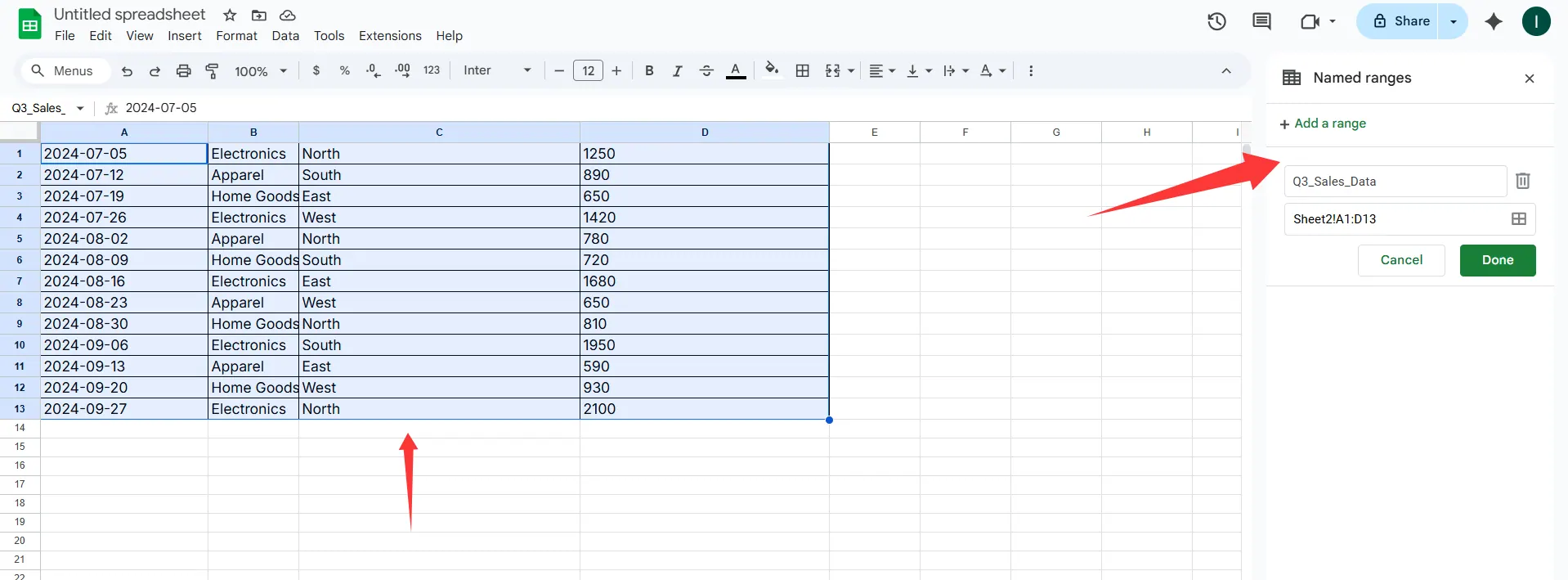
This process becomes exponentially more time-consuming with large datasets. That's where AI solutions like RowSpeak revolutionize spreadsheet management by:
- Automating range detection based on your data patterns
- Generating dynamic named ranges that update automatically
- Providing natural language commands for complex operations
Setting Up Your AI-Powered Workflow
Step 1: Prepare Your Google Sheets Environment
Before leveraging AI, ensure your spreadsheet is properly structured:
- Log into your Google account and open Sheets
- Organize your data with clear headers
- Remove any blank rows/columns that might confuse range detection
Step 2: Choose Your AI Assistant
While ChatGPT can provide basic guidance, specialized tools like RowSpeak offer deeper integration:
RowSpeak (Recommended): Our AI spreadsheet assistant connects directly to Google Sheets, allowing you to:
- Define ranges with natural language commands
- Automatically detect and name data ranges
- Create dynamic ranges that adjust as data changes
ChatGPT Alternative: Can provide verbal instructions but requires manual implementation
How AI Simplifies Data Range Creation
Automated Range Detection
RowSpeak's smart algorithms analyze your spreadsheet structure to:
- Identify logical data groupings
- Suggest optimal range boundaries
- Flag potential errors in range selection
Example: When analyzing sales data, RowSpeak can automatically detect and name ranges for:
- Monthly sales columns
- Product category rows
- Quarterly summary blocks
Natural Language Processing
Instead of manual selection, simply describe what you need:
- "Create a named range for all Q2 sales data"
- "Define a dynamic range that expands with new monthly entries"
- "Group all product SKUs starting with 'A-'"
RowSpeak interprets these commands and implements them instantly—no coding required.
Advanced Techniques for Power Users
Dynamic Range Formulas
Combine RowSpeak's AI with Google Sheets functions like:
=RowSpeak_Range("Expenses", "Automatically expand with new entries")
This creates a self-updating range that adjusts as you add new expense records.
Cross-Sheet Range Management
Easily reference ranges across multiple tabs:
- "Link the 'Inventory' range from Warehouse sheet to Dashboard"
- "Combine Q1 ranges from East/West region sheets"
Why Choose RowSpeak Over Basic AI Assistants?
While generic AI tools can explain spreadsheet concepts, RowSpeak delivers:
✅ Direct Google Sheets integration
✅ One-click range implementation
✅ Continuous learning of your data patterns
✅ Enterprise-grade security for sensitive data
Try RowSpeak Free for 14 days and experience AI-powered spreadsheet automation that saves 10+ hours per week on data management tasks.
Troubleshooting Common Range Issues
Even with AI assistance, you might encounter:
- #REF! errors: Usually means a deleted range reference
- Static ranges: Ensure you've enabled dynamic expansion
- Permission issues: Check sharing settings for collaborative sheets
RowSpeak's built-in error detection automatically flags these issues and suggests fixes.
The Future of Data Management
As datasets grow increasingly complex, manual range management becomes unsustainable. AI solutions like RowSpeak represent the next evolution in spreadsheet productivity—transforming what was once tedious work into an automated, intelligent process.
Ready to revolutionize your Google Sheets workflow? Get started with RowSpeak today and discover how AI can handle your data range needs—and hundreds of other spreadsheet tasks—with unprecedented speed and accuracy.