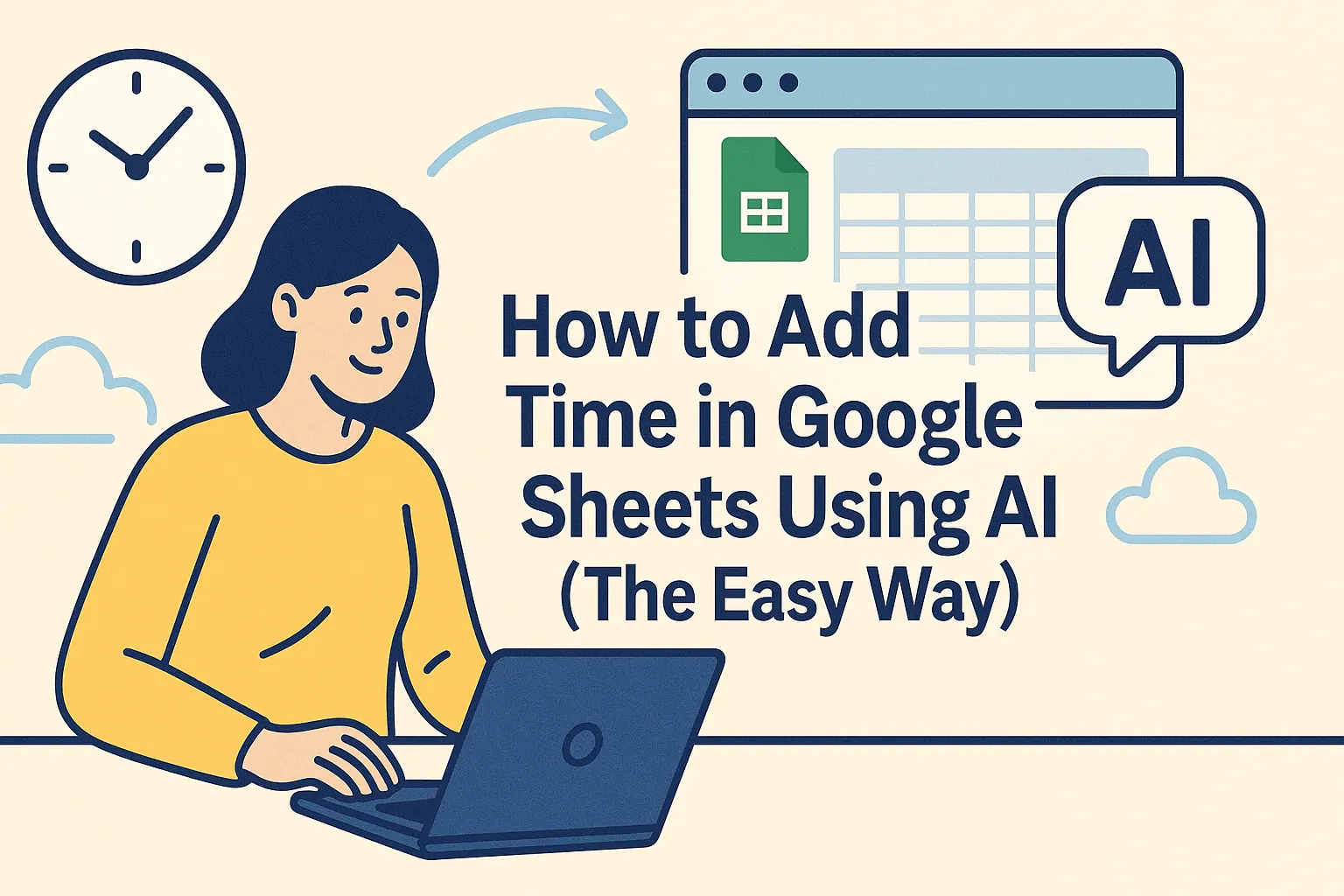
Let's be real - nobody became a spreadsheet wizard because they love typing "Monday, Tuesday, Wednesday..." for 50 rows. That's where AI comes in to save the day (and your sanity). As a growth manager at RowSpeak, I've seen firsthand how AI transforms tedious spreadsheet tasks into one-click wonders.
Why Bother With AI for Series Creation?
Manual series entry is the spreadsheet equivalent of watching paint dry. AI changes the game by:
- Spotting patterns instantly
- Predicting next values accurately
- Handling complex sequences (dates, formulas, custom lists)
RowSpeak takes this further with smart pattern recognition that learns from your data habits. While Google Sheets' built-in Explore feature is helpful, dedicated AI tools like RowSpeak offer deeper automation.
Getting Started: The Basic AI Method
Here's how to use AI for series creation in Google Sheets:
- Plant the pattern seeds: Enter 2-3 starting values (e.g., Jan, Feb or 100, 200)
- Summon the AI: Click "Explore" (bottom-right) or use RowSpeak's Chrome extension
- Watch the magic: AI suggests completions - click to apply
Pro tip: RowSpeak's AI asks clarifying questions when patterns aren't obvious, reducing errors.
Next-Level Automation With RowSpeak
While Google's AI handles basics well, professionals need more. Here's what RowSpeak brings to the table:
Smart Series Features:
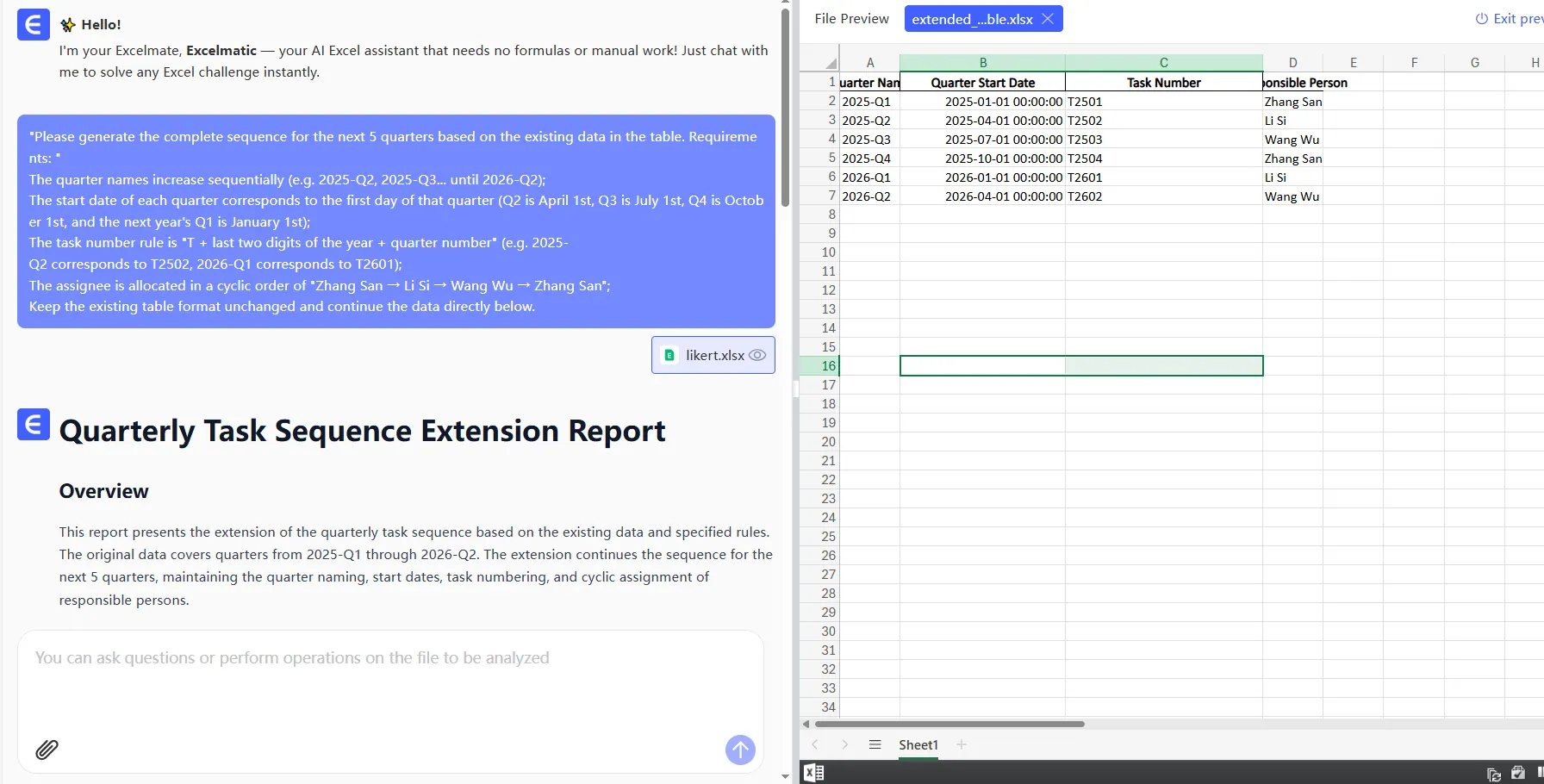
- Handles custom date formats (Q1 2023, Q2 2023...)
- Creates formula-based sequences
- Generates placeholder text (Client 1, Client 2...)
- Recognizes industry-specific patterns (SKU codes, invoice numbers)
Real-World Example: Our marketing team uses RowSpeak to auto-generate campaign code series like:
- SPR23-001
- SPR23-002
- SPR23-003
What used to take 15 minutes now happens before your coffee cools.
Common Pitfalls (And How RowSpeak Helps)
AI isn't perfect - yet. Watch out for:
Overconfidence in simple patterns: AI might continue 5,10,15 as 20,25 when you wanted 5,10,15,20,25,30...
- RowSpeak fix: Shows multiple pattern options
Locale confusion: Date formats vary globally
- RowSpeak fix: Adapts to your regional settings
Formula misinterpretation: Complex calculations can trip up basic AI
- RowSpeak fix: Offers to explain its logic before applying
When to Use AI (And When Not To)
Perfect for:
- Standard date/number sequences
- Repeating text patterns
- Large datasets (100+ rows)
Still better manually:
- Highly custom sequences
- Sensitive financial projections
- One-off small lists
The Future Is Automated
As AI evolves, so do possibilities. RowSpeak's roadmap includes:
- Natural language series creation ("Make a quarterly series starting April 2023")
- Cross-sheet pattern recognition
- Smart error detection in existing series
Your Move
Ready to stop wasting time on manual entries? RowSpeak offers:
- Free Chrome extension for Google Sheets
- Live pattern previews
- Team collaboration features
The best part? It learns your work style. The more you use it, the smarter it gets. That's the kind of coworker we all want.
Try RowSpeak free today - your future self will thank you when those 500-row series populate themselves.