How to Add Time in Google Sheets Using AI (The Easy Way)

Let’s be real—manually calculating hours in spreadsheets is about as fun as watching paint dry. But what if your Google Sheet could automatically track time, predict deadlines, and even optimize your schedule? With AI tools like RowSpeak, this isn’t just possible—it’s effortless.

Here’s how to turn your static spreadsheet into a self-updating time-tracking machine.

Step 1: Set Up Your Google Sheet for AI Magic

Before AI can work its wonders, your data needs to be AI-ready:

  1. Label clearly: Use columns like Task, Start Time, End Time, and Duration.
  2. Format as time: Highlight cells → Format > Number > Time.
  3. Add sample data: Populate a few rows (e.g., "9:00 AM" to "5:00 PM").

Pro tip: RowSpeak’s AI can auto-detect time formats, so even messy entries get cleaned up.

Step 2: Ditch Manual Formulas—Let AI Do the Math

Google Sheets has basic time functions (NOW(), TODAY()), but AI tools like RowSpeak go further:

  • Auto-calculate durations: No more subtracting end-start times manually.
  • Detect errors: Flag mismatched entries (like a 25-hour workday—yikes).
  • Convert timezones: Perfect for remote teams.

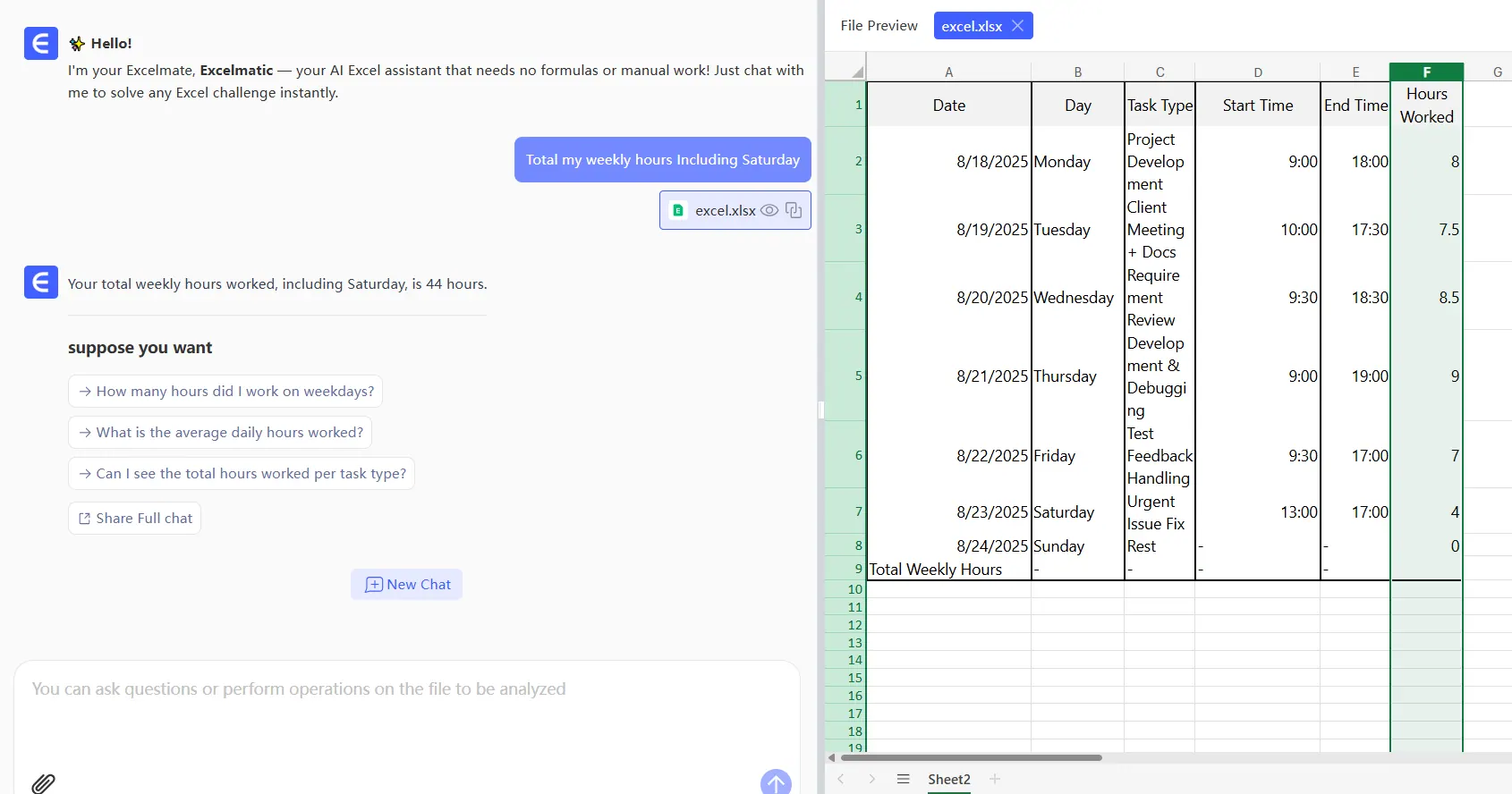
Example: Just type "Calculate total hours for Q3 projects" in RowSpeak, and it generates accurate totals instantly.

Step 3: Supercharge with AI Predictions

Why stop at tracking? AI can forecast time needs:

  1. Past data = future insights: Upload historical logs (e.g., past project hours).
  2. Get predictions: RowSpeak analyzes patterns to estimate future task durations.
  3. Optimize schedules: AI suggests ideal time blocks for deep work or meetings.

Imagine your Sheet nudging you: "Design sprint will likely take 12 hrs based on last 3 sprints." Game-changer.

Step 4: Automated Reports (Because Nobody Likes Manual Updates)

Skip the copy-pasting:

  • Connect RowSpeak: Syncs with Sheets to auto-generate weekly time reports.
  • Customize dashboards: Visualize time spent per project, client, or activity.
  • Share live insights: Stakeholders see real-time updates without asking you.

Pitfalls to Avoid

AI isn’t perfect—yet. Watch for:

  • Garbage in, garbage out: Inconsistent data = wonky predictions.
  • Over-automation: Review AI suggestions before accepting (e.g., a 2-minute coffee break might not boost productivity).

Why RowSpeak Beats Other AI Tools

While Google’s built-in AI or Zapier can help, RowSpeak is built for spreadsheet users:

✅ No coding—natural language commands ("Total my weekly hours")
✅ One-click AI charts and dashboards
✅ Fixes time-entry errors automatically
auto

Try it free: RowSpeak turns your Google Sheet into a self-driving time tracker.


Time-Saving Bonus: AI Shortcuts

  • "Log meeting hours from Calendar": RowSpeak imports events → calculates duration.
  • "Alert me if overtime exceeds 10 hrs/week": Set smart thresholds.

Stop calculating—start automating. Your future self (and your team) will thank you. 🚀
Ditch Complex Formulas – Get Insights Instantly

No VBA or function memorization needed. Tell RowSpeak what you need in plain English, and let AI handle data processing, analysis, and chart creation

Try RowSpeak Free Now

Recommended Posts

How to Add a Total Column in Google Sheets (The Easy Way)
Excel Operation

How to Add a Total Column in Google Sheets (The Easy Way)

Tired of manual calculations? This guide shows you multiple ways to add totals in Google Sheets - from basic SUM functions to advanced array formulas. And if you want to skip the formulas altogether, we've got a smarter solution.

Gianna
How to Add X-Axis Labels in Google Sheets (The Easy Way)
Excel Operation

How to Add X-Axis Labels in Google Sheets (The Easy Way)

Struggling to make sense of your Google Sheets charts? Adding proper X-axis labels transforms messy data into compelling stories. Here's exactly how to do it.

Gianna
How to Alphabetize in Google Sheets by Last Name Using AI (The Easy Way)
Excel Operation

How to Alphabetize in Google Sheets by Last Name Using AI (The Easy Way)

Sorting names manually is a headache. Learn how AI transforms this chore into a one-click solution—starting with RowSpeak's smart data handling.

Gianna
How to Add a Secondary Axis in Google Sheets (The Easy Way)
Excel Operation

How to Add a Secondary Axis in Google Sheets (The Easy Way)

Struggling to compare different data scales in your charts? This step-by-step guide shows you how to add a secondary axis in Google Sheets - and how RowSpeak can do it automatically with AI.

Gianna
How to Add and Subtract Multiple Cells in Google Sheets (The Easy Way)
Excel Operation

How to Add and Subtract Multiple Cells in Google Sheets (The Easy Way)

Tired of manual calculations? This guide shows you quick formulas for adding and subtracting in Google Sheets, and how RowSpeak can do it all automatically.

Gianna
How to Add a Percentage to a Number in Google Sheets (The Smart Way)
Excel Operation

How to Add a Percentage to a Number in Google Sheets (The Smart Way)

Tired of manual percentage calculations? Discover Google Sheets formulas and how RowSpeak's AI-powered spreadsheets can do the math for you automatically.

Gianna
How to Add Spaces in Concatenated Text in Google Sheets (The Easy Way)
Excel Operation

How to Add Spaces in Concatenated Text in Google Sheets (The Easy Way)

Tired of getting 'JohnDoe' when you want 'John Doe'? Discover how to properly space your concatenated text in Google Sheets with these pro tips.

Gianna
How to Add a Series in Google Sheets Using AI (The Smart Way)
Excel Operation

How to Add a Series in Google Sheets Using AI (The Smart Way)

Tired of manually filling series in Google Sheets? AI can do it for you in seconds. Here's how to leverage AI for smarter spreadsheet work, plus why RowSpeak is revolutionizing data automation.

Gianna