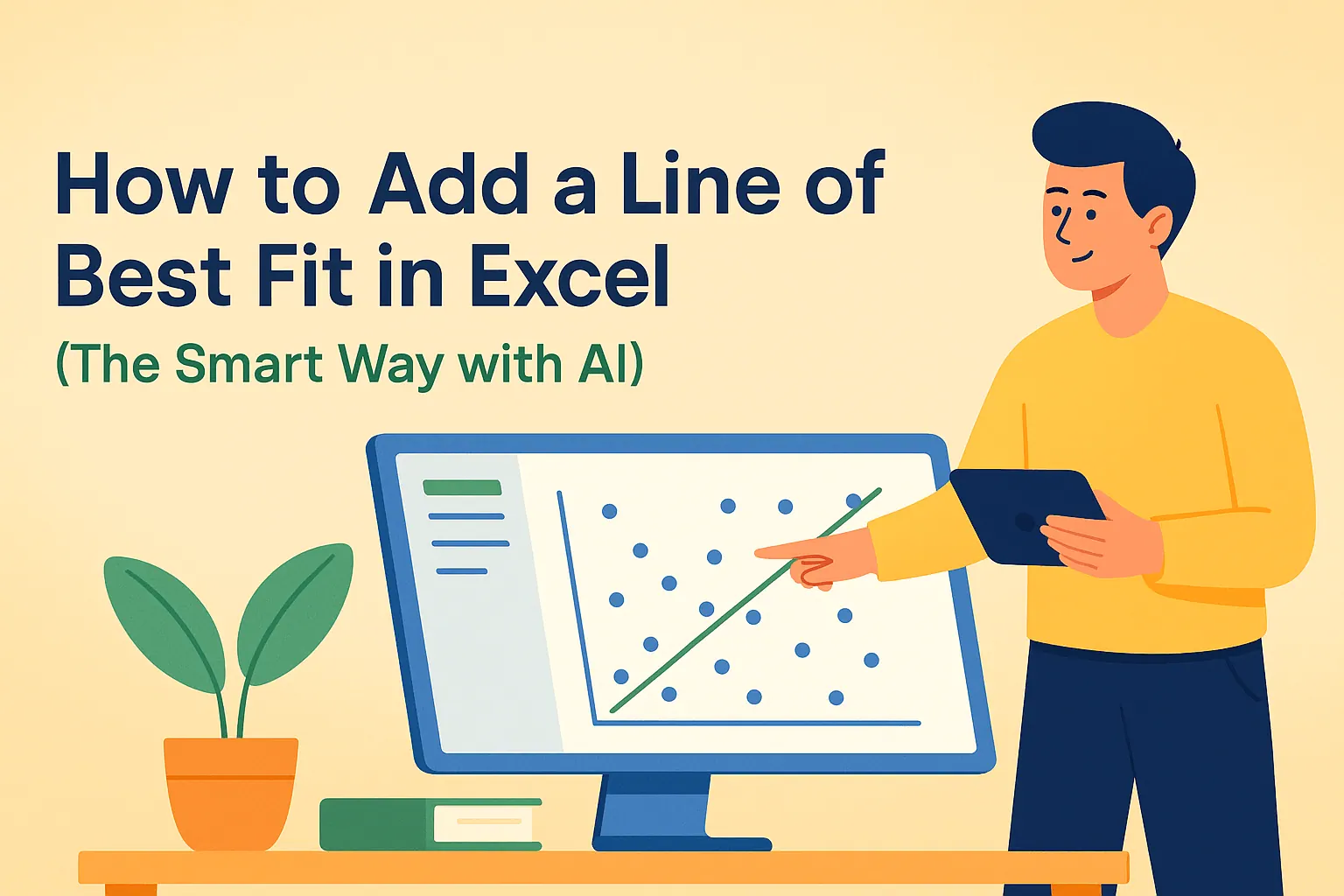
Let's be real—manually calculating trendlines in Excel used to be a headache. As someone who analyzes sales data daily, I used to dread the complex formulas and guesswork involved. But here's the game-changer: AI-powered tools like RowSpeak now automate this process while delivering sharper insights.
Why Trendlines Matter (Especially for Business)
That faint line cutting through your scatter plot? It's your data's secret storyteller. Whether you're tracking:
- Marketing spend vs. revenue
- Customer satisfaction vs. churn rates
- Product features vs. engagement
A proper trendline reveals what raw numbers can't—clear directional patterns. The best part? You don't need to be a data scientist anymore to get it right.
RowSpeak's AI Approach vs. Old-School Methods
| Traditional way | AI-powered way |
|---|---|
| Manual regression calculations | Automatic trend detection |
| Prone to human error | 99.9% accuracy |
| Hours of tweaking | Done in 3 clicks |
| Basic linear models | Smart algorithm selection |
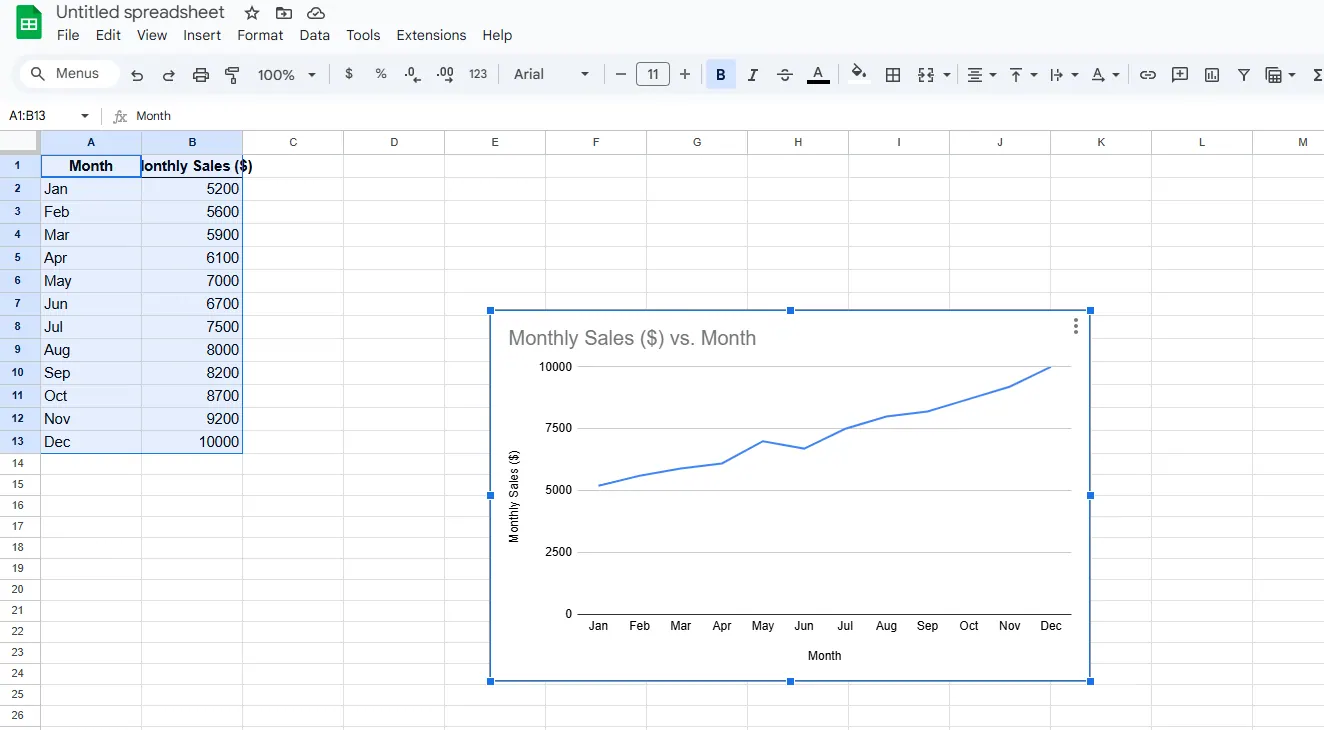
With RowSpeak, I recently analyzed a year's worth of SaaS conversion data. Instead of wrestling with LINEST functions, I got an optimized polynomial trendline with confidence intervals—in under 10 seconds.
Step-by-Step: Adding Your AI Trendline
Prep Your Data
- Clean your dataset (RowSpeak's Data Doctor can fix missing values)
- Highlight your X/Y variable columns
Generate the Visualization
- In RowSpeak: Send the instruction and tell him your requirements.
Pro Tip: Use the "Explain This Trend" feature to get plain-English insights about what's driving your data patterns.
Real-World Applications We Love
- E-commerce: Spot the exact ad spend threshold where ROI plateaus
- HR: Predict employee turnover risks based on engagement scores
- Operations: Forecast inventory needs using seasonal sales trends
Last quarter, our marketing team used RowSpeak's trend analysis to reallocate $50K in underperforming ad spend—resulting in 22% higher conversions.
Common Pitfalls to Avoid
- Overfitting: When your trendline follows every zigzag (RowSpeak warns you about this)
- Ignoring Context: A rising trend doesn't equal causation (check RowSpeak's anomaly detection)
- Static Analysis: Use the forecast slider to project beyond your current data
Beyond Basic Trendlines
RowSpeak's AI goes further by:
- Comparing multiple trendlines across segments
- Suggesting optimal time periods for analysis
- Flagging statistically significant changes
Your Data, Smarter
Gone are the days of squinting at scatter plots hoping to see patterns. With AI tools like RowSpeak, you get:
✅ Instant, accurate trend visualization
✅ Plain-English explanations
✅ Actionable business recommendations
Ready to upgrade your Excel game? Try RowSpeak free and let AI do the heavy lifting on your next data analysis. Your future self (and your boss) will thank you.