Professional Inventory & Invoicing Management Dashboard Template
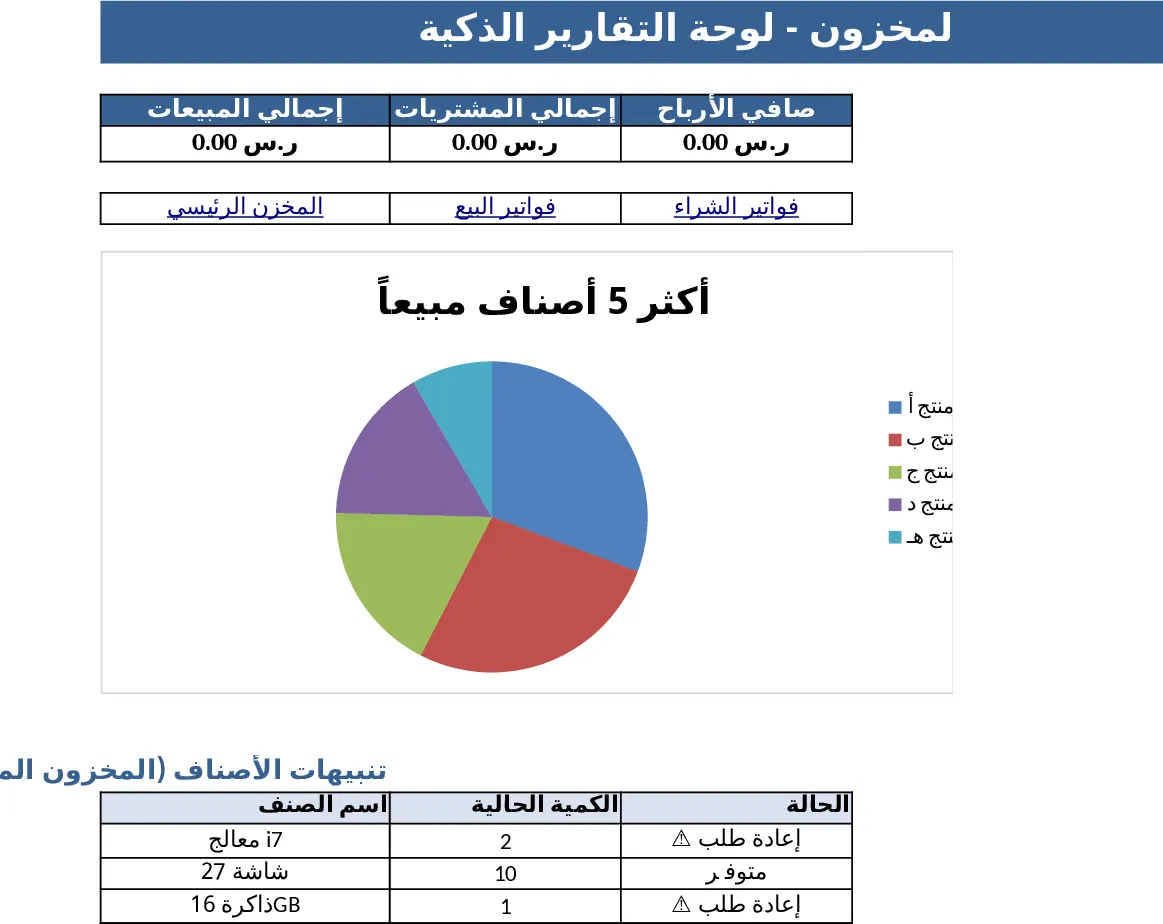
This Excel template is organized into six interconnected sheets: a Dashboard that visualizes top‑selling items, stock levels and key financial ratios; a Main Inventory sheet where you record each product’s code, name, quantity, average price, location and notes; a Sales Invoice sheet that auto‑fills the date, lets you select a customer, add line items from the inventory list and choose currency (USD or IQD); a Sales Log that captures every completed sales invoice with item, quantity, price, date, customer and invoice number; a Purchase Invoice sheet mirroring the sales form for supplier purchases; and a Purchase Log that stores all purchase records in the same format. Dropdowns pull historic prices for each item, ensuring consistent pricing and quick entry.
The workbook solves the common headache of juggling separate spreadsheets for stock, sales and purchases. By linking all sheets, stock quantities update automatically when you record a sale or a purchase, eliminating manual reconciliation. The dashboard provides instant insight into best‑selling products and inventory turnover, helping you make informed buying decisions. It’s ideal for small‑to‑medium retailers, warehouse managers, accountants, or anyone who needs a low‑cost, professional‑grade accounting and inventory system without installing dedicated software.
Anyone who runs a shop, a distribution center, or a service business that tracks physical goods will find this template useful. It helps you keep a single source of truth for product data, generate accurate invoices, monitor cash flow, and produce ready‑to‑share reports for management or tax purposes. The built‑in dropdowns, auto‑date fields and simple search functions make data entry fast and error‑free, while the logs give you a complete audit trail.
How to use
- Open the Main Inventory sheet and enter each item’s code, name, opening quantity, and any existing price history; the average price will calculate automatically.
- To record a sale, go to the Sales Invoice sheet, select the customer, adjust the date if needed, then add line items by choosing the item name from the dropdown – the price list will appear, and the total will update in real time.
- Click Save (or copy the row) to transfer the completed invoice to the Sales Log; the dashboard will refresh with the new totals and stock levels.
- Repeat the same steps in the Purchase Invoice sheet for supplier purchases; the Purchase Log will capture the data and adjust inventory accordingly.
Expected benefits include faster invoice creation, reduced manual stock counts, clearer visibility into sales trends, and less time spent consolidating data across multiple files.
Similar Templates Recommendation
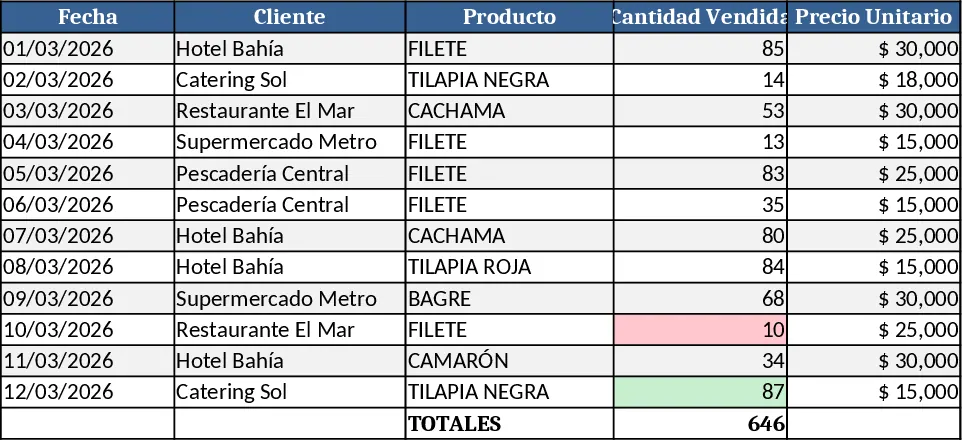
Professional Product Sales Tracker Template
Professional Excel template to log, calculate and visualize sales of fish products, with auto totals, dynamic charts and visual highlights.
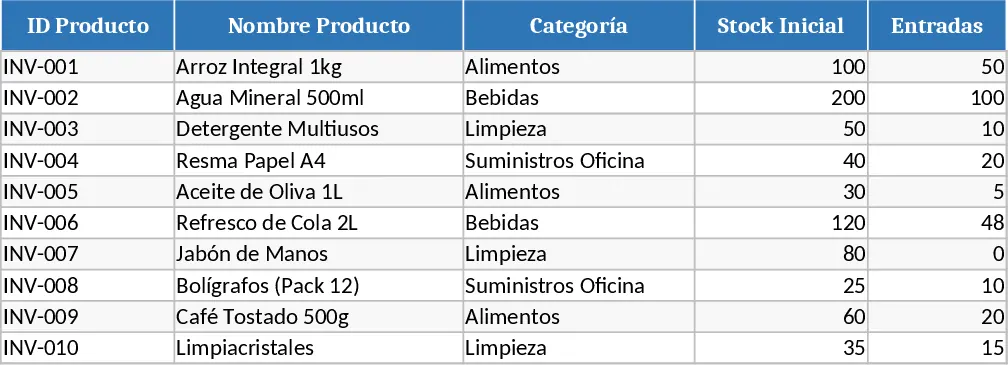
Inventory Management and Automated Sales Tracker Template
Track inventory levels, record incoming and outgoing stock, and generate automated sales reports in one Excel workbook.
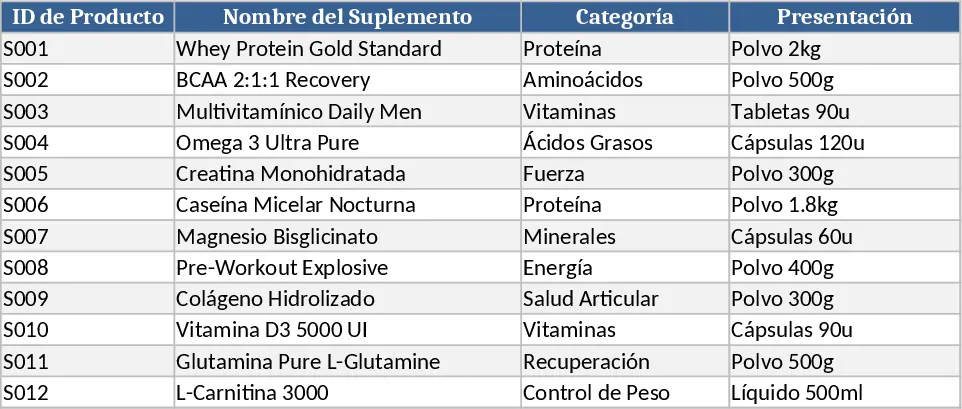
Supplement Sales & Inventory Tracker Template
Track supplement inventory, set prices, and record daily sales with a ready‑to‑use Excel template that generates summary reports.